A Developer’s Introduction to the Twenty Seventeen Theme
- Category : WordPress
- Posted on : Nov 02, 2018
- Views : 2,989
- By : Yakov R.
With the release of WordPress 4.7, also came the new Twenty Seventeen theme. More than all its predecessors, the new default theme is highly customizable for both users and developers, it’s easy to use, and perfectly suitable for both personal and professional purposes. Moreover, it is great when it comes to site performance, as Brian explains in How to Score 100/100 in Google PageSpeed Insights with WordPress.
The Twenty Seventeen theme provides the perfect dress for new amazing WordPress features like the customizable video header. Moreover, it provides theme specific features like front-page sections, SVG icons support, visible edit icons in the Customizer.
- customize the front page header
- set custom video header controls
- add more sections to the front page
- add custom SVG icons to the Social Icons menu
- animate the front page scrolling and build a one-page website
A Child Theme to Enhance Twenty Seventeen Theme Functionalities
I will assume you are familiar with child theming in WordPress. If you’d need a refresher, take the time to have a read at our WordPress Child Theme – Getting Started Guide. When you’re done, create a new folder in /wp-content/themes/directory with a unique and recognizable name like twentyseventeen-child. In this folder, create the following style.css:
/*
 Theme Name:   Twenty Seventeen Child
 Theme URI:    http://example.com/
 Description:  Twenty Seventeen Child Theme
 Author:       Your Name
 Author URI:   http://example.com
 Template:     twentyseventeen
 Version:      1.0.0
 License:      GNU General Public License v2 or later
 License URI:  http://www.gnu.org/licenses/gpl-2.0.html
 Tags:         light, dark, two-columns, right-sidebar, responsive-layout, accessibility-ready
 Text Domain:  twentyseventeen-child
*/
The stylesheet header provides the required details about the theme in the form of comments. No additional tags are required, nor we’ll add custom style declarations in our examples. Following, we have to enqueue both the parent’s and the child’s stylesheets. Let’s add the following function into the child theme’s functions.php file:
function childtheme_enqueue_styles() {
  wp_enqueue_style( 'parent-style',
    get_template_directory_uri() . '/style.css' );

  wp_enqueue_style( 'child-style',
    get_stylesheet_directory_uri() . '/style.css',
    array( 'parent-style' ),
    wp_get_theme()->get('Version')
  );
}
add_action( 'wp_enqueue_scripts', 'childtheme_enqueue_styles' );
Let’s activate the child theme and start customizing Twenty Seventeen.
Customizing the Front Page Header
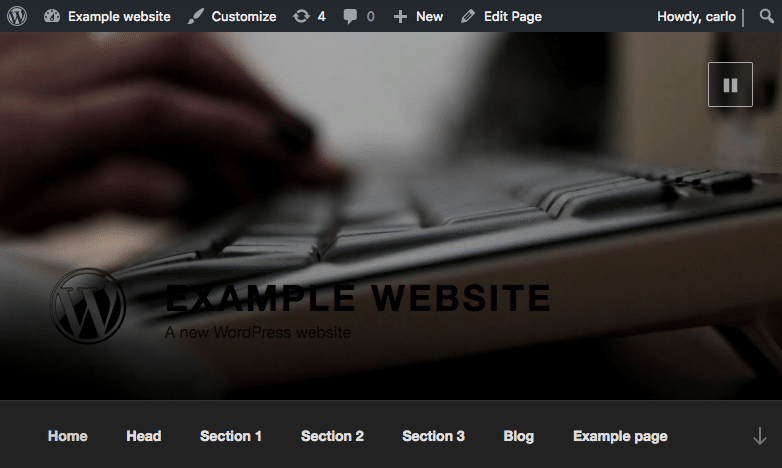
One of the most appealing features of the Twenty Seventeen theme is the full-screen header on the front page. In the Customizer Header Media section you can set one or more background images, or a background video.
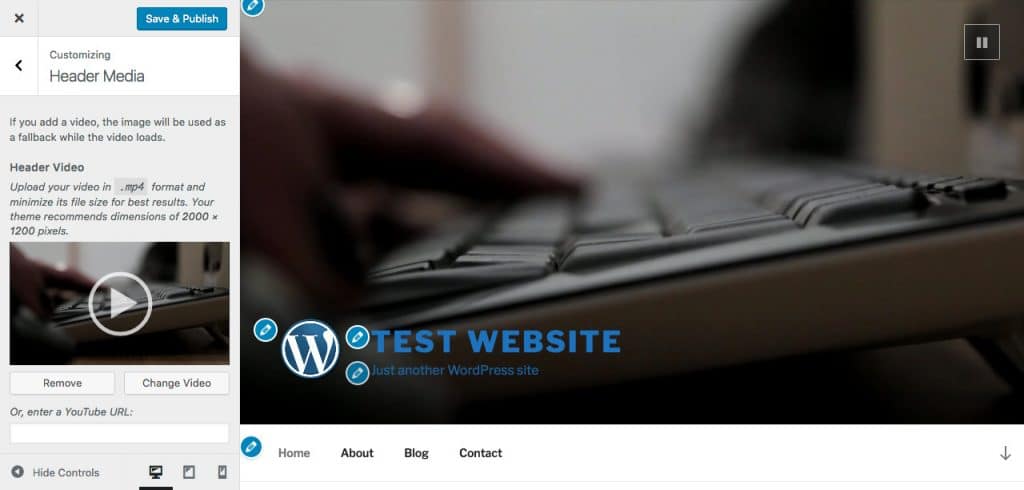
Twenty Seventeen allows customizing the header from the functions.php file of a child theme, thanks to the twentyseventeen_custom_header_args filter. Through this filter we can pass to a callback function an array of the following args:
- ‘default-image‘ (string) background image URL;
- ‘default_text_color‘ (string) color of the header text;
- ‘width‘ (integer) header width (defaults to 2000);
- ‘height‘ (integer) header height (defaults to 1200);
- ‘flex-height‘ (bool) flex support for header height (defaults to true);
- ‘video‘ (bool) video support (defaults to true);
- ‘wp-head-callback‘ (string) Callback function used to style the header image and text in the blog (default value is twentyseventeen_header_style)
As an example, let’s add the following code to the functions file:
function my_custom_header_args( $args ) {
  $args['default-image'] = get_theme_file_uri( '/assets/images/header.jpg' );
  return $args;
}
add_filter( 'twentyseventeen_custom_header_args', 'my_custom_header_args' );
The get_theme_file_uri function has been introduced in WordPress 4.7, and helps us a lot in child theme development. The function first search the child theme for the specified file, then falls back to the parent theme if no file has been found.
Note: to use get_theme_file_uri and its companion function get_theme_file_path the child theme should respect the parent’s file structure.
Setting Custom Header Video Controls
The header video is a WordPress core feature which is modified by Twenty Seventeen thanks to the WordPress header_video_settings filter. We can modify these settings again, returning a customized list of settings through the same filter. Let’s add the following code into the child theme’s functions.php:
function childtheme_setup() {
  remove_filter( 'header_video_settings', 'twentyseventeen_video_controls' );
}
add_action( 'after_setup_theme', 'childtheme_setup' );
function childtheme_video_controls( $settings ) {
  $settings['l10n']['play'] = __( 'Play', 'twentyseventeen-child' );
  $settings['l10n']['pause'] = __( 'Pause', 'twentyseventeen-child' );
  return $settings;
}
add_filter( 'header_video_settings', 'childtheme_video_controls' );
First, we have removed the twentyseventeen_video_controls function attached to header_video_settings filter. Then, we have added our custom video controls. In this example, we’ve just used two words, but you get the point: you can use this filter to replace default icons with your custom graphics.
Adding More Sections to the Front Page
Twenty Seventeen provides a static front page divided into sections. Each section takes its content from a static page and is surmounted by a full-screen image (the featured image of each page).
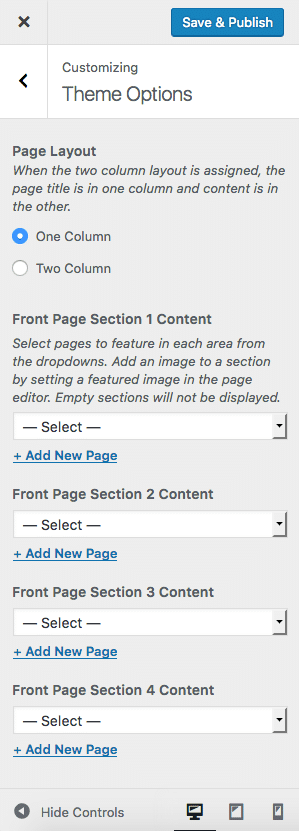
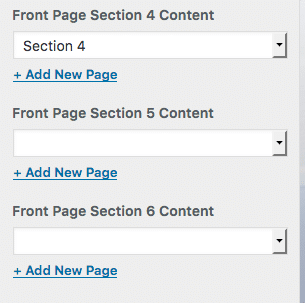
By default, Twenty Seventeen admits up to four sections, but we can add an arbitrary number of sections thanks to the twentyseventeen_front_page_sectionsfilter. As an example, let’s add the following line in the child theme’s functions.phpfile:
add_filter( 'twentyseventeen_front_page_sections', function(){ return 6; } );The image below displays the new Customizer Theme Options panel.
Adding more SVGs
The support of SVG graphics is one of the most interesting features of Twenty Seventeen. The theme provides a good number of SVG icons, grouped in /assets/images/svg-icons.svg sprite file. We can appreciate SVGs in the Social Links menu in the page footer. We can replace these icons or add our custom social icons thanks to the get_theme_file_path core function and the twentyseventeen_social_links_icons filter.
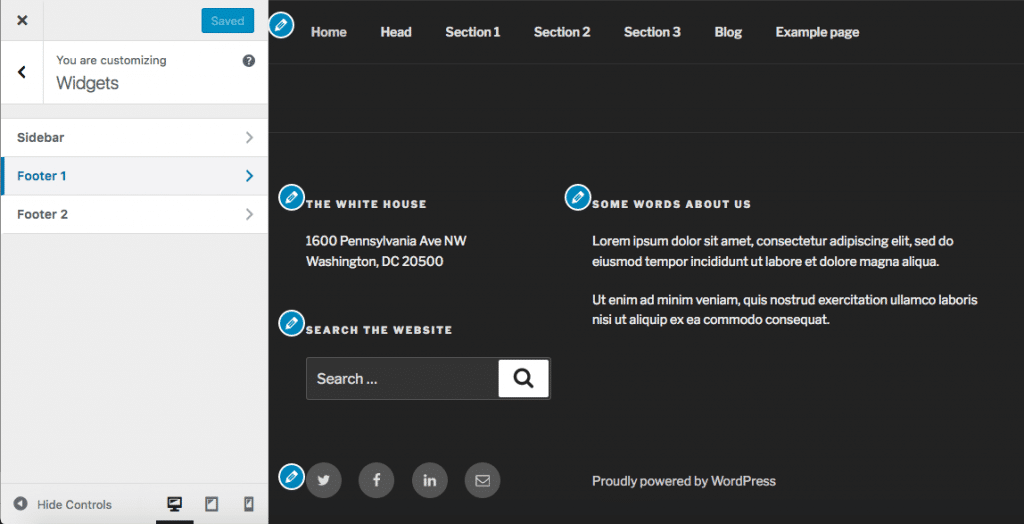
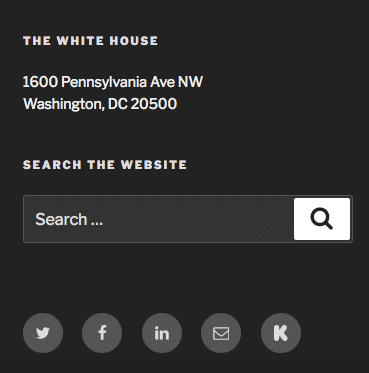
Suppose you’d like to add a link to your amazing Kickstarter project page, but Twenty Seventeen does not provide the corresponding SVG icon.
First you need a custom SVG sprite file like the following:
<svg style="position: absolute; width: 0; height: 0; overflow: hidden;" version="1.1" xmlns="http://www.w3.org/2000/svg" xmlns:xlink="http://www.w3.org/1999/xlink">
<defs>
<symbol id="icon-kickstarter" viewBox="0 0 16 16">
<path d="M6.406 5.453L9.34 1.2C9.895.4 10.61 0 11.49 0c.715 0 1.335.254 1.86.762.522.51.784 1.117.784 1.826 0 .523-.138.986-.416 1.386L11.073 7.82l3.235 4.102c.323.408.485.886.485 1.433 0 .724-.254 1.345-.763 1.865-.508.52-1.124.78-1.848.78-.793 0-1.398-.258-1.814-.774l-3.962-4.944v2.726c0 .778-.135 1.383-.405 1.814C5.51 15.607 4.8 16 3.86 16c-.855 0-1.518-.29-1.987-.866-.44-.532-.66-1.237-.66-2.114V2.91c0-.83.224-1.516.67-2.055C2.348.285 2.995 0 3.82 0c.786 0 1.44.285 1.964.855.292.316.477.635.554.96.047.2.07.572.07 1.12v2.518z"/>
</symbol>
</defs>
</svg>
The symbol element’s id attribute identifies the social icon and its value will be used later in our code.
Now we have to include the new SVG sprite into the page from the child theme’s functions file:
function childtheme_include_svg_icons() {
  // Define SVG sprite file.
  $custom_svg_icons = get_theme_file_path( '/assets/images/svg-custom-icons.svg' );

  // If it exists, include it.
  if ( file_exists( $custom_svg_icons ) ) {
    require_once( $custom_svg_icons );
  }
}
add_action( 'wp_footer', 'childtheme_include_svg_icons', 99999 );
This function is much like the corresponding twentyseventeen_include_svg_iconsfunction defined in Twenty Seventeen’s functions.php file. The main difference is that in our custom function we are using get_theme_file_path to get the child theme’s SVG file.
Finally, we can append our Kickstarter icon to the array of supported social link icons:
function childtheme_social_links_icons( $social_links_icons ) {
  $social_links_icons['kickstarter.com'] = 'kickstarter';
  return $social_links_icons;
}
add_filter( 'twentyseventeen_social_links_icons', 'childtheme_social_links_icons' );
Add the Kickstarter item to the Social Links menu and jump to the page footer to appreciate the result of our work.
Building a Scrollable One-page Website
Even if the Twenty Seventeen theme provides a multiple section front page, animated scrolling is not a feature. The theme uses the jQuery ScrollTo plugin to create an animated scrolling effect. Unfortunately, the animation is activated only when the user clicks on the navigation down arrow, and is not available for menu items. But we’re developers and we can give Twenty Seventeen more powers. So, in this last example, we will extend the animated scrolling functionality so that the site admin can build an animated one page website.
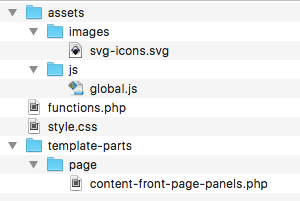
In the Twenty Seventeen theme the animation effect is controlled by the global.jsfile, placed in /assets/js/ folder. So, our first task is to copy and paste global.js from its original location to the child theme’s corresponding folder.
Now we can start coding. To accomplish this fnal task, we will
- force WordPress to load the child theme’s global.js file instead of the original parent’s file,
- add a specific CSS class to menu links,
- add an ID to each section in the front page,
- modify the global.js file to get the animation effect.
1. Forcing WordPress to Load the Child Theme’s global.js File
Let’s modify the childtheme_enqueue_styles function defined in our first example as follows:
function childtheme_enqueue_styles() {
  wp_enqueue_style( 'parent-style', get_template_directory_uri() . '/style.css' );

  wp_enqueue_style( 'child-style',
    get_stylesheet_directory_uri() . '/style.css',
    array( 'parent-style' ),
    wp_get_theme()->get('Version')
  );

  if( is_front_page() ){
    wp_enqueue_script( 'twentyseventeen-global', get_theme_file_uri( '/assets/js/global.js' ), array( 'jquery' ), '1.0', true );
  }
}
add_action( 'wp_enqueue_scripts', 'childtheme_enqueue_styles' );
If the current page is the front page, WordPress enqueues the child theme’s global.jsfile. If it does not exist, WordPress loads the parent’s global.js.
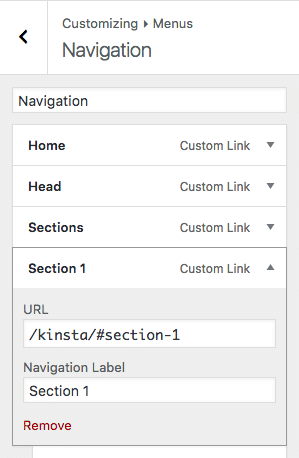
2. Adding a CSS Class to Menu Links
In order to add a CSS class to the menu a elements, we can use the nav_menu_link_attributes filter. Add the following code in functions.php:
function childtheme_theme_menu_class($atts, $item, $args) {
  if( is_array( $atts ) ) {
    $atts['class'] = 'nav-menu-scroll-down';
  }
  return $atts;
}
add_filter('nav_menu_link_attributes','childtheme_theme_menu_class', 0,3);
The menu item mark-up will change as follows:
<li id="menu-item-96" class="sections menu-item menu-item-type-custom menu-item-object-custom menu-item-96">
  <a href="/centriohost/#section-1" class="nav-menu-scroll-down">Section 1</a>
</li>
Now we can easily select any menu link from a script.
3. Adding IDs to Front Page Sections
In order to make the page scrollable, we have to create menu link targets by providing an id attribute to each section. Copy and paste the parent’s content-front-page-panels.php file from /template-parts/page/ into the same child theme’s folder. Then go to line 30 and change it as follows:
<div class="panel-content" id="<?php echo get_post()->post_name; ?>">Now the front page sections have IDs that allow us to target them from the navigation menu. Here is the new mark-up of the section wrappers:
<div class="panel-content" id="section-1">...</div>Note that the value of the id attribute will be the post slug.
4. Modifying the global.js File
Now let’s open the child theme’s global.js file and declare the following variable:
$navMenuScrollDown = $body.find( '.nav-menu-scroll-down' ),Jump to line 213 and add the following code:
$navMenuScrollDown.click( function( e ) {
  // grab target URL
  var url = $(this).attr("href");
  // get # position
  var index = url.indexOf("#");
  if(index  == -1){
    return;
  }
  // extract the target id value
  var targetId = url.substring(index);

  e.preventDefault();
  // remove classes from any menu list items
  $("a[href*='#']").parent().removeClass("current-menu-item current_page_item");
  // add classes to current menu item
  $(this).closest("li").addClass("current-menu-item current_page_item");

  // scroll down
  $( window ).scrollTo( targetId, {
    duration: 800,
    offset: { top: menuTop - navigationOuterHeight }
  });
});
In this function, we checks whether the URL contains a pound character. If it doesn’t, the function returns. Following, we get the target section id, prevent default behavior, and handle CSS classes. Finally, the scrollTo method moves the viewport to the target section.
Wrapping up
Header media, front page sections, and SVGs are some of the most exciting features the Twenty Seventeen theme provides to site admins to set-up personal and professional websites with ease. But the Twenty Seventeen theme is also a great tool for developers, thanks to a good number of filters that can be used in child themes to customize the look and feel of any website. Have you built a Twenty Seventeen child theme yet? Would you suggest any further idea to enhance default functionalities?
Categories
Subscribe Now
10,000 successful online businessmen like to have our content directly delivered to their inbox. Subscribe to our newsletter!Archive Calendar

| Sat | Sun | Mon | Tue | Wed | Thu | Fri |
|---|---|---|---|---|---|---|
| 1 | 2 | |||||
| 3 | 4 | 5 | 6 | 7 | 8 | 9 |
| 10 | 11 | 12 | 13 | 14 | 15 | 16 |
| 17 | 18 | 19 | 20 | 21 | 22 | 23 |
| 24 | 25 | 26 | 27 | 28 | 29 | 30 |
| 31 | ||||||
Recent Articles
-

Posted on : Jul 25
-

Posted on : Jul 07
-

Posted on : Apr 07
-

Posted on : Mar 19
Optimized my.cnf configuration for MySQL 8 (on cPanel/WHM servers)
Tags
- layer 7
- tweak
- kill
- process
- sql
- Knowledge
- vpn
- seo vpn
- wireguard
- webmail
- ddos mitigation
- attack
- ddos
- DMARC
- server load
- Development
- nginx
- php-fpm
- cheap vpn
- Hosting Security
- xampp
- Plesk
- cpulimit
- VPS Hosting
- smtp
- smtp relay
- exim
- Comparison
- cpu
- WHM
- mariadb
- encryption
- sysstat
- optimize
- Link Building
- apache
- centos
- Small Business
- VPS
- Error
- SSD Hosting
- Networking
- optimization
- DNS
- mysql
- ubuntu
- Linux