65+ WordPress Keyboard Shortcuts for Writing, Gutenberg + More
- Category : WordPress
- Posted on : Nov 02, 2018
- Views : 2,973
- By : Hagen V.
It might not seem like it takes very long, but every time you need to move your hands away from your keyboard to use your mouse, there’s going to be a short period of wasted time. Over a full day of work, that time can add up! That’s where WordPress keyboard shortcuts can help. ? We use many of these on a daily basis to speed up our writing workflow.
WordPress keyboard shortcuts let you keep your hands on your keyboard without losing the ability to select text, add formatting, or even moderate your comments section!
To help you be as productive as possible while working on your WordPress site, we put together a big list of every single WordPress keyboard shortcut that we know.
By the end of this post, you’ll know a huge variety of WordPress keyboard shortcuts to help you more efficiently create content and manage comments.
And even though the Gutenberg Editor is still in beta, we still collected a few Gutenberg-specific shortcuts to get you ready for WordPress 5.0.
WordPress Keyboard Shortcuts for the WordPress Editor
These keyboard shortcuts can help save you time when you’re creating content in the WordPress Editor.
Many of the keyboard shortcuts that you use in everyday life can also come in handy when working with the WordPress Editor. Some of these might already be familiar to you – but if not, you’ll quickly grow to love them!
Beyond the general shortcuts, there are also some WordPress-specific shortcuts you can apply.
Windows Keyboard Shortcuts to Select Text
These Windows shortcuts can help you select text in the editor without needing to leave your keyboard:
- CTRL + A – select all text
- Shift + Left/Right – select one letter to the right/left
- CTRL + Shift + Right/Left – select one word to the right/left
- CTRL + Shift + Up/Down – select one line above/below
- Shift + Home – select all text until the beginning of the current line
- Shift + End – select all text until the end of the current line
Mac Keyboard Shortcuts to Select Text
These Mac shortcuts can help you select text in the editor without needing to leave your keyboard:
- Cmd + A – select all text
- Shift + Left/Right – select one letter to the right/left
- Cmd + Shift + Right/Left – select one word to the right/left
- Cmd + Shift + Up/Down – select one line above/below
- Shift + Home – select all text until the beginning of the current line
- Shift + End – select all text until the end of the current line
Windows Keyboard Shortcuts to Manipulate Selected Text
Once you’ve selected some text, you can use these Windows shortcuts to manipulate it or apply formatting:
- CTRL + C – Copy the selected text
- CTRL + X – Cut the selected text
- CTRL + V – Paste the selected text
- CTRL + Shift + V – Paste the selected text without any formatting
- CTRL + B – Bold
- CTRL + I – Italics
- CTRL + U – Underline
- CTRL + K – Insert a link
- ALT + Shift + L – Align left
- ALT + Shift + R – Align right
- ALT + Shift + J – Justify
- ALT + Shift + C – Align center
- ALT + Shift + D – Apply strikethrough
- ALT + Shift + A – Another way to insert a link
- ALT + Shift + O – Starts an ordered list
- ALT + Shift + U – Starts an unordered list
- ALT + Shift + S – Removes a link
- ALT + Shift + Q – Creates a quote
- ALT + Shift + 2/3/4/5/6 – Applies the appropriate heading tag (<h2>, <h3>, etc.)
- ALT + Shift + X – Adds a code tag
Mac Keyboard Shortcuts to Manipulate Selected Text
Once you’ve selected some text, you can use these Mac shortcuts to manipulate it or apply formatting:
- Cmd + C – Copy the selected text
- Cmd + X – Cut the selected text
- Cmd + V – Paste the selected text
- Cmd + Shift + V – Paste the selected text without any formatting
- Cmd + B – Bold
- Cmd + I – Italics
- Cmd + U – Underline
- Cmd + K – Insert a link
- Option + CTRL + L – Align left
- Option + CTRL + R – Align right
- Option + CTRL + J – Justify
- Option + CTRL + C – Align center
- Option + CTRL + D – Apply strikethrough
- Option + CTRL + A – Another way to insert a link
- Option + CTRL + O – Starts an ordered list
- Option + CTRL + U – Starts an unordered list
- Option + CTRL + S – Removes a link
- Option + CTRL + Q – Creates a quote
- Option + CTRL + 2/3/4/5/6 – Applies the appropriate heading tag (<h2>, <h3>, etc.)
- Option + CTRL + X – Adds a code tag
Other Windows WordPress Editor Keyboard Shortcuts
These Windows shortcuts might not select text or apply formatting, but they’re still plenty handy!
- CTRL + Z – Undo
- CTRL + Y – Redo
- ALT + Shift + M – Opens the Add Media screen
- ALT + Shift + W – Enables Distraction Free Writing mode
- ALT + Shift + T – Inserts a More tag
- ALT + Shift + P – Inserts a page break
- ALT + Shift + H – Opens the help screen
- ALT + Shift + Z – Expands the WordPress Editor formatting bar
- Shift + Enter – Move down in the editor one line without inserting a full line break.
Other Mac WordPress Editor Keyboard Shortcuts
These Windows shortcuts might not select text or apply formatting, but they’re still plenty handy!
- Cmd + Z – Undo
- Cmd + Y – Redo
- Option + CTRL + M – Opens the Add Media screen
- Option + CTRL + W – Enables Distraction Free Writing mode
- Option + CTRL + T – Inserts a More tag
- Option + CTRL + P – Inserts a page break
- Option + CTRL + H – Opens the help screen
- Option + CTRL + Z – Expands the WordPress Editor formatting bar
- Shift + Enter – Move down in the editor one line without inserting a full line break.
Keyboard Shortcuts in Action
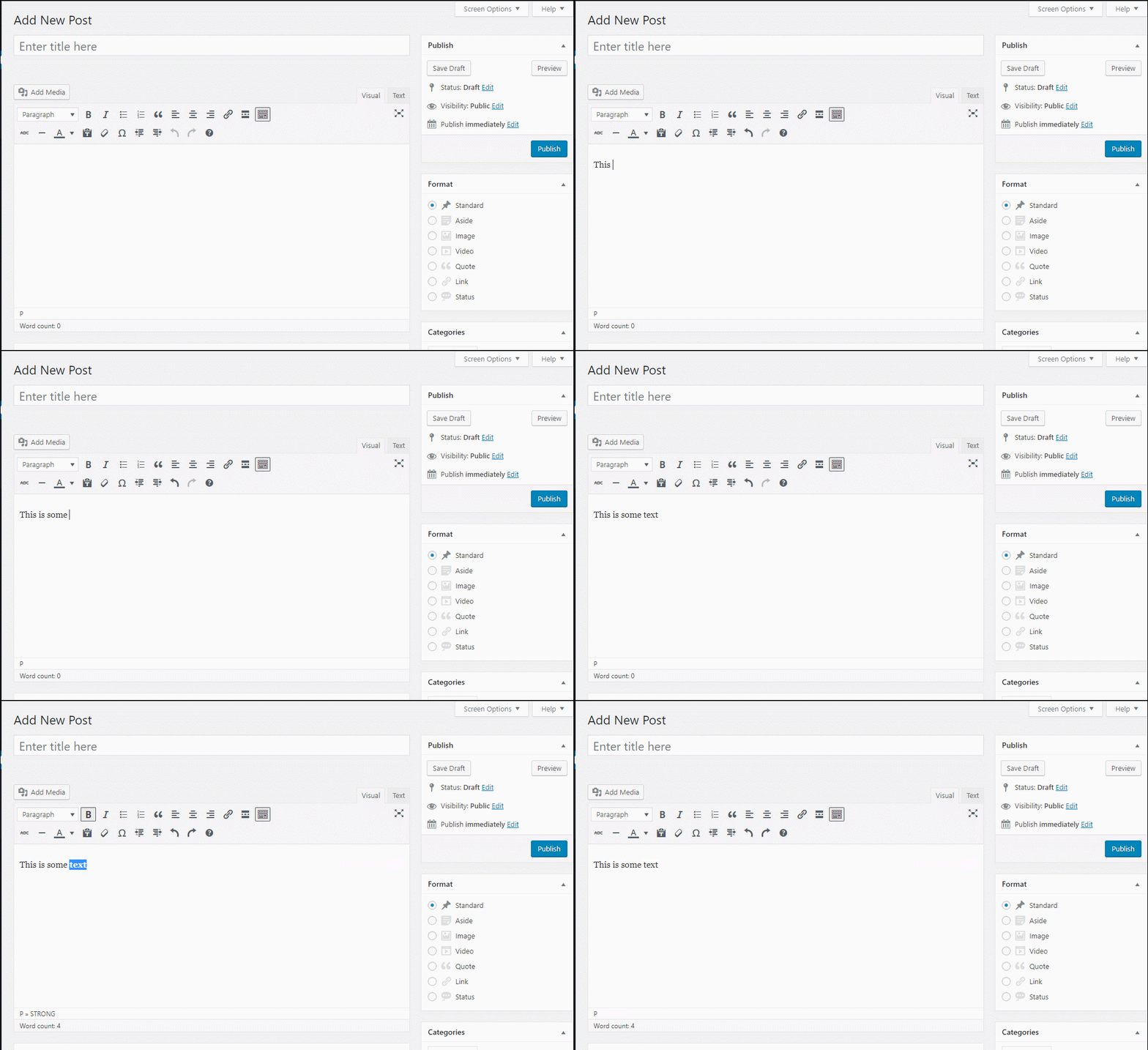
Here’s an example of some of these keyboard shortcuts in action. We are using Windows. For reference, I’m:
- Typing some text
- Using CTRL + Shift + Left to select the last word
- Hitting CTRL + B to bold it
- Using ALT + Shift + R to right-align everything
- Using CTRL + Z to undo both those actions
WordPress Formatting Shortcuts
Formatting shortcuts aren’t exactly keyboard shortcuts. But the end result is much the same and they can be quite handy as an alternative to some of the keyboard shortcuts above.
Formatting shortcuts are a WordPress 4.3 feature that help you automatically add formatting for:
- Ordered or unordered lists
- Headings
- Blockquotes
- Horizontal lines
For things like lists and headings, the main advantage of formatting shortcuts is that they don’t require you to hit as many keys at the same time as the keyboard shortcuts above.
Unlike the keyboard shortcuts above, you activate formatting shortcuts by actually typing something into the WordPress Editor. You must be using the Visual tab for these shortcuts to work.
The current formatting shortcuts are below. Note, you need to hit Space or sometimes Enter after typing any of the shortcuts to apply the formatting:
- * – starts an unordered list
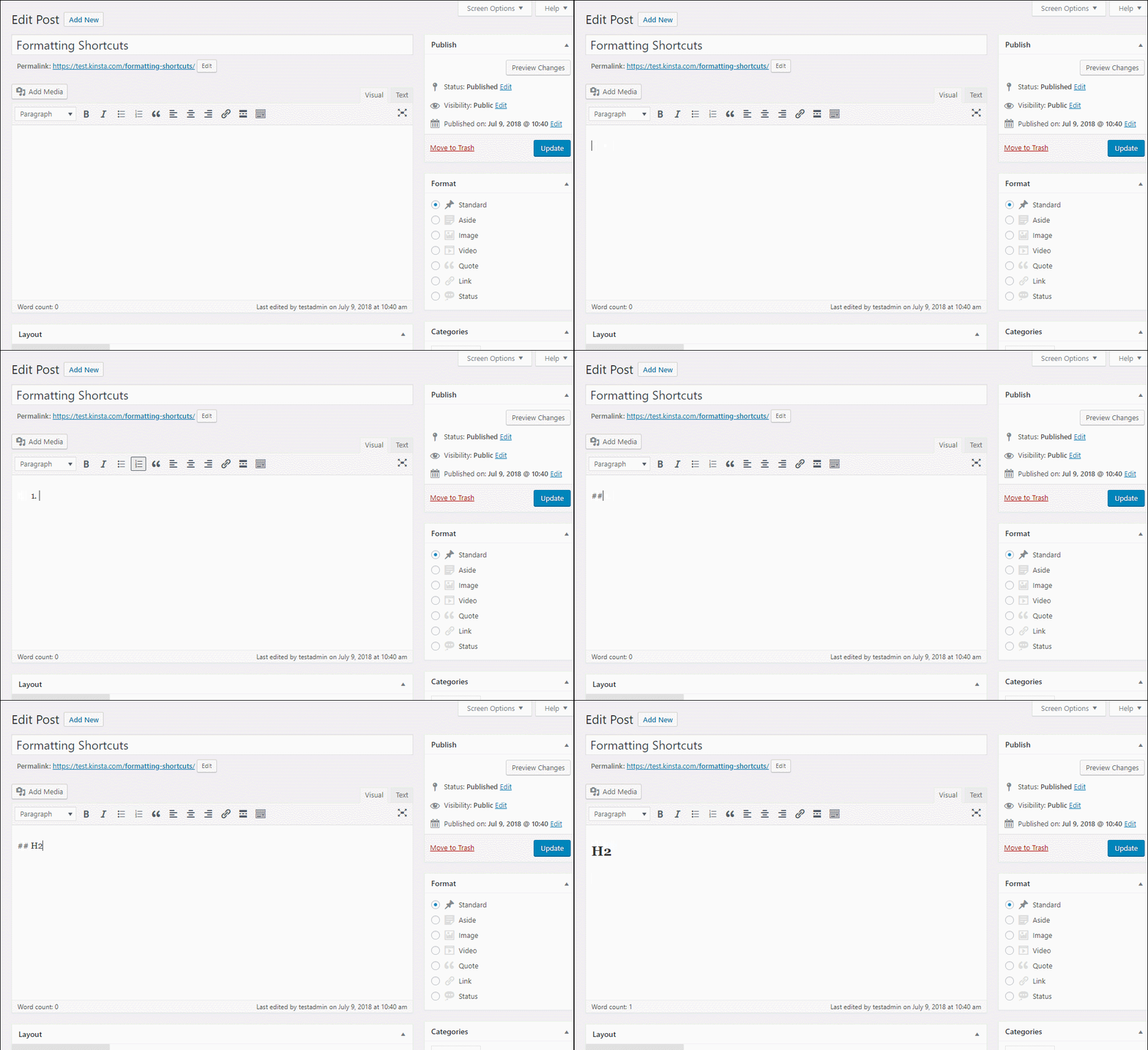
- 1. – starts an ordered list
- ## – applies H2 formatting
- ### – applies H3 formatting (continue the pattern to apply up to H6 formatting)
- > – creates a blockquote
- — – creates a horizontal line
Here’s an example of playing around with formatting shortcuts:
WordPress Keyboard Shortcuts for Moderating Comments
Beyond editing content, WordPress also includes built-in shortcuts to help you moderate comments.
By default, these shortcuts are disabled. But you can enable them with just a few seconds of work:
- Go to Users → Your Profile in your WordPress dashboard.
- Check the box next to Keyboard Shortcuts to Enable keyboard shortcuts for comment moderation.
- Save your changes.
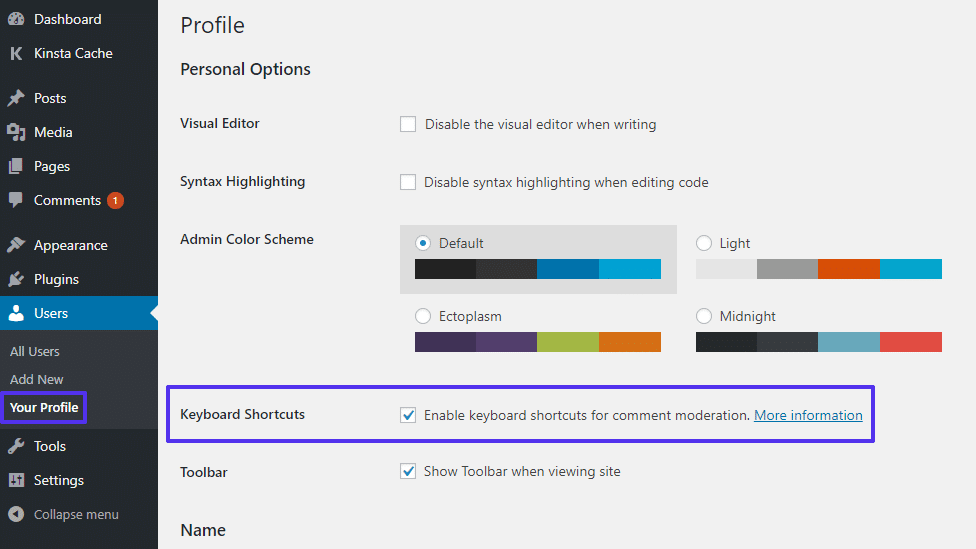
Then, you can use these shortcuts in the Comments tab of the WordPress dashboard.
First, you have a set of shortcuts to select comments (the comment that’s currently selected will have a blue highlight):
- J – moves the current selection down (if you’re at the bottom of the page, it will also skip to the next page)
- K – moves the current selection up
- X – adds a check mark (this is helpful for performing bulk actions)
- Shift + X – toggles the check mark on or off for all comments
Once you’ve selected one or more comments, you can perform actions by using another set of shortcuts:
- A – approves the comment
- S – marks the comment as spam
- D – deletes the comment
- Z – restores the comment from trash
- U – unapproves the comment
- R – starts a reply to the comment
- Q – opens the quick edit screen to edit the comment
- E – opens the full edit screen
If you have multiple comments selected, you can also use Shift + those previous commands to perform the action on multiple comments. For example:
- Shift + A – approves all the selected comments
- Shift + S – marks all the selected comments as spam
- Etc.
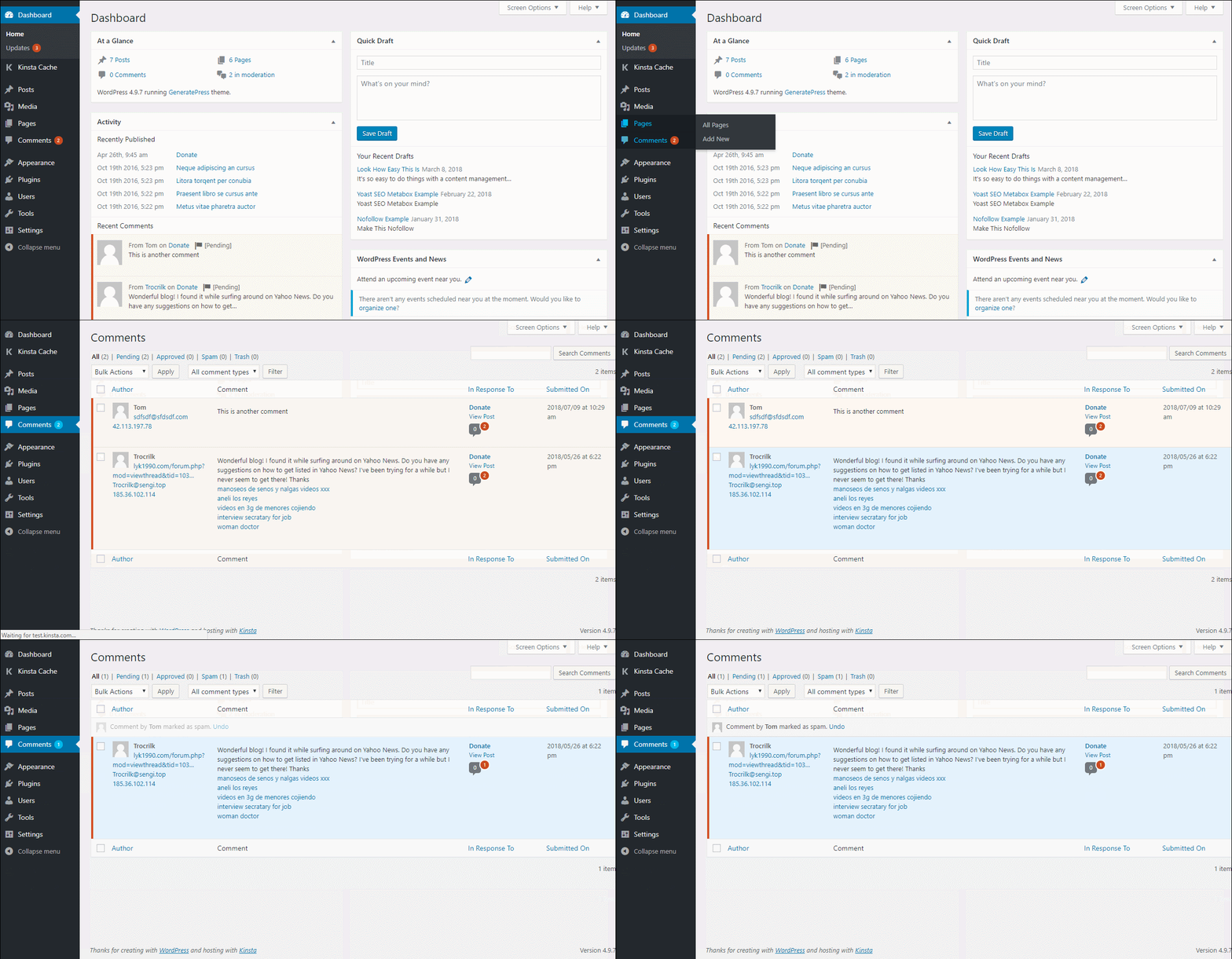
Here’s an example of it in action. In this GIF, I:
- Load the Comments screen
- Hit J to select the first comment
- Hit S to mark it as spam
WordPress Keyboard Shortcuts for Gutenberg
Because Gutenberg is still in beta, this section will certainly evolve in the future as Gutenberg becomes more finalized.
But for now, here are some neat ways that you can speed up content creation in the new Gutenberg editor…
Note – these are keyboard shortcuts that are specific to Gutenberg. But many of the general keyboard shortcuts from the current Editor will also work:
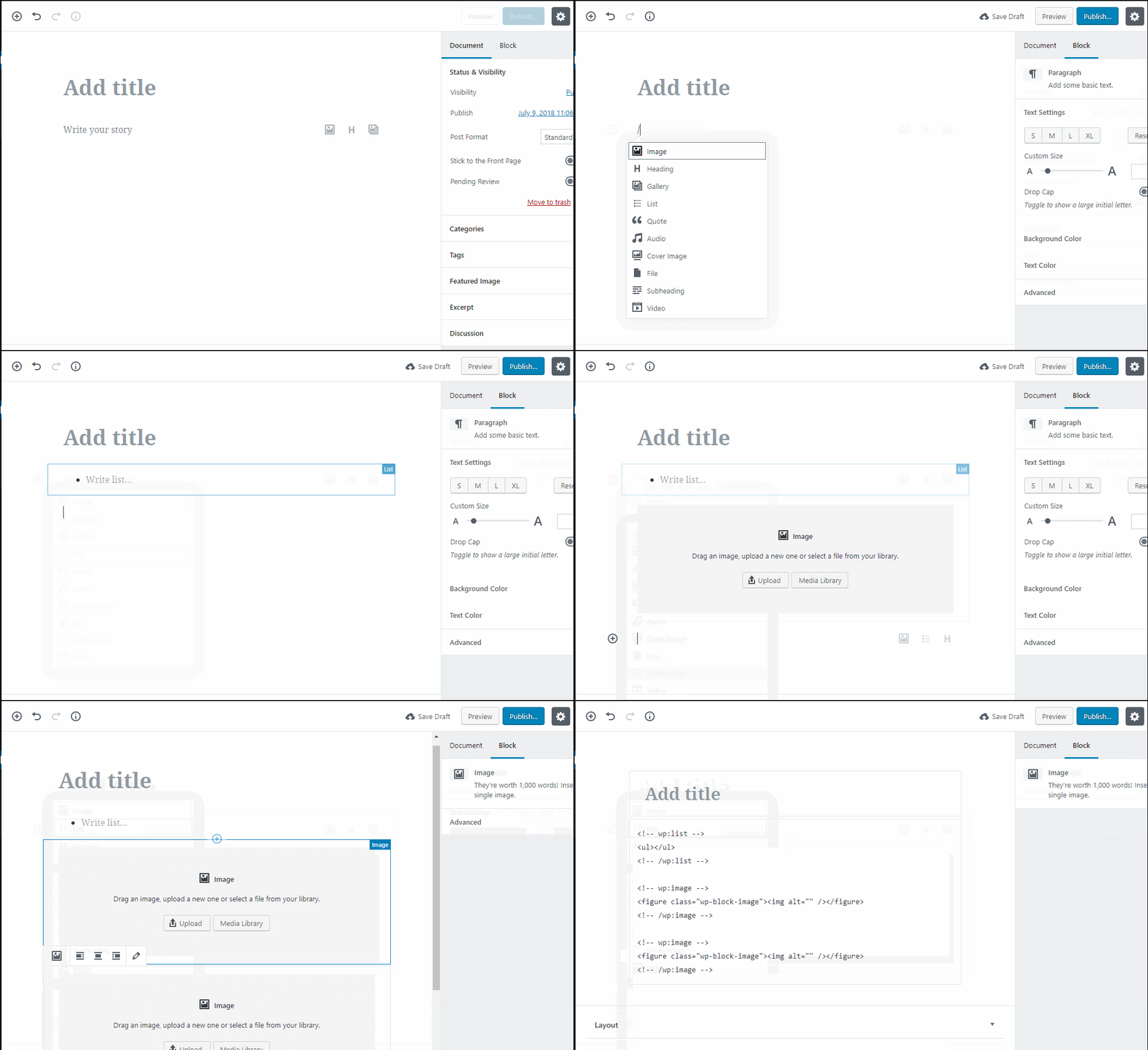
- / – if you type a slash, you can quick-insert a block by its name
- CTRL + Shift + ALT + M – (Windows) switch to the code editor (or go back to the block editor if you’re already in the code editor)
- Cmd + Shift + ALT + M – (Mac) switch to the code editor (or go back to the block editor if you’re already in the code editor)
- Enter – create a new block. This is helpful to combine with the / shortcut above to quickly insert multiple blocks
Here’s an example of these keyboard shortcuts in action:
Create Your Own WordPress Keyboard Shortcuts
If all the keyboard shortcuts above aren’t enough for you, you can create your own workflow-specific keyboard shortcuts using a program like AutoHotkey.
If you have to perform any repetitive actions on your WordPress site that aren’t covered by the shortcuts above, AutoHotkey makes it easy to set up scripts and macros to boost your productivity. Need something easier? Check out ShortKeeper.
Know Any Other Helpful WordPress Keyboard Shortcuts?
While it might take some time to memorize all these shortcuts, it really is a more productive way to work once they become a part of your muscle memory.
Yes – it will be a little rocky at first while you struggle to remember which shortcut does what. But after a little while, that delay goes away and your productivity will jump up.
Now over to you – know any other helpful WordPress keyboard shortcuts? Let us know in the comments!
Categories
Subscribe Now
10,000 successful online businessmen like to have our content directly delivered to their inbox. Subscribe to our newsletter!Archive Calendar

| Sat | Sun | Mon | Tue | Wed | Thu | Fri |
|---|---|---|---|---|---|---|
| 1 | 2 | |||||
| 3 | 4 | 5 | 6 | 7 | 8 | 9 |
| 10 | 11 | 12 | 13 | 14 | 15 | 16 |
| 17 | 18 | 19 | 20 | 21 | 22 | 23 |
| 24 | 25 | 26 | 27 | 28 | 29 | 30 |
| 31 | ||||||
Recent Articles
-

Posted on : Jul 25
-

Posted on : Jul 07
-

Posted on : Apr 07
-

Posted on : Mar 19
Optimized my.cnf configuration for MySQL 8 (on cPanel/WHM servers)
Tags
- layer 7
- tweak
- kill
- process
- sql
- Knowledge
- vpn
- seo vpn
- wireguard
- webmail
- ddos mitigation
- attack
- ddos
- DMARC
- server load
- Development
- nginx
- php-fpm
- cheap vpn
- Hosting Security
- xampp
- Plesk
- cpulimit
- VPS Hosting
- smtp
- smtp relay
- exim
- Comparison
- cpu
- WHM
- mariadb
- encryption
- sysstat
- optimize
- Link Building
- apache
- centos
- Small Business
- VPS
- Error
- SSD Hosting
- Networking
- optimization
- DNS
- mysql
- ubuntu
- Linux