How to Safely Enable WordPress SVG Support (2 Simple Clicks)
- Category : WordPress
- Posted on : Apr 18, 2018
- Views : 3,109
- By : Ingavar J.

SVG is an XML-based vector image which is commonly used by websites and brands to display logos and icons on their websites. The main reason they are especially popular among developers and designers is that they are a scalable image format, generally smaller in file size (sometimes by quite a bit), and don’t pixelate on retina screens. WordPress by default though doesn’t allow you to upload the SVG file format, mainly due to security concerns. Today we are going to dive into one way to safely enable WordPress SVG support, discuss browser support, as well as some caveats if you decide you want to switch to the vector image format.
Hopefully one day we will have SVG as part of WordPress core, but we are not quite there yet.
- What is an SVG?
- Why SVG Security is Important
- How to Safely Enable WordPress SVG Support
What is an SVG?
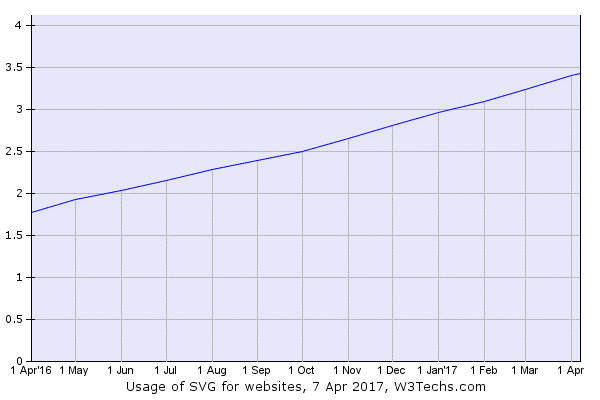
According to Wikipedia, an SVG (scalable vector graphics) is an XML-based vector image format for two-dimensional graphics with support for interactivity and animation. You can even manipulate them with code or your text editor. The SVG specification is an open standard developed by the World Wide Web Consortium since 1999. SVGs are currently only utilized by 3.4% of all websites, but as you can see below, the adoption rate is growing rapidly. Popular sites such as Google, Reddit, Dropbox, ESPN, and even our own website here at Host SEO use SVGs.
SVG Browser Support
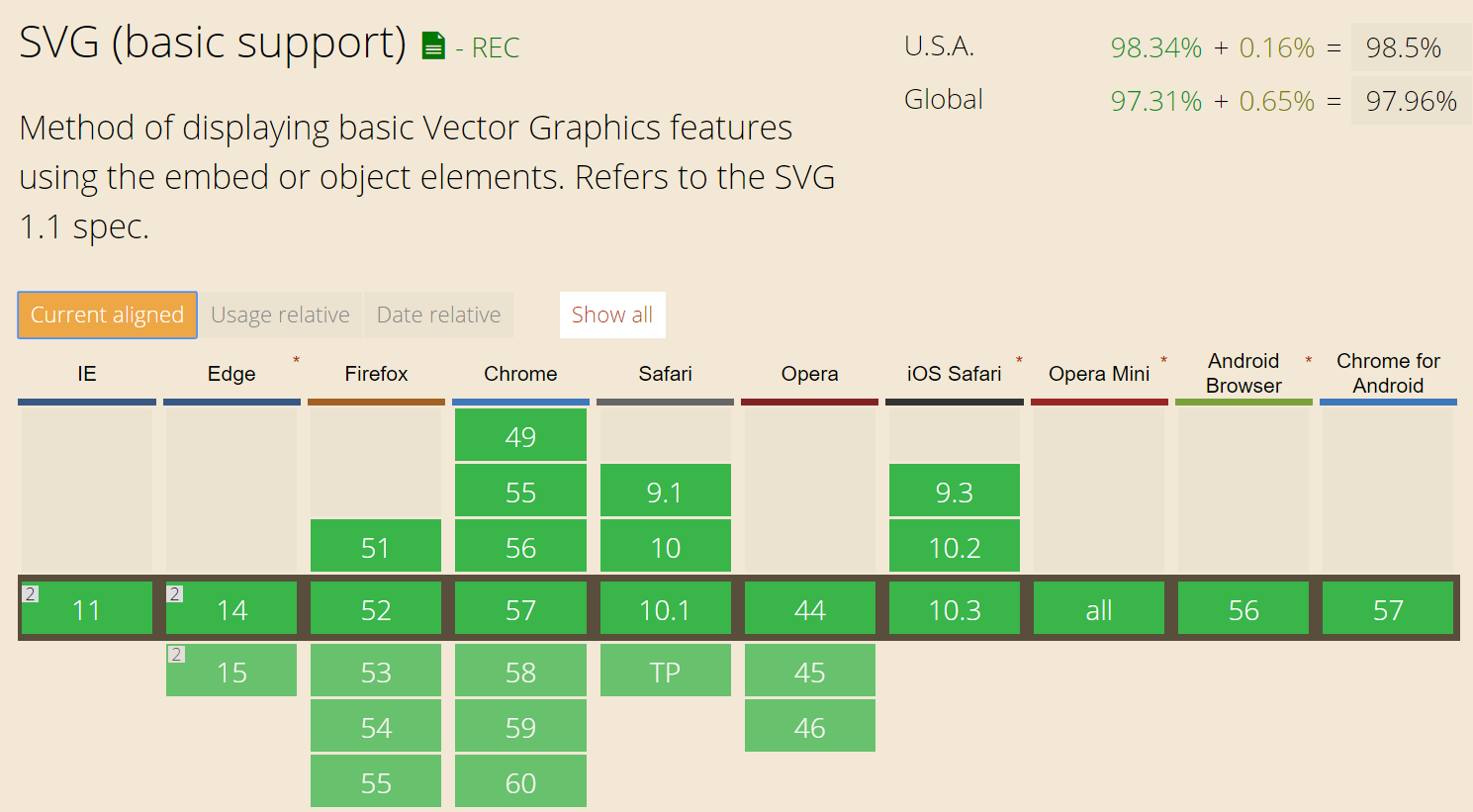
SVGs are currently supported by all major browsers and mobile browsers. The only issue you might run into is if you still need support for IE8, which we hope you don’t. IE8 only has around a 0.36% market share and is no longer supported. Here is a great article by Lubos on why developers should stop supporting IE8, IE9, and IE10. From a business perspective, this might not always be possible, but he brings up some good points. If for some desperate reason you still need IE8 support, you could define a fallback image (PNG or JPG) for your SVGs, but we won’t be going into that today. Below is a list of supported browsers:
- Internet Explorer 9, 10, 11+ and Edge
- Firefox 3+
- Chrome 4+
- Safari 3.2+
- Opera 10+
- iOS Safari 3.2+
- Opera Mini (all)
- Android Browser 4.4+
Benefits of SVGs
SVGs are a vector format, meaning they are automatically scalable in both browsers and photo editing tools. This makes them great for both graphic and web designers. Normally when you try to edit a PNG or JPG in a tool like Photoshop, Sketch, or Paint, you can’t upscale them without pixelation. With SVGs, you can upscale them to an infinite amount and they will look pixel perfect (or should we say vector perfect) every time. This is why they are a great image format to use for retina screens.
Google indexes SVGs, which is great news for SEO purposes. SVG content that is linked to a file itself will be indexed and show up in Google image search. You can see this first-hand with the SVG illustrations we use on the Host SEO by doing an advanced image search. Note: Inline SVGs, or rather those composed of just code, are typically not indexed.
SVGs are traditionally (not always) smaller in file size than PNGs or JPGs. By using SVGs, you can actually speed up your WordPress site as you will decrease your overall page size. Genki wrote a great article where he compares the size of SVG vs PNG vs JPEG. Below are a few takeaways from his testing in which he compared the three different image types.
JPG (optimized size: 81.4 KB)

PNG (optimized size: 85.1 KB)
SVG (optimized size: 6.1 KB)
As you can see above, the SVG is a decrease in file size of 92.51% when compared to the JPG. And when compared to the PNG, 92.83%. Those are pretty impressive file size differences. However, there is one caveat, as he tested more detailed images, the SVGs eventually actually became larger in size than the JPG or PNG.
That is why many sites use SVGs for less detailed images such as logos, icons, etc. as they will see a significant decrease in file sizes. But for more images with great detail, like perhaps your blog post “featured images,” you might want to stick with a PNG or JPG but you can still optimize them. Many websites use a hybrid approach, using both file types together where it makes sense.
Also, it is important to note that social media networks like Facebook and Twitter don’t support SVGs for sharing. So if you used SVGs for your featured images, you would have to utilize the Yoast SEO feature and upload a PNG or JPG for the OG and meta tags.
Why SVG Security is Important
The reason SVG is not part of WordPress core yet is that there are security concerns to be addressed. You can follow the active discussion about SVGs in WordPress core (#24251) which was started back in 2013. SVG is an XML file, which by itself opens it up to different vulnerabilities of which normal image formats aren’t affected. These include XML external entity attacks (XXE), bomb nested entities, and XSS attacks.
Mario Heiderich published an insightful presentation about the security risks due to active content injection with SVG files. One example given was that JavaScript was embedded in an SVG and it actually managed to call Mario on Skype. That is kind of scary! SecuPress, authors of a WordPress security plugin, also touched on the subject of being careful when adding SVGs to WordPress, and the importance of doing it the right way.
Many SVG plugins on the repository are utilizing the following code, which simply enables the MIME type to allow uploading of SVGs to the WordPress media library. This is not the safe way to do this! So don’t go and just download the first free SVG plugin you see or copy paste this code and think your good to go.
function cc_mime_types($mimes) {
 $mimes['svg'] = 'image/svg+xml';
 return $mimes;
}
add_filter('upload_mimes', 'cc_mime_types');
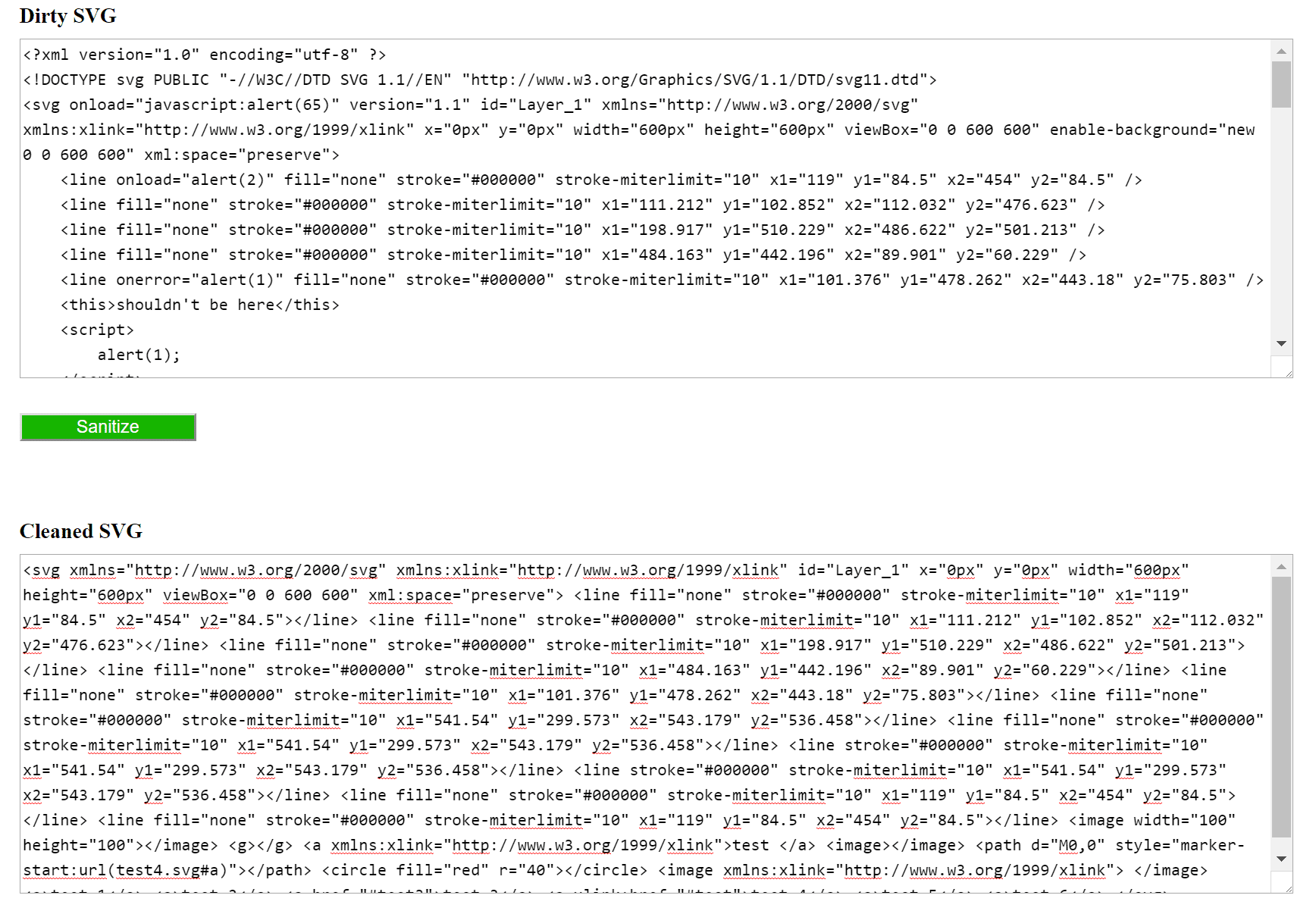
The solution is that SVGs need to be sanitized. Sanitization is basically the cleaning of code or input to avoid security issues (such as code injection), code conflicts, and errors. This could entail things such as encoding data, filtering and validating strings, etc. This is where Daryll Doyle’s SVG-Sanitizer library comes into play, which he refers to as “his attempt to build a decent SVG sanitizer in PHP.” Check out the demo of his SVG sanitizer to see it in action.
It is also important that you consider who on your site has access to upload SVGs. For example, if you are on a multi-author site, you have no idea what kind of SVG someone else might upload, exposing your site. Restricting SVG uploads to administrators and those that understand some of the security concerns is advisable.
How to Safely Enable WordPress SVG Support
Daryll has developed a plugin, WP SVG (also know as Safe SVG), which utilizes the SVG-Sanitizer library upon uploading SVG images to your WordPress media library. The plugin also enables you to view SVGs like normal images in the media library. You can download Safe SVG for free from the WordPress repository or by searching for it within your WordPress dashboard under “Add New” plugins. You can get up and going with a few simple clicks.

He also has a premium version, located at wpsvg.com, which allows you to restrict certain users from uploading SVGs and additional SVG optimization. In this example below, we are going to simply use the free version.
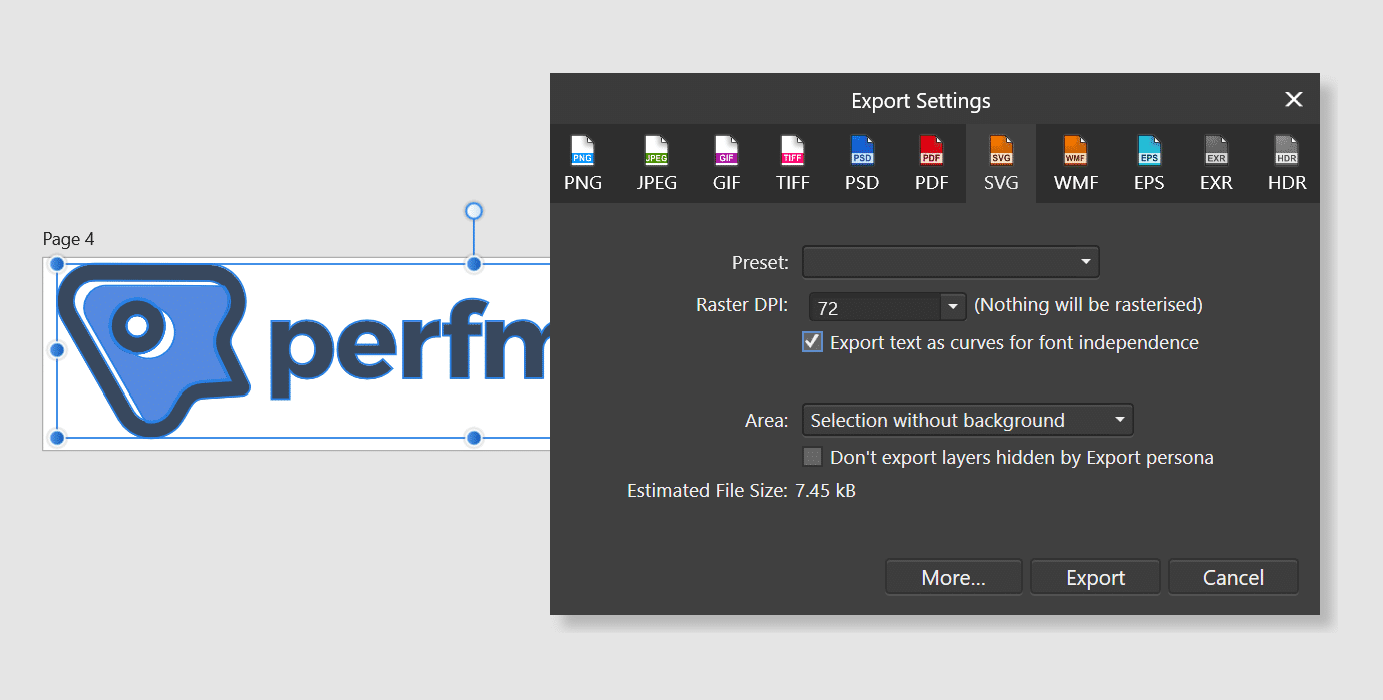
Before uploading your SVG, it is important to understand that they behave slightly differently than images. When exporting an SVG from your photo editing tool, you will want to export the text as curves (or create an outline), otherwise, it might render slightly different in various browsers.
After you install the plugin, there are no settings, it will simply sanitize your SVGs upon upload. On our test site below you can see we replaced our logo with an SVG file, it is view-able like normal in the media library.
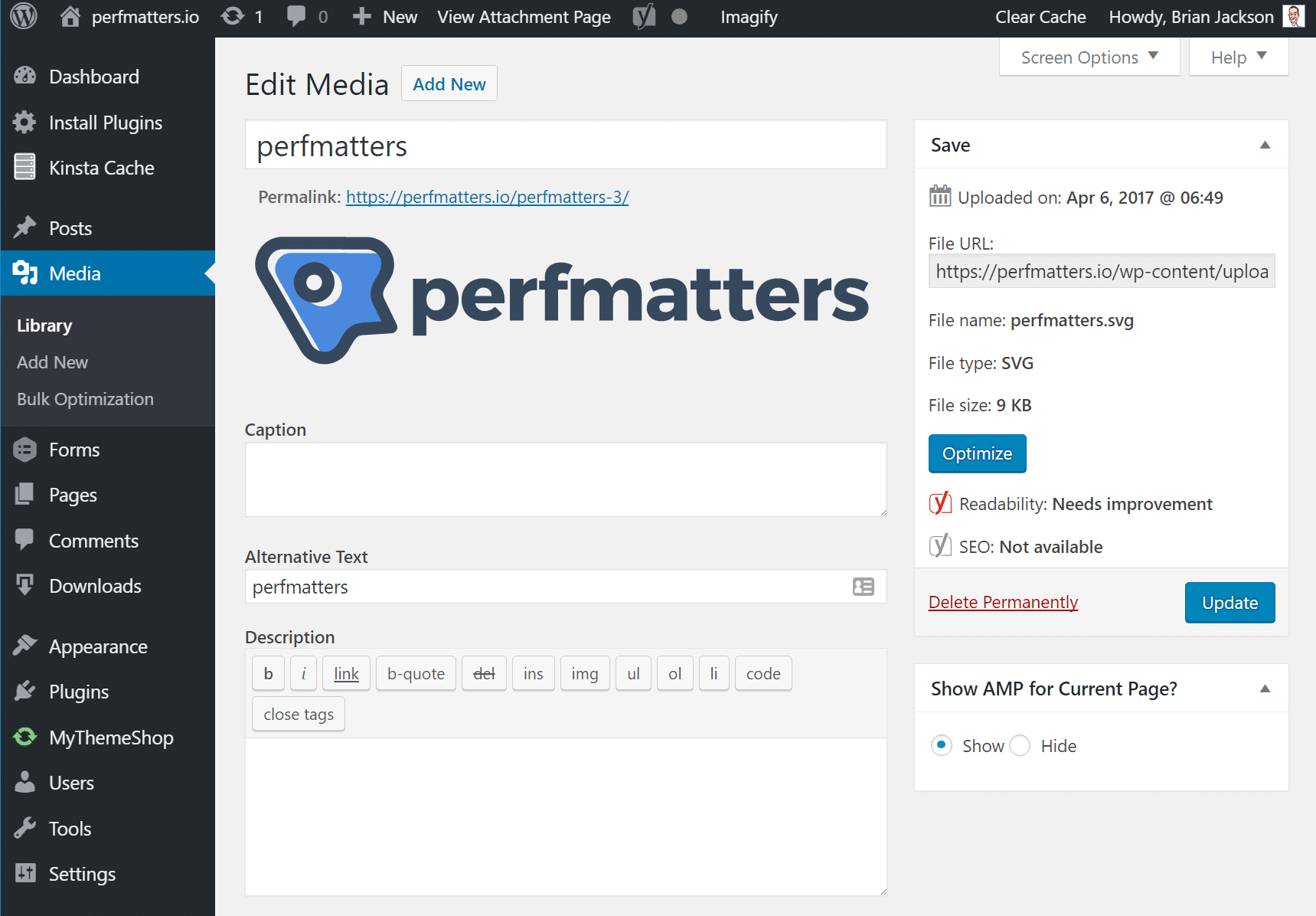
This also then allowed us to use our theme’s control panel to change the logo in our WordPress header over to our SVG file. You can see below it is indeed serving up the .svg file. And looks beautiful now on retina screens.
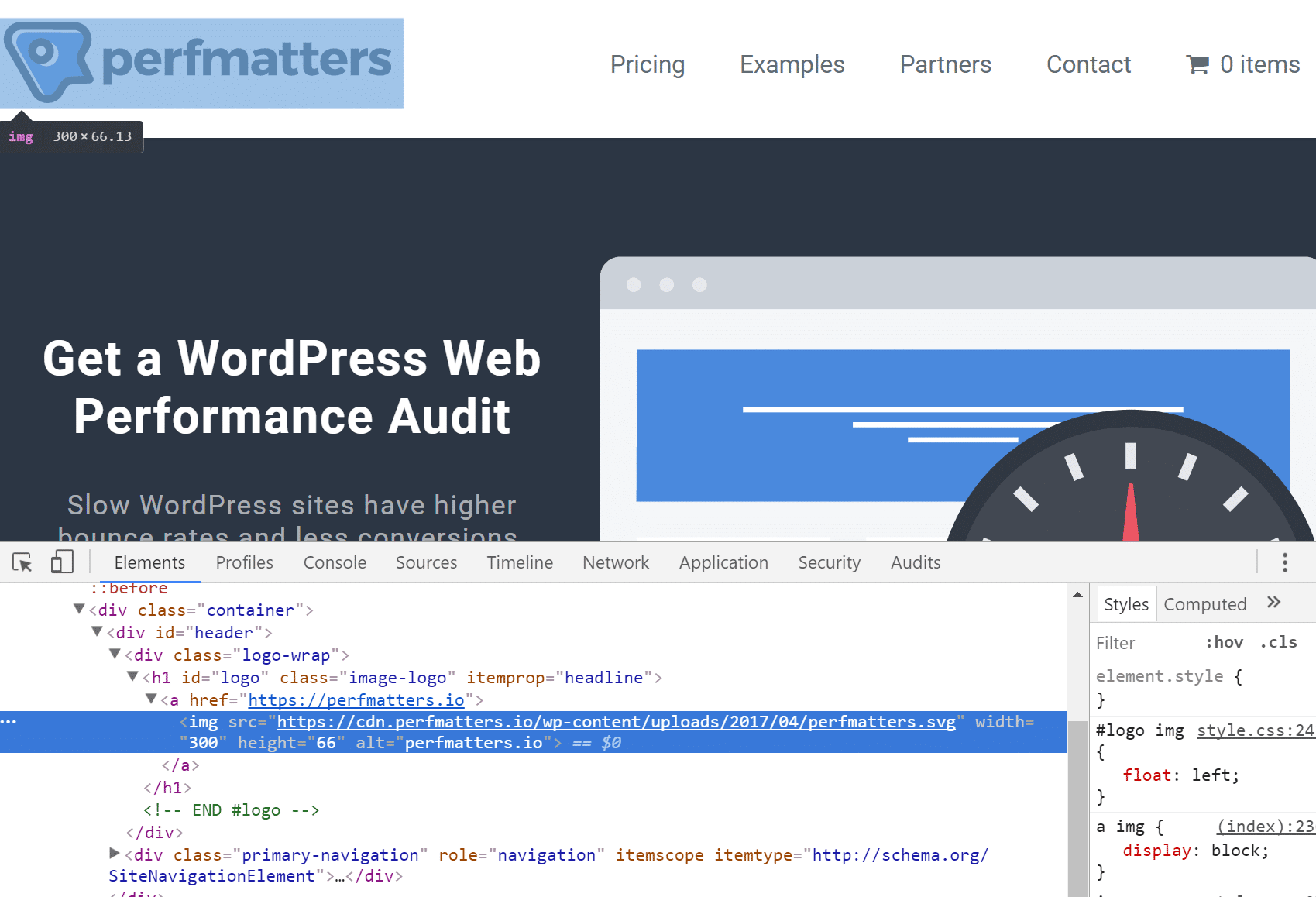
There is one additional tweak we had to make. In IE9-11 desktop & mobile don’t properly scale SVG files yet. Adding height and width fixes this issue. This might vary per theme, but on our test site we simply modified our header.php file and added these custom dimensions. Some WordPress themes use CSS to modify the scaling, which is not good for performance reasons, but due to that it might require you adding additional code to fix the IE issue.

And that’s it! You have now safely enabled WordPress SVG support. This plugin and or method isn’t endorsed or supported by WordPress core, so of course, use at your own risk. However, if you were already uploading SVGs with only the MIME type snippet, then, by all means, please do it this way.
Also, if you have never used SVGs before, ensure you have GZIP enabled on your server for the “image/svg+xml” file type. This will ensure they are compressed and will load as fast as possible. Sometimes sysadmins only enable the more standard file types. Note: GZIP is enabled on all Host SEO servers already for SVGs.
Summary
SVGs are a great way to enhance the look of your site! We recommend utilizing SVGs, PNG, and JPGs together to achieve the best performance, as very detailed images will not perform as good in SVG format. SVGs are great for your logo, to ensure it looks pixel-perfect on every screen, along with icons. What are your thoughts? Have you used SVGs yet on your WordPress site?
Categories
Subscribe Now
10,000 successful online businessmen like to have our content directly delivered to their inbox. Subscribe to our newsletter!Archive Calendar

| Sat | Sun | Mon | Tue | Wed | Thu | Fri |
|---|---|---|---|---|---|---|
| 1 | 2 | |||||
| 3 | 4 | 5 | 6 | 7 | 8 | 9 |
| 10 | 11 | 12 | 13 | 14 | 15 | 16 |
| 17 | 18 | 19 | 20 | 21 | 22 | 23 |
| 24 | 25 | 26 | 27 | 28 | 29 | 30 |
| 31 | ||||||
Recent Articles
-

Posted on : Jul 25
-

Posted on : Jul 07
-

Posted on : Apr 07
-

Posted on : Mar 19
Optimized my.cnf configuration for MySQL 8 (on cPanel/WHM servers)
Tags
- layer 7
- tweak
- kill
- process
- sql
- Knowledge
- vpn
- seo vpn
- wireguard
- webmail
- ddos mitigation
- attack
- ddos
- DMARC
- server load
- Development
- nginx
- php-fpm
- cheap vpn
- Hosting Security
- xampp
- Plesk
- cpulimit
- VPS Hosting
- smtp
- smtp relay
- exim
- Comparison
- cpu
- WHM
- mariadb
- encryption
- sysstat
- optimize
- Link Building
- apache
- centos
- Small Business
- VPS
- Error
- SSD Hosting
- Networking
- optimization
- DNS
- mysql
- ubuntu
- Linux