
13 Best Text Editors to Speed up Your Workflow
- Category : Development
- Posted on : Mar 18, 2019
- Views : 3,432
- By : Icarus M.

A text editor may sound boring to some, but it’s the lifeblood of so many organizations around the world. From development teams to publishers, text and code editors are intertwined with almost everyone’s workflows. Many of us bounce in and out of them all day long. Whether you’re writing PHP, or simply taking notes for a project, there are plenty of great tools to make this task a little easier. Today we’ll outline the absolute best text editor solutions.
Some of the text editors are excellent for experienced developers, while others are more for beginners or writers. You’ll also find some great editors for collaboration, real-time code sharing, and much more.
Collection of the Best Text Editors (And Some IDEs)
Here’s a collection of our favorite text editors. Some of these are also considered IDEs, which stands for “integrated development environment.” Meaning you can do a lot more with them than simply write code. We highly recommend testing each one to see which one works best for your own workflow.
- Sublime Text
- Atom
- Notepad++
- CoffeeCup – The HTML Editor
- TextMate
- Vim
- UltraEdit
- Coda
- BBEdit
- Komodo Edit
- Visual Studio Code
- Brackets
- CodeShare
1. Sublime Text
The Sublime Text editor is definitely one of our favorites! It offers a free version for testing, but all continual users are required to pay $80 to keep it active. While $80 might sound steep for a text editor, it’s important to note that the licenses are per-user, rather than per-machine, so you can enjoy Sublime Text on as many computers and operating systems as you wish with your license.
As for the features, Sublime Text has an advantage in that it’s extremely lightweight (low resource usage), but still keeps around some of the more advanced features you would expect out of a top text editor. The primary benefit is that Sublime Text offers shortcuts and search tools for immediately finding certain functions and making changes to multiple lines at once. Jumping to specific symbols or words takes only a few seconds.
In addition, Sublime Text automatically creates an index of all functions and methods so that you can work with the shortcuts and customize it for locating bits of code while working.
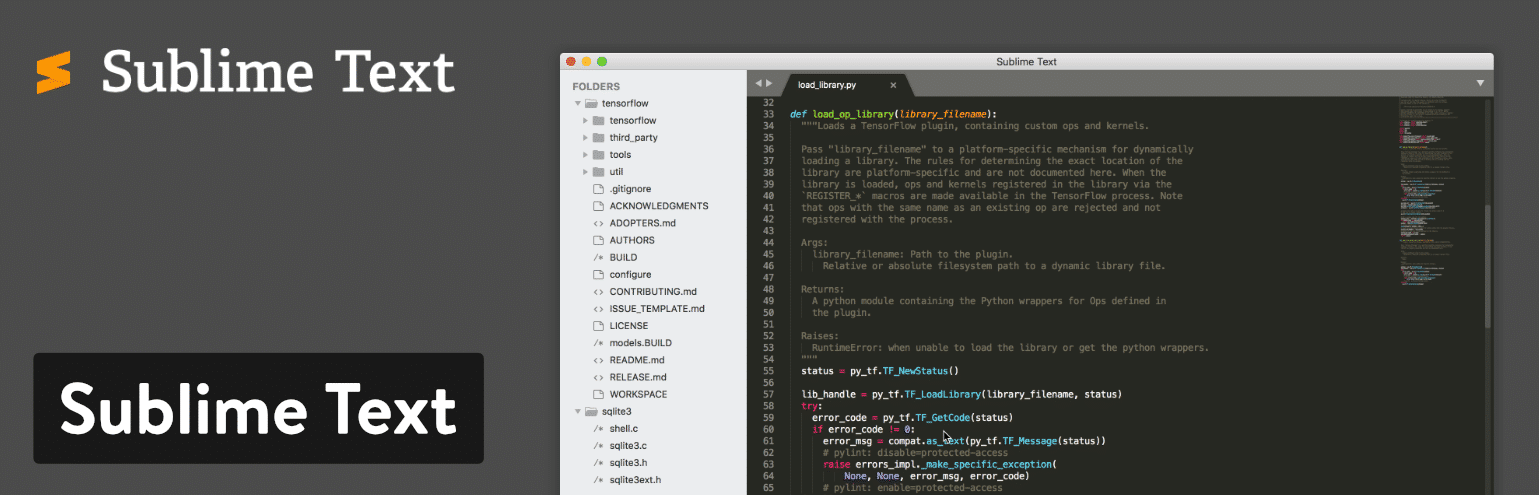
Going along with the trend of shortcuts in Sublime Text, the text editor lets you type in a few keystrokes to move directly to menu items. So, if you wanted to sort something in your document, you wouldn’t be required to sift through the entire menu to find that functionality.
Sublime Text has a Python API, meaning that a wide variety of plugins can be integrated with the text editing solution. This includes the thousands of plugins that are consistently created by the Sublime Text community.
Which Features Make This One of the Best Text Editor Tools?
- Sublime Text lets you test out the text editor before committing to the investment. Although it’s a bummer you have to pay for this text editor, you at least get to try it out–and the pricing isn’t that expensive.
- The text editor runs on multiple platforms such as Mac, Windows, and Linux. It’s also cross-platform, so one license will work on all of your devices–no need to purchase more.
- Sublime Text provides split editing for managing and editing files next to each other. You can also open multiple windows and place them on different monitors.
- The Python API opens up opportunities to upgrade Sublime Text with plugins you, or other people, create.
- Sublime Text has extremely user-friendly and powerful shortcuts. From finding and modifying multiple lines to locating certain functions in the menu, Sublime Text should make shortcut lovers happy.
- You can also customize just about anything in Sublime Text. This is especially true when talking about shortcuts and menus. We recommend tweaking the settings to open files in the same window (new tab).
- Has some great community themes available. Check out the Dracula Sublime theme.
Sublime Text makes the most sense for heavy coders. These developers will enjoy the shortcut functionality and the high level of customization. The cross-platform abilities are also nice for launching the same text editor on all machines.
2. Atom
With Atom, you gain access to an open source text editor with developers in mind. In fact, the creators of Atom state that they made it just for developers. Also, there’s a community of developers who contribute themes and plugins, much like WordPress or some other opensource tools. An experienced developer should have no problem working with Atom, since it offers clean collaboration tools, a sleek editor, and some great organization tools for keeping your projects in check.
All of your projects can be shared and edited in real-time, helping out teams that are far away from each other or simply those teams that want a more dedicated workspace. Furthermore, Atom has a GitHub package already included with the text editor. This way, your team can create everything from branches to stages in one interface.
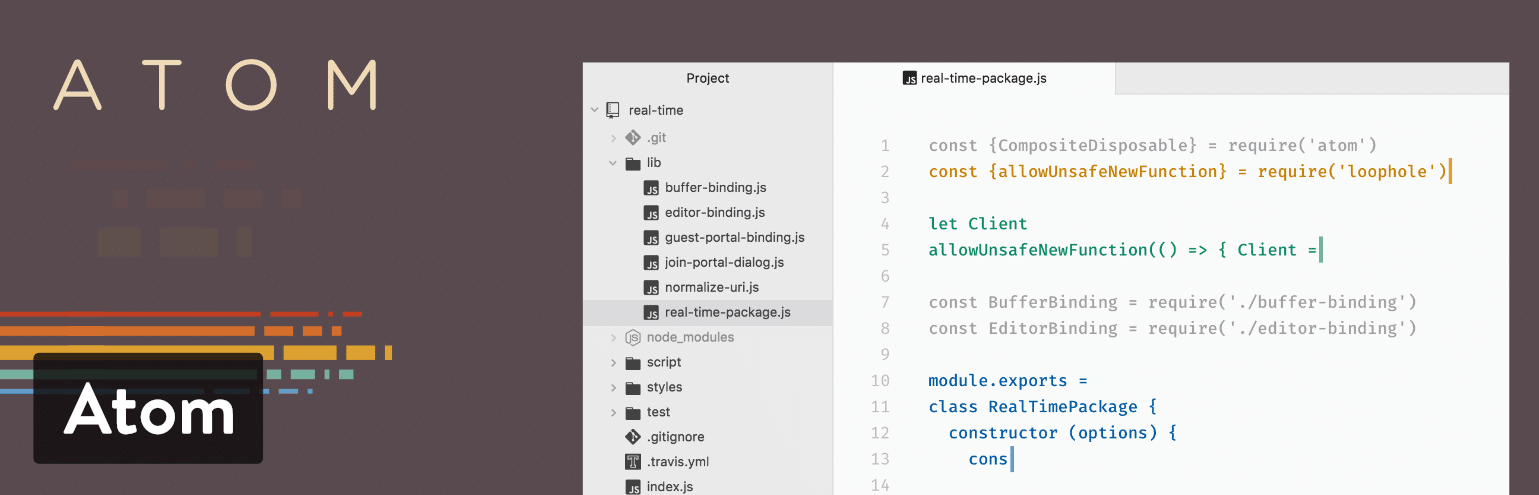
Another great thing about Atom is that it’s a cross-platform system, working on operating systems like Linux, OS X, and Windows. The smart autocompletion is one of my favorite features, and the multiple panes should make you feel right at home with several panes open to edit code between files. Much like an iPhone (or WordPress,) Atom has extras that you can install called packages. These are offered to expand the functionality of the basic text editor. You can also install themes to make your editor look prettier and easier on the eyes.
Which Features Make This One of the Best Text Editor Tools?
- Atom is an opensource text editor with a large community of developers. This means you get consistent updates and new themes and packages. Check out the Dracula theme for Atom.
- It’s a cross-platform solution that works on the major operating systems.
- The editor is useful for coding alone, but its true strengths come into play when you need to collaborate with other people. All of the editing and creation can be done in real-time.
- Atom provides a GitHub package for integrating and doing things like pull requests and resolving merge conflicts.
- You can search for new packages and themes right from the text editor.
- It’s fairly easy to edit your code with smart autocompletion, a file system browser, and a find and replace feature.
- Atom offers multiple panes for comparing and editing code side by side.
I would recommend Atom for those developers who want a collaboration tool in addition to the text editor. You can manage projects with other developers and see changes right in front of your eyes. Atom is also nice since it’s opensource–meaning you get it for free, the community is solid, and you can choose from packages and themes. In short, if you like working with WordPress, Atom seems to present itself in a similar fashion.
3. Notepad++
Debatably the most popular advanced text editor on the market, Notepad++ comes in a compact package with no fees and powerful editing components. It is given away for free on a General Public License, meaning that all developers and content creators are able to take advantage of the text editor right after a quick download. Notepad++ runs on Microsoft Windows, and it strives to use less computing power than the average text editor.
One of the things that makes Notepad++ sta