13 Best Text Editors to Speed up Your Workflow
- Category : Development
- Posted on : Mar 18, 2019
- Views : 3,437
- By : Icarus M.

A text editor may sound boring to some, but it’s the lifeblood of so many organizations around the world. From development teams to publishers, text and code editors are intertwined with almost everyone’s workflows. Many of us bounce in and out of them all day long. Whether you’re writing PHP, or simply taking notes for a project, there are plenty of great tools to make this task a little easier. Today we’ll outline the absolute best text editor solutions.
Some of the text editors are excellent for experienced developers, while others are more for beginners or writers. You’ll also find some great editors for collaboration, real-time code sharing, and much more.
Collection of the Best Text Editors (And Some IDEs)
Here’s a collection of our favorite text editors. Some of these are also considered IDEs, which stands for “integrated development environment.” Meaning you can do a lot more with them than simply write code. We highly recommend testing each one to see which one works best for your own workflow.
- Sublime Text
- Atom
- Notepad++
- CoffeeCup – The HTML Editor
- TextMate
- Vim
- UltraEdit
- Coda
- BBEdit
- Komodo Edit
- Visual Studio Code
- Brackets
- CodeShare
1. Sublime Text
The Sublime Text editor is definitely one of our favorites! It offers a free version for testing, but all continual users are required to pay $80 to keep it active. While $80 might sound steep for a text editor, it’s important to note that the licenses are per-user, rather than per-machine, so you can enjoy Sublime Text on as many computers and operating systems as you wish with your license.
As for the features, Sublime Text has an advantage in that it’s extremely lightweight (low resource usage), but still keeps around some of the more advanced features you would expect out of a top text editor. The primary benefit is that Sublime Text offers shortcuts and search tools for immediately finding certain functions and making changes to multiple lines at once. Jumping to specific symbols or words takes only a few seconds.
In addition, Sublime Text automatically creates an index of all functions and methods so that you can work with the shortcuts and customize it for locating bits of code while working.
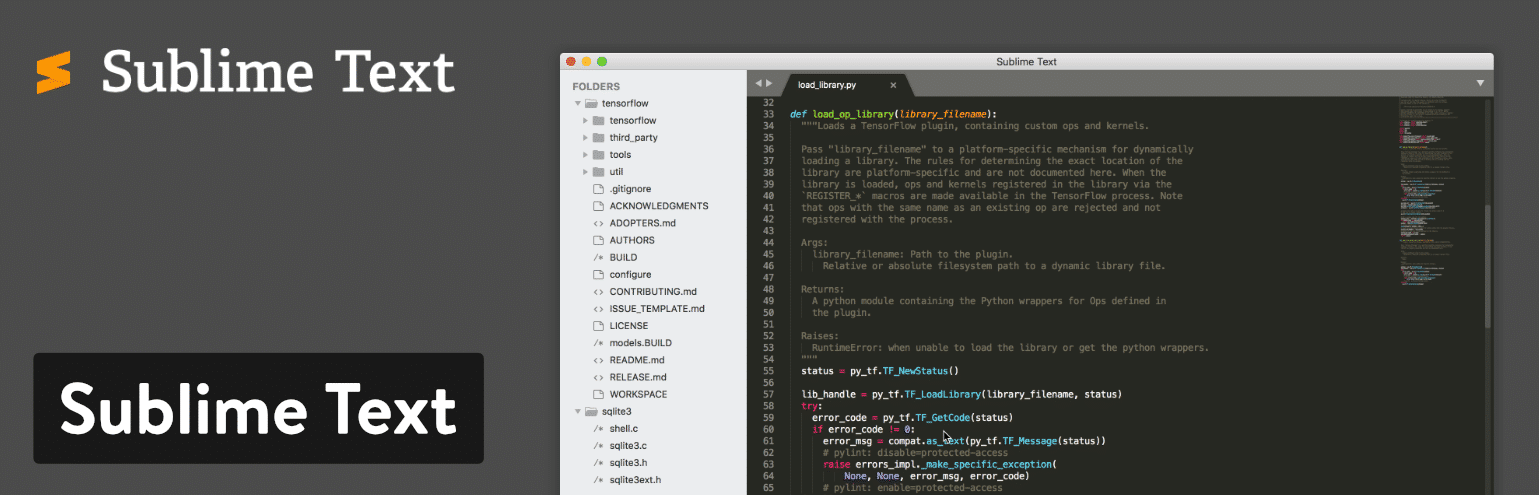
Going along with the trend of shortcuts in Sublime Text, the text editor lets you type in a few keystrokes to move directly to menu items. So, if you wanted to sort something in your document, you wouldn’t be required to sift through the entire menu to find that functionality.
Sublime Text has a Python API, meaning that a wide variety of plugins can be integrated with the text editing solution. This includes the thousands of plugins that are consistently created by the Sublime Text community.
Which Features Make This One of the Best Text Editor Tools?
- Sublime Text lets you test out the text editor before committing to the investment. Although it’s a bummer you have to pay for this text editor, you at least get to try it out–and the pricing isn’t that expensive.
- The text editor runs on multiple platforms such as Mac, Windows, and Linux. It’s also cross-platform, so one license will work on all of your devices–no need to purchase more.
- Sublime Text provides split editing for managing and editing files next to each other. You can also open multiple windows and place them on different monitors.
- The Python API opens up opportunities to upgrade Sublime Text with plugins you, or other people, create.
- Sublime Text has extremely user-friendly and powerful shortcuts. From finding and modifying multiple lines to locating certain functions in the menu, Sublime Text should make shortcut lovers happy.
- You can also customize just about anything in Sublime Text. This is especially true when talking about shortcuts and menus. We recommend tweaking the settings to open files in the same window (new tab).
- Has some great community themes available. Check out the Dracula Sublime theme.
Sublime Text makes the most sense for heavy coders. These developers will enjoy the shortcut functionality and the high level of customization. The cross-platform abilities are also nice for launching the same text editor on all machines.
2. Atom
With Atom, you gain access to an open source text editor with developers in mind. In fact, the creators of Atom state that they made it just for developers. Also, there’s a community of developers who contribute themes and plugins, much like WordPress or some other opensource tools. An experienced developer should have no problem working with Atom, since it offers clean collaboration tools, a sleek editor, and some great organization tools for keeping your projects in check.
All of your projects can be shared and edited in real-time, helping out teams that are far away from each other or simply those teams that want a more dedicated workspace. Furthermore, Atom has a GitHub package already included with the text editor. This way, your team can create everything from branches to stages in one interface.
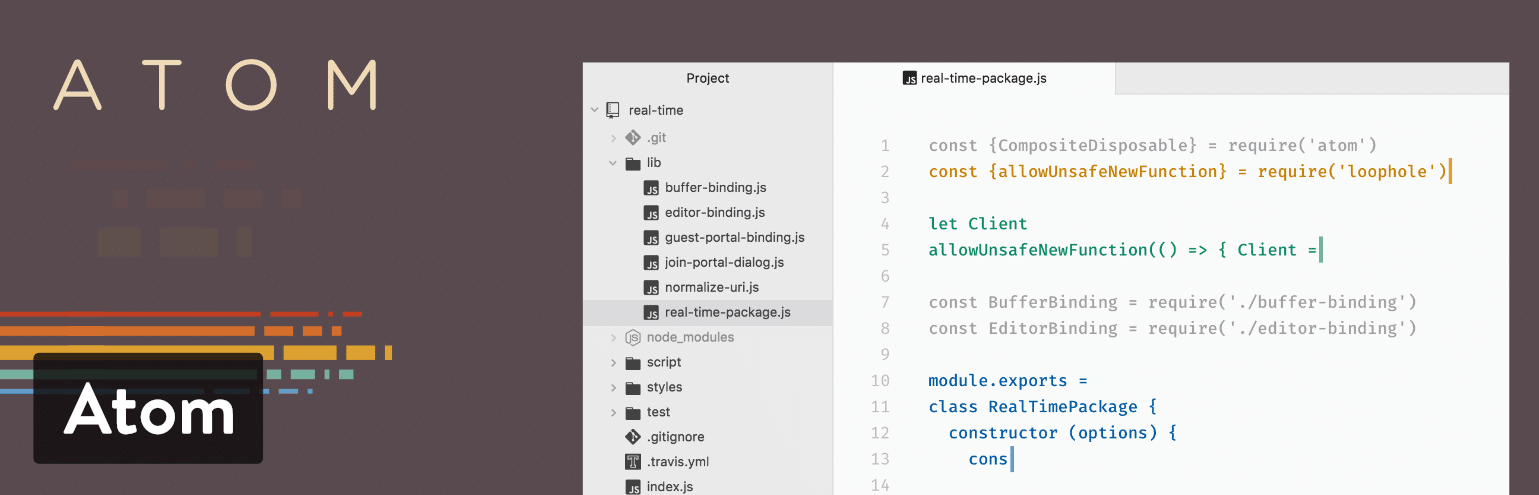
Another great thing about Atom is that it’s a cross-platform system, working on operating systems like Linux, OS X, and Windows. The smart autocompletion is one of my favorite features, and the multiple panes should make you feel right at home with several panes open to edit code between files. Much like an iPhone (or WordPress,) Atom has extras that you can install called packages. These are offered to expand the functionality of the basic text editor. You can also install themes to make your editor look prettier and easier on the eyes.
Which Features Make This One of the Best Text Editor Tools?
- Atom is an opensource text editor with a large community of developers. This means you get consistent updates and new themes and packages. Check out the Dracula theme for Atom.
- It’s a cross-platform solution that works on the major operating systems.
- The editor is useful for coding alone, but its true strengths come into play when you need to collaborate with other people. All of the editing and creation can be done in real-time.
- Atom provides a GitHub package for integrating and doing things like pull requests and resolving merge conflicts.
- You can search for new packages and themes right from the text editor.
- It’s fairly easy to edit your code with smart autocompletion, a file system browser, and a find and replace feature.
- Atom offers multiple panes for comparing and editing code side by side.
I would recommend Atom for those developers who want a collaboration tool in addition to the text editor. You can manage projects with other developers and see changes right in front of your eyes. Atom is also nice since it’s opensource–meaning you get it for free, the community is solid, and you can choose from packages and themes. In short, if you like working with WordPress, Atom seems to present itself in a similar fashion.
3. Notepad++
Debatably the most popular advanced text editor on the market, Notepad++ comes in a compact package with no fees and powerful editing components. It is given away for free on a General Public License, meaning that all developers and content creators are able to take advantage of the text editor right after a quick download. Notepad++ runs on Microsoft Windows, and it strives to use less computing power than the average text editor.
One of the things that makes Notepad++ stand out is the fact that it’s already been translated into over 80 languages, allowing access to people all over the world. Furthermore, you’re able to translate Notepad++ into your native language if you don’t find your language on the list of translations.
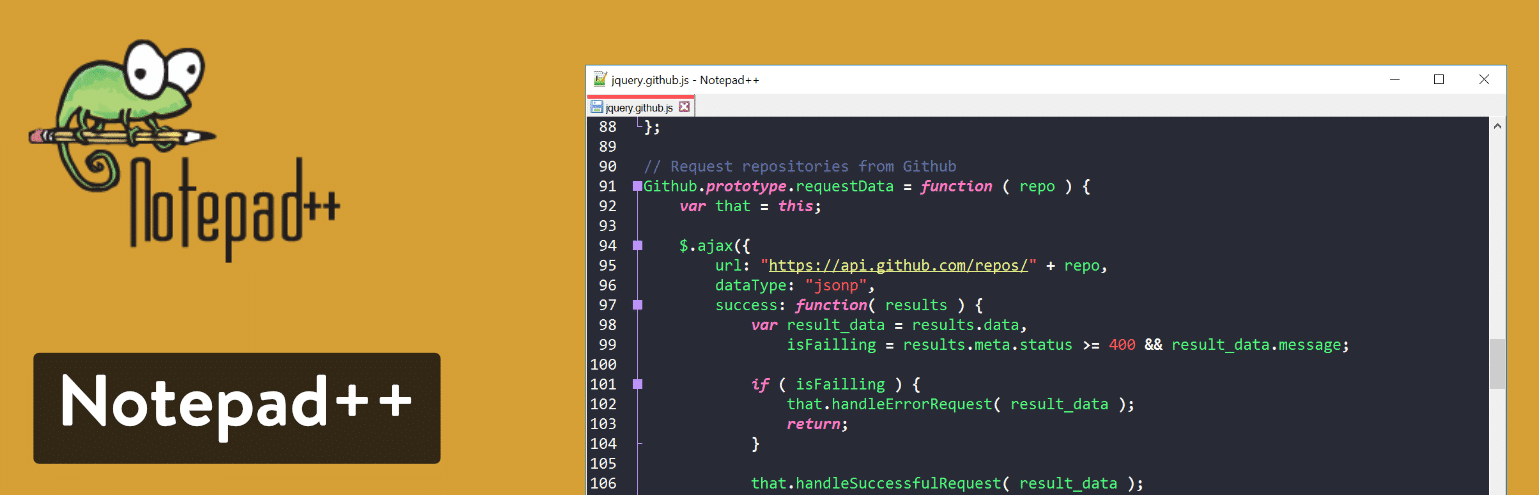
Writing code and manipulating text in Notepad++ comes easy, as it utilizes syntax highlighting and folding. There’s also a wonderful search and replace tool, along with an entirely customizable user interface. For instance, you might want a vertical tab or a document list–all are possible with the Notepad++ text editor.
Which Features Make This One of the Best Text Editor Tools?
- Notepad++ is completely free for everyone to use.
- The text editor is already translated into dozens of languages, and it provides the documentation needed to translate into more languages.
- You receive a multi-view editor with syntax highlighting and folding.
- The customization tools are easy to understand and powerful enough for the most advanced developer.
- The auto-completion settings ensure that you can finish functions, parameters, and words without having to type them in over and over.
- It offers a multi-document interface for switching between tabs and managing multiple projects at once.
- Notepad++ provides a list of plugins to improve the functionality of the text editor or integrate with other programs.
- You can open a function list, which reveals an outline of all functions found in the current file. This also includes a search engine for quickly locating functions in large documents.
If you’re a beginner who needs a text editor, Notepad++ is far easier to understand than some of the other options on this list. Not only that, but you’ll enjoy the ability to locate words and replace them all, while also revealing certain bits of code with highlighting. As for advanced users, Notepad++ also does the trick, with its syntax highlighting for HTML, PHP, and JavaScript. The plugins also help out when trying to connect via FTP or integrate with other text editors.
4. CoffeeCup – The HTML Editor
CoffeeCup’s HTML Editor provides extremely advanced text editing for coding and overall web design management. The editor has a free trial, but in order to continue, you must pay the $49 one-time fee. There’s also a fully free version, but the features are pretty watered down.
We like CoffeeCup for creating HTML documents, but you might consider avoiding it for many other code languages. However, it makes sense to take advantage of CoffeeCup if you’re simply learning a language like HTML or PHP.
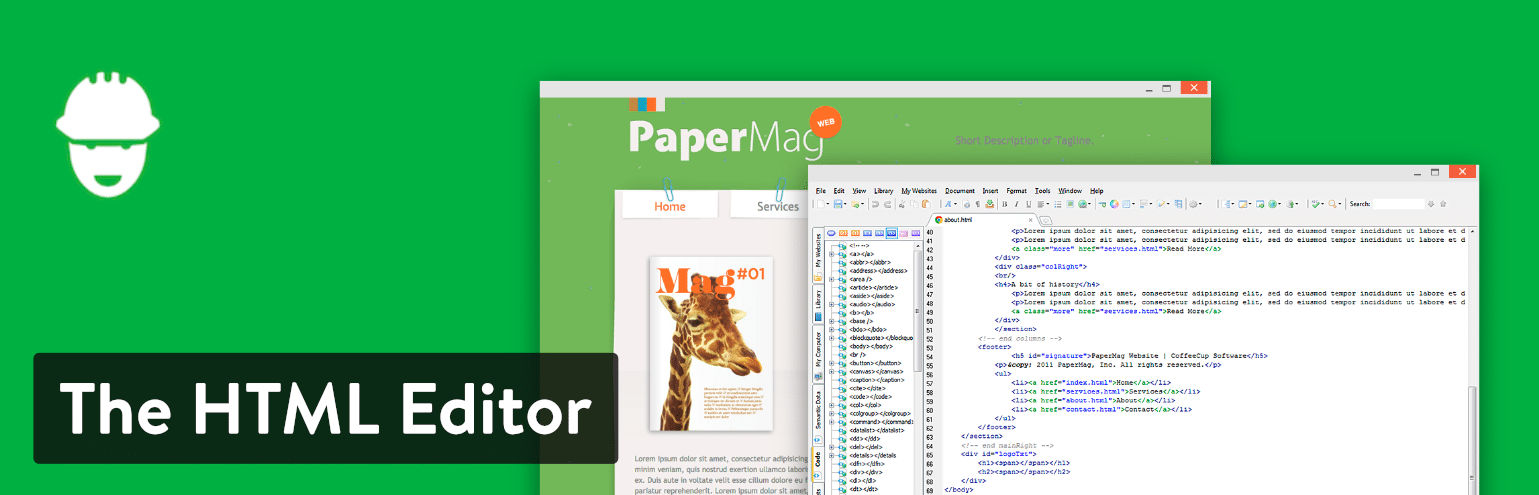
As mentioned, creating and editing HTML is fairly simple with CoffeeCup. This takes your web design to the next level, especially with the tools for tag references and code completion. There are plenty of components to take advantage of that instantly update various elements across your entire website.
What’s more is that the CoffeeCup text editor comes with several responsive website themes. You may want to start from scratch if you’re trying to learn more about coding, but the themes expedite the process for when you need to generate client websites by a deadline.
Which Features Make This One of the Best Text Editor Tools?
- CoffeeCup has a free version and free trial. Also, the premium version is affordable.
- This is one of the best text editor options with themes. These aren’t completed websites, but it gets you close to some designs that might look appealing for some of your clients. Why reinvent the wheel when you can start further into the process?
- The FTP connection allows you to go live with your website with the click of a button. Publish your website anywhere you want by selecting a server or web host.
- CoffeeCup is one of the more visual text editors, with a standard split-screen view, but also a live preview to see what your code creates on the frontend.
CoffeeCup is a great choice for those interested in learning HTML, CSS, and PHP. The components library, combined with the theme selection, delivers a good starting point for those who are on a time crunch or don’t feel like beginning from scratch.
5. TextMate
TextMate comes offered as a free download, but you can also decide to upgrade to the premium version for $59. Keep in mind that this payment only gets you one license, so you would have to pay for multiple seats if you have a whole team of people in need of the text editor.
To get started, TextMate strictly works on the macOS. It seems like a simple editor at first, but it actually has quite a bit of functionality crammed into a small package. Some of the standards you would expect from a text editor include find search and replace tools, autocompletion, and board management. All programming languages are supported by TextMate, and it does have a tool for Xcode projects.
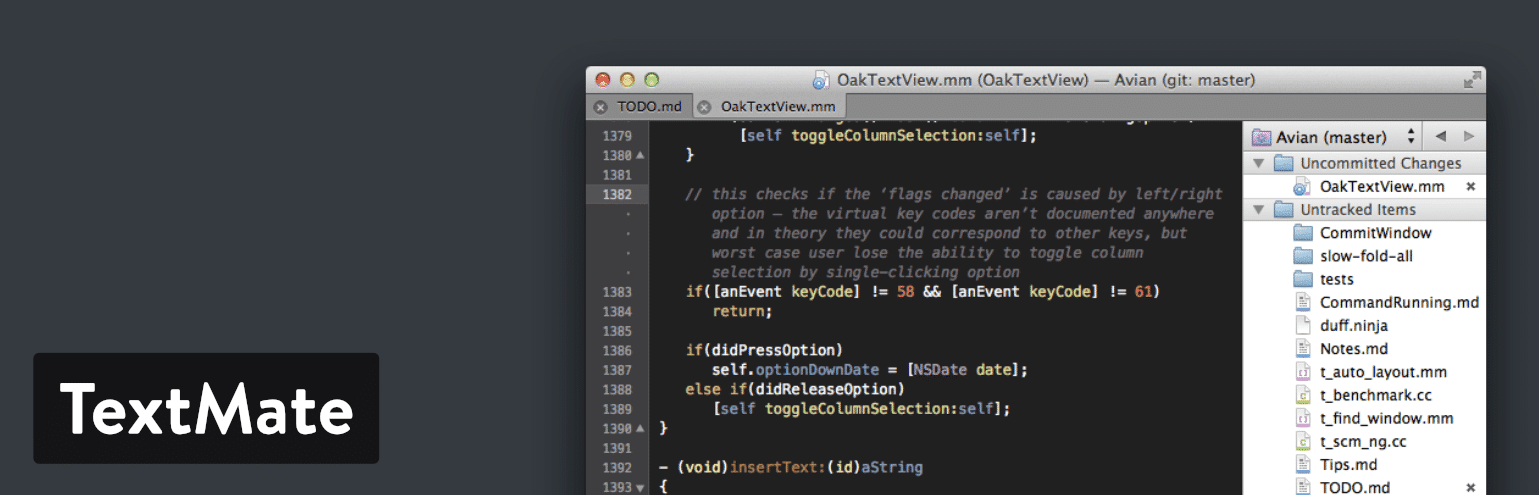
TextMate lets you create multiple insertion points for editing and swapping out pieces of code in bulk. You also receive a list of all version modifications. So, the list includes file changes and allows you to jump back in time if needed.
Which Features Make This One of the Best Text Editor Tools?
- TextMate comes with free and paid versions, both of which provide excellent features.
- It’s a lightweight text editor with a clean interface.
- TextMate offers bundles so that you can customize almost every element in the text editor. Want to change languages? That’s possible. Want to adjust your workflows? Go for it.
- You have the option to generate macros to speed up your production processes. All of your repetitive work is eliminated with these macros.
- An advanced file searching tool is included, along with multiple carets for swapping and adjusting multiple lines of code all at once.
If you’re using a Mac, and would like a text editor that supports all coding languages, TextMate is a solid choice for you. It also appears to be a nice solution for those who like bundles and macros.
6. Vim
With support for Windows, Linux, and Mac, the Vim text editor is a stable, reliable editor that integrates with many popular tools. It’s designed for use both from a command-line interface (CLI) and as a standalone application in a graphical user interface (GUI).
Vim was created in 1991. Back then, it was considered one of the most prominent text editors, which allowed developers to generate updates and scripts with a series of commands. This makes it one of the oldest text editors, and it’s quite impressive that Vim is still being used by developers around the world.
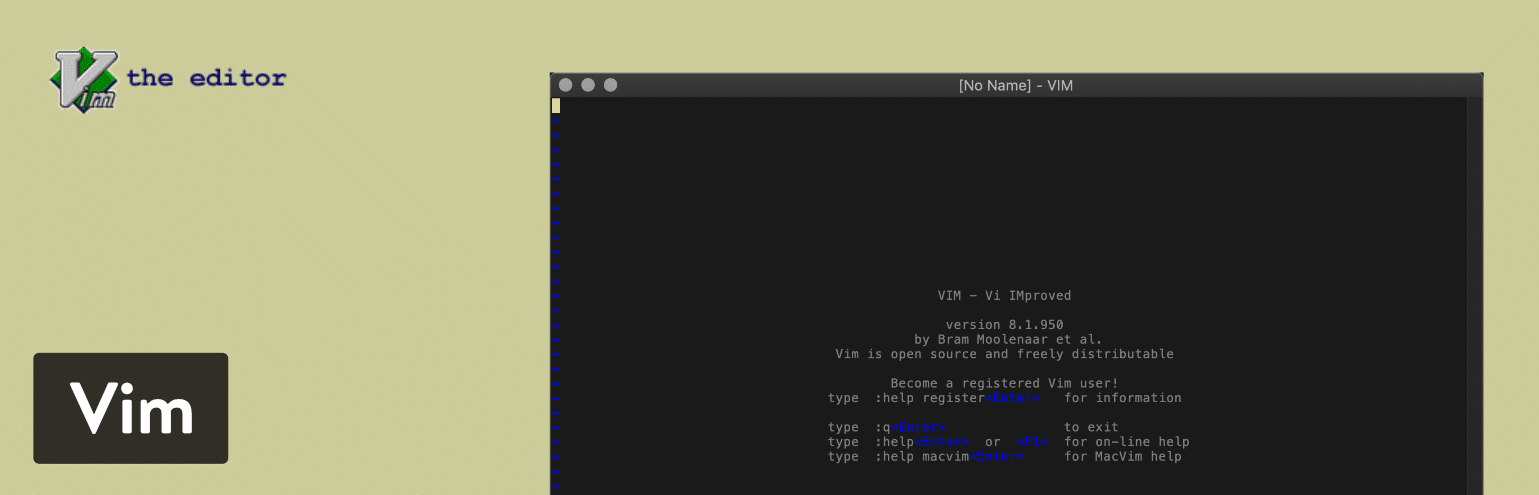
Having said that, you can expect a strong search and replace functionality, along with a large collection of plugins to extend the feature-set in this text editor. We also like the fact that Vim has a large online community to trade tips and learn about new tools to expand upon the base text editor.
You’ll probably notice just how archaic the Vim website looks. Well, the interface for the text editor isn’t much different. That being said, it’s still a high-powered solution for your text editing needs.
Which Features Make This One of the Best Text Editor Tools?
- Vim provides a system that’s friendly for people who enjoy using plugins for expanding upon the text editor.
- The Vim online community is a place for learning more about extensions as well as new scripts, tips, and tools.
- It is completely free and is an open source solution that receives updates on a regular basis.
- It’s also one of the oldest text editors on the market, and it continues to have some of the most powerful features and a strong following.
- You can integrate Vim with several tools that you are already using for your business or design needs.
- It doesn’t matter what programming languages you’re using, because Vim supports hundreds of languages, along with several different types of file formats.
- With the open source nature of Vim, and the vibrant community, you can vote for new features and really make an impact on the future development of the text editor.
- You can utilize the text editor on all of your machines, since it works on Linux, Windows, and Mac. There are popular projects like MacVim which provide a better GUI.
It’s tough to say which developers would enjoy Vim as a text editor. It’s an old system with an outdated interface. Yet, it still has the charm and powerful feature-set that the average developer needs. I would recommend it to more advanced developers who enjoy using open source software and being a part of a community–like the one you can find behind Vim.
Nano is another popular alternative to Vim used by developers.
7. UltraEdit
UltraEdit also serves as a viable solution for your text editing needs. It’s not free. In fact, you have to start by paying at least $99.95. That gets you the standard UltraEdit text editor, along with free upgrades for any future releases. You can also install the software on three machines, whether it’s Windows, Mac, or Linux computers.
After that, there are plenty of upgrades and additions to UltraEdit, such as an FTP program, compare tools, and finder options. You can decide whether or not any of these will help with your work process, but each one of them requires an additional payment. As for the core text editor, UltraEdit is known for its performance and customization abilities, along with some nice-looking themes so that you don’t always have to start from scratch. You can replace and find files, and most of the tasks like these are done in a rapid fashion.
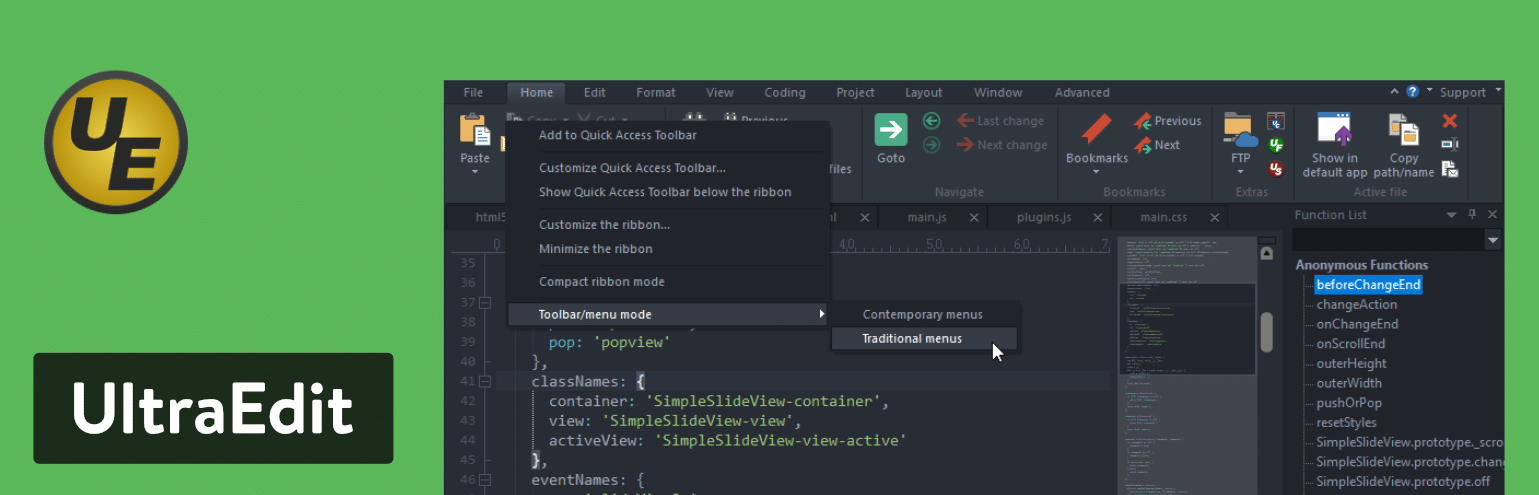
The multi-caret selection tool is sure to speed up development by allowing you to delete, paste, and cut anything you would like with the selection from your cursor. Live previews are also available. They’re displayed side-by-side as you make markdown changes right next to the preview. The feature set from UltraEdit is one of the most comprehensive on this list, so we can’t cover them all. However, we do particularly enjoy the customizable user interface, which allows you to lay out your workspace however you’d like.
Which Features Make This One of the Best Text Editor Tools?
- UltraEdit is a premium solution that provides customer support, a decent community, and a wide variety of features that you wouldn’t always get with a free or open source text editor.
- It’s one of the fastest text editors you’ll find, especially in terms of replacing and finding files and selecting and editing multiple bits of code.
- The HTML live preview brings a visual aspect to your programming process. It sits right next to the text editor and renders an HTML preview for you to see right in the program.
- You’re able to edit extremely large files with UltraEdit. Many times, you’ll find that a less powerful or free text editor will crash when you try to customize these large files. That’s not the case with UltraEdit.
- This is a multiplatform text editor, and when you pay for one license you can use it on three different machines.
- All the tools are configurable in the text editor. You can even choose from some editor themes that serve as skins for the program.
- There are several smart templates that automatically complete some of the code as you type.
UltraEdit serves a few purposes. First of all, it allows developers and programmers an option for uploading and editing large files. You’ll also notice that it has incredible power and performance for locating files and searching for areas in those files. We also like it for corporate use, seeing as how you can install it on three different platforms and it’s one of the more secure and trusted solutions on the market. From regular text editing to web development and file comparing, UltraEdit provides an impressive set of key features that come at a reasonable price.
8. Coda
Coda is for all the Mac lovers out there. It costs $99 for one copy, and the pricing gets progressively cheaper per copy if you purchase multiple copies at the same time. In addition, Coda is very reminiscent of many other Mac products, in that it has one of the most beautiful interfaces of every text editor on the market today. Mac users rave about it, and it’s not hard to see why. First of all, you receive a built-in terminal and an inspector to go along with an interface that lets you edit both remote and local files.
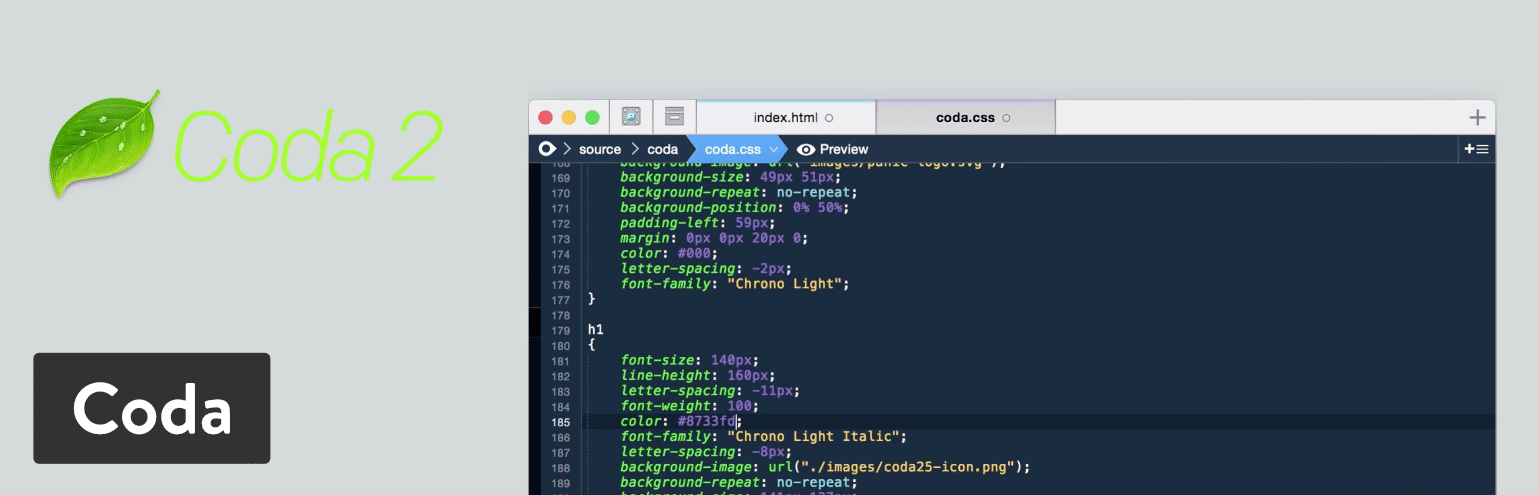
Coda is also an elder in this space, seeing as how it’s been around for over a decade. Coda2 is actually the text editor that you would be installing on your computer. This version offers some unique features such as local indexing and a CSS override for editing CSS on a live website. Another notable new feature is the publishing tool that tracks all of your files outside of the Coda app. You can then save and publish any of these remote files directly into the text editor.
On the surface, Coda is a basic text editor with features for syntax highlighting, code folding, and autocompletes. However, you will find some rather unique editing options, like something called a wildcard token that lets the user rapidly generate items like gradients and colors as you type. Although the text editor goes for $99, you receive a great value, along with excellent customer support and plenty of free e-books and resources dedicated just to the Coda editor.
Which Features Make This One of the Best Text Editor Tools?
- Coda provides a one-click wildcard token for adding little changes throughout your document when working through the find and replace tool.
- It offers one of the cleanest, most modern interfaces out of all text editors.
- You receive excellent basic tools for working with a wide variety of languages and highlighting syntax.
- It is designed specifically for Mac users, so it’s great if you love Macs.
- File management is a breeze on Coda, seeing as how you can edit remotely through FTP or Amazon S3 servers, or even access your local files and publish them remotely.
- Much of your coding is completed through the text editor on your desktop. However, you can remotely edit your code, or even test out previews on your iPhone or iPad while editing in Coda.
- The new version includes some revolutionary tools such as CSS overriding, Panic syncing for passwords and private keys, and local indexing to autocomplete anything from classes to functions.
If you want the most beautiful interface on this list, this is the text editor for you. It’s also important to remember that this is one of the few text editors made just for Mac computers. So, if you’re a Mac user, it makes sense to go with Coda. You also might consider it if you would like to improve your coding previews or need to figure out a way to edit your files both remotely and locally.
9. BBEdit
BBEdit is an editor that spawned from the same technology used in TextWrangler. Now that TextWrangler has been decommissioned, all of its users are being pushed to use BBEdit instead.
Similar to Coda, BBEdit is also exclusively used on the Mac operating system. It offers highly advanced features, but also strives to have a bare-bones like appearance to go along with the acronym BB. BBEdit includes excellent features like Git integration and auto-completion. Syntax highlighting and quick lookups are also provided, along with editing windows that you can split up and place next to each other for easier editing. The current version of BBEdit costs $49.99 for an individual license. You can also upgrade to new versions for cheaper prices.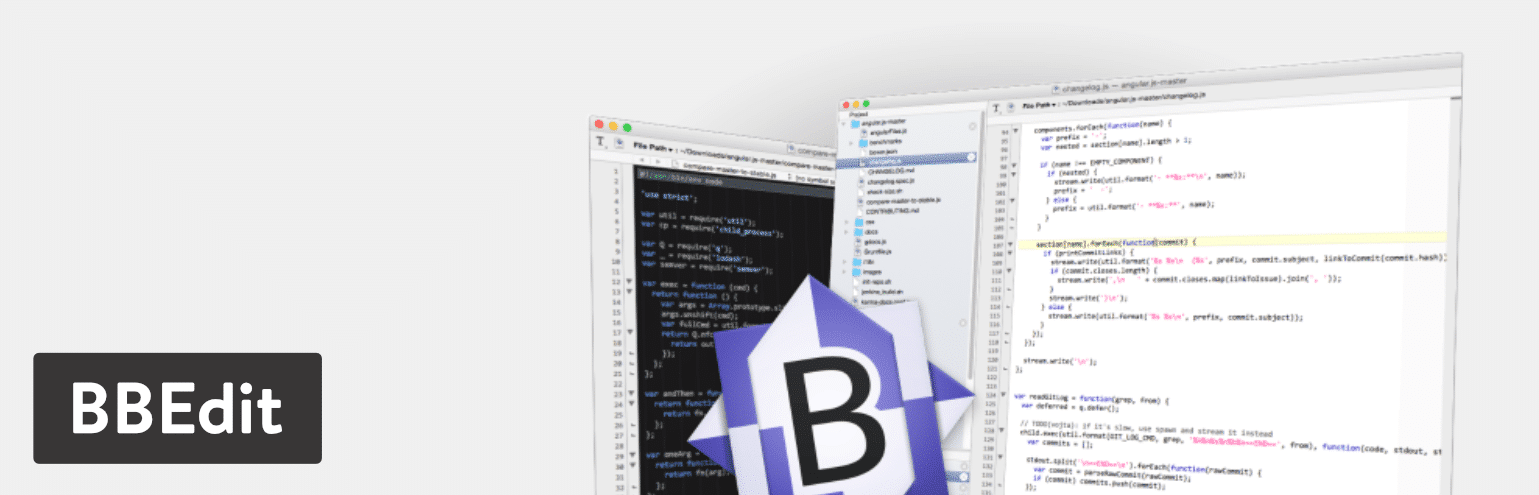
With BBEdit, you have complete control over the text in your editor, it’s extremely easy to search and locate items due to the clean interface and smooth workflows. Text handling is one way to use BBEdit, seeing as how it offers excellent features such as canonization, hard wraps, and case changes. You’ll also find this text editor useful for web development, with its powerful previews in any browser and the ability to add special characters to any HTML.
The BBEdit text editor has impressive options for programming as well. For instance, many programmers enjoy the ability to auto-indent and check their syntax for certain scripts like Python and Ruby. We also like the fact that this text editor has code folding so that you can read your files easier by hiding larger sections of code. Overall, BBEdit is one of the best text editors, especially for those who are already using the Mac operating system.
Which Features Make This One of the Best Text Editor Tools?
- BBEdit features code folding and text completion, both of which make for a cleaner interface and speedier coding.
- It works with a wide variety of languages and has syntax checking for multiple scripts.
- You receive a bare-bones interface that is meant to clear out all distractions while still keeping around the features that make for a strong text editor.
- This text editor is created just for Mac users, so you won’t have to worry about getting used to a new interface.
- Search and replace tools are available for adjusting individual items throughout multiple files. There are also several navigation functions as well as syntax coloring.
- You can add special characters to your code and insert attributes and tags that might assist you while writing your HTML.
- Under construction HTML and markdown can be previewed right next to the code being edited. Not only that, but all updates you make to the code are automatically changed in the preview before your eyes.
- It offers automated completion tools for suggesting things like clippings and symbols.
- You can take advantage of basic and more advanced text handling features such as the ability to exchange characters and words, the straightening of quotes, and full canonization.
- All of your projects have folder listings so that you can organize your work and then browse and edit your directory listings with speed and precision.
- All files can be accessed and manipulated through SFTP and FTP.
BBEdit works wonders for those on the Mac operating system. It has the tools you need for web development, along with text handling. So, you might use it if you’re a writer or a programmer. It’s also worth noting that with the fairly low price and incredibly clean interface, it might make more sense to go with BBEdit over Coda.
10. Komodo Edit (Or IDE)
The idea behind Komodo Edit is to offer something powerful, yet with a certain level of simplicity, so that even beginners should be able to grasp it. You can download Komodo Edit for Mac or Windows operating systems. It’s free and open source, allowing those who don’t need all the advanced features a text editor that gets smaller projects done.
Also, if you require more advanced tools like code profiling or unit testing, the Komodo IDE upgrade does the trick. Support for all languages and frameworks is provided through Komodo IDE, making it ideal for web development. Also, this upgrade doesn’t cost you anything since it’s also an open source project.
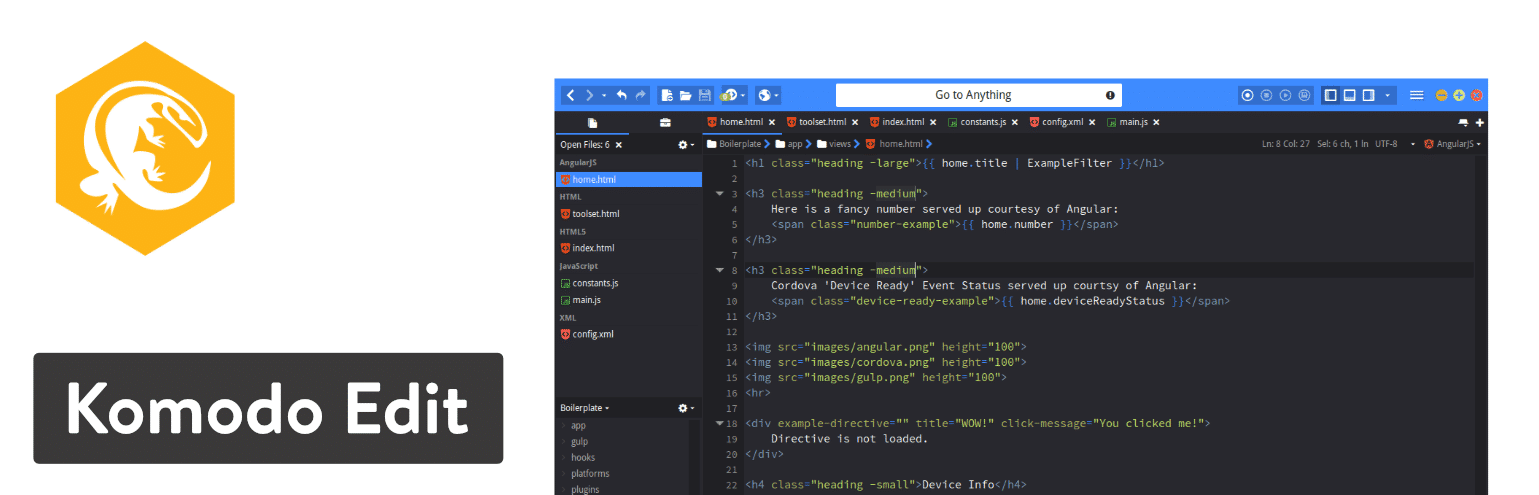
However, I would recommend trying out Komodo Edit first to see if it has all of the tools you need for projects. After all, it’s a cleaner interface and lighter weight solution for keeping projects better organized. Komodo IDE has all of the features from Komodo Edit but then it adds on dozens more. For instance, both offer things like the multi-language editor, skin sets, and the ability to make multiple selections.
However, you would have to switch to the Komodo IDE text editor if you need print debugging, or if you’d like tutorials for learning about the system.
Which Features Make This One of the Best Text Editor Tools?
- Komodo Edit is one of the best text editor options since it offers two separate versions, one that’s great for light users and another that’s for the advanced power user.
- Both of the versions, including Komodo Edit and Komodo IDE, can be downloaded for free.
- The Komodo IDE version has real-time code collaboration tools for connecting with other developers on your team and sharing and editing files together.
- The interactive shells in Komodo IDE include Python, Ruby, and Perl.
- The Komodo IDE option also has plenty of integrations. Some of these are Gulp, Grunt, Yarn, and Vagrant.
- The live previewing in Komodo IDE ensures that you can render HTML visuals while adjusting your code.
- The Komodo Edit version has the ability to track changes and make multiple selections.
- Both versions have multi-language editors that include skin and icon sets.
When you think about it, Komodo makes solutions for everyone. Since Komodo Edit and Komodo IDE are both offered for free, less experienced and advanced users can take advantage of the text editor. So, if you’d like a lightweight version, or just something simpler, go with Komodo Edit. If you’re looking for more ambitious tools, the Komodo IDE text editor provides everything from print debugging to custom workspaces.
11. Visual Studio Code
As one of the younger players in the game (launched in 2015) Visual Studio Code puts forth quite an effort for building a stable community and ensuring that users are getting the features they need. The hard work definitely shows, since the plugin library has been growing quite a bit. It’s also an open source project that you can download directly to macOS, Windows, or Linux for free.
A few distinct areas make Visual Studio Code an appealing text editor for all developers. First of all, Visual Studio Code is often considered to be faster than older editors on the market. You can also clear out all of the clutter by opting for the Zen Mode, which removes all menus and items that don’t involve your editor.
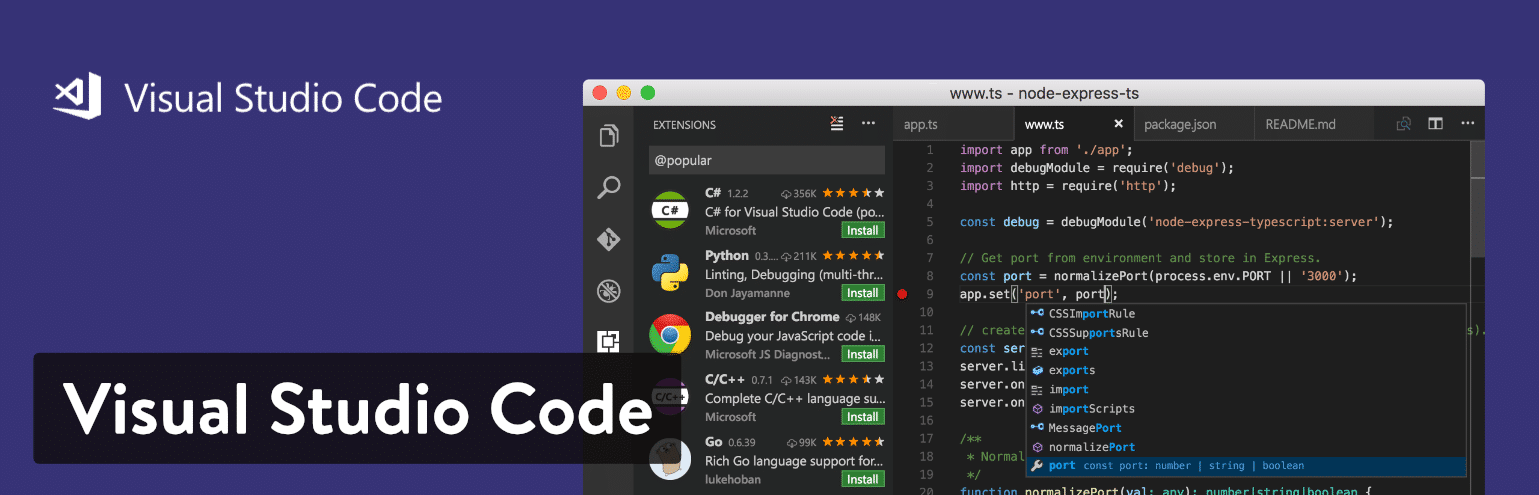
We also enjoy the IntelliSense feature, which takes syntax highlighting and auto-completion to the next level–with the help of smart completions based on function definitions and other items like variable types. The Visual Studio Code editor has Git commands programmed into the system. This way, you’re able to pull or push from all hosted SCM services.
Finally, the Visual Studio Code website has numerous tabs for you to learn about the software. The documentation page walks you through steps like the setup and working with different languages. You’re also able to check out some tips and tricks and learn all of the Visual Studio Code keyboard shortcuts. Along with a blog, updates page, extensions library and API information, Visual Studio Code looks like a great choice.
Which Features Make This One of the Best Text Editor Tools?
- Visual Studio Code is a completely free text editor with open source access and a large collection of extensions to make some upgrades.
- The community is strong and the website includes plenty of documentation, a full blog, and lots of information in the form of FAQs and API page.
- It provides built-in Git commands.
- The IntelliSense feature does a wonderful job of upgrading the standard autocomplete and syntax highlighting features you would expect from most text editors. Essentially, it creates smart completions based on items like function definitions and variable types.
- You have the option to debug your code directly in the editor. Therefore, there is no reason for print statement debugging.
- This is a multiplatform text editor, with support for Linux, Mac, and Windows.
There are a few reasons you might consider Visual Studio Code for your text editing needs. The first is if you would like a free text editor that actually has a thriving community behind it. The second reason would be if you like the idea of extending and customizing your text editor in terms of language, theme, and debugger support. We also really like the IntelliSense feature, so it makes sense for people who are also intrigued by the smart completions.
Looking for a cool Visual Studio Code theme? Check out Shades of Purple, created and maintained by Ahmad Awais.
12. Brackets
The Brackets text editor comes from the folks at Adobe, in an attempt to offer a more modern, open source solution for developers creating websites. This is a free text editor, with some appealing visual tools for previewing your work and allowing for frontend developers to examine the changes. Writing code is the main focus in Brackets, and it’s done with the help of inline editors, live previews, and nicely organized files.
Because of its affiliation with Adobe, Brackets has somewhat of an integration with Photoshop, in that it can take pieces of your PSD file and generate code for your project.
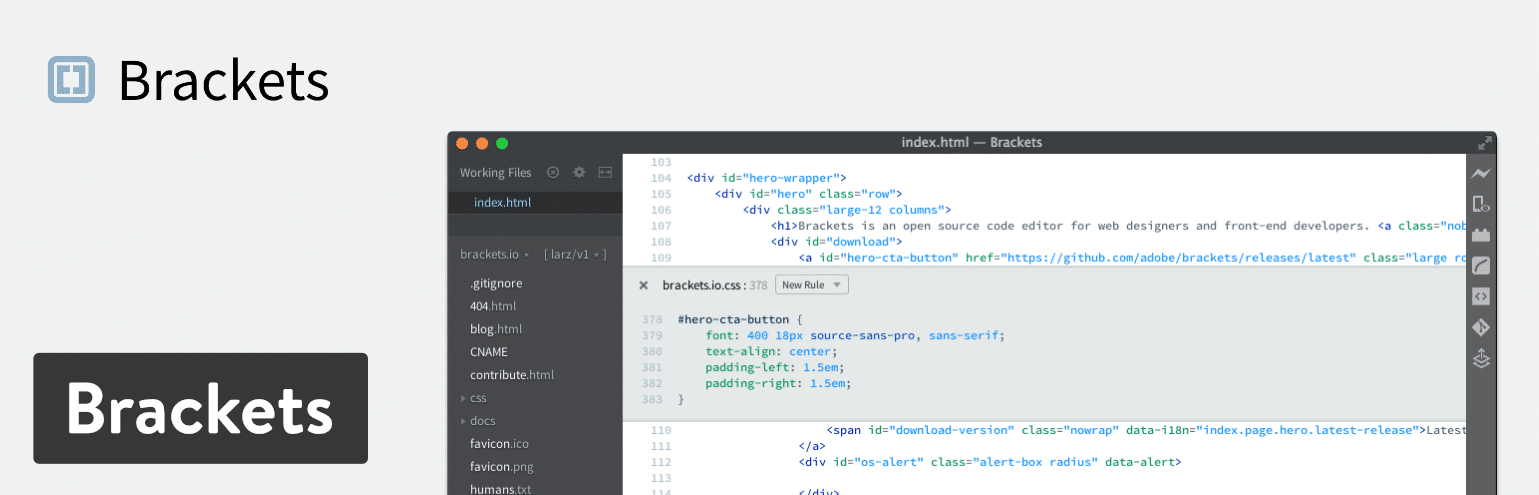
Brackets is open source and offers a decent community. It’s also available on Mac, Linux, and Windows machines. The interface is fairly simplistic, but the text editor has a wide range of features for you to play around with. In addition, developers are able to upload their own extensions via GitHub. If you would like to use one of these extensions, all you have to do is go to the website.
Which Features Make This One of the Best Text Editor Tools?
- Brackets delivers on value and its feature-set, especially considering you don’t have to pay a dime and it’s specifically designed for web developers.
- It has somewhat of an integration with PSD files.
- The text editor connects with GitHub.
- Several extensions are provided for you to expand upon the current text editor and potentially customize what your interface looks like.
- Brackets is a cross-platform solution for use on all of your operating systems.
- The live preview feature ensures that all developers can see their work in a more visual manner.
- The inline editors let you select an area inside of your code and open a window right in the editor. This way, you don’t have to have several tabs open while completing your work.
Brackets has plenty of features to consider, but it seems like developers will most enjoy the visual live previews–considering you can’t get this type of presentation in most text editors. It’s also nice for those who want a good value for a free text editor, considering the extensions and overall community vibe is strong.
13. CodeShare
The CodeShare text editor takes a completely different approach to online code editing. It’s built for developers, and it has a focus on giving these developers the opportunity to share code in real time and speak to each other through a video chat. So, essentially it’s a real-time code editor combined with a Skype-like communication service.
The reason we like this configuration so much is because the development teams no longer have to be in the same room to see and edit changes right before their eyes. This is highly beneficial for interviews, considering you could remotely hire someone and see their coding abilities along with their face. You also might use it for a debugging session or to review any type of code for your organization.
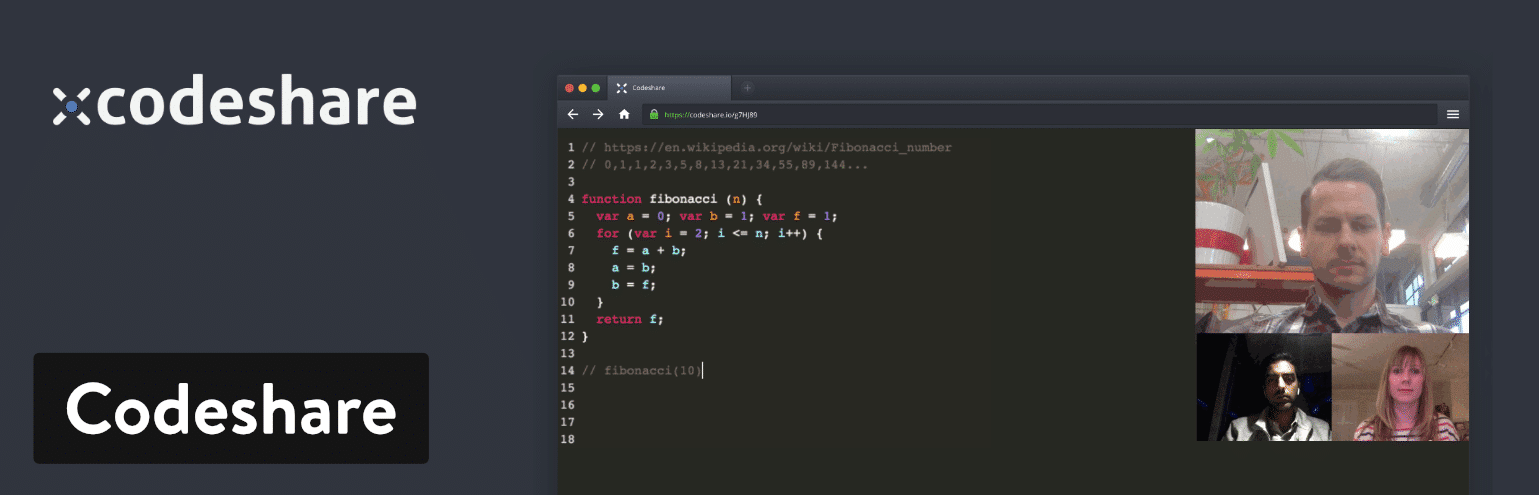
Keep in mind that any code written on CodeShare is only stored in the text editor for 24 hours. It’s then deleted. So, you either have to save it to your own machine or you have to sign up for an account at CodeShare. A sign-up is not technically required but it does give you that huge feature of saving your code.
Other than that, there is no fee to get started with CodeShare. All you have to do is create an account and then you receive access to the video chat functionality as well as the real-time coding.
Which Features Make This One of the Best Text Editor Tools?
- CodeShare stands out as the very first text editor to offer real-time sharing.
- This is also one of the best text editors because it has an integrated video chat solution for logging in multiple members of your team. This might come in handy for interviews or team sessions where seeing a person’s face and hearing their voice would be beneficial.
- It’s a completely free text editor.
- CodeShare is a fairly bare-bones code editor, making it perfect for those who like fewer distractions.
- Your code can be saved if you sign up for a free account.
First of all, Codeshare is made primarily for developers. So, it really doesn’t make sense to use it if you are a content creator or publisher. That said, Codeshare should be considered if you like the idea of having a video chat embedded into your online code editor. You don’t necessarily have to always use the video editor, but it is there as a feature. It’s also worth looking into if you want one of the best real-time code sharing solutions on the market. Overall, we would recommend it for those who would like to code with their teams, interview developers, or teach other people how to program through video.
Summary
If you’re still a little confused about which text editor to choose, here’s a list of our final recommendations (remember, we recommend trying each of them out to find the one that works best for your workflow):
- Sublime Text – This one makes the most sense for heavy coders. Is lightweight with low resource usage.
- Atom – We like Atom for people who also want a collaboration tool with the text editor.
- Notepad++ – Consider this text editor if you’re a beginner or advanced user. It has the features developers need without being too confusing for those just starting out.
- CoffeeCup HTML Editor – If you’re learning coding languages, think about trying this editor.
- TextMate – Consider TextMate if you have a Mac and need support for all languages.
- Vim – Use Vim if you’re an experienced developer who might enjoy an older interface or prefer something via the command line.
- UltraEdit – If you need to upload and edit large files, UltraEdit does the trick.
- Coda – Go with Coda if you’re using a Mac and would like an incredibly pretty interface.
- BBEdit – This one is also good for Mac users.
- Komodo Edit – You can use Komodo as a beginner or experienced pro. Just make sure to download the right version depending on which one you are.
- Visual Studio Code – Here’s a text editor with a unique auto-completion feature. Try it out if that sounds interesting to you.
- Brackets – Try out Brackets if you like live previews and extensions.
- CodeShare – Consider CodeShare if you’re a developer or teacher who could use real-time code sharing and a video chat component.
Now that we’ve taken a look at some of the best text editors, share your thoughts in the comments below. Let us know if you’ve used any of these options and what your favorite feature is. Also, mention any other editors that we might have missed.
Categories
Subscribe Now
10,000 successful online businessmen like to have our content directly delivered to their inbox. Subscribe to our newsletter!Archive Calendar

| Sat | Sun | Mon | Tue | Wed | Thu | Fri |
|---|---|---|---|---|---|---|
| 1 | 2 | |||||
| 3 | 4 | 5 | 6 | 7 | 8 | 9 |
| 10 | 11 | 12 | 13 | 14 | 15 | 16 |
| 17 | 18 | 19 | 20 | 21 | 22 | 23 |
| 24 | 25 | 26 | 27 | 28 | 29 | 30 |
| 31 | ||||||
Recent Articles
-

Posted on : Jul 25
-

Posted on : Jul 07
-

Posted on : Apr 07
-

Posted on : Mar 19
Optimized my.cnf configuration for MySQL 8 (on cPanel/WHM servers)
Tags
- layer 7
- tweak
- kill
- process
- sql
- Knowledge
- vpn
- seo vpn
- wireguard
- webmail
- ddos mitigation
- attack
- ddos
- DMARC
- server load
- Development
- nginx
- php-fpm
- cheap vpn
- Hosting Security
- xampp
- Plesk
- cpulimit
- VPS Hosting
- smtp
- smtp relay
- exim
- Comparison
- cpu
- WHM
- mariadb
- encryption
- sysstat
- optimize
- Link Building
- apache
- centos
- Small Business
- VPS
- Error
- SSD Hosting
- Networking
- optimization
- DNS
- mysql
- ubuntu
- Linux