WordPress Maintenance Mode – Troubleshooting and Customizing
- Category : WordPress
- Posted on : Oct 11, 2018
- Views : 3,243
- By : Hagen V.

The WordPress maintenance mode page is something that is automatically shown to visitors temporarily when you make updates on your site, such as updating plugins, themes, or core. This is to keep from anything appearing broken or out of sync while files are being patched. However, there are a couple issues with this. The first is that sometimes your WordPress site might get stuck in maintenance mode. This essentially takes down your whole site until you manually fix it. The second is that the default maintenance page/message isn’t styled, looks rather ugly, and is limited in its messaging to your visitors and customers. This might not be the best for your branding or reputation. Today we’ll explore some ways to resolve these issues.
- WordPress Maintenance Mode
- WordPress Site Stuck in Maintenance Mode?
- Extending Your WordPress Maintenance Mode
WordPress Maintenance Mode
The WordPress maintenance mode is a great little feature that is built into core and was introduced in version 3.0. Whenever you update a plugin, theme, or your WordPress installation, the following message is shown to your visitors until the update operations have completed.

During the update and installation process, some backend processes are stopped for a short period of time (usually only for a few seconds depending upon the number and size of updates). WordPress utilizes the wp_maintenance() function and creates a temporary .maintenance file on your site which contains the alert you see above. After the updates have completed, the file is automatically removed and your site goes back to normal.
By default, WordPress returns a 503 HTTP status code (service unavailable.) when in maintenance mode. This basically tells Google your working on the page or something went wrong and they will check back later. This is the header response you want to show for SEO, as it won’t harm your rankings if your site is temporarily down. Yoast has a great article on the importance of the 503 HTTP header in regards to SEO.
Is Your WordPress Site Stuck in Maintenance Mode?
A common issue that WordPress users run into is that their site might get stuck in maintenance mode. This can be very frightening as this also can also affect the administrator and backend. Suddenly you can’t login to your WordPress site and your website is essentially down, except for the brief message that visitors see.
This commonly happens when there is a conflict, in which case the .maintenance file might think there are still pending operations and or updates needing to finish. This results in the file remaining and never removing itself. What causes the conflict? In our experience, we have seen this happen if the user manually clicks “update now” on a number of different plugins at a very rapid pace. WordPress by default staggers updates in order, but if there is even a ms of a delay in the connection, this could result in a sudden conflict, triggering the stuck maintenance mode.
To ensure this doesn’t happen, you can easily click on the filter “Update Available,” and then select “Update” from the bulk actions dropdown. Then click “Apply.” This will then fire off the updates in order and you are less likely to receive a conflict.

Another recommendation to prevent this from happening is to update your plugins as they are patched. Don’t wait 6 months and then try to update them all at once. If you have 30+ plugins needing multiple updates, it is probably better to update them one by one, and test, as you go to ensure nothing breaks on your site. This is one of the reasons why Host SEO has free staging environments so that you can test everything on a clone of your live site beforehand, and minimize the risk of breaking your production site.
How to Quickly Get Out of Maintenance Mode
Thankfully, if your WordPress site is currently stuck in maintenance mode, it is very easy to get back out and return your site to normal. You simply need to delete the .maintenance file that was created.
Step 1
The first step is to login to your site via FTP. Check out our in-depth post on how to SFTP into your WordPress site.
Step 2
Navigate to the root of your WordPress site and or public HTML folder. This is the same folder that normally contains your wp-config.php file. You can then delete the .maintenance file.
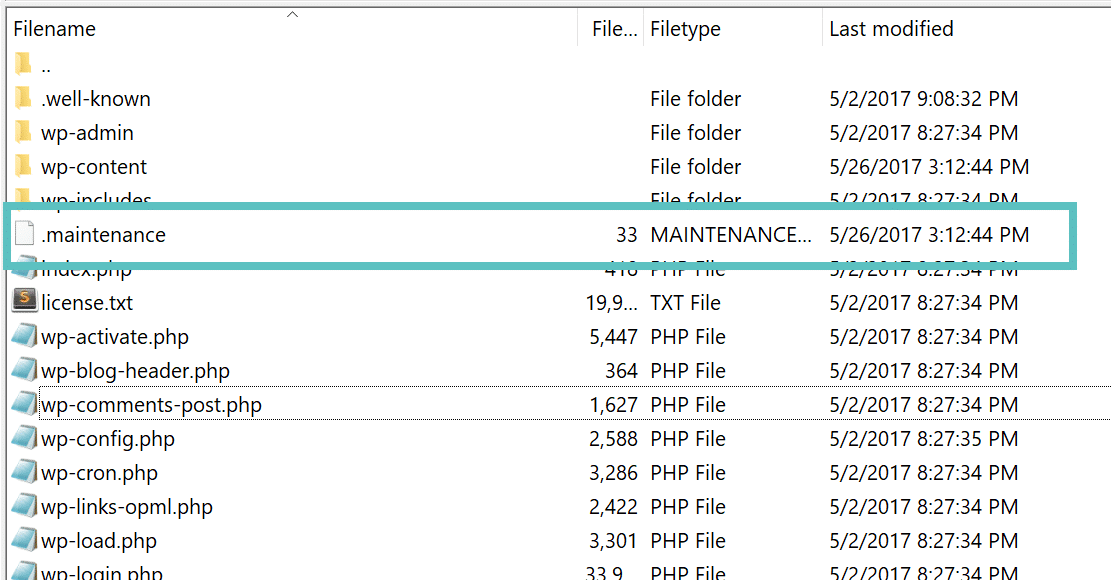
After it has been deleted you can refresh your website in your browser and your site should be back to normal. It is also recommended that you clear the cache on your WordPress site.
Extending Your WordPress Maintenance Mode
There are quite a few ways you can extend your WordPress maintenance mode, such as enabling it manually and or customizing the screen so that it more closely matches your branding. You can also add more messaging to your visitors and or customers so they stay in the loop. Remember, that the more traffic you get on your site, the more important the maintenance mode messaging and styling as more people will be more likely to see it.
Another reason why you might want an improved maintenance mode page, besides running updates, is that perhaps you are migrating changes over to production manually. We always recommend testing on a development site first, but there are times when you might need to throw up a maintenance page on your production site for an hour or two.
Manually Enabling WordPress Maintenance Mode With Code
You can enable the WordPress maintenance mode manually with code by placing the following in your functions.php file. Or better yet, do it with a WordPress child theme.
// Activate WordPress Maintenance Mode
function wp_maintenance_mode(){
    if(!current_user_can('edit_themes') || !is_user_logged_in()){
        wp_die('<h1 style="color:red">Website under Maintenance</h1><br />We are performing scheduled maintenance. We will be back on-line shortly!');
    }
}
add_action('get_header', 'wp_maintenance_mode');
This will result in a message being placed on the front of your website to users who are not logged in. Administrators can still access the dashboard as it is utilizing the built in is_user_logged_in() function.
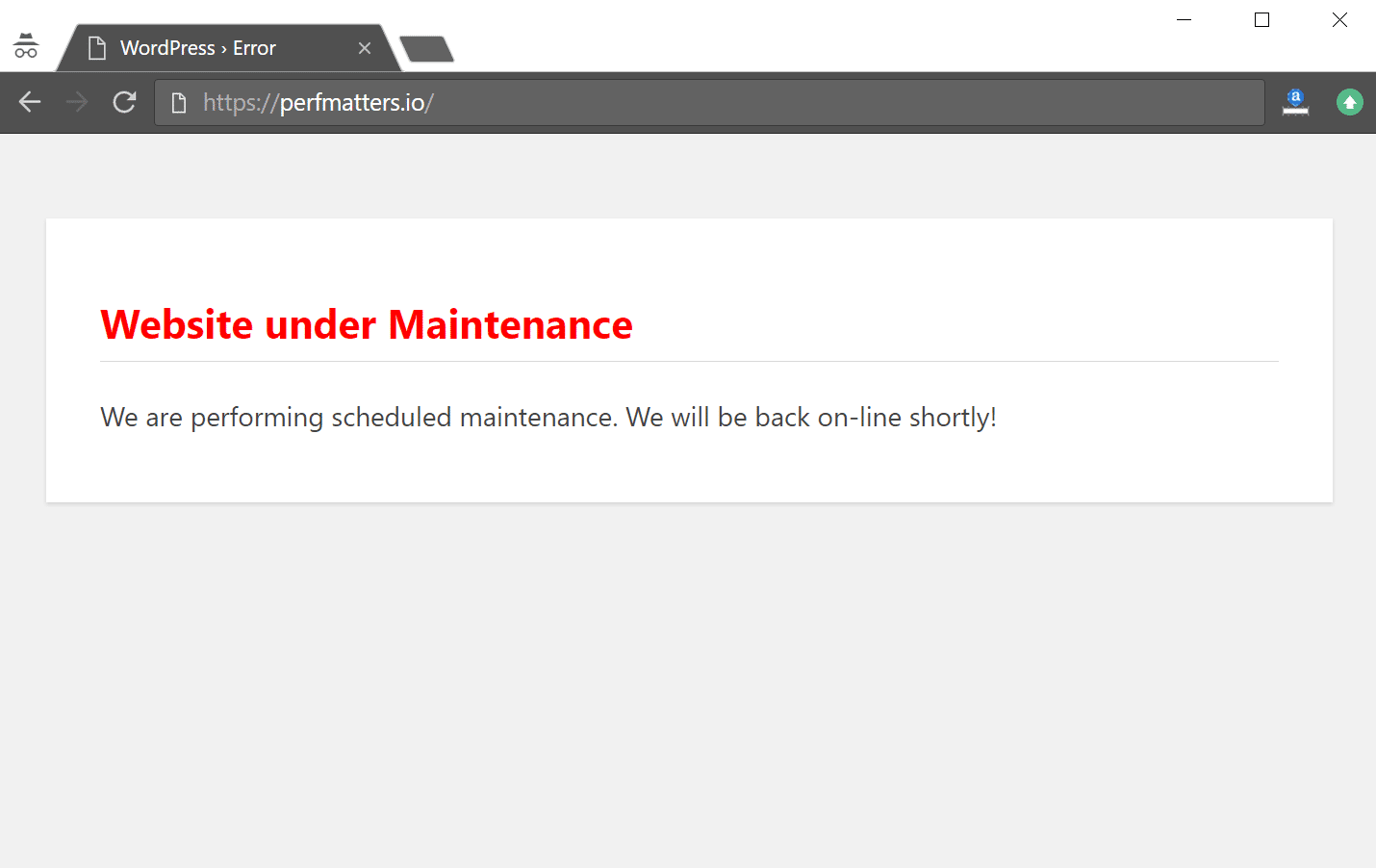
However, the above screen isn’t customizable (it is also dynamically generated) and so you might want to style it to match the branding and appearance of your website. Hongkiat has a nice little tip in which you can create a custom page. All you need to do is create a file, call it maintenance.php, and drop it in your /wp-content/ folder. You can then style it with CSS or even create an entire page from scratch.
This way when you update WordPress core, themes, or plugins it will use the new file with your customizations instead. The check for this file is already defined in the load.php file located in /wp-includes/ so you don’t have to do anything extra. It looks like this:
if ( file_exists( WP_CONTENT_DIR . '/maintenance.php' ) ) {
 require_once( WP_CONTENT_DIR . '/maintenance.php' );
 die();
 }
Utilizing a WordPress Maintenance Mode Plugin
And last but not least, if you aren’t comfortable with editing code or need something more, you can also take your WordPress maintenance mode to the next level by utilizing some free and premium plugins.
1. WP Maintenance Mode
WP Maintenance Mode is one of the highest downloaded plugins when it comes to throwing up a quick and easy maintenance mode message for your WordPress site. It is completely free and created by the team over at Designmodo, a popular web design blog. Only users with enough rights can see the frontend, otherwise, everyone else will see the maintenance mode message when enabled. It works with Multisite, however, it is important to note that it can be unstable with caching plugins.

It currently has over 600,000 active installs with a 4 out of 5-star rating. You can download WP Maintenance Mode from the WordPress repository or by searching for it within your WordPress dashboard under “Add New” plugins. Some of its additional features include:
- Ability to change colors, text, and backgrounds
- Subscription form, contact form, and timer
- Included landing page templates
- Works with any WordPress theme
- SEO options for 503 HTTP header response
- You can exclude URLs from maintenance, this is especially handy if you have changed your WordPress login URL
2. Coming Soon Page & Maintenance Mode by SeedProd
The Coming Soon Page & Maintenance Mode plugin is developed by John Turnerover at SeedProd and was launched way back in 2011. It has a great reputation in the WordPress community for being a well-supported plugin for both coming soon pages and maintenance mode. As of writing this, the last update to the plugin was made within the last 6 days. A lot of this has to do with the fact that there is a free and premium version. Sometimes having two versions ensures you get more updates.

It currently has over 700,000 active installs with an impressive 5 out of 5-star rating. You can download Coming Soon Page & Maintenance Mode from the WordPress repository or by searching for it within your WordPress dashboard under “Add New” plugins. Some of its additional features include:
- Works with any WordPress theme and is responsive
Customize the look and feel - Easily add CSS and HTML
- Multisite and BuddyPress Support
3. Slim Maintenance Mode
The Slim Maintenance Mode plugin does exactly what you would think. This essentially creates the same type of page as we showed you how to implement above with code. Just activate the plugin and only administrators can see the website. If you want something that is free, fast, and lightweight, definitely check this one out.

It currently has over 400 active installs with a 5 out of 5-star rating. In fact, as of writing this it doesn’t have a single bad review! And that is because it just works. You can download Slim Maintenance Mode from the WordPress repository or by searching for it within your WordPress dashboard under “Add New” plugins. Some of its additional features include:
- Small, simple, lightweight
- No extra settings to worry about, just activate and your good to go
- Works with any WordPress theme
- Backend message as a reminder that you know it is active
- 503 HTTP header response
- Well supported with popular caching plugins
4. Maintenance Mode
The Maintenance Mode plugin is developed by Lukas Juhas and is a great mix between a lightweight plugin and the default included WordPress maintenance mode in core. The plugin is completely free, uses the wp_die() function, and essentially extends the page by enabling a WYSIWYG editor.
It currently has over 50,000 installs with a 5 out of 5-star rating. You can download Maintenance Mode from the WordPress repository or by searching for it within your WordPress dashboard under “Add New” plugins. Some of its additional features include:
- Simple, lightweight, and minimal options
- Utilize the native WYSIWYG for text and custom code
- Works with user roles (administrator sees the website, users see maintenance mode message)
- 503 HTTP header response
- Well supported and updated regularly
5. Minimal Coming Soon & Maintenance Mode for WordPress
The Minimal Coming Soon & Maintenance Mode for WordPress plugin is developed by the team over at Web Factory, who also run the popular blog WP Loop. They currently maintain 5+ plugins on the repository and are not newcomers in regards to creating needed solutions for WordPress.

It currently has over 50,000 installs with a 5 out of 5-star rating. You can download Minimal Coming Soon & Maintenance Mode for WordPress from the WordPress repository or by searching for it within your WordPress dashboard under “Add New” plugins. Some of its additional features include:
- Works with all WordPress themes and plugins
- Ability to change every single element you see, including the background color, cover images, fonts, etc.
- Preview the maintenance page before activating
- Decent caching plugin support
- Works with custom login URLs
- Visible to only non-logged in users
- Google Analytics support
- Google fonts
6. Elementor
You can also use a page builder plugin such as Elementor to design your own maintenance mode and coming soon pages from scratch. In fact, if you go this route you can easily customize it to look however you want.

It currently has over 900,000 installs with a 5 out of 5-star rating. You can download Elementor from the WordPress repository or by searching for it within your WordPress dashboard under “Add New” plugins. Some of its additional features include:
- Full customization and design
- Login, subscription, forms, counters, social share buttons and other widgets
- Access roles control
- One click Maintenance mode and coming soon mode
- Proper search engine HTTP 200 and HTTP 503 status
- 12 designer-made maintenance mode and coming soon templates
Utilizing ManageWP’s Maintenance Mode
ManageWP, a popular service to manage all your WordPress sites from one dashboard, also includes a maintenance mode option. They have some great looking default templates which you can easily switch between, and you can also edit the HTML.
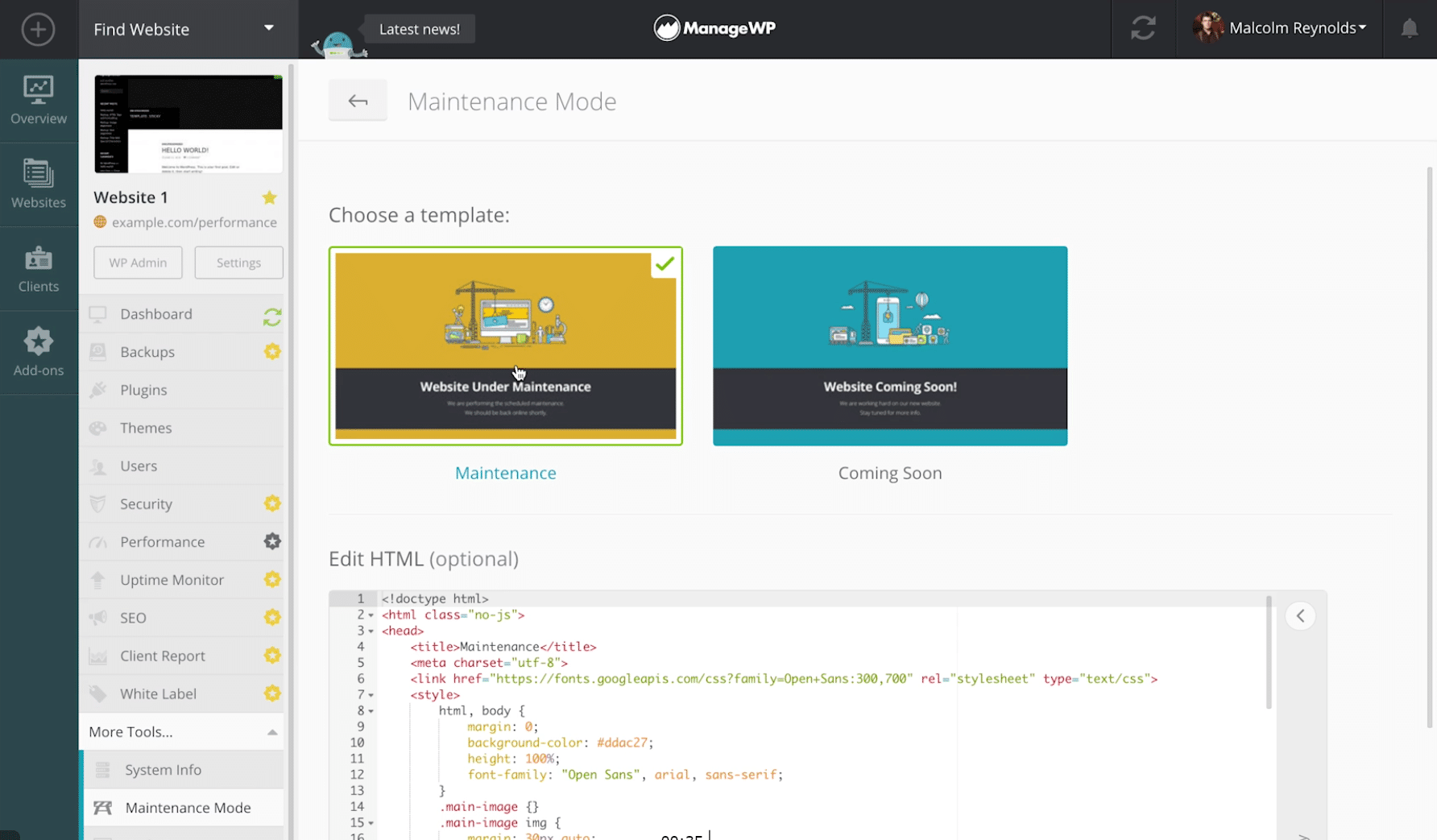
And if you don’t want to hassle with the above options, you could always hire yourself a WordPress maintenance company, such as WP Buffs, which will handle things like this for you.
Summary
As you can see, the WordPress maintenance mode included in core is great. However, it can easily be extended and customized to match your branding. You also might want to customize the messaging so that visitors and customers know exactly why your website is down. And if you ever get stuck in maintenance mode, you now know how to quickly recover and get your site back online.
Categories
Subscribe Now
10,000 successful online businessmen like to have our content directly delivered to their inbox. Subscribe to our newsletter!Archive Calendar

| Sat | Sun | Mon | Tue | Wed | Thu | Fri |
|---|---|---|---|---|---|---|
| 1 | 2 | |||||
| 3 | 4 | 5 | 6 | 7 | 8 | 9 |
| 10 | 11 | 12 | 13 | 14 | 15 | 16 |
| 17 | 18 | 19 | 20 | 21 | 22 | 23 |
| 24 | 25 | 26 | 27 | 28 | 29 | 30 |
| 31 | ||||||
Recent Articles
-

Posted on : Jul 25
-

Posted on : Jul 07
-

Posted on : Apr 07
-

Posted on : Mar 19
Optimized my.cnf configuration for MySQL 8 (on cPanel/WHM servers)
Tags
- layer 7
- tweak
- kill
- process
- sql
- Knowledge
- vpn
- seo vpn
- wireguard
- webmail
- ddos mitigation
- attack
- ddos
- DMARC
- server load
- Development
- nginx
- php-fpm
- cheap vpn
- Hosting Security
- xampp
- Plesk
- cpulimit
- VPS Hosting
- smtp
- smtp relay
- exim
- Comparison
- cpu
- WHM
- mariadb
- encryption
- sysstat
- optimize
- Link Building
- apache
- centos
- Small Business
- VPS
- Error
- SSD Hosting
- Networking
- optimization
- DNS
- mysql
- ubuntu
- Linux