WordPress 5.2 “Jaco” was officially released on May 7, 2019, and is available for download.
This version comes packed with a lot of exciting changes, the biggest one being the new Site Health check tool which will help both educate users and give developers the essential information they need. Other improvements include PHP error protection (fewer white screens of death), block editor improvements, new dashicons and emojis, and various developer and accessibility updates.
As the WordPress team describes it:
WordPress 5.2 gives you even more robust tools for identifying and fixing configuration issues and fatal errors. Whether you are a developer helping clients or you manage your site solo, these tools can help get you the right information when you need it.
This is the second major release since the launch of the WordPress block editor (AKA Gutenberg) in WordPress 5.0. Below we’ll dive into all the new improvements and the most important changes you will find with this latest WordPress release.
- Site Health Check
- PHP Error Protection
- Miscellaneous Developer Updates
- New Emojis and Dashicons
- Notable Accessibility Changes
- Security Enhancements
- How to Update to WordPress 5.2
Site Health Check
We saw the first site health check features back in WordPress 5.1 when they added PHP version compatibility checks for plugins and themes. In WordPress 5.2, they’ve added a completely new tool which comes with two new pages to help debug common issues due to server and software configurations, PHP versions, etc.
Site Health Status
Under “Tools” → “Site Health” there is a new page called “Status.” The site health check shows critical information about your WordPress configuration and items that require your attention.
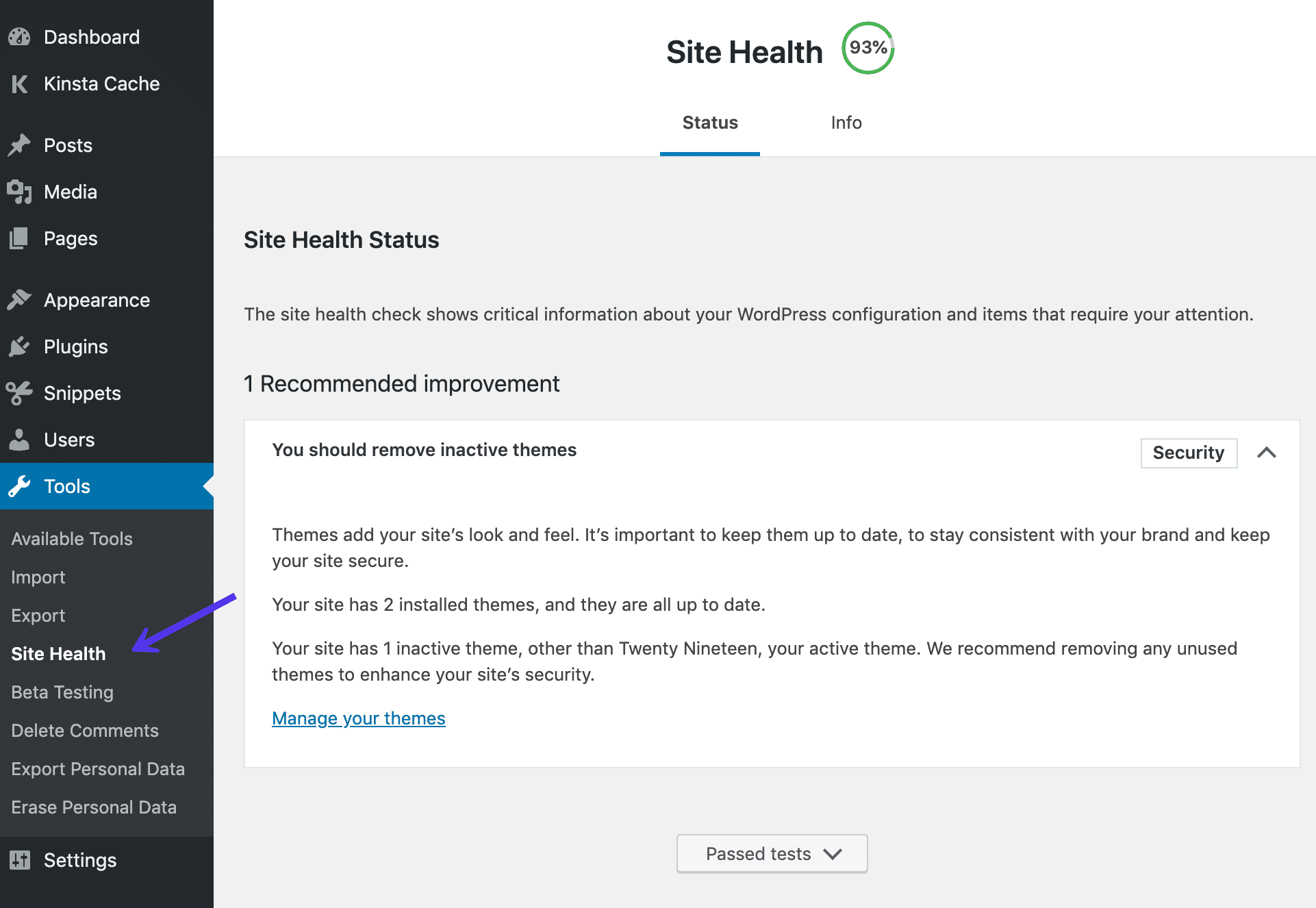
One thing you’ll probably notice right away is that they’ve added a percentage score grade at the top of the page based on how many tests your site passes. Some aren’t happy about this and there is a discussion among developers (Ticket #47046) of whether or not a grading system should exist. The main reason is that scores sometimes create additional problems as users are obsessed with scoring 100%.
However, we are glad to see this, as it will help raise awareness among users. For example, a check for inactive plugins and themes is important. Why?
Many don’t realize that simply because something isn’t active on your WordPress site doesn’t mean someone can’t execute the code if they browse directly to it. Therefore, in order to keep your WordPress site secure, it’s recommended to completely remove inactive themes and plugins if they aren’t being used.
The tests in the new Site Health tool includes checks for the following performance and security-related items:
Performance Checks ?
- Latest WordPress version
- Up to date version of PHP
- Up to date SQL server
- Required and recommended PHP modules are installed
- UTF8MB4 is supported
- Scheduled events
- Working HTTP requests
- REST API available
- Can perform loopback requests
Security Checks ?
- Only running active themes
- Up to date plugins
- HTTPs connection
- Secure communication
- Debug mode off
- Can communicate with WordPress.org
- Background updates are working
If you’re a Host SEO client, it’s easy to score 100% as everything on our platform is always kept up to date. ?
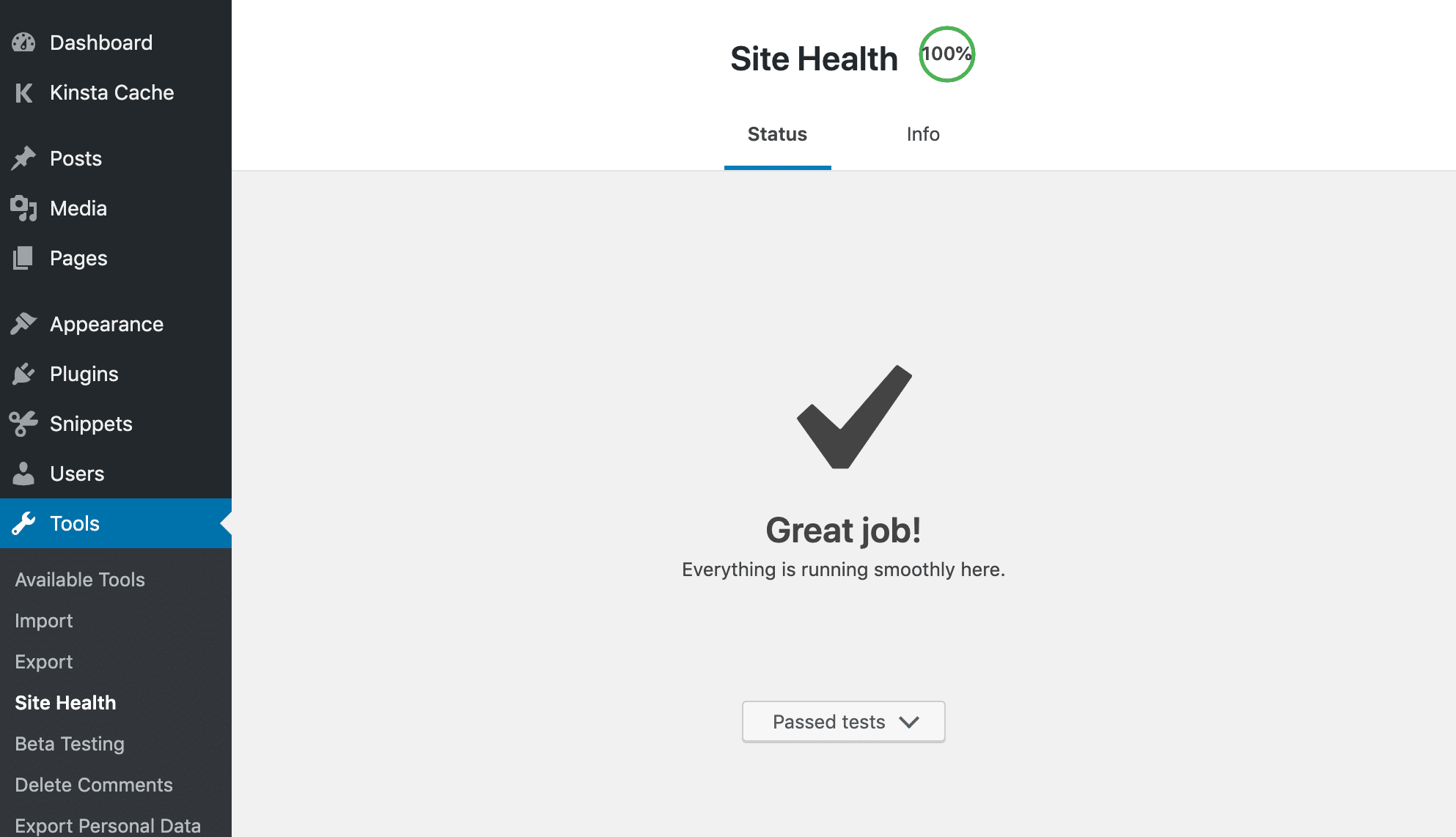
The tests are also filterable via site_status_tests, meaning plugin or theme developers can add their own tests, or remove existing ones. See more info.
Site Health Info
Under “Tools” → “Site Health” there is another new page called “Info.” This is a place to find helpful debugging information about your WordPress site’s configuration which you can share with developers, hosting providers, etc. There is a handy “Copy site info to clipboard” button which allows you to easily grab the information and paste it into a text file to share with a third-party.
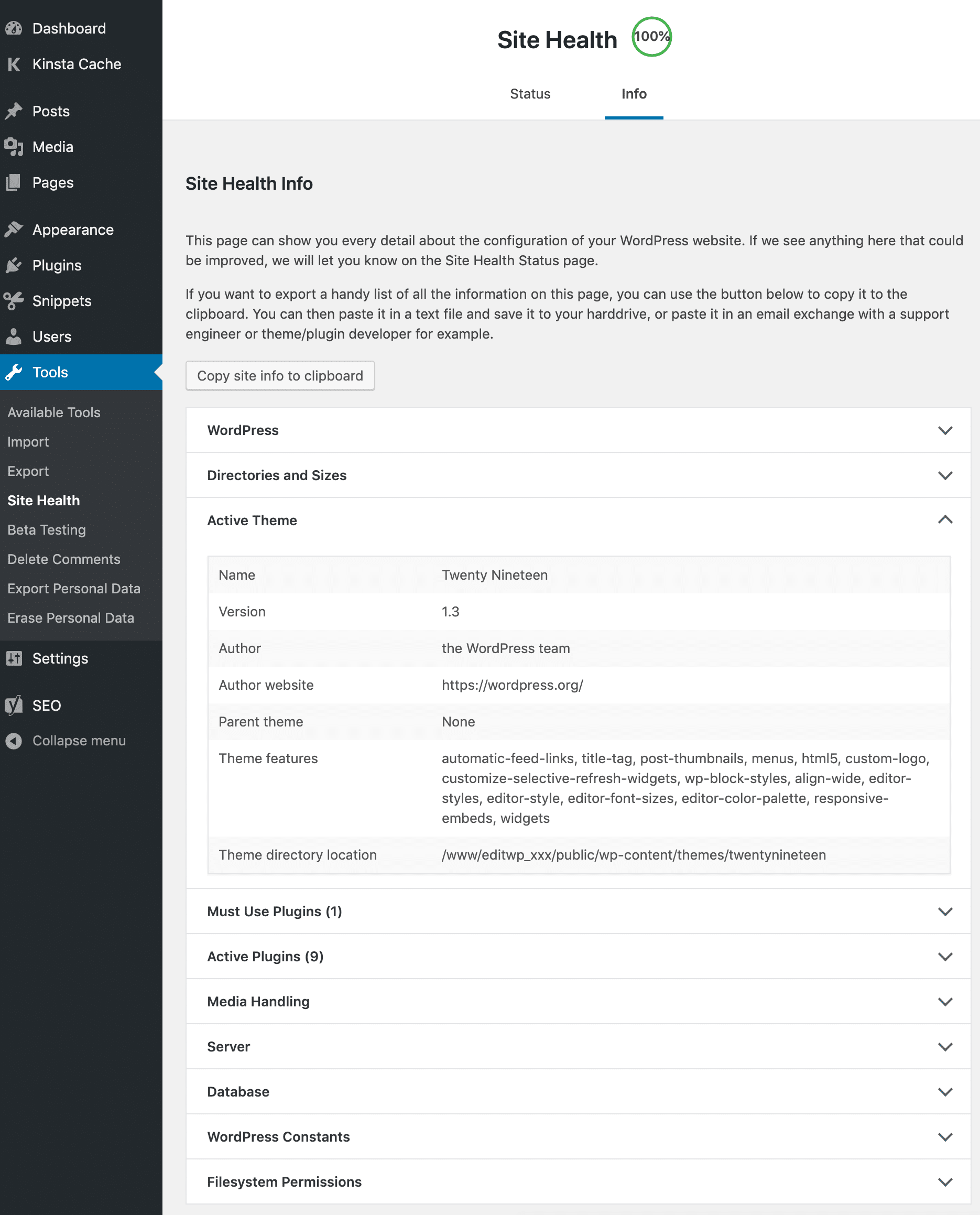
The Site Health Info page contains hundreds of different data points about your WordPress site. Without a doubt, this new page will help developers get the information they need from users faster.
Here’s just a small snapshot of some of the awesome and very helpful details you can quickly see.
- WordPress: WordPress version, site language, user language, Home URL and Site URL, permalink structure, multisite check, number of users.
- Directories and Sizes: WordPress directory location, size, upload location and size, theme location and size, plugin location and size, database size, total installation size.
- Active Theme: Name of theme, version, author, author website, parent theme, theme features, theme directory location.
- Must Use Plugins: Details of any must use plugins currently running, version numbers, and author names.
- Active Plugins: Active plugins running, version numbers, and author names.
- Media Handling: Active editor, ImageMagick version number, string, resource limits, GD version, Ghostscript version.
- Server: Server architecture (such as Linux, Windows, etc.), Web server (such as Nginx or Apache), PHP version, PHP SAPI, PHP max input variables, time limit, memory limit, max input time, upload max filesize, post max size, cURL version, SUHOSIN status, Imagick library status, .htaccess rules.
- Database: Extension, server version, client version, database user, host, name, prefix.
- WordPress Constants: ABSPATH, WP_HOME, WP_SITEURL, WP_CONTENT_DIR, WP_PLUGIN_DIR, WP_MAX_MEMORY_LIMIT, WP_DEBUG, WP_DEBUG_DISPLAY, WP_DEBUG_LOG, SCRIPT_DEBUG, WP_CACHE, CONCATENATE_SCRIPTS, COMPRESS_SCRIPTS, COMPRESS_CSS, WP_LOCAL_DEV.
- Filesystem Permissions: Check against the following directories to see if they are writable. Main WordPress directory, wp-content directory, uploads directory, plugins directory, themes directory, must use plugins directory.
PHP Error Protection
WordPress 5.1 was originally scheduled to introduce a new feature called “fatal error protection” which would protect from the WordPress white screen of death while updating PHP. However, due to several critical flaws, this feature was delayed. It has now been included in WordPress 5.2.
With this protection, WordPress will recognize when a fatal error occurs and pause the offending theme or plugin in the WordPress admin dashboard so that you’ll still be able to log into the backend of your site and (hopefully) fix the problem. For less tech-savvy users, this is a great new feature. All we can say is, we wish this feature had been added years ago!
However, we always still recommend using a staging environment when testing out a new version of PHP.
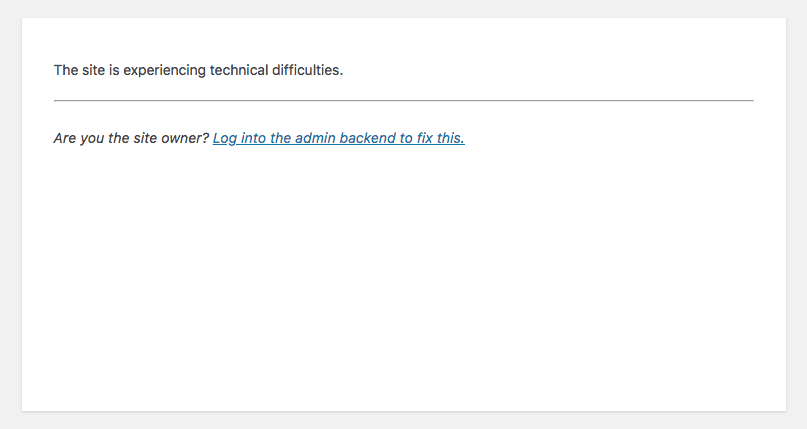
If your site experiences issues while upgrading PHP versions, it will look like the image below on the front-end, but you will still be able to log into the backend to fix the problem.
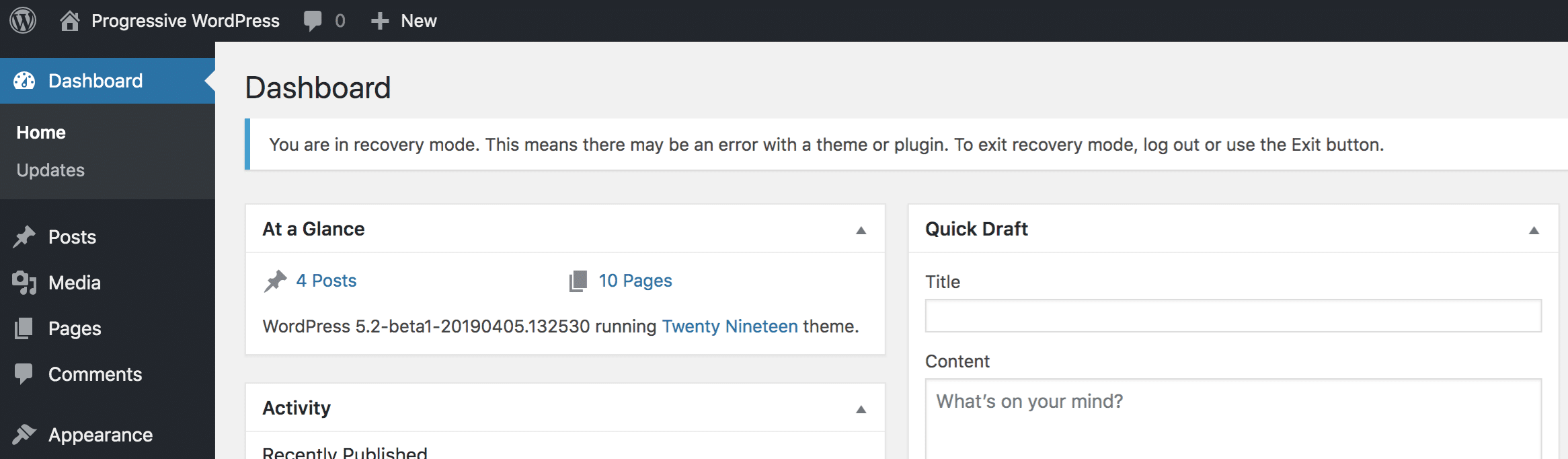
On the backend, you will see a message letting you know that your WordPress site is currently in recovery mode and that there may be an error with a theme or plugin.
Miscellaneous Developer Updates
WordPress 5.2 also comes with improvements for developers; everything from improvements to the block editor and privacy policy pages, a new WordPress hook, updates to the coding standard, and more.
Block Editor Improvements
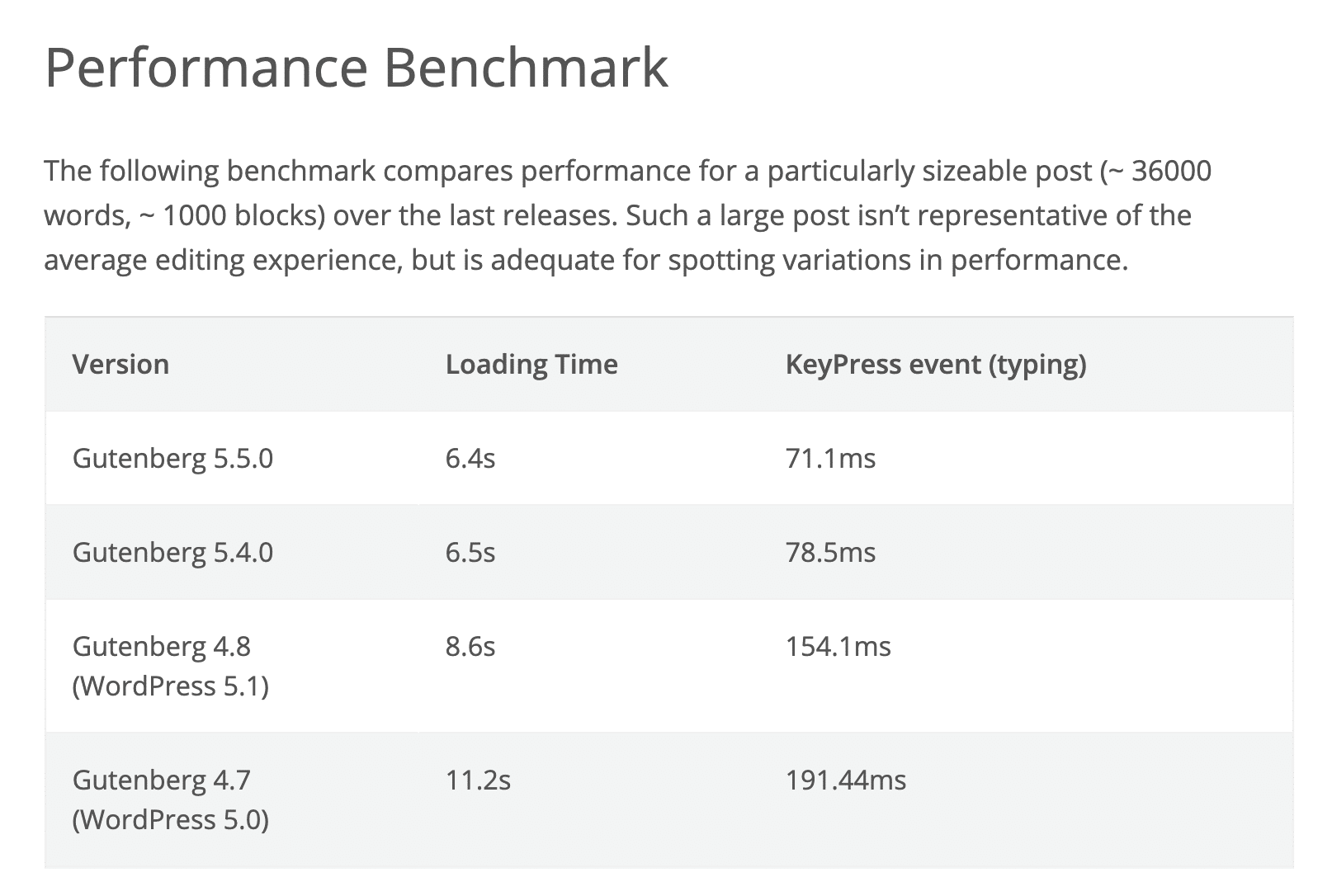
There were dozens of improvements made to the block editor (Gutenberg) that is shipping with WordPress 5.2. A few that caught our eye:
- In 5.0,
WP_Screen::is_block_editor() was introduced to allow developers to conditionally execute code depending on whether the block editor is being loaded. However, there were some issues with this that have now been fixed in WordPress 5.2. See #46195. - Media and text blocks got enhanced.
- Image and block resizers are much better than before.
- There were performance improvements made in terms of loading time.
PHP Coding Standard Updates
WordPress now officially recommends running PHP 5.6 or higher with your hosting provider. If you’re curious, Host SEO supports up to PHP 7.3!
With WordPress 5.2, this means developers can take advantage of new coding standards such as namespaces, anonymous functions, short array syntax, short ternary syntax, and assignments with conditionals. If you’re a developer and have already been running on PHP 7 or higher for a while now, this might not impact you, but it’s good to see WordPress making updates.
Read more about updates to the coding standards.
Privacy Updates
WordPress 5.2 brings several improvements for developers working with Privacy Policy pages and data exports.
The first is four new helpers which will make customizing the privacy policy page easier:
- New function:
is_privacy_policy() - A new theme template file:
privacy-policy.php - New body class:
.privacy-policy - New menu item class:
.menu-item-privacy-policy
The second change is in regards to data exports:
User Data exports no longer use a hardcoded list, but now use the default list of allowed tags in wp_kses(). New filtering is now available as well.
Read more about the privacy updates in WordPress 5.2.
Improvements for Writing JavaScript
With the addition of webpack and Babel configurations in the @wordpress/scripts package, developers won’t have to worry about setting up complex build tools to write modern JavaScript. Read more about JavaScript improvements.
New Body Tag Hook
WordPress 5.2 adds a new wp_body_open() hook, which lets themes support injecting code right at the beginning of the <body> element. The WordPress team encourages theme developers to start using this. Read more about some of the other miscellaneous developer updates.
New Emojis and Dashicons
In terms of visual updates, WordPress 5.2 has new emojis and dashicons.
Twemoji Updated
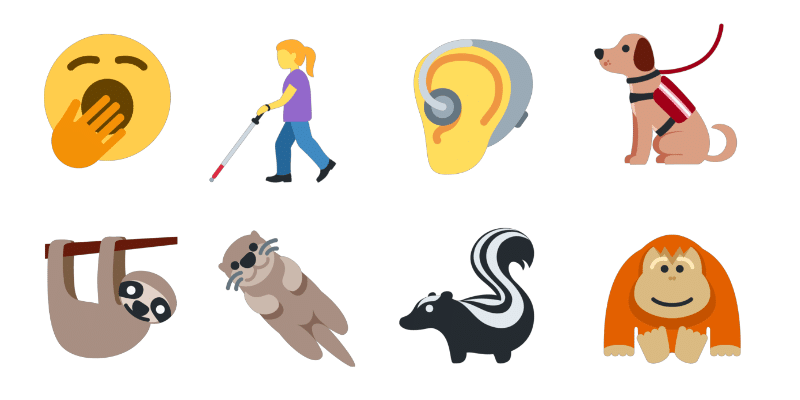
In WordPress 5.2 the latest version of Twemoji, 12.0.1, was added. Version 12 includes 230 new emojis, including accessibility emojis and our personal favorite, the Sloth.
New Dashicons
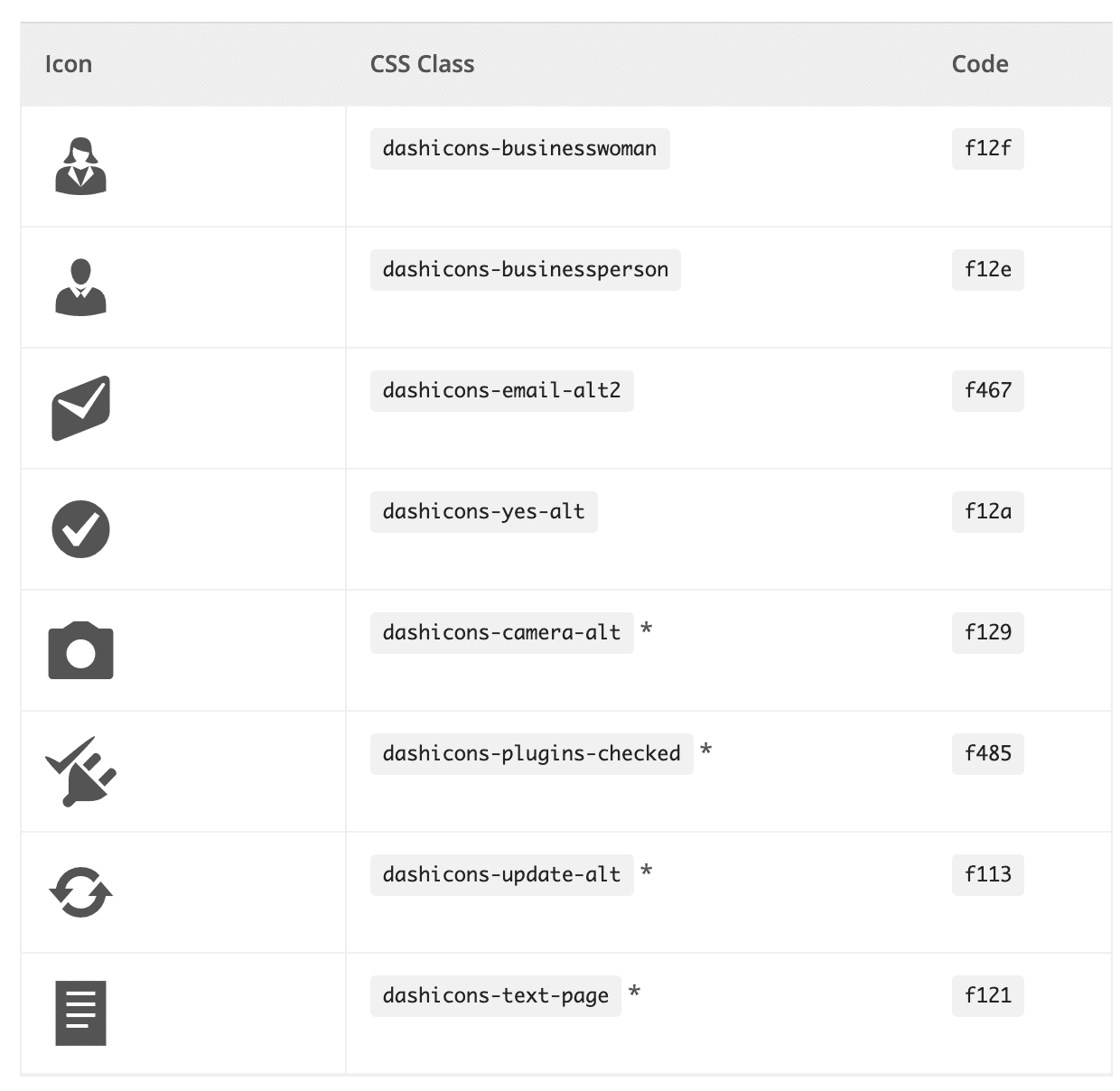
Dashicons are used to prettify your WordPress admin dashboard. It was definitely time for an update as they haven’t changed since WordPress 4.5. WordPress 5.2 has 13 new icons, including Instagram, a suite of icons for BuddyPress, and rotated Earth icons for global inclusion. WOFF 2.0 font file format has also been added.
Notable Accessibility Changes
Along with WordPress 5.2 comes a number of changes working together to improve contextual awareness and keyboard navigation flow for those using screen readers and other assistive technologies.
- Post formats are now in list tables.
- New link markup on the WordPress admin bar submenu.
- The currently viewed archive in the archive dropdown widget is now pre-selected.
- A new media view was added to the media library.
- Headings were added to the data tables on the Export Personal Data and Erase Personal Data pages.
- The alt text field is now the first field displayed in the media modal.
Security Enhancements
Ticket #39309 was opened in 2017 describing a security issue with the WordPress infrastructure. Basically, if someone was able to compromise api.wordpress.org, they could issue fake updates and take control of user’s WordPress sites.
Therefore, as of WordPress 5.2, it now checks for the existence of a x-content-signature header. If one isn’t found, it falls back to a signature file. Regardless of the method, the update packages are now digitally signed using Ed25519 and are base64-encoded.
How to Update to WordPress 5.2
Since every customer’s site is different we always recommend utilizing the one-click staging environment. You can clone your live site in a matter of seconds and then test WordPress 5.2 with your existing theme and plugins to check for compatibility. You can of course also take a manual backup before updating your live site, just to be safe.
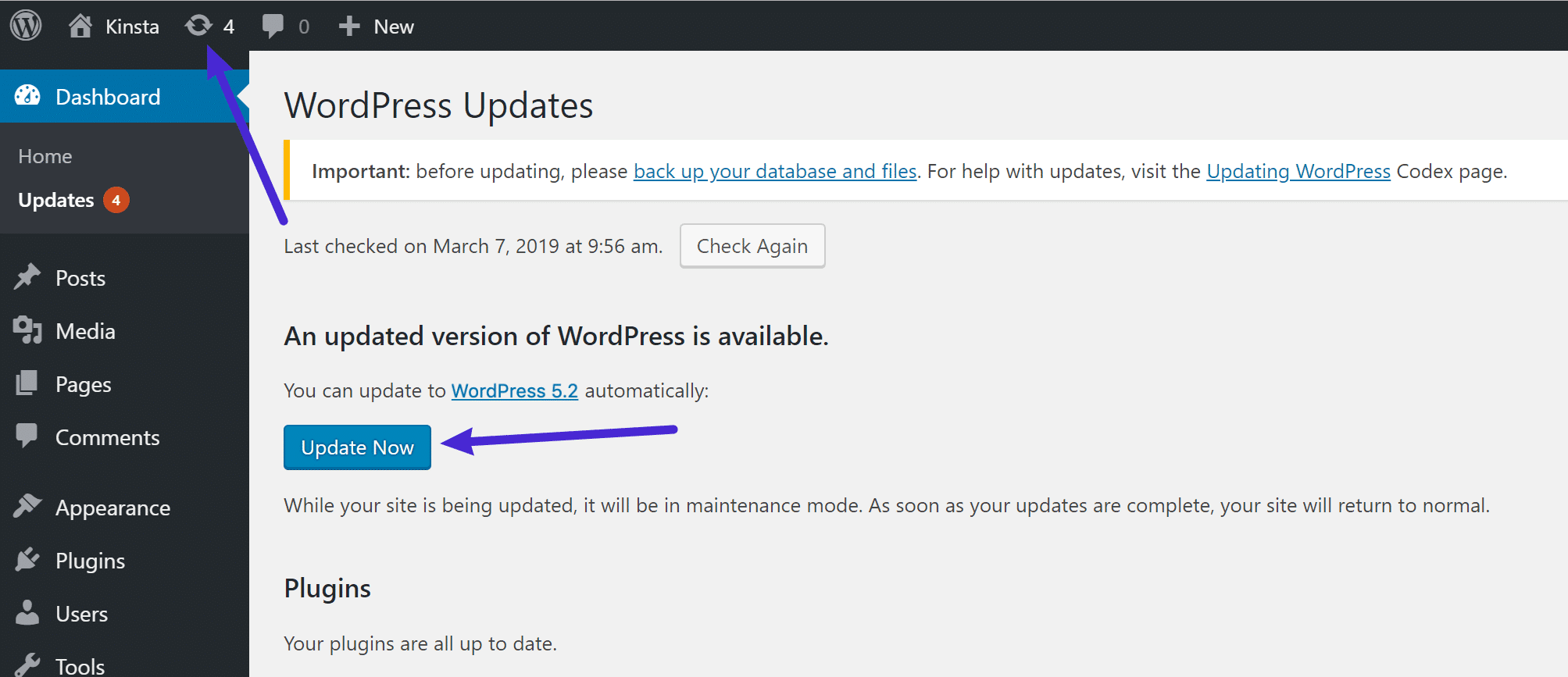
To update WordPress to 5.2 simply click on the updates icon in your WordPress admin dashboard. And click on the “Update Now” button. While your site is being updated, it will be in maintenance mode. As soon as your updates are complete, your site will return to normal.
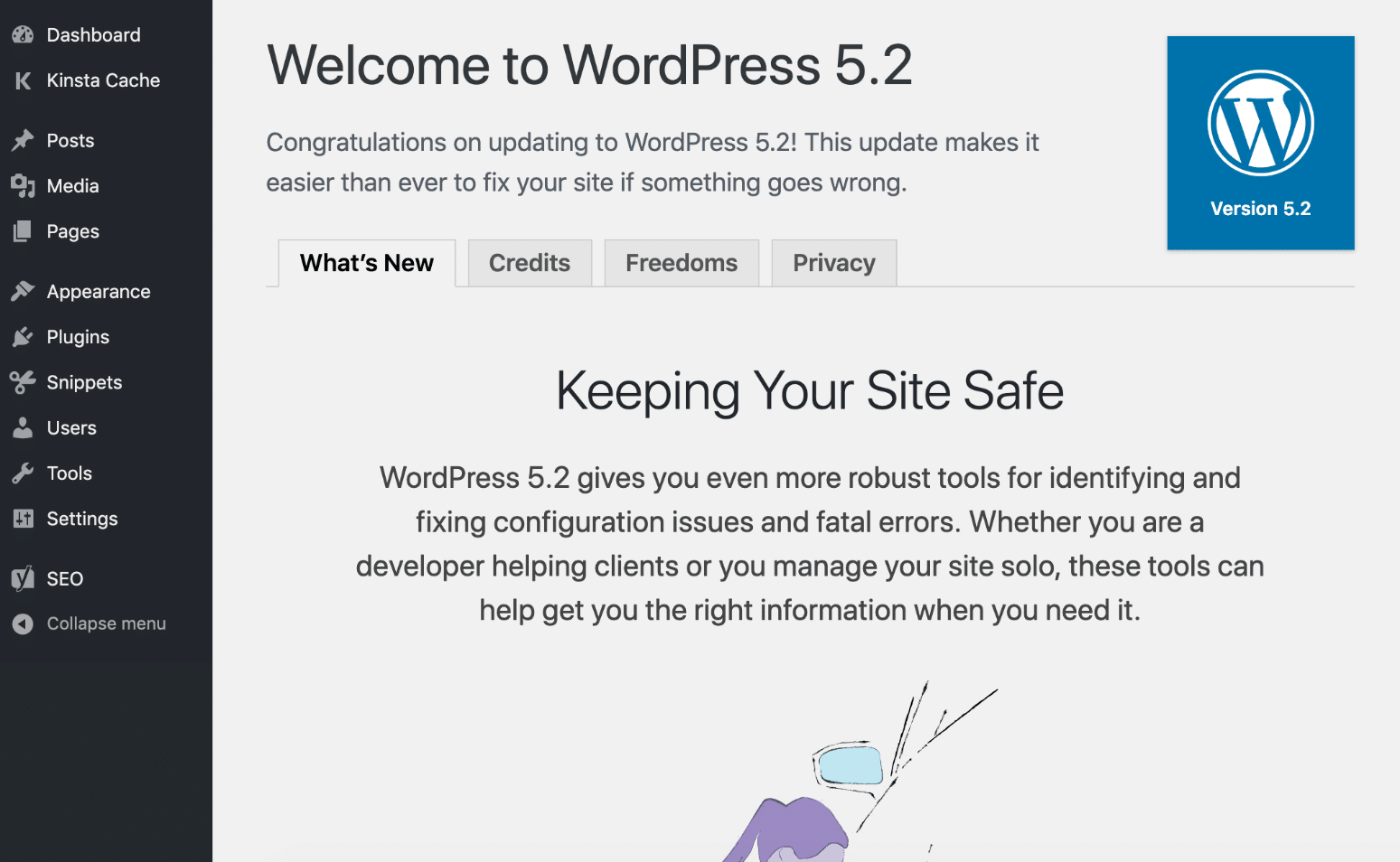
As long as everything goes well with the update you should then see the “Welcome to WordPress 5.2” screen. And that’s it! Quick and easy.
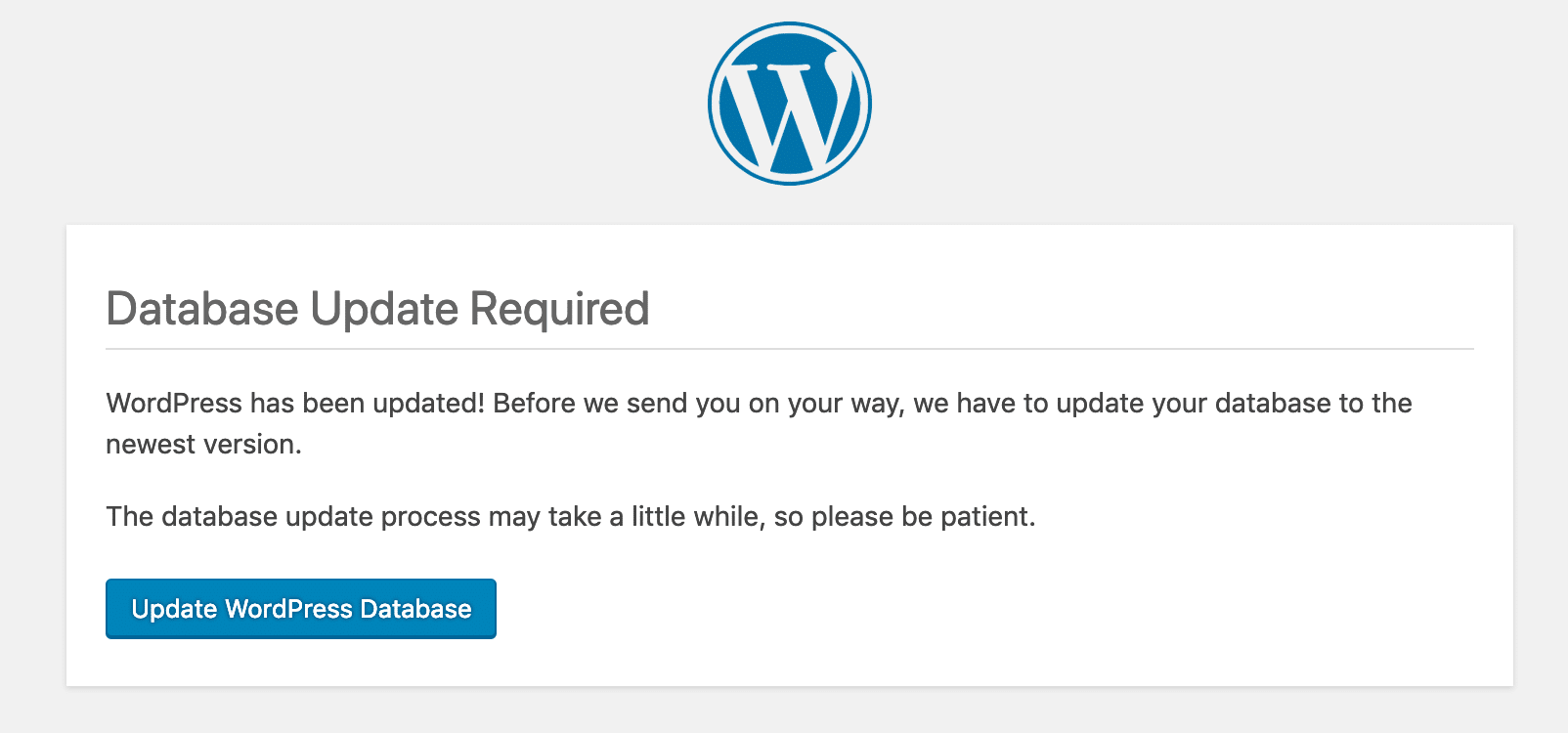
After clicking around in the dashboard you will also receive a message to update your database to the newest version. Simply click on the “Update WordPress Database” button and you’re good to go.
Troubleshoot Issues with WordPress Update
Whenever people update a major version of WordPress, there are always some that experience issues, and that is due to the thousands of different plugins and themes currently co-existing in the market. Here are a few ways to troubleshoot common issues.
- Getting the white screen of death? This is commonly resolved by simply restarting PHP and deleting the full page cache on your WordPress site.
- Try deactivating all your plugins to see if that fixes your issue. Then reactivate them one by one until you find which plugin might need an update from the developer.
- Try switching over to a default WordPress theme, such as Twenty Nineteen. If this fixes your problem, you might want to reach out to your theme developer.
- Troubleshoot and diagnose JavaScript issues in your browser.
Summary
There are a lot of exciting things packed into WordPress 5.2! The new Site Health Status information will help educate users on the best security and performance practices. It will be interesting to see how the new percentage score comes into play here, but regardless, it will raise more awareness regarding things such as running the latest version of PHP, deleting inactive themes and plugins, etc.
The new Site Health Info information should dramatically help developers get the info they need right away when working with users. This means fewer tickets for plugin and theme developers, as well as hosting providers. In fact, you’ll probably see many developers update their documentation to require that you include an export of the info screen data before you can even submit a ticket.
The PHP error protection provides a way for users upgrading to newer versions of PHP to be able to still login in case something has gone wrong. Fewer white screens of death is always a good thing!
What do you think of WordPress 5.2? We’d love to hear your thoughts regarding the new Site Health tool.