How to Fix Error 404 Not Found on Your WordPress Site
- Category : Development
- Posted on : Oct 04, 2018
- Views : 3,550
- By : Marcus J.

Of the many potential errors you might see on your WordPress site, Error 404 Not Found is one of the tamer ones. But that doesn’t mean it isn’t frustrating when you or your visitors try to browse your site and keep running into the Error 404 Not Found message. ? That’s the last thing you want first-time potential customers seeing from your brand. A 404 error can also be an indicator to you that something has changed or moved and a 301 redirect probably needs to be added for SEO.
In this post, we’re going to try to help you get your site working again by explaining a few things:
- What is the Error 404 Not Found?
- How to fix Error 404 Not Found on WordPress
- How to Create Your Own Error 404 Not Found Page
- How to Monitor 404 Errors Going Forward
What is the Error 404 Not Found?
Whenever you, or one of your visitors, visit your website, your browser sends a request to the web server and receives back data including something called an HTTP header. The HTTP header includes HTTP status codes to explain “what happened” with the request.
Most of the time, the request works perfectly and you never actually see the HTTP status code (unless you go looking). But if something goes wrong, your web browser will usually display a message with the HTTP status code to indicate the exact problem.
Just like other error messages (500 error, 502 error, 504 error, etc.), the Error 404 Not Found message is the result of that process.
What Does Error 404 Not Found Actually Mean?
Basically, it means that the client (your, or your visitor’s, web browser) was able to successfully connect to the host (your website’s server), but it was unable to find the actual resource that was requested (e.g. a specific URL or filename).
For example, if someone tries to access yoursite.com/post-name but you don’t have any content with the slug post-name. The visitor will then see a 404 error because, even though your web server is functioning normally, the resource that was requested doesn’t exist.
It’s not just posts or pages either, any asset missing can generate a 404 error on the server, such as a missing image file, missing JavaScript, missing CSS, etc.
What Causes Error 404 Not Found on WordPress?
If you see this error on all of your site’s content, it’s typically due to an issue with your WordPress site’s permalinks. If you only see it on individual pieces of content, though, it’s most likely because you changed a piece of content’s slug without setting up a redirect.
Additionally, the 404 error isn’t always a bad thing – it’s only bad when it’s interfering with usability. And sometimes things are just out of your control!
For example, sometimes a person might just type the wrong URL in their address bar. In that case, they’ll still see a 404 error, but there’s no actual problem with how your site is configured. This is actually the desired response, and you can create your own custom 404 page to help get visitors to the right spot (we’ll show you how later on).
Error 404 Not Found Variations
Because different browsers display error messages differently, you might see a different message for this error. Other common variations include:
- “Error 404”
- “404 Not Found”
- “HTTP Error 404”
- “Not Found”
- “Page Not Found”
- “The requested URL was not found on this server.”
- “The page cannot be found”
- “We can’t find the page you’re looking for.”
- “The requested URL /~ was not found on this server. That’s all we know.
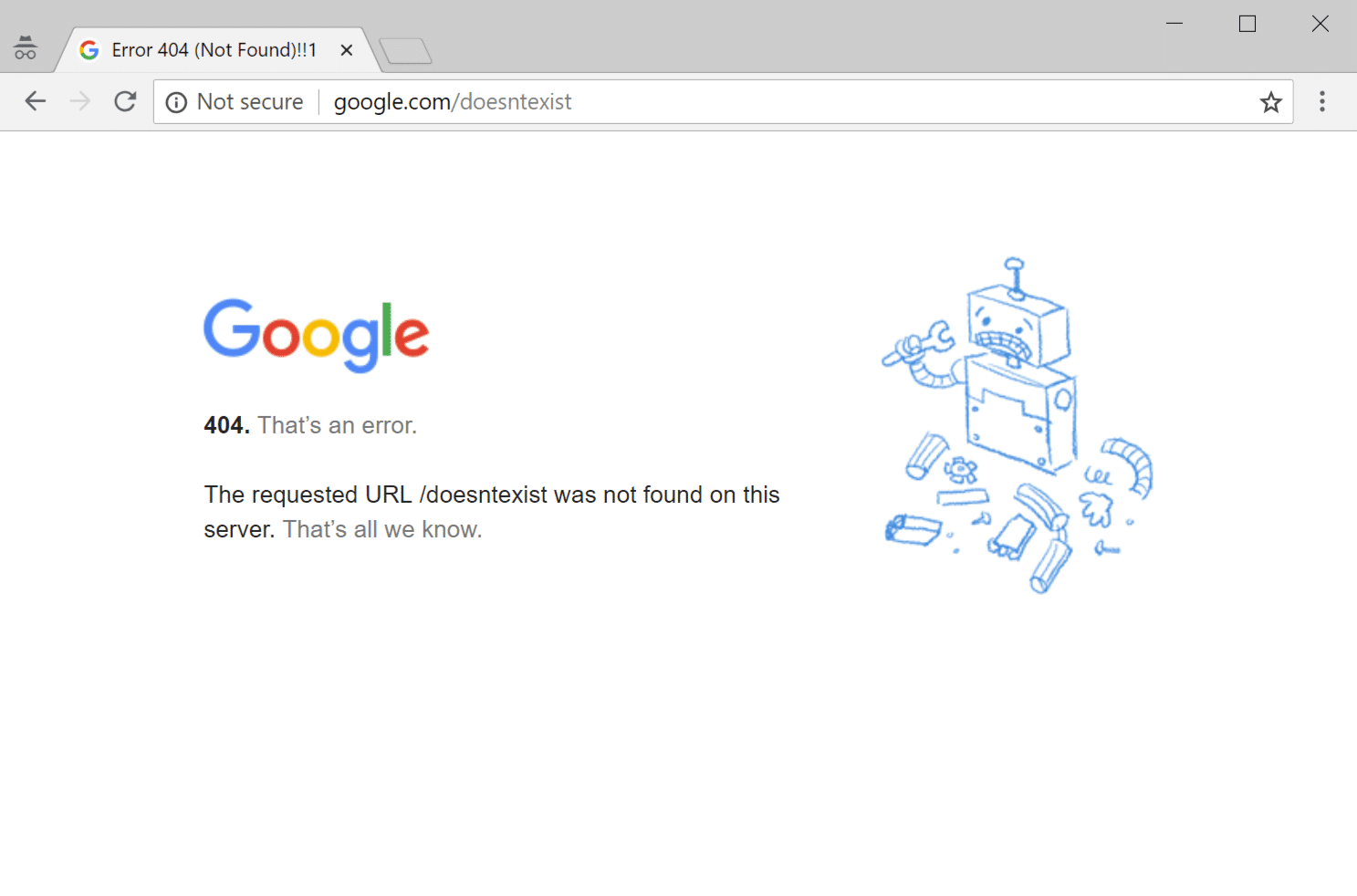
The Error 404 Not Found message is also unique in that many sites will actually create a custom page to address the error, rather showing one of the messages above. Some WordPress themes also include custom 404 pages by default. For that reason, you might not actually see the error message at all because many sites will use funny or creative 404 pages instead.

Error 404 Not Found Impact on SEO
Error 404 Not Found doesn’t have any inherent negative impact on SEO. But it might have a negative impact depending on the reason for why the error is happening.
For example, if a visitor just mistypes a URL and sees a 404 error – there won’t be a negative impact on SEO. But if you have individual errors because of broken URLs, that will inhibit Google’s ability to properly crawl your site and have a negative SEO effect in that way.
Additionally, if a permalink issue is causing sitewide 404 errors, Google won’t be able to crawl any of your site’s content. In other words, always fix your 404 errors as soon as possible.
Error 404 Not Found Impact on Site Performance
Many don’t realize it, but sites that generate a lot of 404 errors can easily run into performance issues, as these responses aren’t typically cached. We saw this a lot on larger sites and it can be a big problem if you accidentally promote or get a surge of viral traffic to a 404 page.

You can also quickly see what the top 404 errors are. In this example below, you can see the site is missing some mobile icons, such as /apple-touch-icon.png. These are most likely in a theme or plugin’s code that is getting queried, but the actual icons were never added. Therefore, the server generates a 404 error as it can’t find the resources.
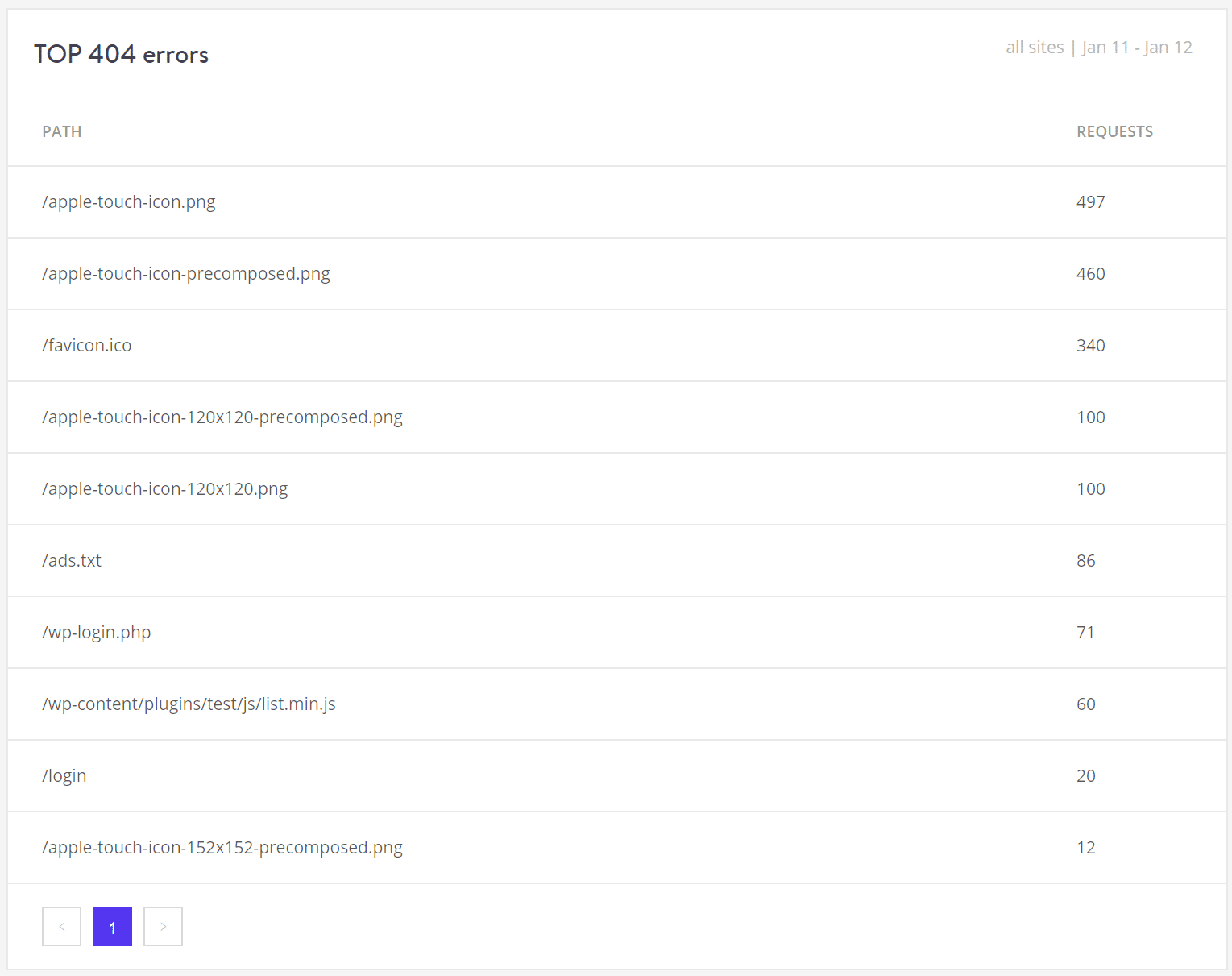
You can also check 404 errors in Google Search Console or install a third-party plugin such as Redirection which logs 404 errors. However, remember that plugins like these also have an impact on performance. It’s much better to rely on a server-level tool. That’s why we provide these tools for all Host SEO clients.
The reason these errors are bad is that many 404 pages are very resource intensive. For large sites, you’ll want to avoid a heavy 404 page. Create a simple 404 template that avoids querying the database any further if possible.
How to Fix Error 404 Not Found on WordPress
Below, we’ll cover a couple different methods for how to fix the Error 404 Not Found message, depending on whether it’s happening sitewide or to specific content.
Update Your WordPress Site’s Permalinks
If you’re experiencing sitewide 404 errors when trying to access content, the most likely cause is an issue with your permalinks (or your .htaccess file, if your host uses Apache). If you’re a Host SEO client, we utilize Nginx, so you can rule out the .htaccess file as a possible cause.
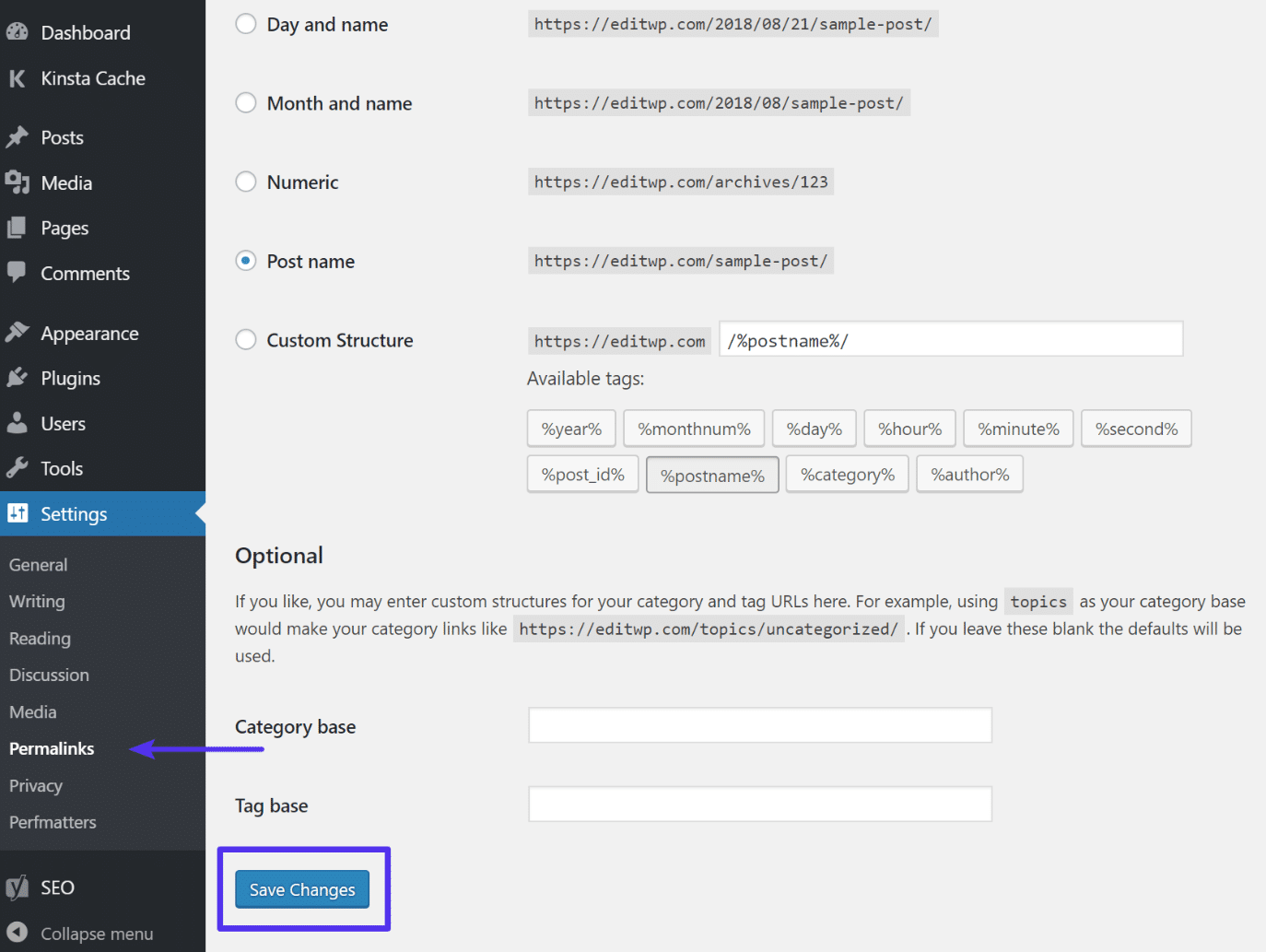
The easiest way to fix this is to update your permalink settings through the WordPress dashboard. All you need to do is go to Settings → Permalinks and click Save Changes (you don’t need to make any changes – clicking Save Changes is enough).
Set Up 301 Redirects For Moved or Renamed Content
If you’re experiencing 404 errors on a specific piece of content, the issue is likely that you:
- Changed the URL slug for that content.
- Moved that piece of content manually, e.g. by deleting the existing post and pasting it into a new post.
Users then try to access the content at the old location and see a 404 page instead of the resource they were expecting. The best way to fix this is to automatically redirect anyone who tries to access the old location to the new location. That way, they’ll make it to the right spot without any 404 errors. It’s also good for SEO. If you move or rename a post without adding a redirect, you lose all the domain authority attached to the backlinks pointed at that post.
WordPress by default will attempt to redirect changed/moved content. But it doesn’t always work and you should never rely on WordPress for this functionality. But don’t worry, there are several easy ways to set up redirects in WordPress:
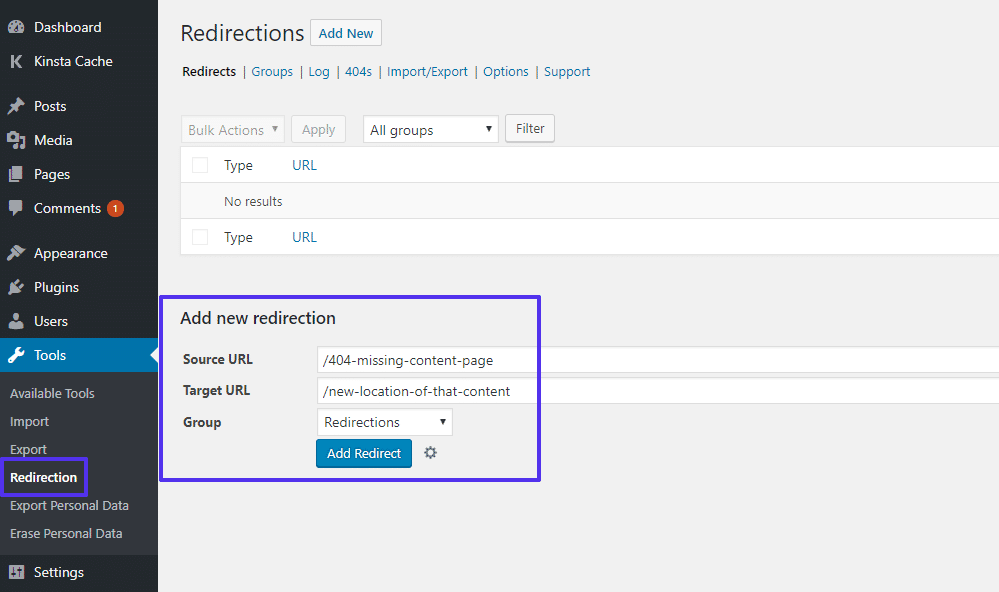
First, you can use the free Redirection plugin to manage redirects from your WordPress dashboard. Once you’ve installed and activated the plugin, go to Tools → Redirection and enter the 404 page URL in the Source URL box and the new location of the content in the Target URL box:
How to Create Your Own Error 404 Not Found Page
While you can do your best to prevent 404 errors by following the tips above, it’s impossible to entirely eliminate 404 errors because some things are just plain outside your control. It’s not uncommon for small WordPress sites to have thousands of 404 errors every month.
For example, if a visitor mistypes the URL, or if another website links to a page that doesn’t exist, people are going to get 404 errors no matter what.
To provide a more user-friendly error page, you can use one of the many 404 page plugins. For example, the free 404page plugin lets you set up a custom 404 error page with:
- A search box
- Important links
- Contact information
Another important feature of the 404page plugin is that it doesn’t create redirects. A 404 page should never be redirected to a physical page such as yoursite.com/404. The 404 error should always be generated dynamically on the page in question.
By including these elements, you give visitors the tools they need to find their way to the right page. But remember, keep your 404 page light for better performance. Only include what is absolutely needed.
How to Monitor 404 Errors Going Forward
Going forward, it can be beneficial to pay attention to which requests are causing 404 errors at your site. This can help you:
- Find broken links that are sending people to a non-existent resource (these could be internal links or external links from other sites). You’d then want to do your best to fix those links if at all possible.
- See which pages Google is having trouble crawling. You’d then want to figure out why Google is trying to crawl a non-existent page and set up a redirect if needed.
- Troubleshoot performance related issues with 404 errors.
Option 1 – Google Analytics
If you use Google Analytics, you can set up a custom report to track 404 errors from external links. Rebelytics has a good tutorial on the topic.
Option 2 – WordPress Plugin
If you want to use a WordPress plugin, the aforementioned Redirection plugin can help you monitor for 404 errors from your WordPress dashboard.
Option 3 – Third-Party Audit Tool
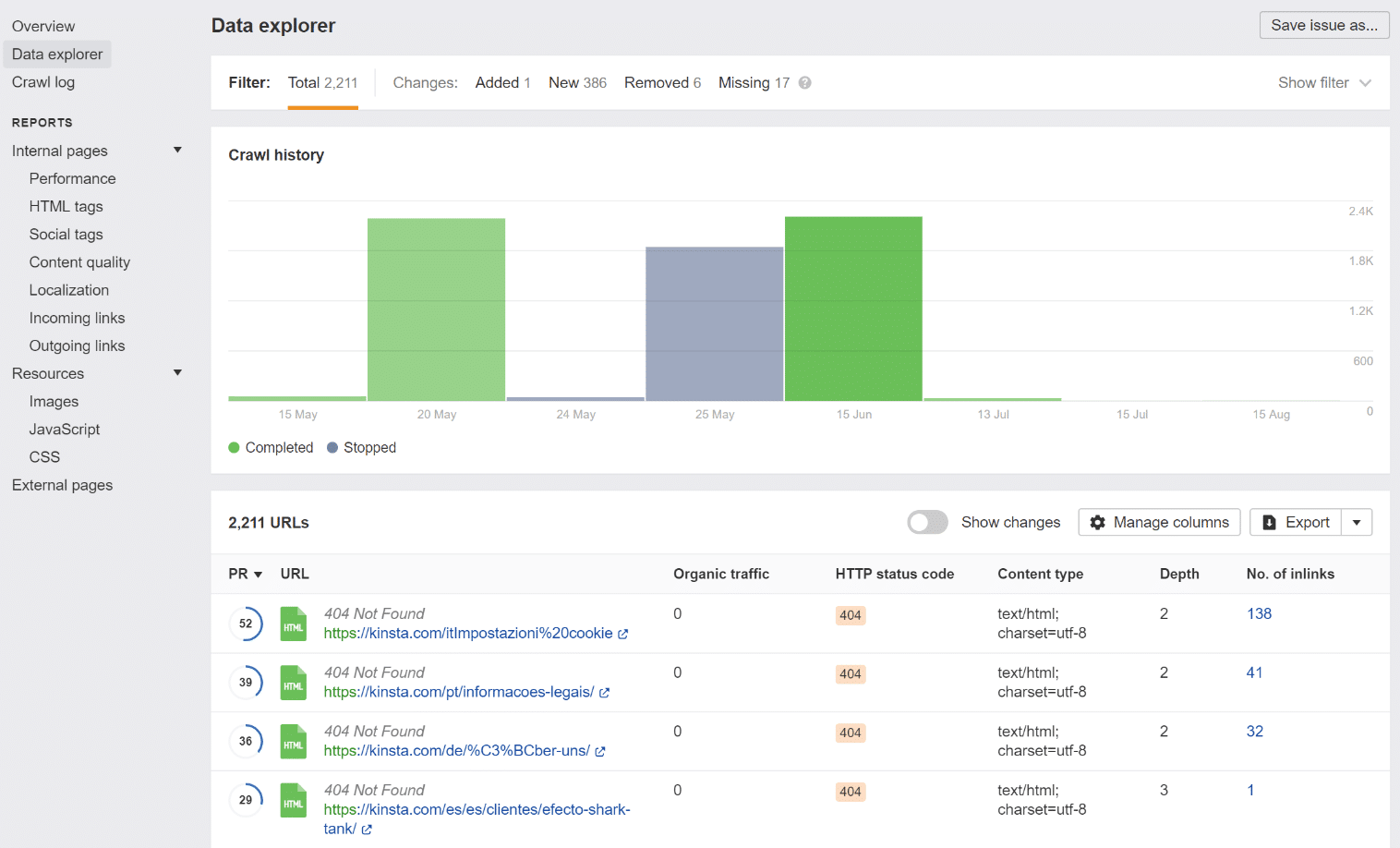
You can also use a third-party audit tool like Ahrefs to monitor for 404 errors on your WordPress site. You can even set this up to run on a schedule.
Option 4 – Google Search Console
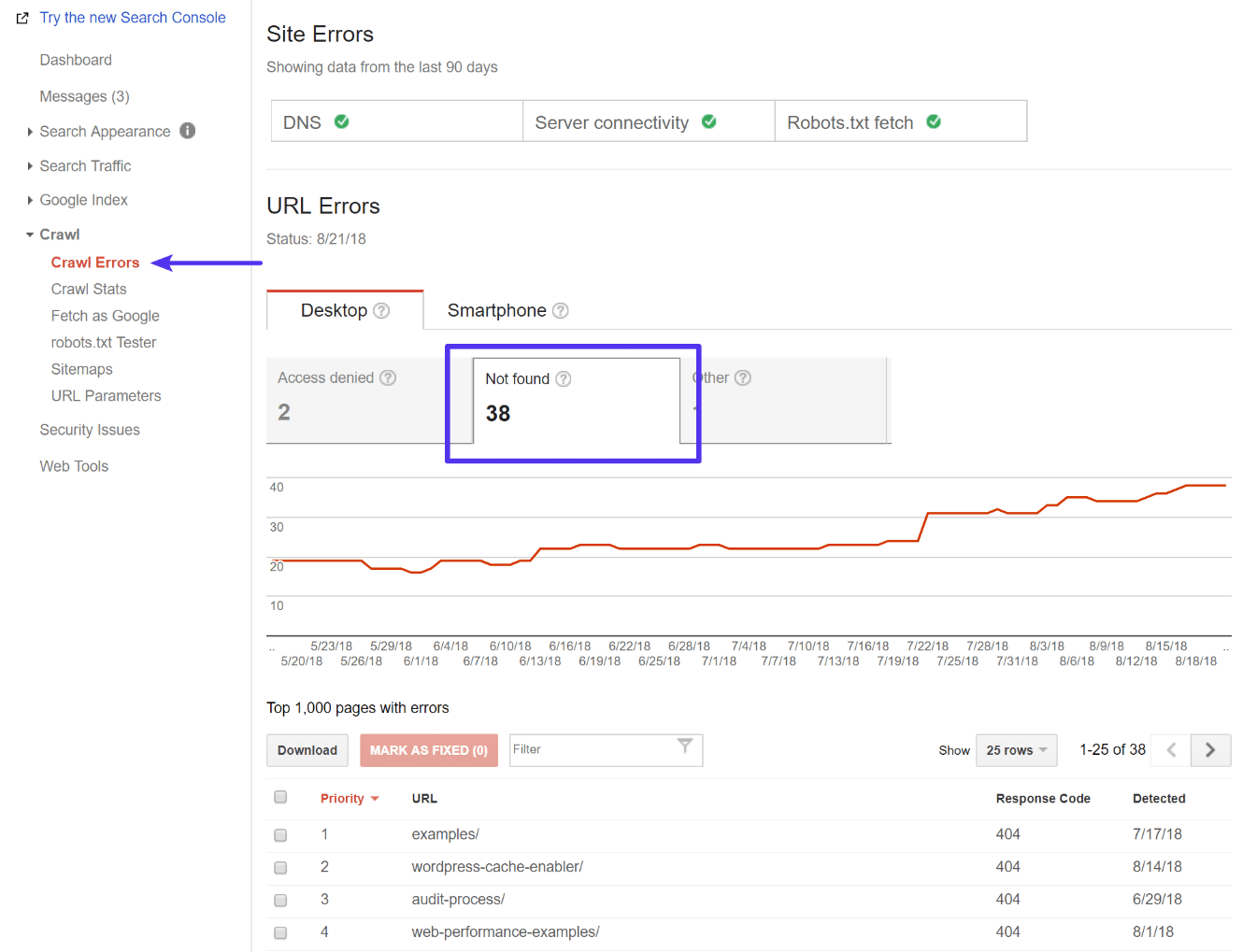
Lastly, you can track 404 errors that Google’s crawlers encounter in Google Search Console. Once you’ve verified your site with Google Search Console, go to Crawl → Crawl Errors → Not found to view a list of 404 errors that Google has encountered. This is by far one of the easiest ways. It’s also the best in terms of performance because it requires no third-party plugins or additional scanning against your site. Google’s bots are already crawling your site on a regular basis, so why not simply take advantage of the data they already provide? ?
Summary
Unfortunately, 404 errors will happen on your site whether you like it or not. The larger your WordPress site is, the more you’ll start seeing. We recommend getting a good workflow together for how you monitor these types of errors and go about fixing them. 404 errors are never good for visitors, your brand, and Google doesn’t like to see them either.
Have any other tips or questions regarding the Error 404 Not Found message or how it impacts your WordPress site? Let us know below in the comments.
Categories
Subscribe Now
10,000 successful online businessmen like to have our content directly delivered to their inbox. Subscribe to our newsletter!Archive Calendar

| Sat | Sun | Mon | Tue | Wed | Thu | Fri |
|---|---|---|---|---|---|---|
| 1 | 2 | |||||
| 3 | 4 | 5 | 6 | 7 | 8 | 9 |
| 10 | 11 | 12 | 13 | 14 | 15 | 16 |
| 17 | 18 | 19 | 20 | 21 | 22 | 23 |
| 24 | 25 | 26 | 27 | 28 | 29 | 30 |
| 31 | ||||||
Recent Articles
-

Posted on : Jul 25
-

Posted on : Jul 07
-

Posted on : Apr 07
-

Posted on : Mar 19
Optimized my.cnf configuration for MySQL 8 (on cPanel/WHM servers)
Tags
- layer 7
- tweak
- kill
- process
- sql
- Knowledge
- vpn
- seo vpn
- wireguard
- webmail
- ddos mitigation
- attack
- ddos
- DMARC
- server load
- Development
- nginx
- php-fpm
- cheap vpn
- Hosting Security
- xampp
- Plesk
- cpulimit
- VPS Hosting
- smtp
- smtp relay
- exim
- Comparison
- cpu
- WHM
- mariadb
- encryption
- sysstat
- optimize
- Link Building
- apache
- centos
- Small Business
- VPS
- Error
- SSD Hosting
- Networking
- optimization
- DNS
- mysql
- ubuntu
- Linux