Best Chrome Extensions for WordPress Users to Boost Productivity
- Category : WordPress
- Posted on : May 18, 2018
- Views : 2,741
- By : Zane P.
WordPress is loved by many not only because of its open-source nature, ease of use, and an abundance of gorgeous themes but because its plugins allow you to add different functionality to your website. Thanks to those plugins, you can create a powerful website to suit your needs perfectly without having to code it yourself. It’s those plugins that allow you to do more with your website in less time.
Whether you blog for business or for pleasure, there is no doubt that aside from WordPress, you use a variety of other tools on a daily basis. And one of those tools is your browser. When it comes to browsers, Chrome remains at the top of the list. Similarly to WordPress, one of the browsers most-loved features are its Chrome extensions to add extra functionality.
Fortunately for us WordPress users, Chrome has plenty of extensions which allow you to save time and be more productive.
In this article, we’ll highlight the best Chrome extensions for WordPress users to boost productivity.
- Grammarly
- WordPress Style Editor
- Publish to WordPress
- WordPress Plugin Security Checker
- WordPress Themes & Plugin Detector
- WordPress Site Manager
- Comment Save
- Evernote Web Clipper
- Taco
- WordPress Admin Bar Control
1. Grammarly
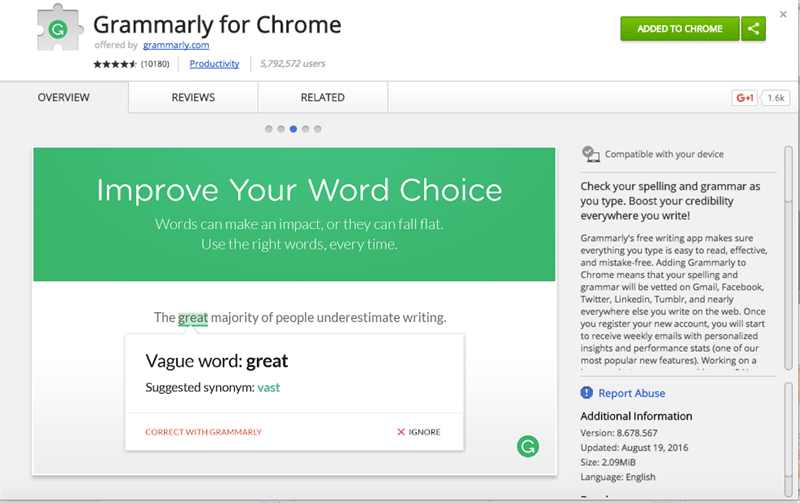
Grammarly is by far one of the best Chrome extensions, especially if you do any writing! It’s a spell and grammar checker that works in your browser and can correct your spelling and grammar mistakes anywhere you can input text so you can improve your copy, pages, products, and even your emails. The best part? It works even inside your WordPress post editor so you can rest assured all your typos will be caught before you hit publish.
Aside from underlining the mistakes, Grammarly will display correction suggestions when you hover over the word in question. You can then click on the suggestion to accept it and automatically correct the mistake.
On rare occasions, Grammarly can be a little off, especially if you use a word not usually used in everyday conversation. However, you can easily add it to your personal dictionary and Grammarly will ignore all future instances of this word. All things considered, Grammarly is an indispensable tool for anyone who wants to improve their writing.
2. WordPress Style Editor
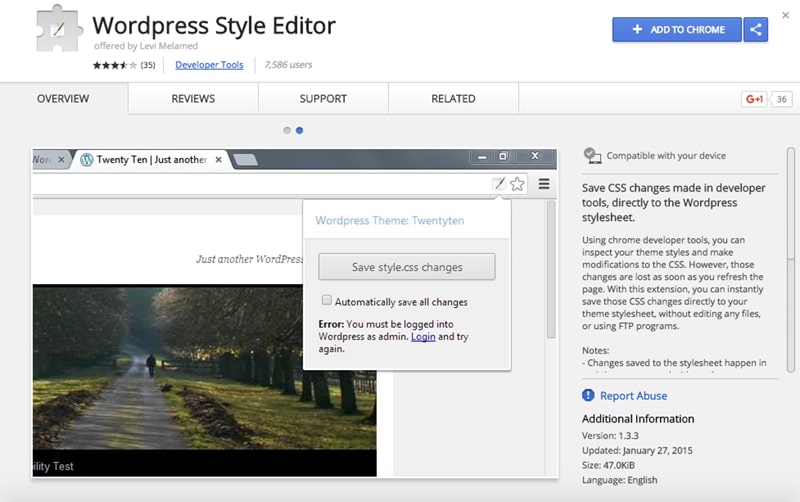
If you’ve been using WordPress for a while, you’re probably used to using Developer tools to inspect certain elements on your site to change the styling in your theme’s CSS file. While Developer Tools certainly make it easier to find the exact element and the styles you need to change, as soon as you refresh the page, the changes are gone.
WordPress Style Editor allows you to save those changes immediately to your stylesheet with a click of a button. As long as you’re logged in to your WordPress dashboard, your changes will be applied instantly. This little gem is great for making quick changes that you need to fix right away and don’t want to click through the entire dashboard to make them.
3. Publish to WordPress
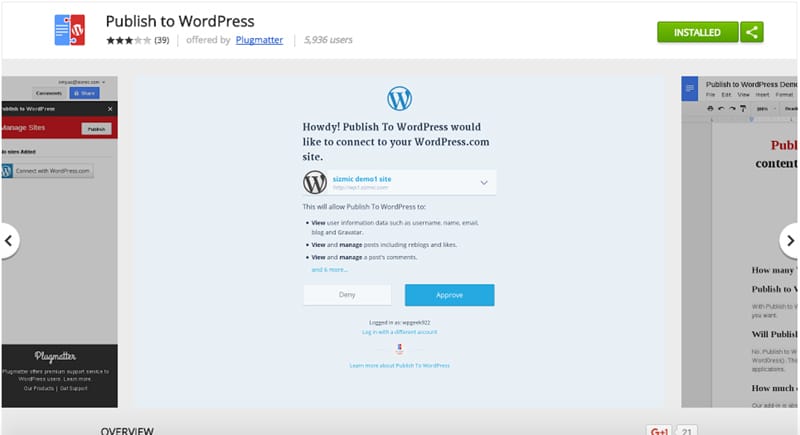
If you use Google Docs to write your posts before uploading them to WordPress, then Publish to WordPress is a must-have extension. It’s available as an add-on for Google Docs and it allows you to publish your article along with its images and formatting directly on your WordPress blog or website without having to log into WordPress.
The add-on even works if you have multiple blogs to which you contribute. All you have to do is add your blog, write your article in Google Docs, and then click Publish. You can choose to publish it immediately or save it as a draft which is useful if you need to wait for an editor to approve your post or if you want to schedule your post for a particular date.
Recommended reading: Google Docs to WordPress – 5 Tricks You Need to Know
4. WordPress Plugin Security Checker
If you use Google Docs to write your posts before uploading them to WordPress, then Publish to WordPress is a must-have extension. It’s available as an add-on for Google Docs and it allows you to publish your article along with its images and formatting directly on your WordPress blog or website without having to log into WordPress.
The add-on even works if you have multiple blogs to which you contribute. All you have to do is add your blog, write your article in Google Docs, and then click Publish. You can choose to publish it immediately or save it as a draft which is useful if you need to wait for an editor to approve your post or if you want to schedule your post for a particular date.
Recommended reading: Google Docs to WordPress – 5 Tricks You Need to Know
4. WordPress Plugin Security Checker
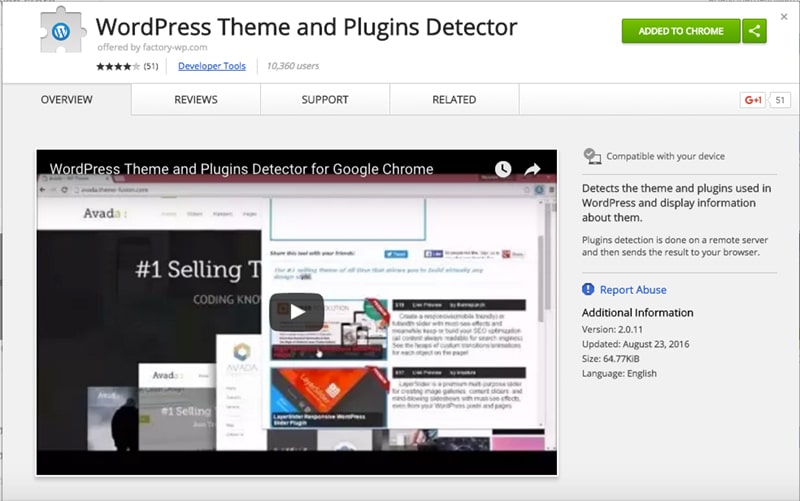
Have you ever come across a site that instantly piqued your interest visually and because everything worked perfectly? Ever wondered how did they do that? Well, thanks to this extension, you can easily find out which theme a particular website is using. On top of that, you can also see which plugins they have activated on the site.
Recommended reading: WordPress Free vs Paid Themes: Which is Right for Your Next Project?
6. WordPress Site Manager
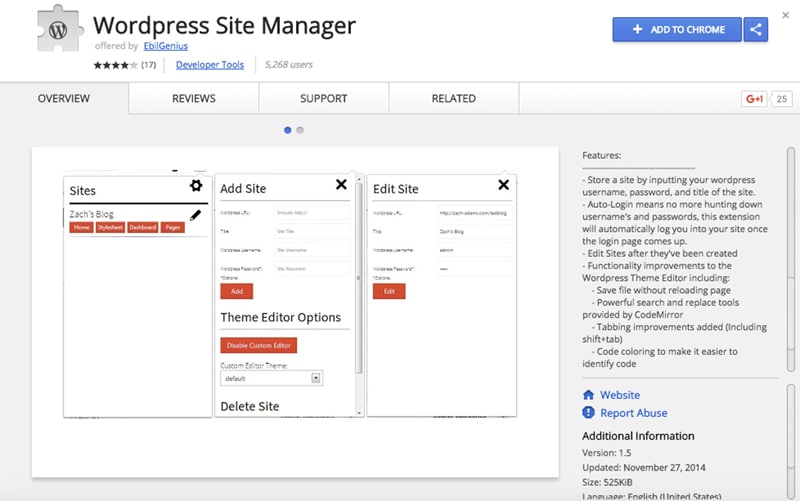
Many WordPress users, especially developers manage multiple WordPress websites on a day to day basis. If you’re one of them, you know how time-consuming it can be to constantly switch between dashboards and make necessary changes. WordPress Site Manager offers a quicker and simpler way to switch between dashboards. It provides quick access to different sections of your website, and you can add as many sites as you want.
7. Comment Save
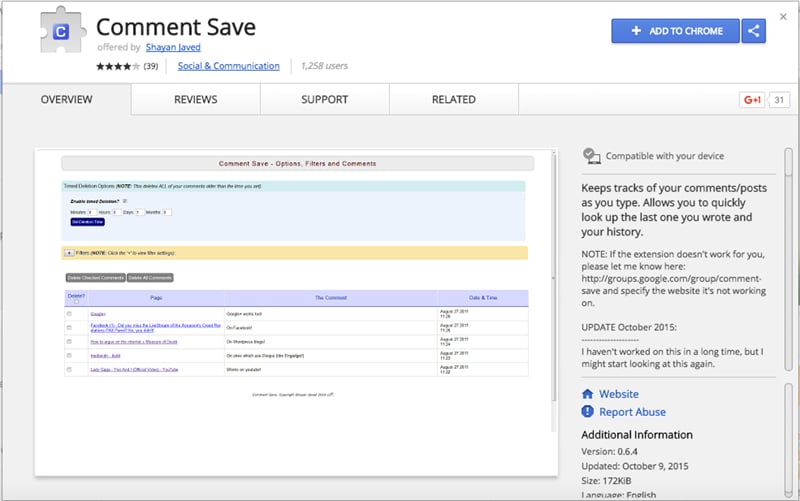
As a contributor to different WordPress websites, you know the importance of participating in comments and keeping the discussion alive. Comment Save is the perfect extension that can save you a ton of time as it keeps tracks of comments and posts you write anywhere on the web. You can easily look up when was your last comment on a particular site, browse through your comment history, and even disable sites you do not wish to track or have no need to track anymore.
8. Evernote Web Clipper
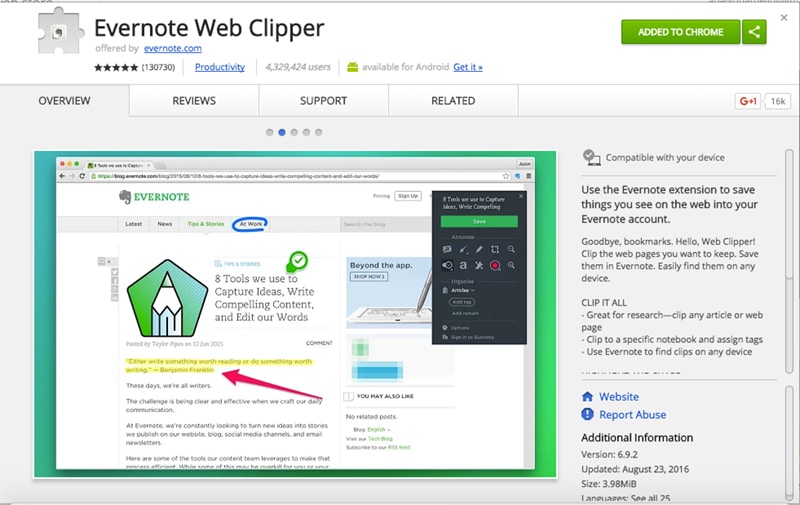
Evernote is touted as your virtual brain allowing you to keep notes of anything and everything important in your life. One of their many extensions, Evernote Web Clipper is particularly useful as you’re doing research for your next blog post. You can clip articles in their entirety or you can clip a simplified version which removes all the distractions and keeps just the post itself.
You can also save portions of a web page as a screenshot or annotate your selection. Simply install the extension, clip the article into your designated notebook, add tags to it, and you’re done! Evernote Web Clipper is truly a useful research tool.
9. Taco
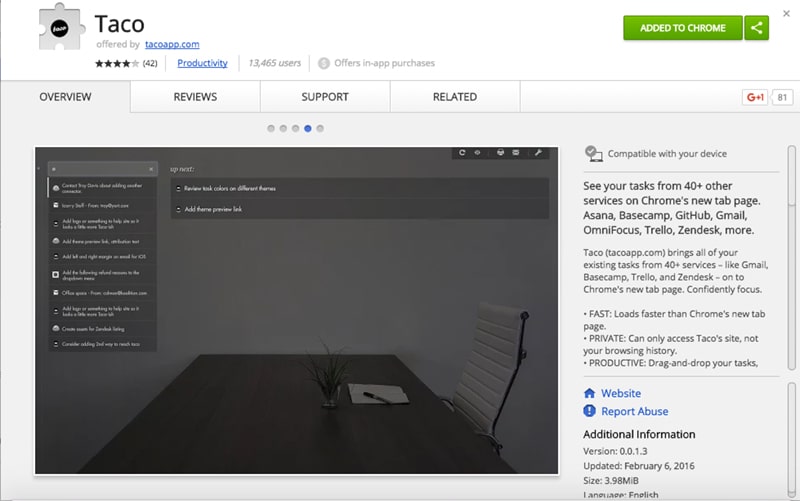
While this extension will not deliver a taco straight from your browser, it will save you tons of time if you’re regularly collaborating with others. It seems like everyone has their own preference when it comes to task managers and finding one to satisfy everyone, is mission impossible. This is where Taco comes in handy.
Taco allows you to access all your tasks from different services such as Asana, Trello, ToDoist, BaseCamp, and others; and displays them in one central place – Chrome’s new tab page. Now you won’t have to jump between different applications or use IFTTT recipes to stay on top of everything you need to do. Instead, Taco does it for you and you can easily mark tasks as done just as you were logged into the task manager app itself. Spend less time keeping track of what needs to be done and focus on actually doing it.
10. WordPress Admin Bar Control
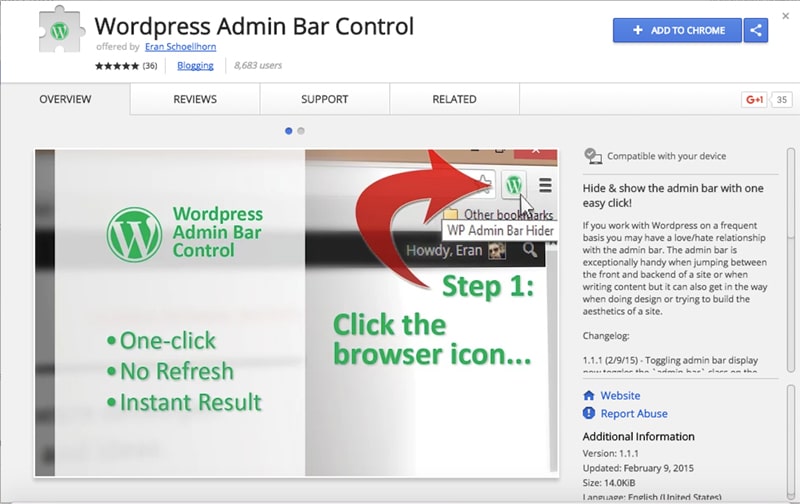
WordPress admin bar is great for accessing your website’s dashboard quickly or jumping between different sections when you’re viewing your site from the front-end. But, when you want to see how a notification bar plugin looks like on your website or how important elements of your website look like after making changes, the admin bar often gets in the way.
While there is a way to disable it in your profile editor, you will have to re-enable it once you’re done viewing the changes if you want to retain quick access to your dashboard. Not to mention constantly doing so wastes time. Once you install WordPress Admin Bar Control, you can hide the admin bar any time you want by clicking the icon in your browser’s address bar.
Wrapping Up
There are many more extensions which are particularly useful for WordPress users that can help you accomplish more in less time. The extensions in this article are just the tip of the iceberg that can help you create and manage your WordPress site with speed and efficiency.
Categories
Subscribe Now
10,000 successful online businessmen like to have our content directly delivered to their inbox. Subscribe to our newsletter!Archive Calendar

| Sat | Sun | Mon | Tue | Wed | Thu | Fri |
|---|---|---|---|---|---|---|
| 1 | 2 | |||||
| 3 | 4 | 5 | 6 | 7 | 8 | 9 |
| 10 | 11 | 12 | 13 | 14 | 15 | 16 |
| 17 | 18 | 19 | 20 | 21 | 22 | 23 |
| 24 | 25 | 26 | 27 | 28 | 29 | 30 |
| 31 | ||||||
Recent Articles
-

Posted on : Jul 25
-

Posted on : Jul 07
-

Posted on : Apr 07
-

Posted on : Mar 19
Optimized my.cnf configuration for MySQL 8 (on cPanel/WHM servers)
Tags
- layer 7
- tweak
- kill
- process
- sql
- Knowledge
- vpn
- seo vpn
- wireguard
- webmail
- ddos mitigation
- attack
- ddos
- DMARC
- server load
- Development
- nginx
- php-fpm
- cheap vpn
- Hosting Security
- xampp
- Plesk
- cpulimit
- VPS Hosting
- smtp
- smtp relay
- exim
- Comparison
- cpu
- WHM
- mariadb
- encryption
- sysstat
- optimize
- Link Building
- apache
- centos
- Small Business
- VPS
- Error
- SSD Hosting
- Networking
- optimization
- DNS
- mysql
- ubuntu
- Linux