4 Handy WordPress Media Library Hacks
- Category : WordPress
- Posted on : May 28, 2018
- Views : 2,856
- By : Marcus J.

The WordPress Media Library is a powerful tool that makes it easy to upload, edit and delete images and other media. Moreover, it allows to filter, select, include media into posts and pages, with caption, description and alternative text, generating the necessary HTML code.
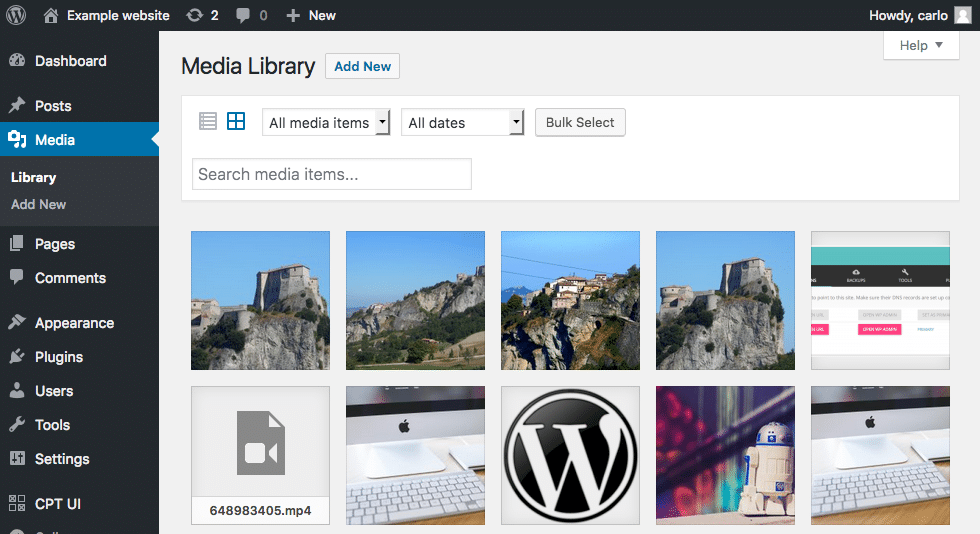
Most of times, the WordPress Media Library covers the most common requirements of a site administrator, and we don’t have to add new functionalities. Anyway, in case we’d need to enhance specific features, WordPress provides a number of functions and hooks that enable us to give more powers to the Media Library without the use of 3rd party plugins. So, in this post we will dive into these functions and hooks with four practical examples.
WordPress Media Library Hacks
Here is our table of contents:
- How to add custom metadata to attachments
- How to display extended (EXIF and IPTC) metadata in the Edit Media screen
- How to display extended metadata in the site front-end
- How to display an archive of JPEG attachments
Update: This is now available as a free plugin on the WordPress repository. Check out EXIF viewer.
Attachment Post Type and Metadata
Anytime we upload a media file, WordPress generates an attachment post type. Just like any other post type, attachments are registered into the wp_posts table, and the respective metadata into the wp_postmeta table.
- The wp_posts table stores data like post_content (attachment description), post_excerpt (attachment caption), post_author, post_title, post_status, post_mime_type.
- The wp_postmeta table stores any kind of metadata, like attached file URL, image dimensions and mime types, EXIF and IPTC metadata.
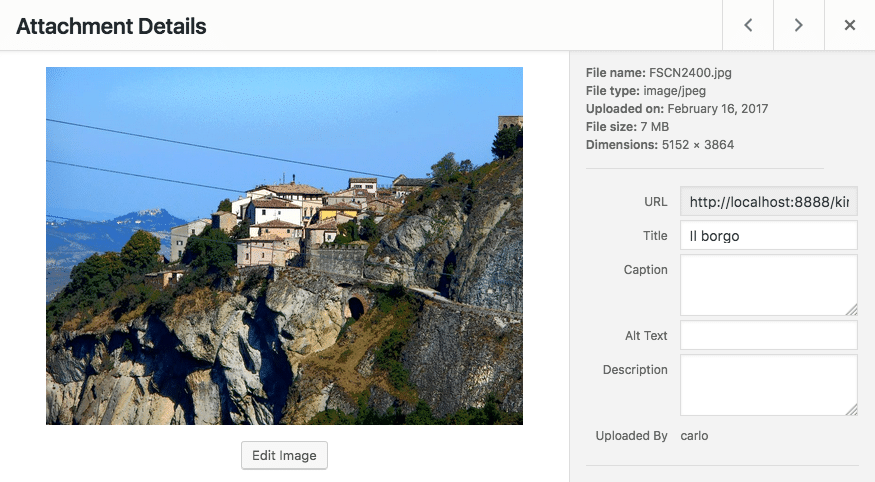
Occasionally you may need to add custom metadata to attachments, like the name of the author of a document, or an associated URL. Adding meta fields to attachments is a bit different from adding meta fields to posts, and we do have to use specific hooks and functions. First, we have to add all needed custom fields to the Edit Media screen. We can accomplish this task by filtering the available attachment fields through the attachment_fields_to_edit filter:
function media_hacks_attachment_field_to_edit( $form_fields, $post ){

	// https://codex.wordpress.org/Function_Reference/wp_get_attachment_metadata
	$media_author = get_post_meta( $post->ID, 'media_author', true );

	$form_fields['media_author'] = array(
		'value' => $media_author ? $media_author : '',
		'label' => __( 'Author' )
	);
	return $form_fields;
}
add_filter( 'attachment_fields_to_edit', 'media_hacks_attachment_field_to_edit', 10, 2 );
The function keeps two arguments: the $form_fields array of form fields and the $post object. First, get_post_meta retrieves the existing ‘media_author’ value, then a ‘media_author’ element is added to the $form_fields array. Finally, the callback returns $form_fields (see the code on Gist)
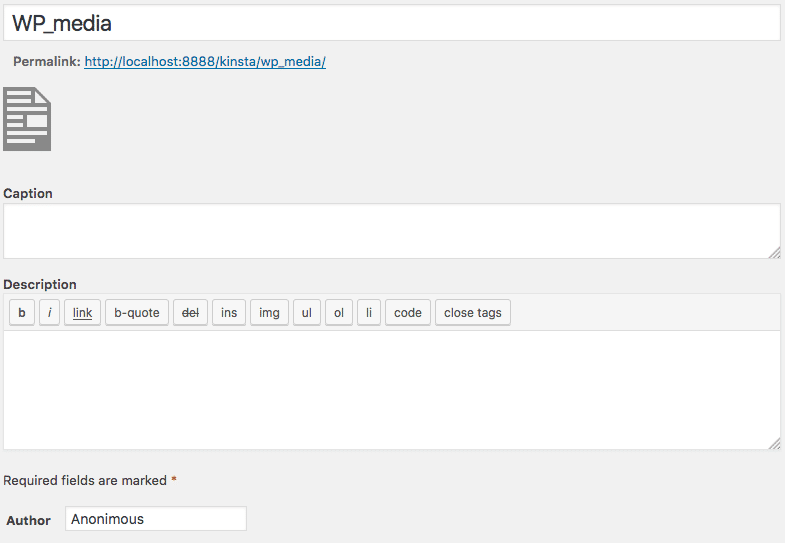
The next step is saving the user input. We can accomplish this second task by hooking a new function to the edit_attachment action:
function media_hacks_edit_attachment( $attachment_id ){
if ( isset( $_REQUEST['attachments'][$attachment_id]['media_author'] ) ) {

		$media_author = $_REQUEST['attachments'][$attachment_id]['media_author'];

		update_post_meta( $attachment_id, 'media_author', $media_author );
}
}
add_action( 'edit_attachment', 'media_hacks_edit_attachment' );
This function keeps just one argument: the $attachment_id of the current media file. First, the function checks whether a valid value for the custom meta field has been sent, then it registers the value thanks to the update_post_meta function (see the code on Gist). Now, we can retrieve the ‘media_author’ value thanks to the get_post_meta function and display it anywhere in the front-site:
$media_author = get_post_meta( $post->ID, 'media_author', true );How to Display EXIF and IPCT Metadata in the Edit Media Screen
WordPress automatically stores extended metadata for JPEG and TIFF mime types, and now that we know how to add fields to the Edit Media screen, we can use what we have learned to display these data. To accomplish this task, we have to change the first callback function as follows:
function media_hacks_attachment_fields_to_edit( $form_fields, $post ){
// get post mime type
$type = get_post_mime_type( $post->ID );
// get the attachment path
$attachment_path = get_attached_file( $post->ID );
// get image metadata
$metadata = wp_read_image_metadata( $attachment_path );
if( 'image/jpeg' == $type ){
if( $metadata ) {
$exif_data = array(
'aperture'          => 'Aperture',
				'camera'            => 'Camera',
				'created_timestamp' => 'Timestamp',
'focal_length'      => 'Focal Lenght',
				'iso'               => 'ISO',
				'shutter_speed'     => 'Exposure Time',
				'orientation'       => 'Orientation' );
foreach ( $exif_data as $key => $value ) {
$exif = $metadata[$key];
$form_fields[$key] = array(
'value' => $exif ? $exif : '',
'label' => __( $value ),
'input' => 'html',
'html'  => "<input type='text' class='text' readonly='readonly' name='attachments[$post->ID][$exif]' value='" . $exif . "' /><br />"
				);
}
}
}
return $form_fields;
}
add_filter( 'attachment_fields_to_edit', 'media_hacks_attachment_fields_to_edit', 10, 2 );
Here we use the following WordPress functions:
- get_post_mime_type retrieves the mime type of an attachment based on the ID
- get_attached_file retrieves the attached file path based on the ID
- wp_read_image_metadata gets EXIF or IPTC metadata, if available.
If image mime type is ‘image/jpeg’, and if metadata exists, then we declare an array of required metadata, and create a form field for each element in the array. The form fields of this example are a bit more complex, as we’re setting a value for the ‘html’form element (see the code on Gist).
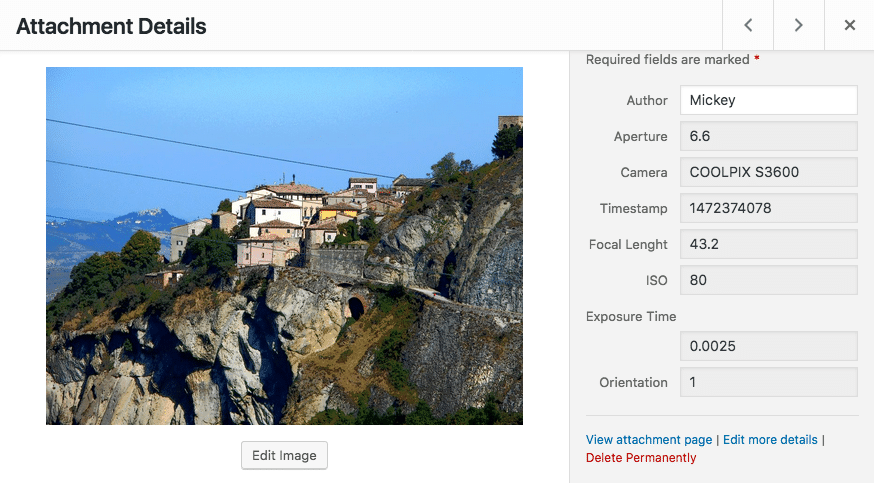
We don’t need to save EXIF and IPCT metadata, as WordPress automatically stores them into the wp_postmeta table when uploading images.
Showing Extended Metadata in the Front-End
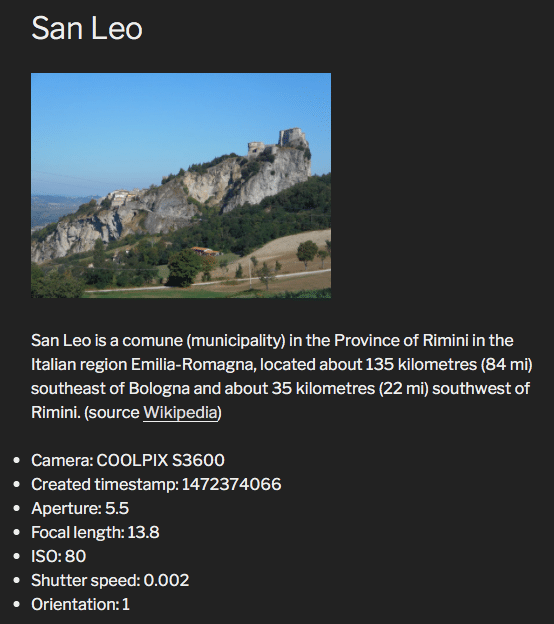
We do have a number of possibilities to include metadata in the post content (attachment description). We can append them to the content thanks to the the_content filter, or we may create a template file in a child theme according to the Template Hierarchy. The following function appends metadata to the attachment description:
function media_hacks_the_content( $content ){
global $post;
if( is_attachment() && 'image/jpeg' == get_post_mime_type( $post->ID ) ) {
$fields = wp_get_attachment_metadata( $post->ID );
$meta = $fields['image_meta'];
if( ! empty( $meta['camera'] ) ){
$custom_content = "
			<ul>
<li>Camera: {$meta['camera']}</li>
<li>Created timestamp: {$meta['created_timestamp']}</li>
<li>Aperture: {$meta['aperture']}</li>
<li>Focal length: {$meta['focal_length']}</li>
<li>ISO: {$meta['iso']}</li>
<li>Shutter speed: {$meta['shutter_speed']}</li>
<li>Orientation: {$meta['orientation']}</li>
</ul>";
$content .= $custom_content;
		}
}
return $content;
}
add_filter( 'the_content', 'media_hacks_the_content' );
Here we call the wp_get_attachment_metadata function (see the Codex for the full list of returned data). If the current post type is ‘attachment’, and if the current mime type is ‘image/jpeg’, then we get the available image metadata and build an unordered list of fields, which is appended to the post content. The callback function returns $content (see this code on Gist).
How to Display a Photo Archive
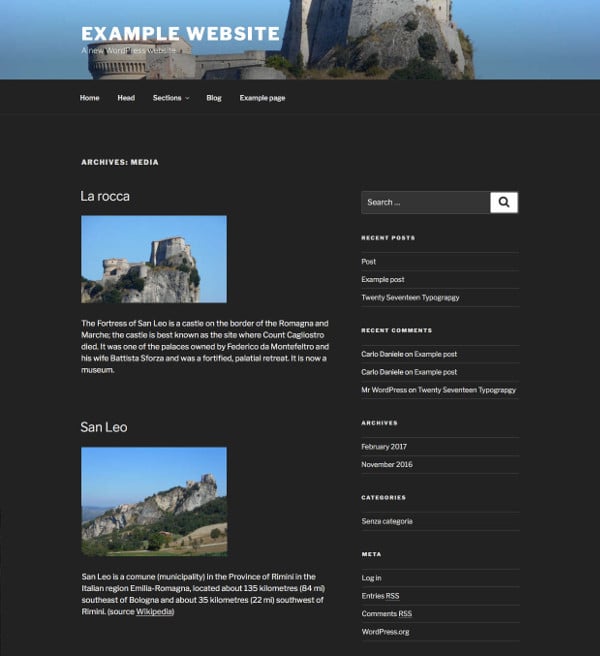
Out of the box WordPress does not display archives of attachments. This happens because the ‘has_archive’ option of the attachment post type is set to false. Moreover, while the default post_status parameter of the $query object is set to ‘publish’, the default attachment post_status is set to ‘inherit’. This means that no attachments will be shown in archives unless we explicitly set the query post_statusto ‘inherit’ or to ‘any’ (see WP_Query Type Parameters for further information).
That being said, in order to show image archives, we have to define two functions. The first function filters the arguments of a specified post type, and sets the attachment ‘has_archive’ property to true:
function media_hacks_register_post_type_args( $args, $post_type ){
if( $post_type == 'attachment' ){
$args['has_archive'] = true;
}
return $args;
}
add_filter( 'register_post_type_args', 'media_hacks_register_post_type_args', 10, 2 );
The second function set custom values for post_mime_type and post_status query variables:
function media_hacks_pre_get_posts( $query ){
if ( !is_admin() && $query->is_main_query() ) {
if( is_post_type_archive('attachment') ){
$query->set('post_mime_type', 'image/jpeg');
$query->set( 'post_status', 'inherit' );
}
}
}
add_action( 'pre_get_posts', 'media_hacks_pre_get_posts' );
The function is hooked to the pre_get_posts action hook, which is fired after the query has been created, but before it’s executed. The $query object is passed by reference, not by value, and this means that any changes to the current instance of $query affect the original $query object (read more in the Codex). For this reason, we have to check which is the query we’re going to change (see this code on Gist).
Now we can send a request like the following:
example.com/?post_type=attachment And WordPress returns an archive of JPEG images.
The full code of our example is available as plugin in a public Gist. You can also now download this from the WordPress repository, make sure to check out the free EXIF viewer plugin.
Wrapping Up
Out of the box, the WordPress Media Library is a complete and powerful tool for media management which usually covers all your requirements as site admin. But if you’d need more features and functionalities, WordPress provides hooks and functions that enable us to bring the Media Library to the next level. Have you hacked the Media Library yet? Share your experience with us in the comments below.
Categories
Subscribe Now
10,000 successful online businessmen like to have our content directly delivered to their inbox. Subscribe to our newsletter!Archive Calendar

| Sat | Sun | Mon | Tue | Wed | Thu | Fri |
|---|---|---|---|---|---|---|
| 1 | 2 | |||||
| 3 | 4 | 5 | 6 | 7 | 8 | 9 |
| 10 | 11 | 12 | 13 | 14 | 15 | 16 |
| 17 | 18 | 19 | 20 | 21 | 22 | 23 |
| 24 | 25 | 26 | 27 | 28 | 29 | 30 |
| 31 | ||||||
Recent Articles
-

Posted on : Jul 25
-

Posted on : Jul 07
-

Posted on : Apr 07
-

Posted on : Mar 19
Optimized my.cnf configuration for MySQL 8 (on cPanel/WHM servers)
Tags
- layer 7
- tweak
- kill
- process
- sql
- Knowledge
- vpn
- seo vpn
- wireguard
- webmail
- ddos mitigation
- attack
- ddos
- DMARC
- server load
- Development
- nginx
- php-fpm
- cheap vpn
- Hosting Security
- xampp
- Plesk
- cpulimit
- VPS Hosting
- smtp
- smtp relay
- exim
- Comparison
- cpu
- WHM
- mariadb
- encryption
- sysstat
- optimize
- Link Building
- apache
- centos
- Small Business
- VPS
- Error
- SSD Hosting
- Networking
- optimization
- DNS
- mysql
- ubuntu
- Linux