
How to Find and Fix Broken Links in WordPress (5 Methods)
- Category : SEO
- Posted on : Mar 04, 2019
- Views : 3,437
- By : Barton S.
Having broken links on your WordPress site is bad news for both your human visitors and your site’s SEO, so learning how to fix broken links in WordPress is an important part of running a successful WordPress site.
In this post, we’ll dive into a deeper explanation for why broken links are something worth seeking out and correcting. Then, we’ll show you five different methods that you can use to find and fix broken links in WordPress without slowing down your site.
Broken Links Are Bad for SEO and User Experience
Broken links are bad for your WordPress site for a few different reasons.
First, there’s the effect on your human visitors. If someone is clicking a link, they’re doing so because they’re interested in the content that they were told the link will take them to. Makes sense, right?
So, by sending them to a broken link instead of the content that you promised them, you’re creating a frustrating experience for your visitors, and that by itself is a good incentive to find and fix broken links on your site.
Broken links aren’t just bad for humans, though, they’re also bad for robots. Specifically, the crawler bots used by search engines like Google.
First off, broken links waste your crawl equity in Google. Every 404 page that a Googlebot encounters as a result of broken links is a live page that Google could have crawled instead.
Beyond that, broken links are also a waste of link equity. For example, if you have a broken internal link from one blog post to another, you’re not getting the SEO benefit of that internal link, which is a negative for your SEO efforts.
Five Ways How to Fix Broken Links in WordPress
Ok, so broken links are bad for your WordPress site. Now it’s time to answer the important question – how can you fix broken links in WordPress?
Over the next sections, we’ll cover five ways how to fix broken links in WordPress. You can click below to jump straight to a specific section or read through all five methods:
- Web-Based SEO Audit Tool
- Google Search Console
- Desktop Software
- Online Broken Link Checker Tool
- Broken Link Checker WordPress Plugin – we do not recommend this method, though we will still include it in the post with some disclaimers
1. Web-Based SEO Audit Tool
The first method we recommend to find and fix broken links in WordPress is to use a web-based SEO audit tool. Two of the most popular ones are Ahrefs and SEMrush. Both of them include very powerful site audit tools in which you can automatically scan your WordPress site for errors.
Ahrefs actually a couple of different places you can find broken links.
Option 1 – Find Broken Links with the Ahrefs Audit Tool
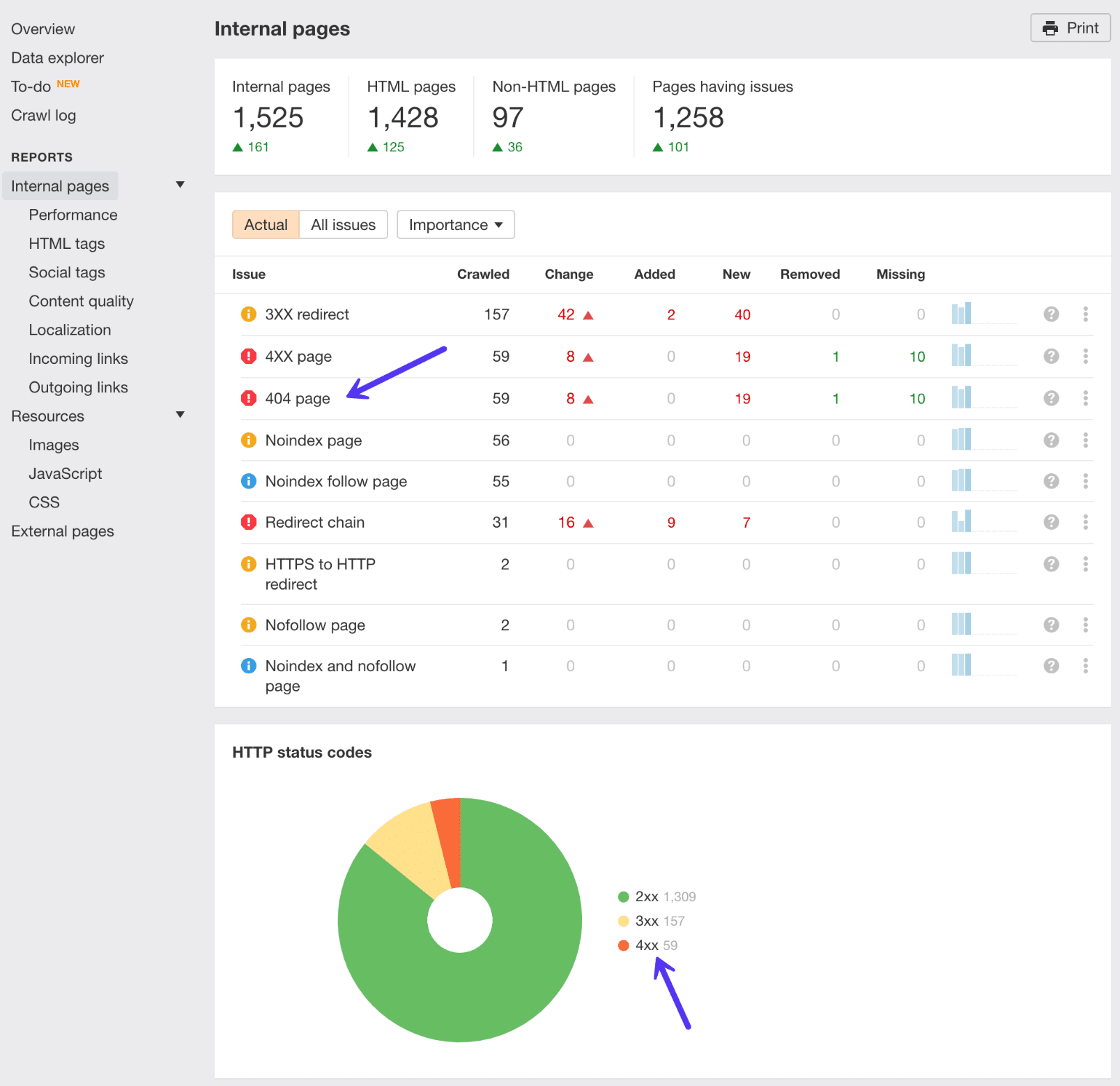
The first way to find broken links in Ahrefs is to use their amazing Site audit tool. Simply set up a new project, input your WordPress site’s address, and let it scan your site. Depending on the size of your site, this could take a good 20 minutes or so.
Remember, if you’re a CentrioHost client, requests from the user-agent AhrefsBot are excluded from billable visits.
After the scan has completed, click into the reports section and you’ll find a list of all the 404 errors on your WordPress site. You can then see all the broken links on your site and the internal pages they are appearing on. You should then update the broken links with the correct ones.
Option 2 – Find Broken Links with Ahrefs Site Explorer
You can also use the Ahrefs Site Explorer to find broken links. Simply put your WordPress site URL into Ahrefs Site Explorer, go to the “Backlinks” report, and click “Broken” to see the strongest broken backlinks of your website.
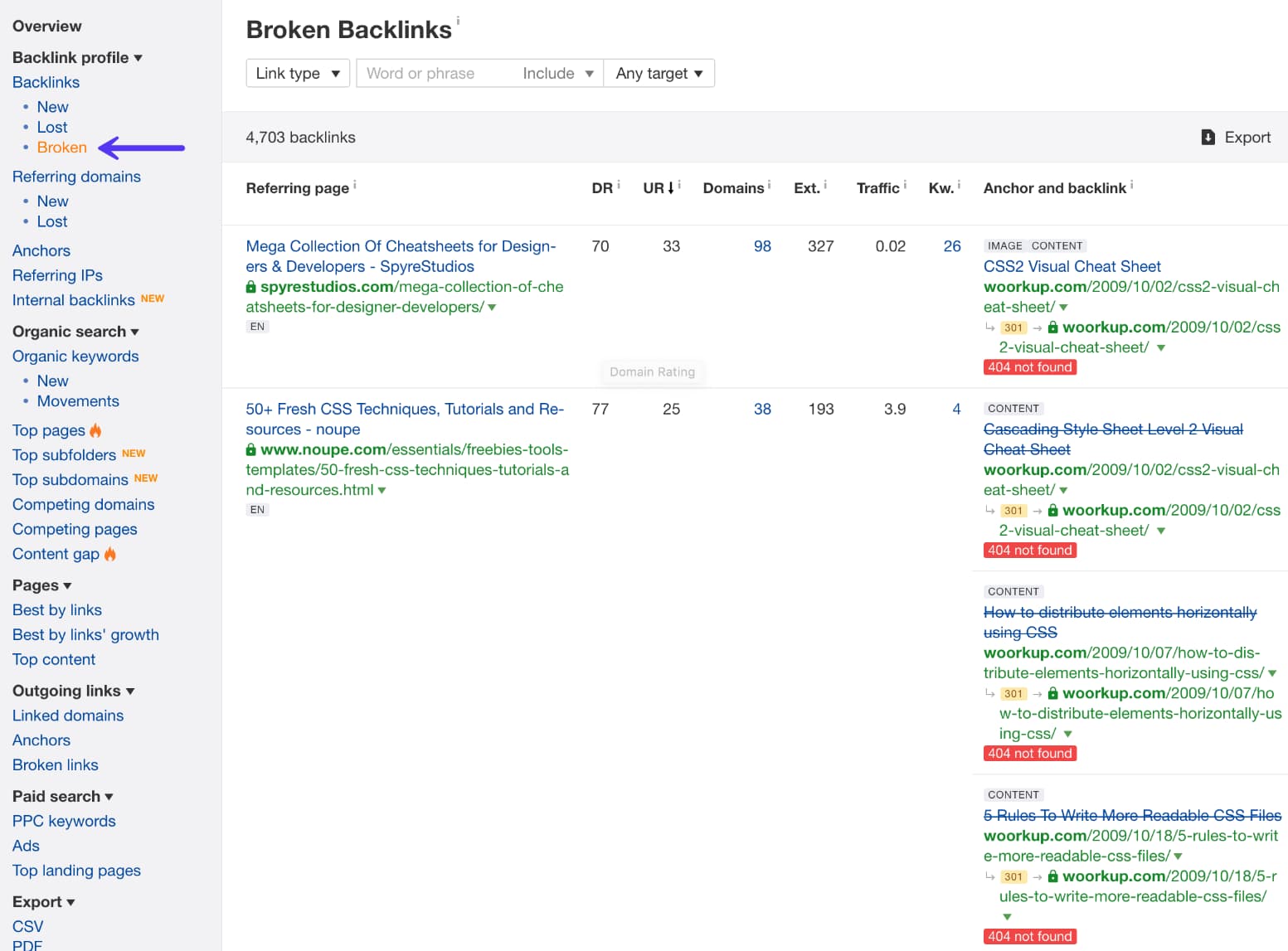
Alternatively, you can also go to “Best by links” report, and apply the “404 not found” filter in “HTTP codes.”
Option 3 – Find Broken Outgoing Links with Ahrefs Site Explorer
Fixing internal broken backlinks on your WordPress site is priority number one. But don’t forget about broken outgoing links. When you link to broken content or resources on other people’s sites this is also frustrating for the user. High-quality outgoing links also play a part in your SEO.
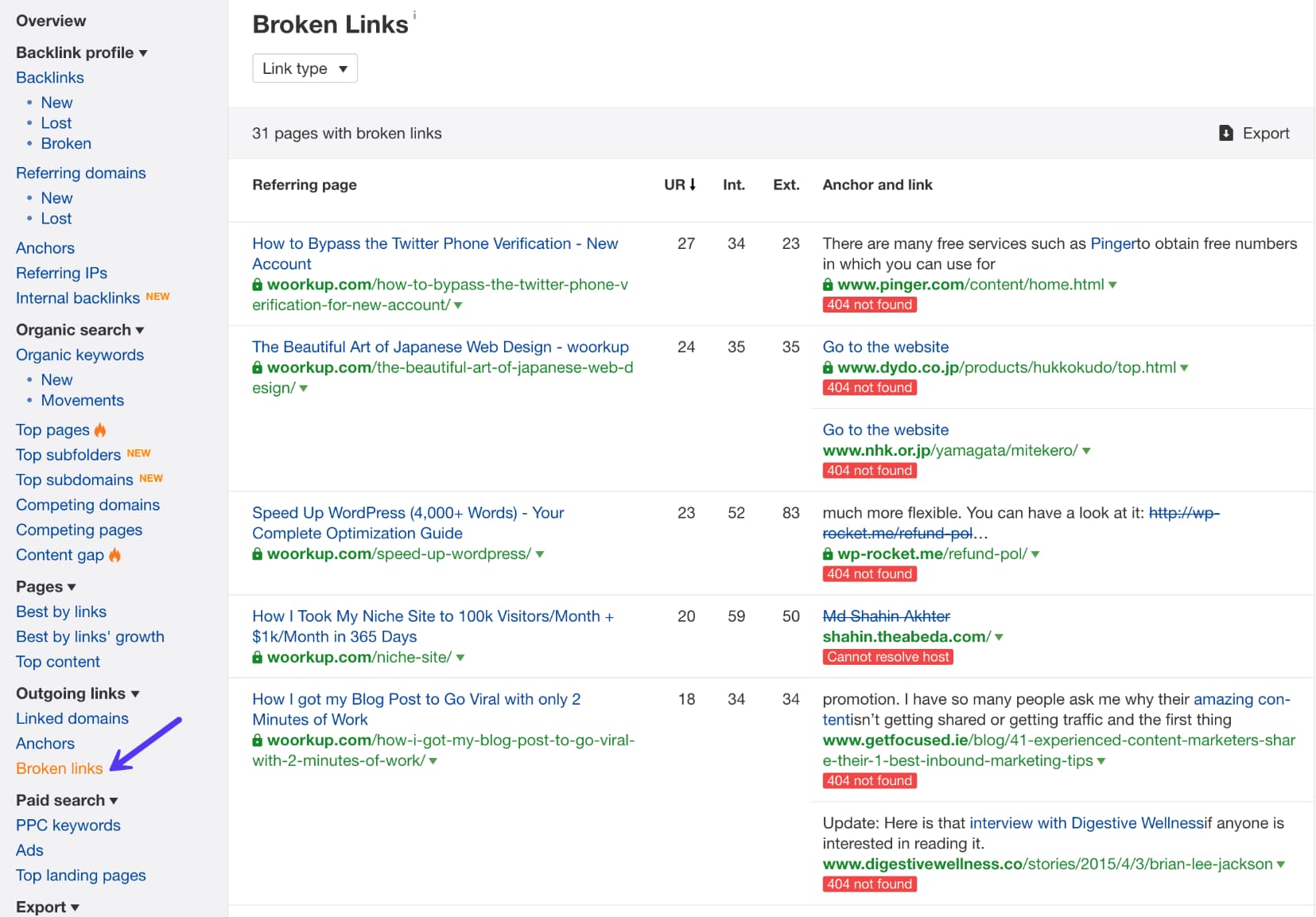
Simply put your WordPress site URL into Ahrefs Site Explorer, go to the “Outgoing links” report, and click “Broken links.” You can then see the post or page on your WordPress site where the link resides and the broken external link.
2. Google Search Console
Google Search Console is a helpful tool from Google that helps you “monitor, maintain, and troubleshoot your site’s presence in Google Search results”. In order to get started, you’ll need to verify your site with Google Search Console. Then, you can start benefiting from its features, including broken link detection.
As part of its functionality, Google Search Console includes a Crawl Errors report that lets you see all the pages that returned a 404 error to Google:
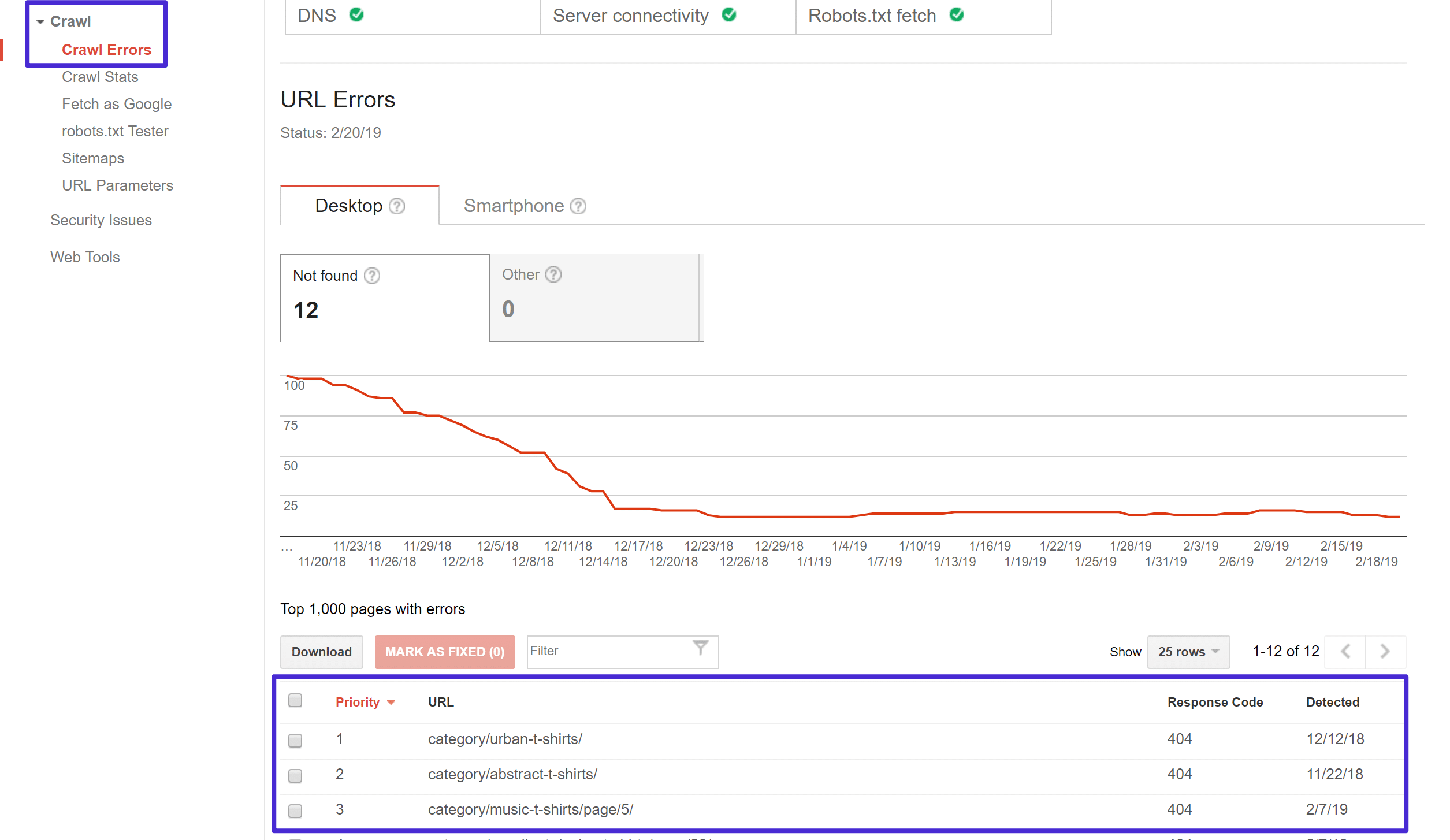
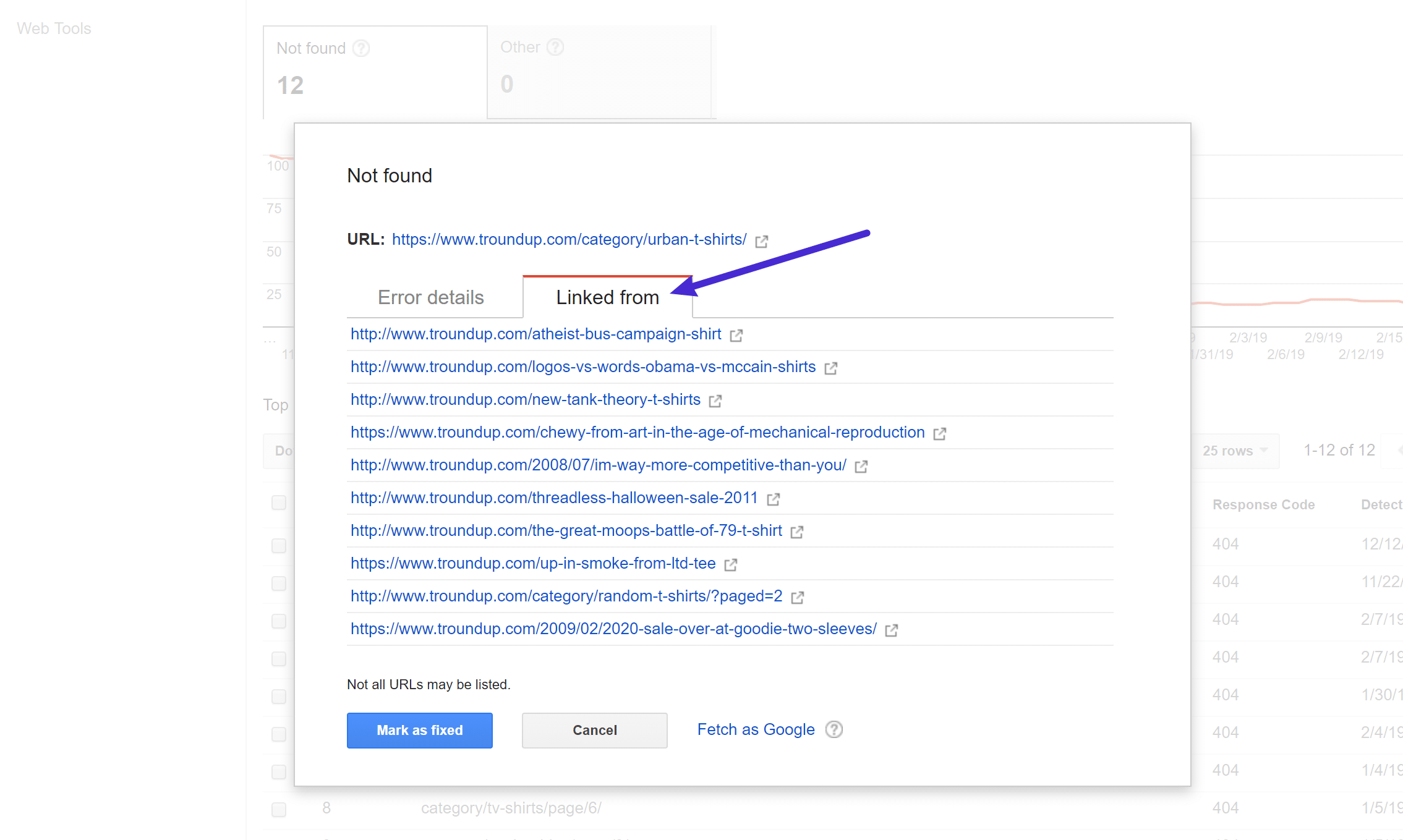
Clicking on any one of those links will open a popup where you can see which pages link to that 404 error page, which lets you correct the broken link on those pages:
3. Desktop Software
Beyond the web-based SEO audit tools, you can also find broken links using desktop software as well.
The most popular option here is Screaming Frog, which is a well-known SEO tool that’s free to use to find broken links.
Screaming Frog works on Windows, macOS, and Ubuntu.
Once you download and install the program, here’s how to use it to find broken links.
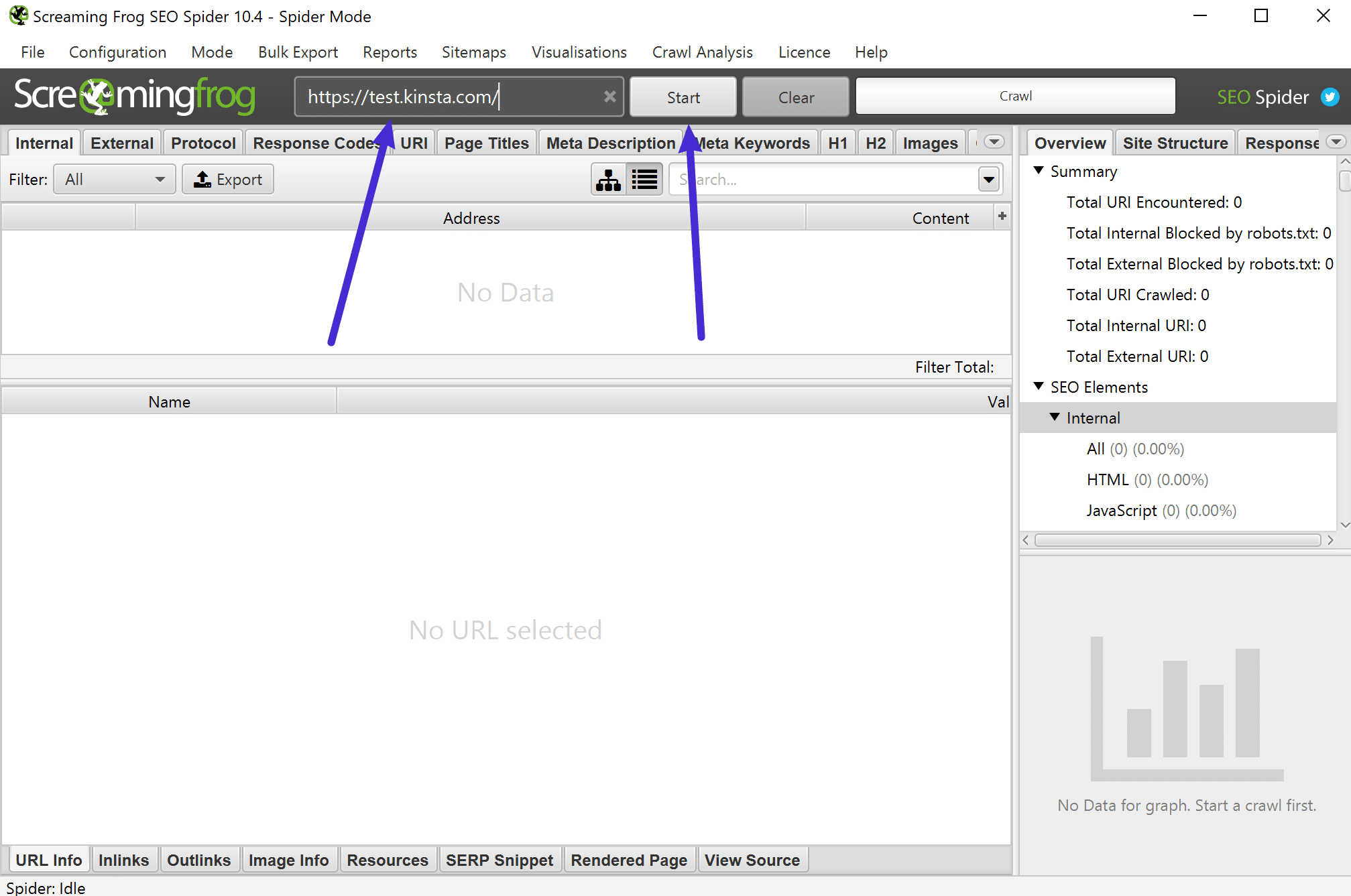
First, add your site’s URL to the box at the top and click Start:
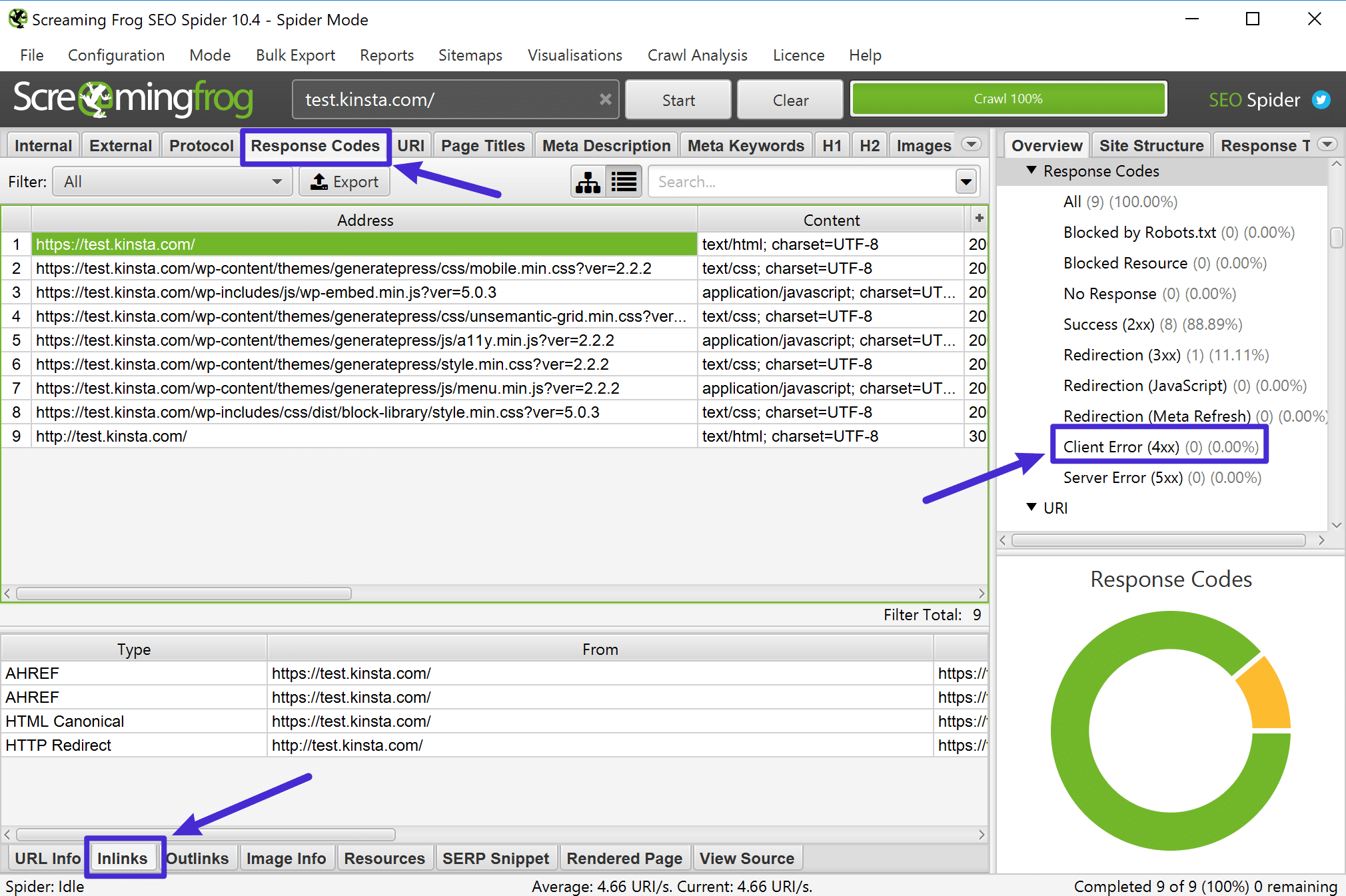
hen, you can use the Response Codes option to filter out 404 pages and then use the Inlinks feature at the bottom to find links to those 404 pages:
If you’re using a Mac, Integrity is also another good desktop SEO tool that you can use to find broken links in WordPress.
If your site isn’t very large, you might be able to use a free online broken link checker tool to find broken links.
A good option here is the creatively named BrokenLinkCheck.com, whic