How to Fix Your Connection is Not Private Error in Chrome (18 Tips)
- Category : General
- Posted on : Oct 19, 2018
- Views : 3,893
- By : Xavier N.

What is the Your Connection is Not Private Error?
The “your connection is not private” error only pertains to sites that are running over HTTPS (or should be running over HTTPS). When you visit a website, your browser sends a request to the server where the site is hosted. The browser then has to validate the certificate installed on the site to ensure it is up to current privacy standards. Other things that also take place include the TLS handshake, the certificate being checked against the certificate authority, and decryption of the certificate.
If the browser finds that the certificate isn’t valid, it will automatically try to prevent you from reaching the site. This feature is built into web browsers to protect the user. If the certificate isn’t set up correctly, this means data can’t be encrypted properly and therefore the site is unsafe to visit (especially those with logins or that process payment information). Instead of loading the site, it will deliver an error message, such as “your connection is not private.”
Your Connection is Not Private Error Variations
There are a quite a few different variations of this error depending upon which web browser you’re using, operating system, and even the configuration of the certificate on the servers. And while some of these errors sometimes mean slightly different things, a lot of times the troubleshooting steps are the same.
Google Chrome
In Google Chrome if there is an issue validating the certificate the error will show as “your connection is not private” (as seen below).
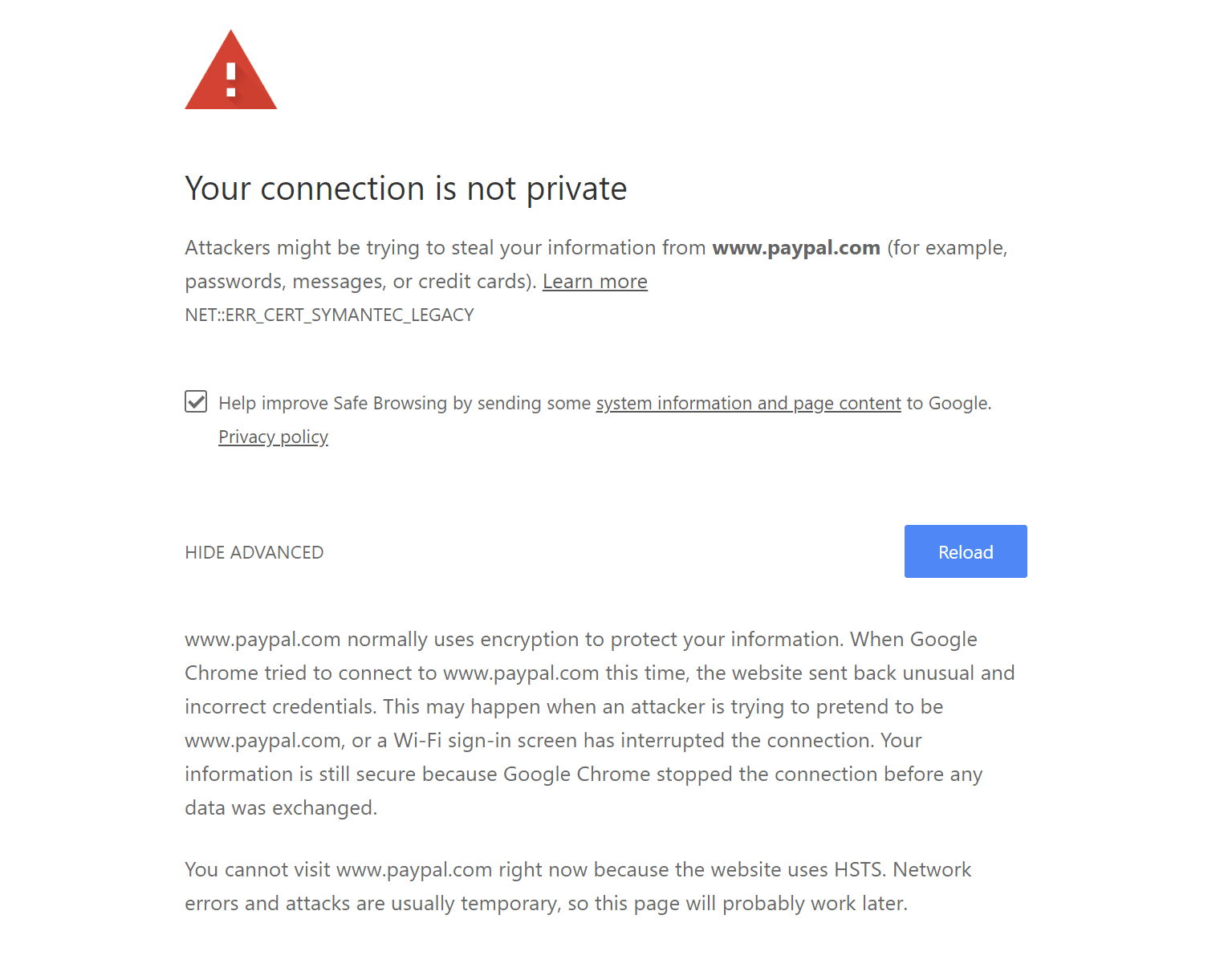
This is also accompanied by an error code message which helps to try and pinpoint the exact issue. Below are just a couple of the most common error codes you might see in Google Chrome:
- ERR_CERT_SYMANTEC_LEGACY
- NET::ERR_CERT_AUTHORITY_INVALID
- NET::ERR_CERT_COMMON_NAME_INVALID (this occurs when the certificate does not match the domain)
- NET::ERR_CERT_WEAK_SIGNATURE_ALGORITHM
- NTE::ERR_CERTIFICATE_TRANSPARENCY_REQUIRED
- NET::ERR_CERT_DATE_INVALID
- SSL certificate error
- ERR_SSL_VERSION_OR_CIPHER_MISMATCH
Mozilla Firefox
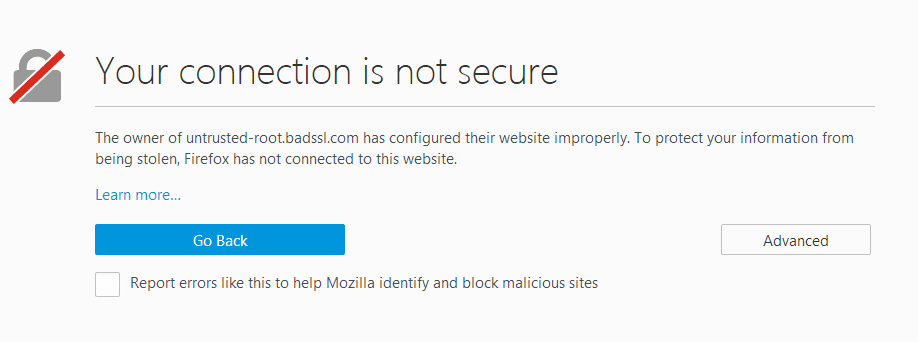
In Mozilla Firefox the error message varies slightly, and instead of “your connection is not private” you’ll see “your connection is not secure” (as seen below).
The owner of domain.com has configured their website improperly. To protect your information from being stolen, Firefox has not connected to this website.
Just like in Chrome, it’s accompanied by an error code message which helps to try and pinpoint the problem. Below are just a couple of the most common error codes you might see in Mozilla Firefox:
- MOZILLA_PKIX_ERROR_ADDITIONAL_POLICY_CONSTRAINT_FAILED
- SEC_ERROR_EXPIRED_ISSUER_CERTIFICATE
- SEC_ERROR_EXPIRED_CERTIFICATE
- SEC_ERROR_UNKNOWN_ISSUER
- MOZILLA_PKIX_ERROR_MITM_DETECTED
- ERROR_SELF_SIGNED_CERT
- SSL_ERROR_BAD_CERT_DOMAIN
Microsoft Edge
In Microsoft Edge, you will also see the error as “your connection is not secure.”
This might mean that someone’s trying to fool you or steal any info you send to the server. You should close this site immediately.
These are also accompanied by an error code message. Below are just a couple of the most common error codes:
- Error Code: 0
- DLG_FLAGS_INVALID_CA
- DLG_FLAGS_SEC_CERT_CN_INVALID
How to Fix the Your Connection is Not Private Error
Sometimes you might not even know where to begin if you’re seeing a “your connections is not private” error. From our experience, these errors typically originate from two things: the first is a client-side issue (your browser, computer, OS), and the second is that there is an actual problem with the certificate on the website (expired, wrong domain, not trusted by the organization). So we’ll dive into a little of both.
Here are some recommendations and things to check to fix the error (sorted in order by most common reasons we see):
- Try Reloading the Page
- Manually Proceed (Unsafe)
- Are You in a Cafe or Airport?
- Check Your Computer’s Clock
- Try in Incognito Mode
- Clear Browser Cache and Cookies
- Try Clearing the SSL State on Your Computer
- Change DNS Servers
- Disable VPN and Antivirus Temporarily
- Make Sure the Certificate Hasn’t Expired
- Check Subject Alternative Domain
- Is the Certificate SHA-1?
- Is the Certificate Issued by Symantec?
- Run an SSL Server Test
- Update Your Operating System
- Restart Your Computer
- Reach out for Help
- Disable Chrome Checking SSL Certificates (devs only!)
1. Try Reloading the Page
This might seem a little obvious to some, but one of the easiest and first things you should try when encountering a “your connection is not private” error is to simply close and re-open your browser and try loading the page again. It could be that the website owner is currently reissuing their SSL certificate or something was out of whack in your browser.
2. Manually Proceed (Unsafe)
Your second option is to simply manually proceed. However, we don’t ever recommend doing this unless you fully understand that nothing will be encrypted if you proceed. If you’re going to be entering in login credentials or entering payment details, by all means, skip to the next steps below.
We only include this option so we can explain the full ramifications of doing this. Seeing this error could very well mean that someone’s trying to fool you or steal any info you send to the server and you should typically close the site immediately. It is also possible that the website has been compromised and there is a malicious redirection. If you’re in a public place, never try to bypass this screen.
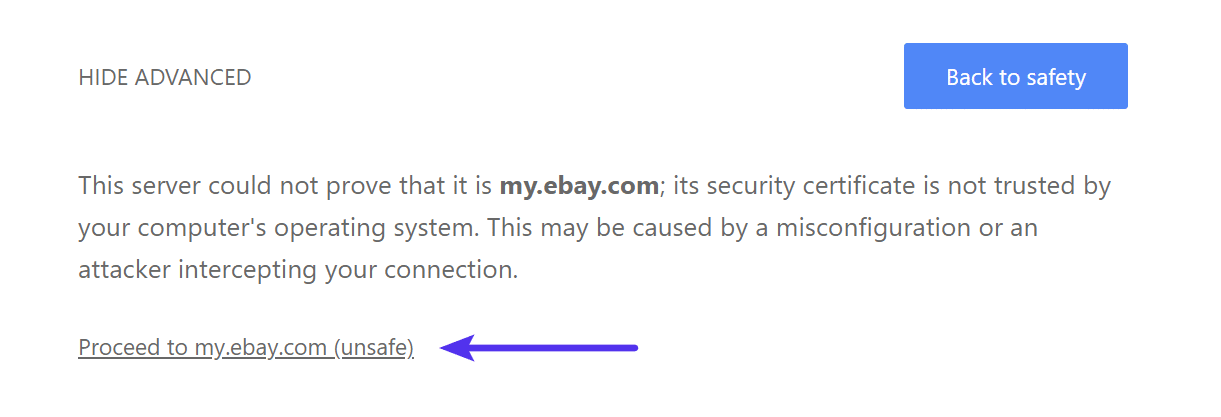
If you still want to proceed, there is usually a “Proceed to domain.com” link you can click at the bottom of the error screen. Depending on the browser this is sometimes hidden under the “Advanced” option. Note: If the website is using HSTS (HTTP Strict Transport Security) this option won’t be available as it means they have implemented an HTTP header which never allows non-HTTPS connections.
3. Are You in a Cafe or Airport?
This might sound odd, but cafes ☕ and airport Wi-Fi networks tend to be one of the most popular places that users see the “your connection is not private” error. Why? Because a lot of them are still not running everything over HTTPS, or if they are, it isn’t configured correctly. This usually pertains to the portal screen where you need to accept the terms and agreement to sign in. If you’re trying to connect to an HTTPS (secure) site before accepting the portal’s terms this error could pop up. Here are some easy steps to get around it.
- Connect to the cafe or the airport’s Wi-Fi