How to Create Anchor Links in WordPress (4 Easy Methods)
- Category : WordPress
- Posted on : Aug 15, 2018
- Views : 2,854
- By : Naftali P.

Anchor links is not a topic that is discussed a lot, but we’ve had excellent results with them! Today we’ll be diving into how to create anchor links in WordPress and explore why you might want to start using them. From our experience, anchor links can help improve the user experience, make navigating long-form content a lot easier, and even give you a slight advantage in Google. Who doesn’t want a free advantage in Google? ?
What Are Anchor Links?
Anchor links, also referred to as jump menu links or table of contents, are links that instantly take you to a specific part of the page (or an external page). The anchor destinations are typically specified by using either the A element (naming it with the name attribute), or by any other element (naming with the ID attribute). Both methods are fully compliant with W3C standards (source).
Example of an Anchor Link
If you’re still a little confused on what anchor links are, don’t worry. See the example image below. We are using anchor links on each of these bulleted list items. When you click on them, it takes you directly down to the H2 header that contains that content. You can check these out for yourself further down in the post. Anchor links can be used on anything, such as text, images and H1-H6 headers.
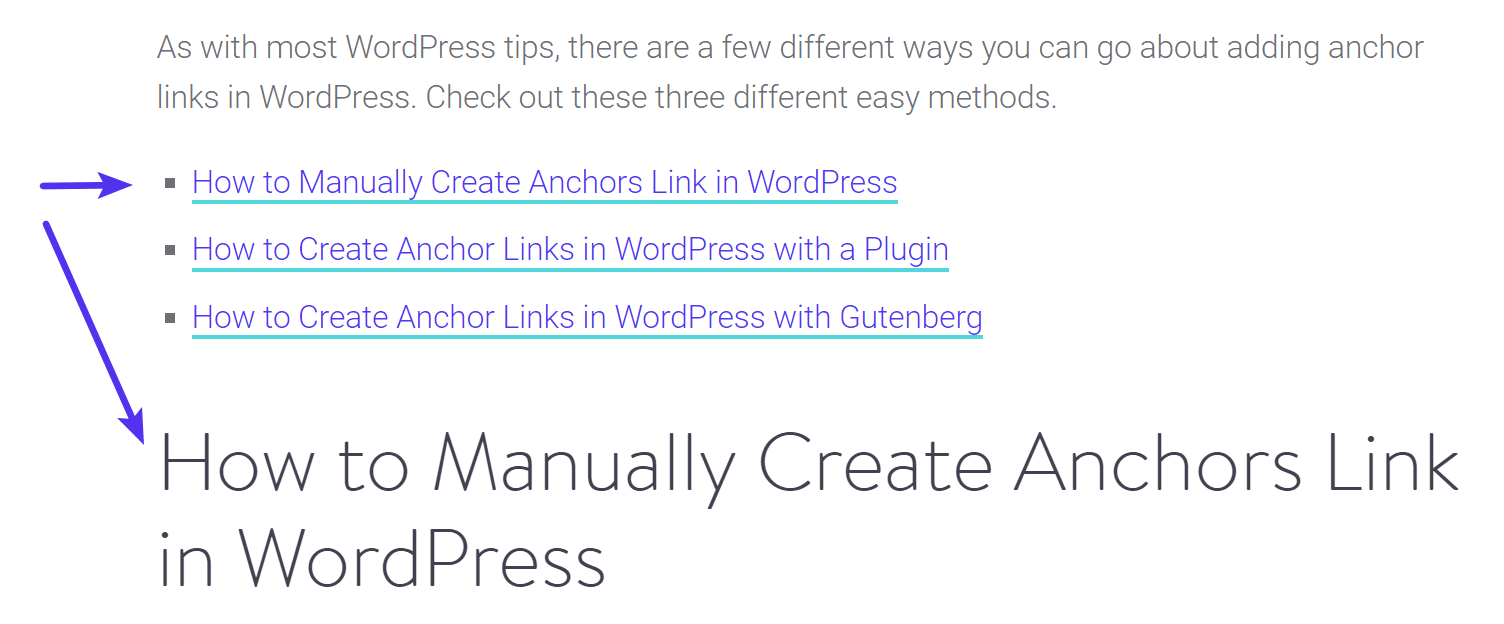
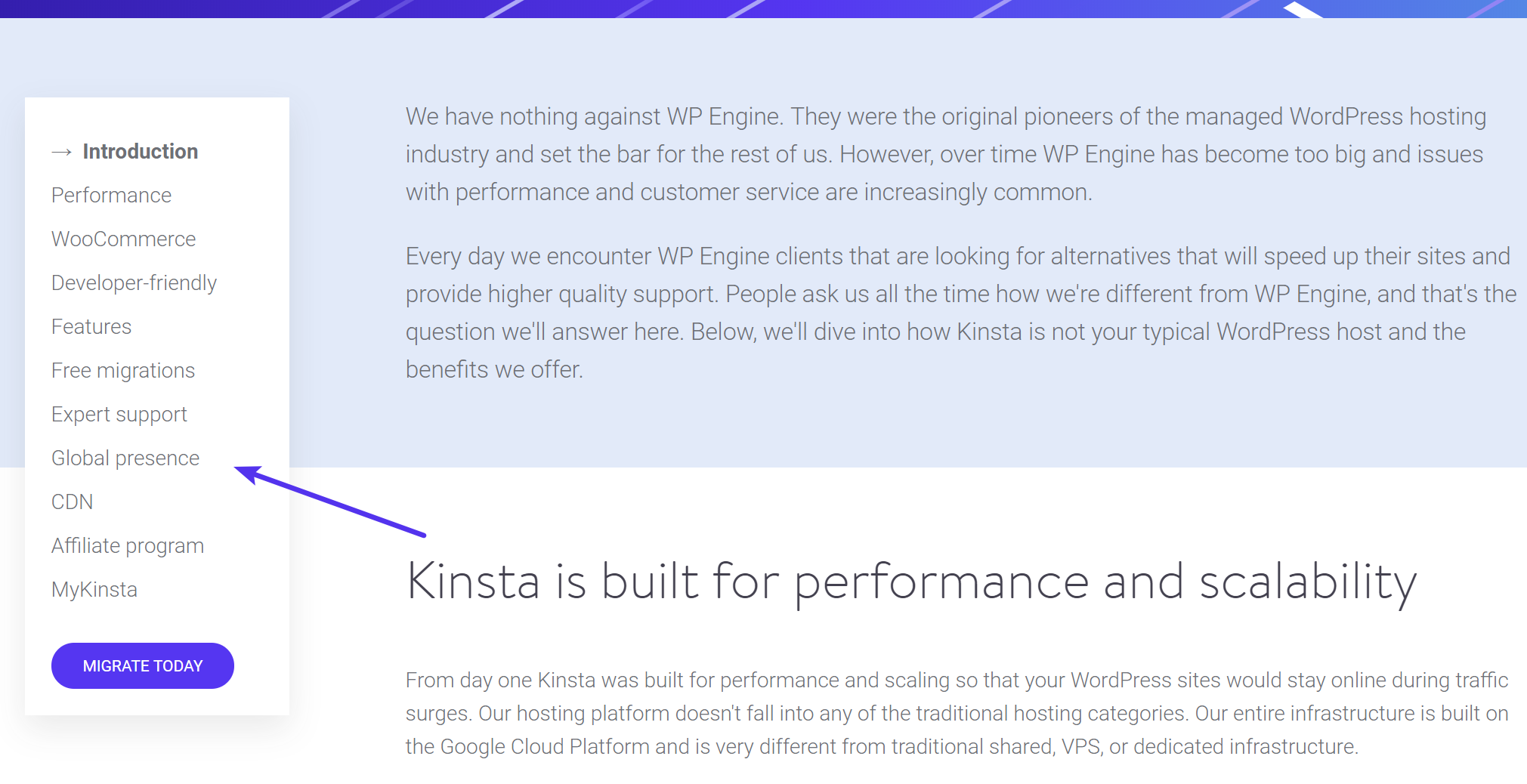
On a lot of sites, anchor links are merely used to create a table of contents at the beginning of long-form posts. If you know a little CSS, you can get creative and make them look a little more stylish, as we’ve done on our landing pages.
On other sites, you may not see the anchor link, instead, they are being used on headers simply so that they can share links directly to the specific sections.
Pros and Cons of Anchor Links
Just because we’re doing something doesn’t always mean you should. Here are a few pros and cons to consider when using anchor links on your WordPress site.
Pros
- One of the biggest advantages of anchor links is creating a better user experience when browsing your site. This is especially true when it comes to long-form articles. We publish a lot of in-depth content (4,000+ words) and scrolling can become a pain. Using anchor links allows the user to instantly jump to the section that they’re interested in. Let your users find what they need faster.
- Using anchor links on headers lets you share direct links to different sections within an article. This is awesome for social media and even support teams. For example, our support team at Host SEO heavily relies on anchor links in our Knowledge Base articles so that we can send the user to the exact troubleshooting step they need to follow. Our sales team also utilizes these to more quickly answer Host SEO related queries.
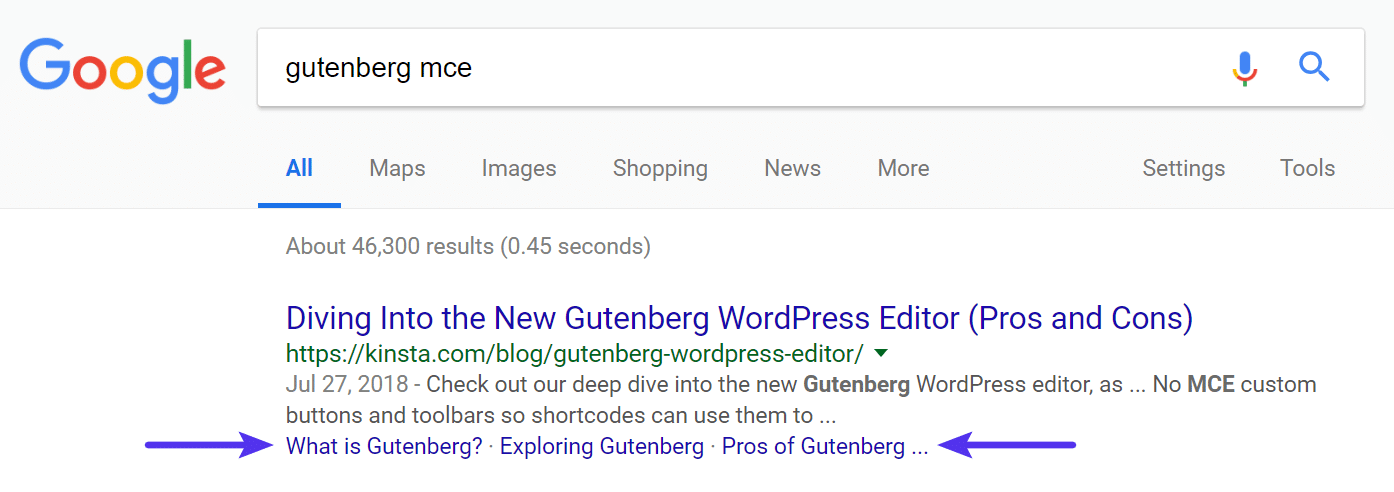
- When it comes to search engine results pages (SERPs), results can always vary based on what shows up. However, we have seen time and time again the anchor links (jump menus) appear on our SERP listing because we’ve used them in our articles. These are awesome because they essentially give you another line of text for your organic listing. They can also help increase CTR as the user might see something related to their query that you didn’t convey in the meta description or title.
- Anchor links can also be used for other things such as the “return to top” link that Wikipedia uses along with its citations ^ or footnotes. [1]
Cons
While we think the pros definitely outweigh the cons, here are a few setbacks you might want to consider.
- Anchor links or a table of contents could decrease the average time on site per visitor. Why? Because they are skipping right to the content they want instead of reading your entire article. However, if you make your visitor happy right off the bat, this could result in them signing up for your newsletter or researching more into what you’re selling. So this could be seen as a pro or a con.
- Directly related to the issue above, anchor links could possibly impact your ad revenue. Visitors skipping straight to a certain section could decrease impressions and clicks. Sites that rely heavily on advertising might want to A/B test using anchor links and table of contents.
- If you’re changing domains or needing to add 301 redirects it’s important to note that the fragment identifier (#) is never sent to the server. This can complicate things if your changing things around down the road with your anchor links. There are ways to get around this with JavaScript, but this is by no means an easy task.
Anchor Link Transition
You might also want to think about changing the anchor link transition. By default, anchor links will jump suddenly to the ID further down the page. This can be jarring for some. You can change this so it’s a smooth scrolling transition. This is actually what we do on the Host SEO blog. You can utilize a free plugin like Page scroll to id or add some CSS to your site, such as scroll-behavior: smooth;. This Stack Overflow post has some additional tips for developers.
As with most WordPress tips, there are a few different ways you can go about adding anchor links in WordPress. Check out these four different easy methods. And yes, these links directly below are using anchor text. ?
- How to Manually Create Anchor Links in WordPress
- How to Create Anchor Links in WordPress with a Plugin
- How to Create Anchor Links in WordPress with Gutenberg
- How to Create Anchor Links in WordPress with Chrome Extension
How to Manually Create Anchor Links in WordPress
The first way to create anchor links in WordPress is to simply do it manually with HTML in each of your posts. Let’s create one so you can see how they work.
Step 1
Create the text for your link and add a hyperlink on it like you would normally for any other link.

Step 2
Instead of linking it to a URL, post, or page; you will assign it an anchor name. URIs that designate anchors contain a “#” character followed by the anchor name. You can name this anything you want, although we typically recommend keeping them short and related to the actual name of the header.
If you look at the text view (HTML) it looks like this:
<a href="#manually-create-anchor-links-wordpress">How to Manually Create Anchor Links in WordPress</a>Here is an example all of the anchor links we’re using in this post:
<ul>
<li><a href="#manually-create-anchor-links-wordpress">How to Manually Create Anchor Links in WordPress</a></li>
<li><a href="#anchor-links-wordpress-plugin">How to Create Anchor Links in WordPress with a Plugin</a></li>
<li><a href="#anchor-links-wordpress-gutenberg">How to Create Anchor Links in WordPress with Gutenberg</a></li>
</ul>
Step 3
Next, you need to add an ID on the header you want your anchor link to jump to. To do this you’ll need to switch over to the text view (HTML) in the WordPress editor. On the header, in this case, an H2 header, add the ID along with the anchor name you chose in step 2. The anchor name and ID attribute have to be exactly the same for the link to work.
<h2 id="manually-create-anchor-links-wordpress">How to Manually Create Anchors Link in WordPress</h2>How to Create Anchor Links in WordPress with a Plugin
Don’t want to bother with HTML code every time? No worries, there are some awesome free WordPress plugins you can utilize to easily add anchor links and even a table of contents to each post.
Add Anchor Link with a Plugin
One of the easiest ways to add an anchor link is with the free TinyMCE Advanced plugin. This plugin basically adds extra functionality to the editor with quick shortcut buttons. As of writing this, the plugin has over 2 million active installs with a 4.5 out of 5-star rating.

Step 1
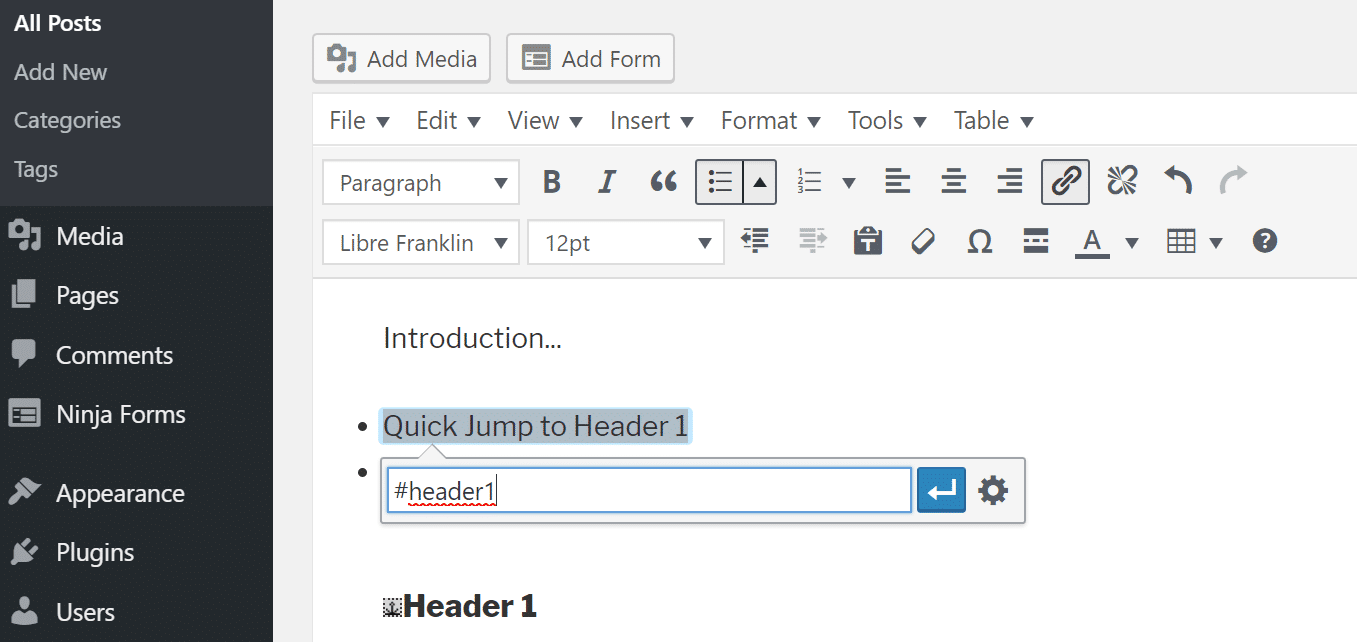
After you’ve installed and activated the plugin, go into your post and create a hyperlink on your anchor text. Instead of linking it to a URL, post, or page; you will assign it an anchor name with a # before it.
Step 2
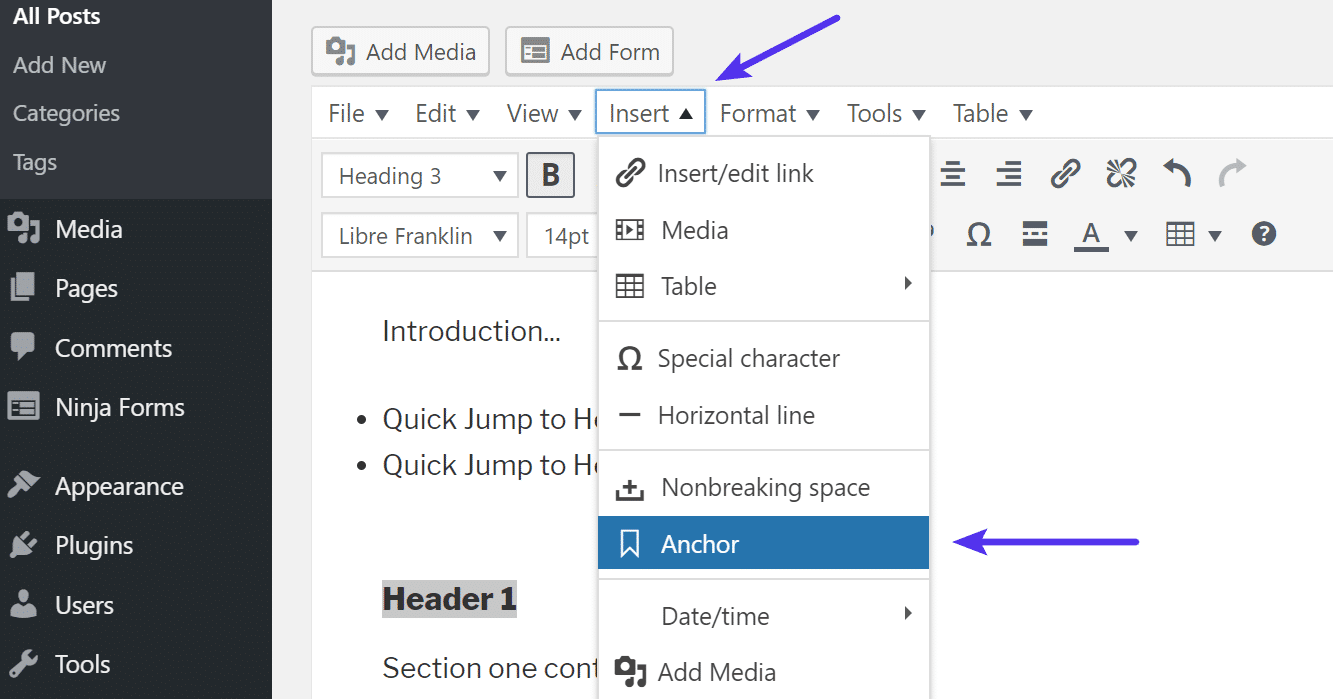
Highlight the header you want to link it up to. Then click on “Insert” from the button at the top and select “Anchor.” This button shows up in the editor because of the TinyMCE Advanced plugin.
Step 3
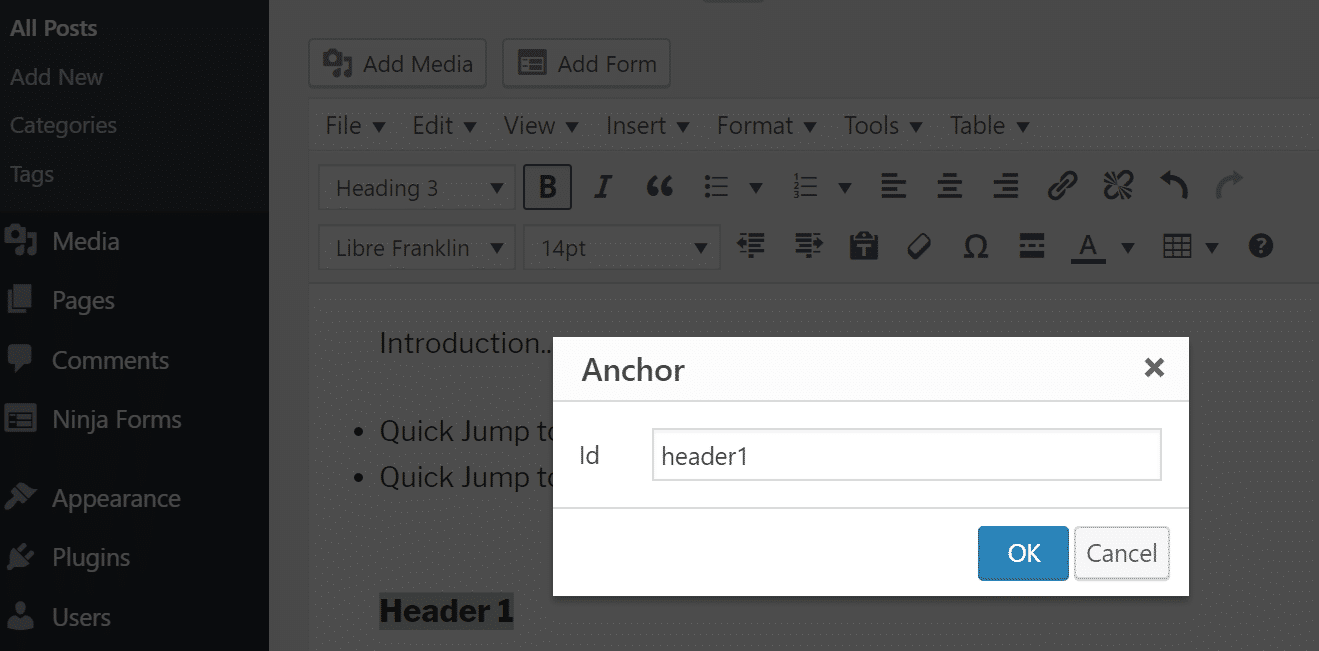
Input the anchor name you gave it in Step 1 and click “OK.” This plugin saves you time because you never have to leave the visual editor view. If you’re doing it manually with HTML you have to bounce between both the visual editor and text editor (HTML) views.
Add Table of Contents with a Plugin
Perhaps you want to speed up the process even more. ? If you’re writing a lot of in-depth content and always want to include a table of contents (anchor link lists/jump menu) in your posts, then you should take advantage of a table of contents plugin.
One of the best free plugins is Easy Table of Contents. This plugin automatically generates anchor links for your headers and lets you insert your table of contents anywhere in your post with a simple shortcode. As of writing this, the plugin has over 30,000 active installs with a 4.5 out of 5-star rating.

Step 1
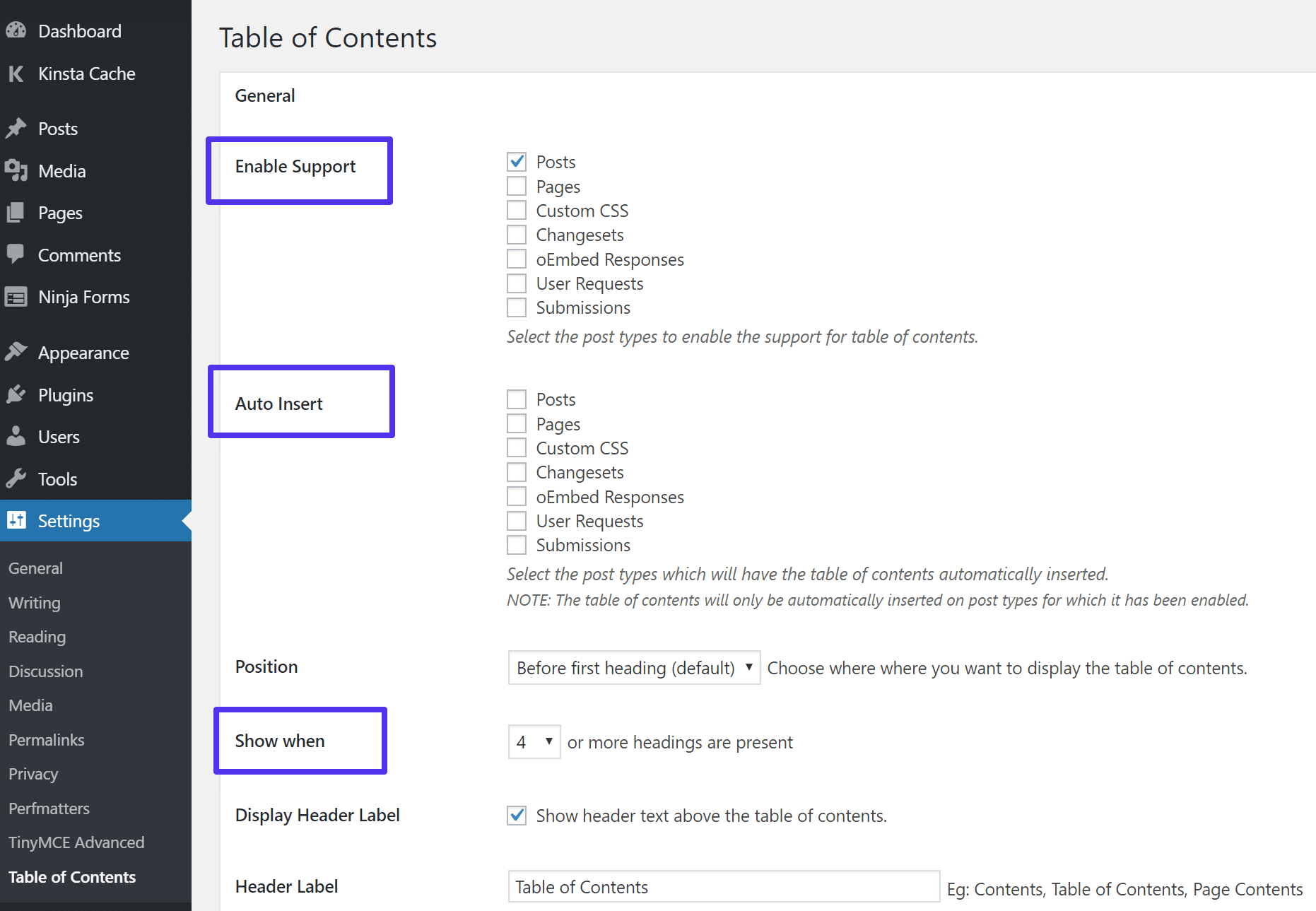
After you’ve installed and activated the plugin, there are a few settings you’ll probably want to change. These can be found under “Settings → Table of Contents.”
- The “Enable support” option allows you to choose which post types you want to use the table of contents on. Most likely this is your “Posts” type.
- You can then choose whether or not you want a table of contents automatically inserted or if you want to insert it manually. We would probably recommend doing manual if your posts change around a bit.
- The “Show when” option lets you define how many headings the post should have before a table of contents shows up. For example, you probably don’t want a table of contents showing up on a short blog post, so doing at least four or more headers is probably best.
Step 2
To insert the table of contents manually, simply insert the [ez-toc] shortcode where you want it to show up in the post.
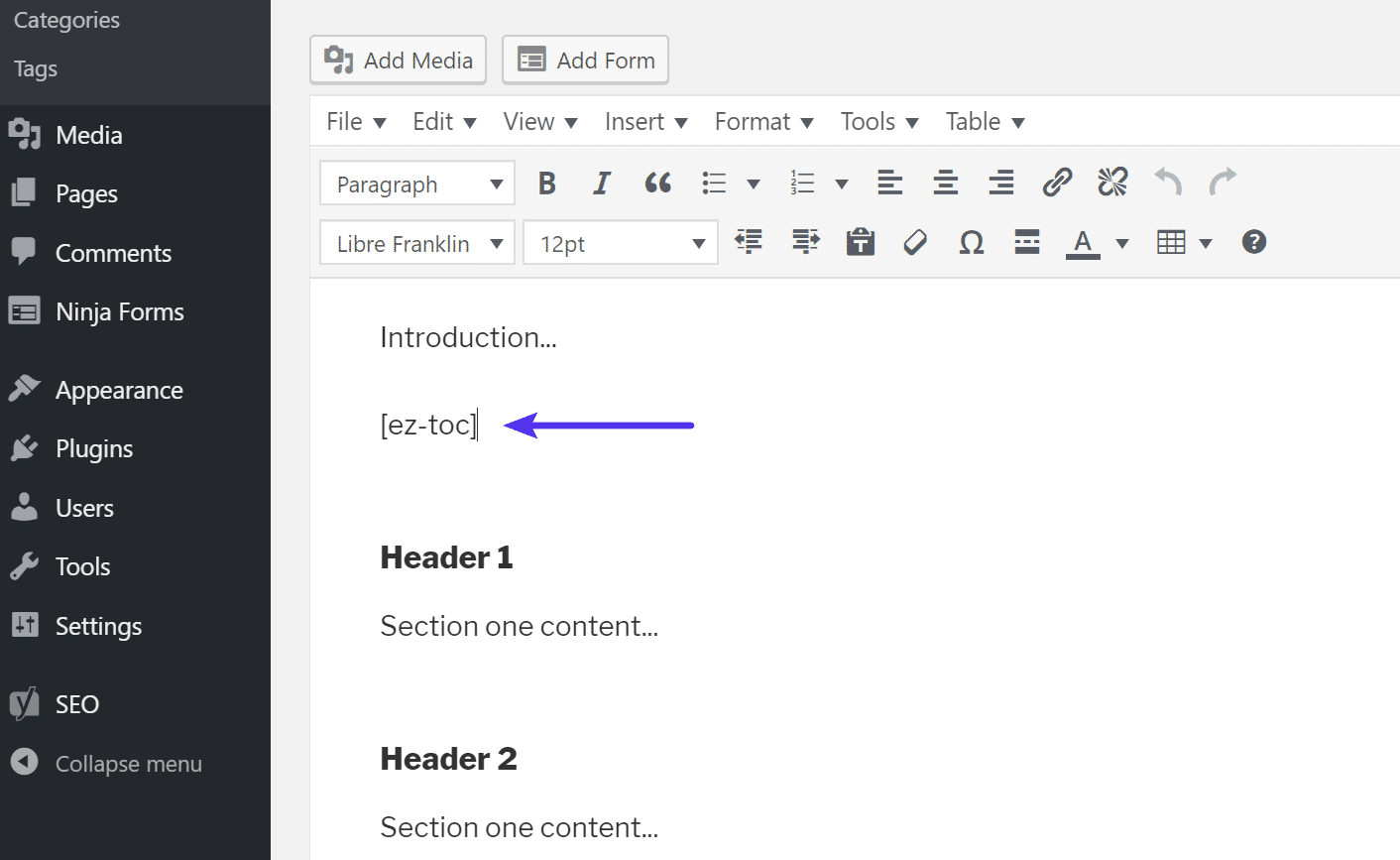
The table of contents is then automatically generated for all of the headers in the post. How awesome is that?
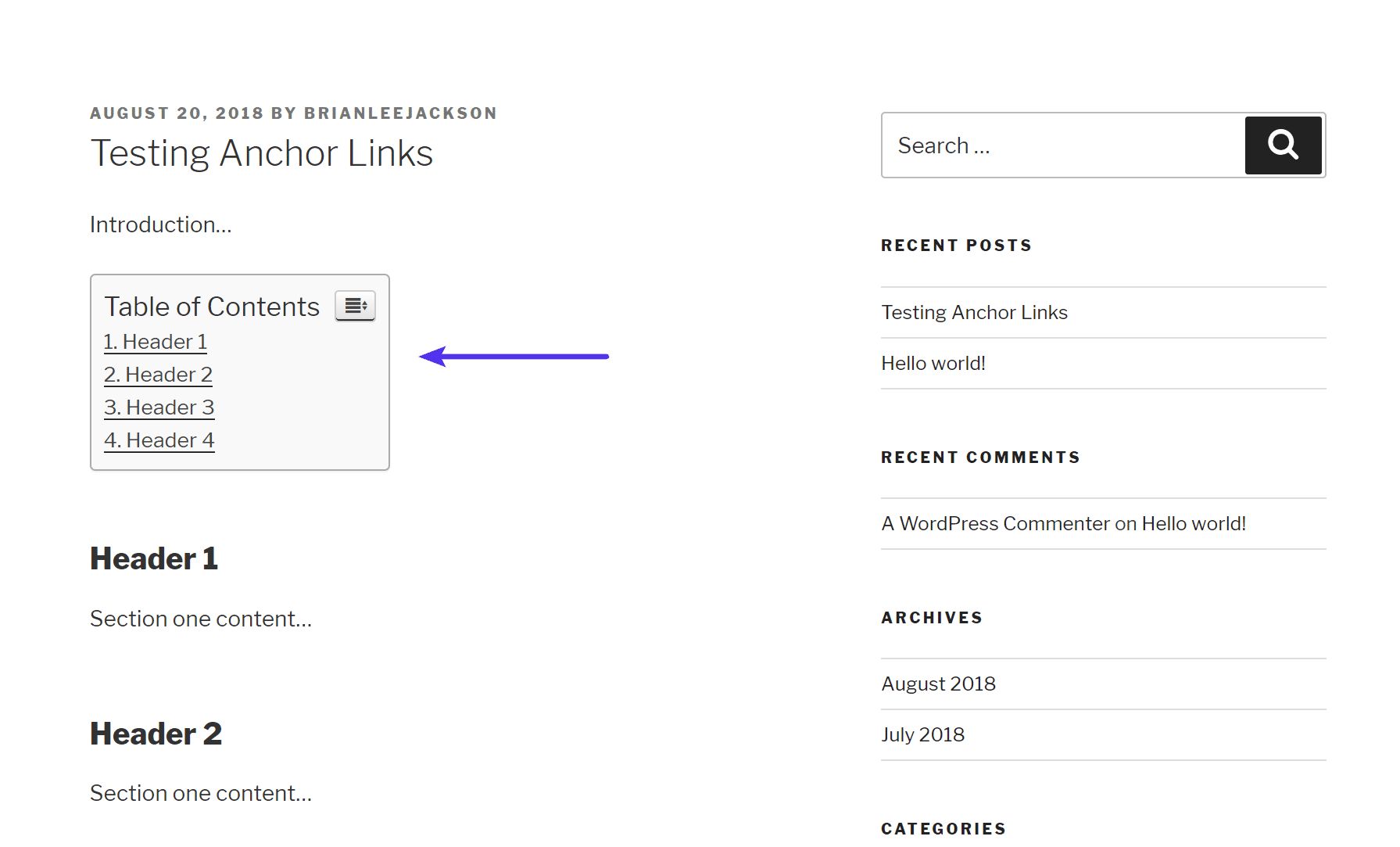
You can also make more changes in the settings regarding what should show up, exclusions, appearance, etc. For example, perhaps you always have a “Summary” heading at the end of your posts. You can input that header into the list of exclusions in the settings so it’s not included in the table of contents.
Add Anchor Links on Headers Automatically with a Plugin
Want to simply add anchor links on all of your headers automatically? Then you should check out the free WP Anchor Header plugin. This will add anchor links to all of your H1-H6 headers.

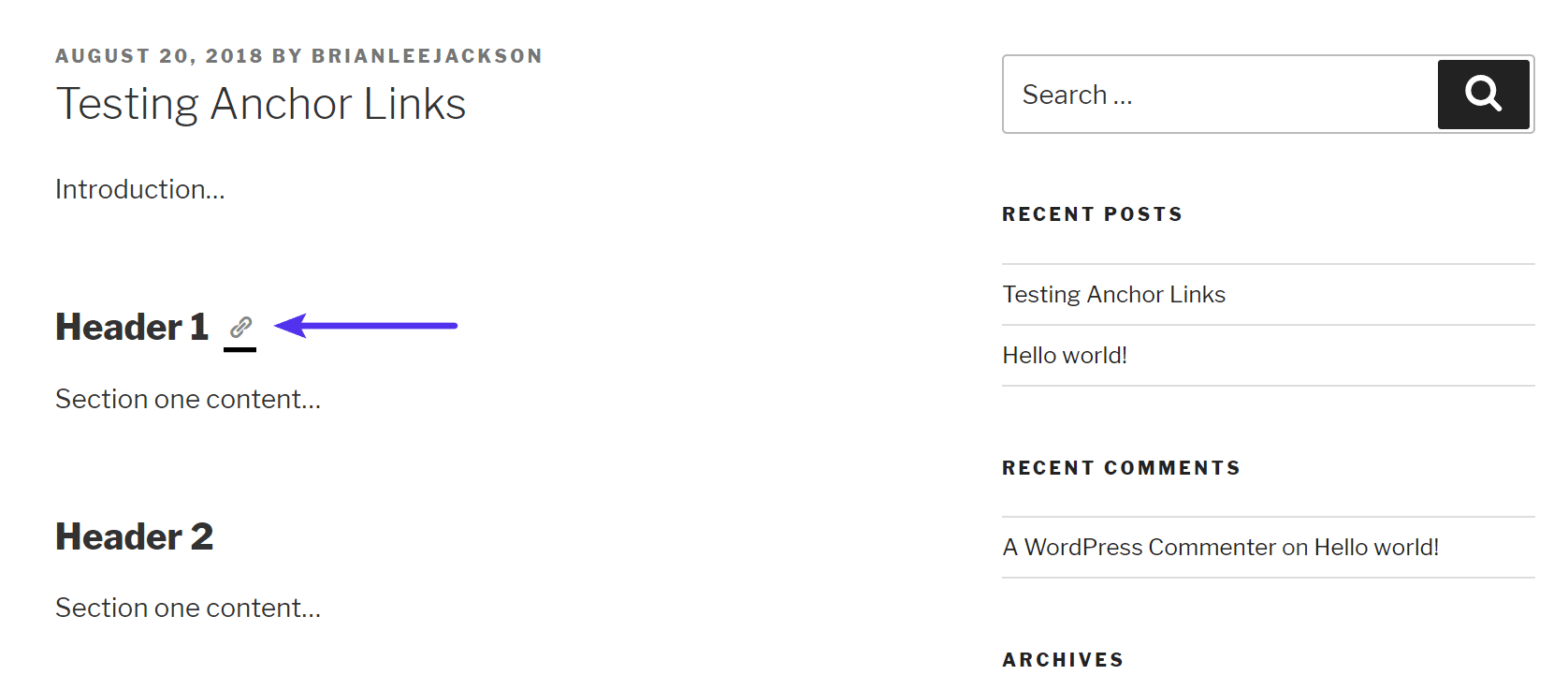
This is a very basic plugin and there aren’t any settings. Simply install it, activate it, and you’re good to go. Each header will automatically get an anchor name (derived from the header name), and they even get a cool little anchor icon that shows up when you hover over the header. This allows visitors to easily see there is a link there that they could copy if they wanted.
How to Create Anchor Links in WordPress with Gutenberg
The new Gutenberg editor is just around the corner and is projected to ship with WordPress 5.0. With it is improved and built-in support for adding anchor IDs to headers.
Step 1
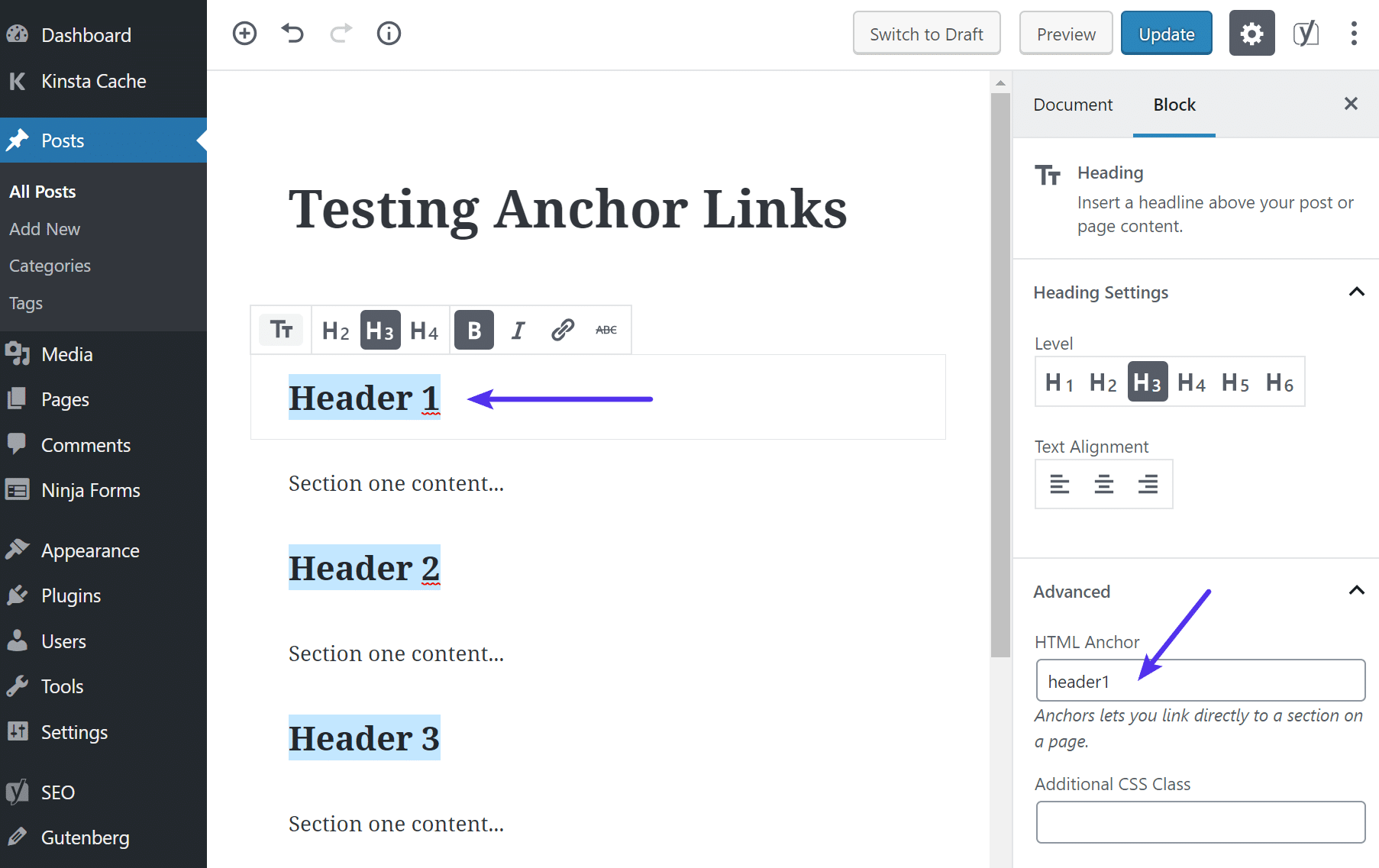
Highlight the header in the Gutenberg block and click on “Advanced” on the right-hand side. You will then see an option to add an HTML Anchor.
Step 2
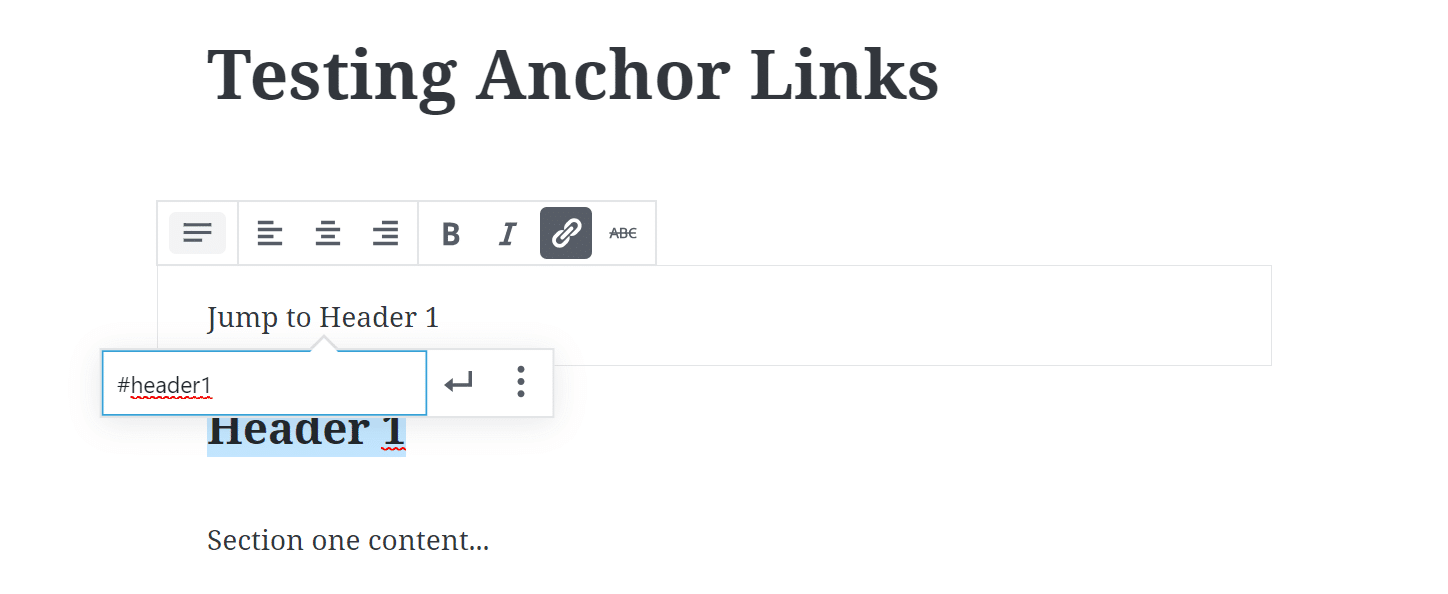
If you want to link to it, simply create a hyperlink on your anchor text. Instead of linking it to a URL, post, or page; you will assign it an anchor name with a # before it.
How to Create Anchor Links in WordPress with Chrome Extension
Don’t want to create anchor links with HTML or install a plugin? Then you should check out the free Anchor Links Chrome extension. This is fully compatible with self-hosted WordPress, WordPress.com, and Medium.
Step 1
After you install the Chrome extension simply highlight the header you want to add the anchor link on. Then click the little Anchor Link Chrome extension icon in your browser’s toolbar.
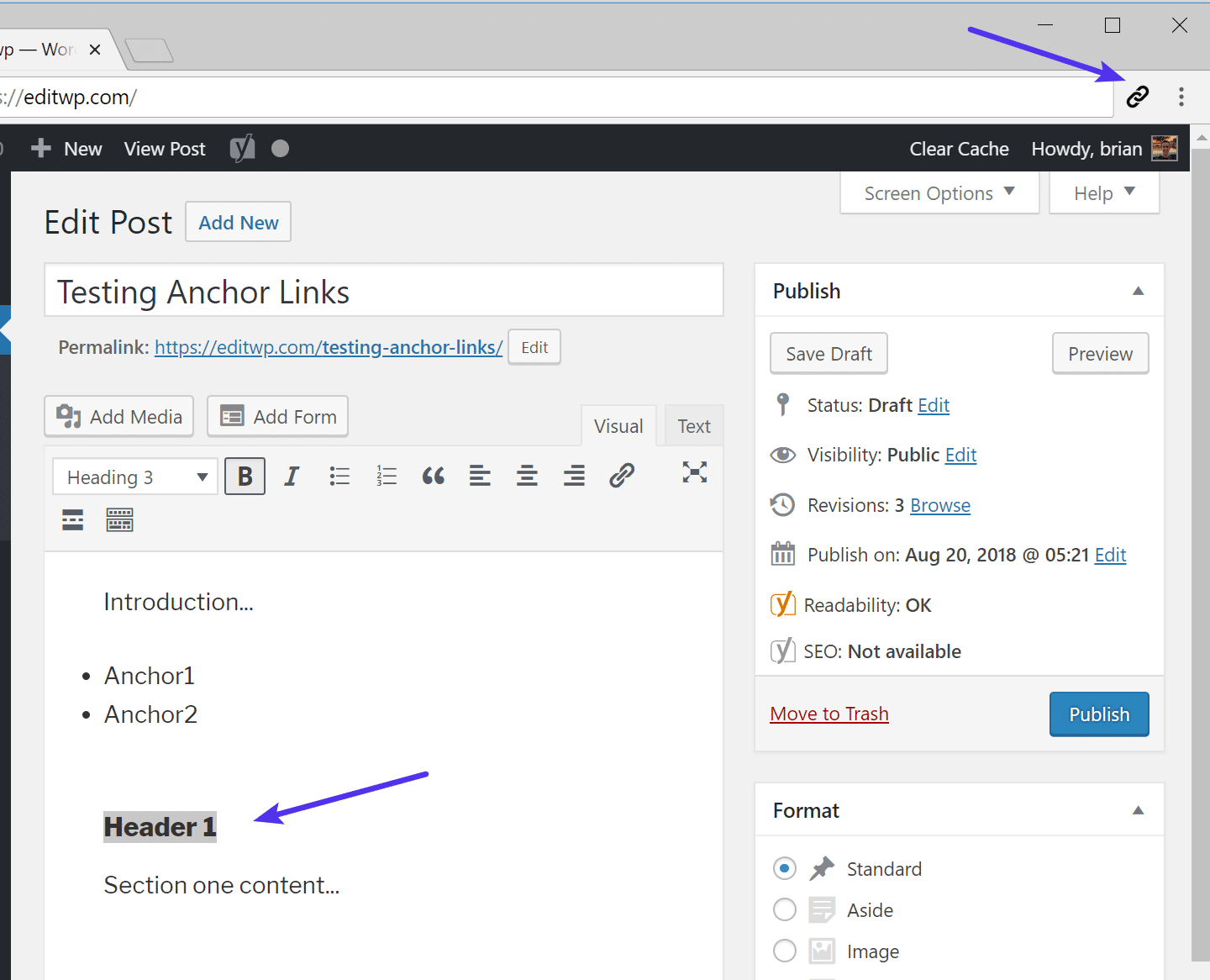
Behind the scenes, it creates the anchor ID (derived from the header name). In this example: #Header_1. When you click the icon it automatically copies it to your clipboard.
Step 2
Then go to the text you want to add the anchor link to, create a hyperlink as you would normally, and hit “Paste.”
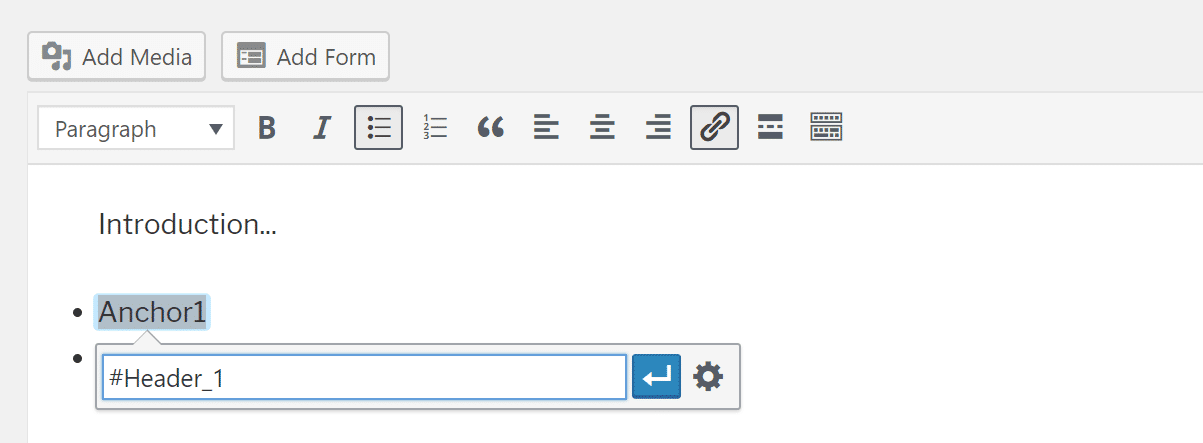
And that’s it! The Chrome extension helps make it quick and easy without relying on any third-party plugins.
Summary
As you can see there are a lot of creative ways to add anchor links in WordPress. Some are easier than others. If you’re publishing a lot of longer content this helps your visitors get to the content they want right away. We’ve also seen anchor links help aid in getting “jump to menus” in SERPs, which helps increase CTR on your organic listing.
Are you using anchor links yet on your WordPress site? If so, we’d love to hear your experience or thoughts.
Categories
Subscribe Now
10,000 successful online businessmen like to have our content directly delivered to their inbox. Subscribe to our newsletter!Archive Calendar

| Sat | Sun | Mon | Tue | Wed | Thu | Fri |
|---|---|---|---|---|---|---|
| 1 | 2 | |||||
| 3 | 4 | 5 | 6 | 7 | 8 | 9 |
| 10 | 11 | 12 | 13 | 14 | 15 | 16 |
| 17 | 18 | 19 | 20 | 21 | 22 | 23 |
| 24 | 25 | 26 | 27 | 28 | 29 | 30 |
| 31 | ||||||
Recent Articles
-

Posted on : Jul 25
-

Posted on : Jul 07
-

Posted on : Apr 07
-

Posted on : Mar 19
Optimized my.cnf configuration for MySQL 8 (on cPanel/WHM servers)
Tags
- layer 7
- tweak
- kill
- process
- sql
- Knowledge
- vpn
- seo vpn
- wireguard
- webmail
- ddos mitigation
- attack
- ddos
- DMARC
- server load
- Development
- nginx
- php-fpm
- cheap vpn
- Hosting Security
- xampp
- Plesk
- cpulimit
- VPS Hosting
- smtp
- smtp relay
- exim
- Comparison
- cpu
- WHM
- mariadb
- encryption
- sysstat
- optimize
- Link Building
- apache
- centos
- Small Business
- VPS
- Error
- SSD Hosting
- Networking
- optimization
- DNS
- mysql
- ubuntu
- Linux