A Deep Dive Into WordPress User Roles and Capabilities
- Category : WordPress
- Posted on : Aug 28, 2018
- Views : 3,038
- By : Icarus M.

Anytime a site viewer signs-up for an account, or you manually add a new user in Admin Users Screen, WordPress registers essential user data in wp_users and wp_usermeta tables. The new user gets the username of his choice, a password, an email address, a role which determines what she can view in the admin panel. But what exactly are WordPress user roles?
WordPress User Roles and Capabilities
The WordPress user management system is based on two key concepts: Roles and Capabilities.
- A Role identifies a group of users who are allowed to execute the same tasks onto the website.
- A Capability is the ability (or permission) to perform each single task assigned to a role.
Out of the box, WordPress comes with six roles:
- Super Administrator is a user who has full access to multisite features: she can create and manage sub-sites, create and manage network users, install and remove themes and plugins and enable them on the network.
- Administrator is a user who has full access to the administration features of a regular WordPress installation.
- Editor is a user who can edit and publish content created by any user.
- Author can publish and edit his own content.
- Contributor can create and edit but not publish his own content.
- Subscriber can only access his profile.
These WordPress user roles are hierarchically ordered, meaning that higher-level roles have the same capabilities of lower roles, plus a number of role-specific capabilities.
Consider the following table:
| Subscriber | Contributor | Editor |
|---|---|---|
| read | read | read |
| – | edit_posts | edit_posts |
| – | delete_posts | delete_posts |
| – | – | delete_published_posts |
| – | – | publish_posts |
| – | – | upload_files |
| – | – | edit_published_posts |
A Contributor has the same read capability as a Subscriber, but she has two more capabilities, edit_posts and delete_posts, which are specific for this role: the contributor can create, edit and delete his own not published posts.
An Editor has the same capabilities as a Contributor, and in addition she can publish, edit and delete her own posts, and upload media files.
We have to make a distinction between two types of capabilities:
- Meta Capabilities depend on the context (i.e. the logged-in user and the current post/page).
- Primitive Capabilities do not depend on the context (i.e. edit posts created by other users)
A user can edit a post if she’s the post author (‘edit_post’ meta capability) or if she has the capability to edit posts created by other users (‘edit_others_posts’ primitive capability).
WordPress automatically translates meta capabilities into one or more primitive capabilities for regular posts, but when using post types we have to manually map meta caps to primitive capabilities.
See the Codex for a comprehensive list of the built-in capabilities.
Default roles and capabilities usually suffice to the most common requirements of a website, but sometimes you’ll be asked to provide the site admin with a more granular control over what users can see and do.
Luckily, as WordPress users and/or developers, we are not limited to default roles and capabilities, because WordPress allows us to create new capabilities and new roles, and assign different sets of capabilities to existing roles. As an example, you can assign to Subscribers the capability to create and edit posts, and/or assign to Contributors the capability to publish. But you can get much more from the user management system:
- you can show/hide front-end elements – like menu items, posts or widgets – depending on the user role
- you can customize the post content by user
- you can restrict access to specific site sections for specific users or roles
- you can create custom post types with customized capabilities which can be differently declined for each role
This latter point marks the goal of this post.
Students, Teachers, and Homework
Say you’re building an educational website where students and teachers are allowed to interact with each other. Students should create projects and submit them for review.
Teachers should be able to edit student projects and publish them if approved.
Comments are allowed: students can comment any project, but only teachers can moderate comments.
Here is our to-do list:
- Add student and teacher user roles
- Register the student_project post type and the subject custom taxonomy
- Register and map specific capabilities for the student_project post type
- Assign capabilities to administrator, student and teacher roles
We will dissect the topic mostly from a developer’s perspective, building a plugin that registers custom post type and taxonomy, roles and capabilities. But we won’t forget non-developers, and in the final part of this post I will suggest some of the most popular and comprehensive plugins you’ll find to manage user roles and caps like a pro without writing one single line of code.
Before reading through the article, have a look at the plugin code on Gist
Register WordPress User Roles and Capabilities
Students will be allowed to read all projects, and create, edit and delete their own projects. They won’t be allowed to publish any project, nor edit and delete published projects.
Teachers should control every aspect of project administration. They will be allowed to create new projects, and edit, delete and publish projects created by any user.
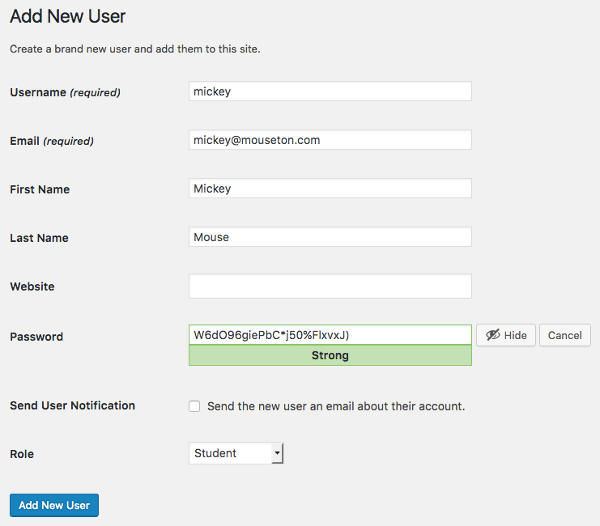
That being said, let’s register student and teacher roles:
function centriohost_add_roles() {
	add_role( 'student', 'Student', array(
		'read' => true,
		'edit_posts'   => true,
		'delete_posts' => true ) );
	add_role( 'teacher', 'Teacher', array(
		'read' => true,
		'edit_posts'   => true,
		'delete_posts' => true,
		'delete_published_posts' => true,
		'publish_posts' => true,
		'upload_files' => true,
		'edit_published_posts' => true,
		'manage_categories' => true ) );
}
register_activation_hook( __FILE__, 'centriohost_add_roles' );- register_activation_hook registers a function to be run when a plugin is activated. Here it is preferable to an action hook like init, because the new roles are registered into the database, and we don’t need to run the function anytime WordPress loads. register_activation_hook keeps two arguments: the path to the main file of the plugin (__FILE__), and the callback function to be run (‘
centriohost_add_roles’). - On plugin activation, register_activation_hook is executed, and add_roleregisters the new role in wp_options table if it does not exist. This second function keeps three arguments: role name, display name and an array of capabilities.
The callback function adds two roles. Each role is provided with a different set of capabilities: students will be allowed to read public posts, create, edit and delete their own posts if not published. Teachers will be allowed to publish their own posts, edit and delete published posts, upload media files and manage categories.

Now we can create a community of students and teachers, but they are not much more than contributors and editors. So, let’s move a step forward, and register a custom post type for students, teachers and site admins.
Register a Custom Post Type and Related Taxonomy
The following code registers the student_project post type:
function centriohost_project_post_type(){

	// define an array of labels
	$post_type_labels = array(
		'name' 					=> __( 'Projects' ),
		'singular_name'			=> __( 'Project' ),
		'add_new_item'			=> __( 'Add New Project' ),
		'edit_item'				=> __( 'Edit Project' ),
		'new_item'				=> __( 'New Project' ),
		'view_item'				=> __( 'View Project' ),
		'view_items'			=> __( 'View Projects' ),
		'not_found'				=> __( 'No Projects found' ),
		'not_found_in_trash'	=> __( 'No Projects found in Thrash' ),
		'all_items'				=> __( 'All Projects' ),
		'archives'				=> __( 'Project Archives' ),
		'insert_into_item'		=> __( 'Insert into Project' ),
		'uploaded_to_this_item'	=> __( 'Uploaded to this Project' )
		);

	// define an array of arguments
	$post_type_args = array(
		'labels' => $post_type_labels,
		'public' => true,
		'menu_position' => 5,
		'menu_icon' => 'dashicons-media-document',
		'hierarchical' => false,
		'supports' => array( 'title', 'editor', 'author', 'excerpt', 'custom-fields', 'comments' ),
		'taxonomies' => array( 'subject' ),
		'has_archive' => true,
		);

	register_post_type( 'student_project', $post_type_args );

}
add_action( 'init', 'centriohost_project_post_type' );
In order to register a new post type, we need to call the register_post_type function, which has to be invoked through the init action.
register_post_type keeps two arguments: the post type slug (‘student_project’), and an array of arguments setting admin labels and post type parameters.
Following, we’ll register a non-hierarchical taxonomy which identifies the project subject:
function centriohost_project_post_type(){

	$taxonomy_labels = array(
		'name'                       => __( 'Subjects' ),
		'singular_name'              => __( 'Subject' ),
		'search_items'               => __( 'Search Subjects' ),
		'popular_items'              => __( 'Popular Subjects' ),
		'all_items'                  => __( 'All Subjects' ),
		'parent_item'                => null,
		'parent_item_colon'          => null,
		'edit_item'                  => __( 'Edit Subject' ),
		'update_item'                => __( 'Update Subject' ),
		'add_new_item'               => __( 'Add New Subject' ),
		'new_item_name'              => __( 'New Subject Name' ),
		'separate_items_with_commas' => __( 'Separate subjects with commas' ),
		'add_or_remove_items'        => __( 'Add or remove subjects' ),
		'choose_from_most_used'      => __( 'Choose from the most used subjects' ),
		'not_found'                  => __( 'No subjects found.' ),
		'menu_name'                  => __( 'Subjects' ),
		);

	$taxonomy_args = array(
		'hierarchical'          => false,
		'labels'                => $taxonomy_labels,
		'show_ui'               => true,
		'show_admin_column'     => true,
		'update_count_callback' => '_update_post_term_count',
		'query_var'             => true,
		'rewrite'               => array( 'slug' => 'subject' ),
	);

	register_taxonomy( 'subject', 'student_project', $taxonomy_args );
}
add_action( 'init', 'centriohost_project_post_type' );
register_taxonomy keeps three arguments: the taxonomy slug (‘subject’), the linked post type (‘student_project’), an array of arguments storing labels and other params (see the Codex for further information).
Just like register_post_type, register_taxonomy should be hooked to the init action.
Once done, it’s time to define the set of capabilities that will allow separate levels of control over the post type.
A Specific Set of Capabilities for Student Project Post Type
In order to add specific capabilities for the new post type, we should use one or two of the following register_post_type arguments:
capability_type: (string|array) a string to be used as base to construct the read, edit and delete capabilities (i.e. ‘student_project’). If you’d need to pass alternative plurals, (i.e. story/stories), you should set it’s value to an array (i.e. array( ‘story’, ‘stories’ )). capability_type generates the following capabilities:
Meta capabilities:
- edit_{capability_type}
- read_ {capability_type}
- delete_{capability_type}
Primitive capabilities:
- edit_{capability_type}s
- edit_others_{capability_type}s
- publish_{capability_type}s
- read_private_{capability_type}s
Primitive capabilities defined in map_meta_cap function:
- read
- delete_{capability_type}s
- delete_private_{capability_type}s
- delete_published_{capability_type}s
- delete_others_{capability_type}s
- edit_private_{capability_type}s
- edit_published_{capability_type}s
capability_type grants a general control over post type capabilities. If you’d need a more granular control, you may use the capabilities argument.
capabilities: (array) it’s an array of capabilities for the post type. If you choose this argument instead of capability_type, you may pass it to the register_post_typefunction as follows:
'capabilities' => array(
	'read_post'			=> 'read_student_project',
	'read_private_posts' 		=> 'read_private_student_projects',
	'edit_post'			=> 'edit_student_project',
	'edit_posts'			=> 'edit_student_projects',
	'edit_others_posts'		=> 'edit_others_student_projects',
	'edit_published_posts'		=> 'edit_published_student_projects',
	'edit_private_posts'		=> 'edit_private_student_projects',
	'delete_post'			=> 'delete_student_project',
	'delete_posts'			=> 'delete_student_projects',
	'delete_others_posts'		=> 'delete_others_student_projects',
	'delete_published_posts'	=> 'delete_published_student_projects',
	'delete_private_posts'		=> 'delete_private_student_projects',
	'publish_posts'			=> 'publish_student_projects',
	'moderate_comments'		=> 'moderate_student_project_comments',
),map_meta_cap: (boolean) automatically converts meta capabilities into one or more primitive capabilities for the post type. In our example, it must be set to true when using the capabilities argument, but you could be required to set its value to falsewhen using the capability_type argument (more on this topic in the Codex).
Now we can get back to our register_post_type function and define a new array of arguments as follows:
$post_type_args = array(
	'labels' => $post_type_labels,
	'public' => true,
	'menu_position' => 5,
	'menu_icon' => 'dashicons-media-document',
	//'capability_type' => 'student_project',
	'capabilities' => array(
		'read_post'					=> 'read_student_project',
		'read_private_posts' 		=> 'read_private_student_projects',
		'edit_post'					=> 'edit_student_project',
		'edit_posts'				=> 'edit_student_projects',
		'edit_others_posts'			=> 'edit_others_student_projects',
		'edit_published_posts'		=> 'edit_published_student_projects',
		'edit_private_posts'		=> 'edit_private_student_projects',
		'delete_post'				=> 'delete_student_project',
		'delete_posts'				=> 'delete_student_projects',
		'delete_others_posts'		=> 'delete_others_student_projects',
		'delete_published_posts'	=> 'delete_published_student_projects',
		'delete_private_posts'		=> 'delete_private_student_projects',
		'publish_posts'				=> 'publish_student_projects',
		'moderate_comments'			=> 'moderate_student_project_comments',
		),
	'map_meta_cap' => true,
	'hierarchical' => false,
	'supports' => array( 'title', 'editor', 'author', 'excerpt', 'custom-fields', 'comments' ),
	'taxonomies' => array( 'subject' ),
	'has_archive' => true,
	);

register_post_type( 'student_project', $post_type_args );
Capabilities are fully documented in /wp-includes/post.php file and in register_post_type function reference.
Adding Capabilities to Teachers and Students
Now that we have registered two roles and a post type with specific capabilities, our task is to assign capabilities to roles:
function centriohost_add_caps(){
	$admin = get_role( 'administrator' );
	$admin->add_cap( 'read_student_project' );
	$admin->add_cap( 'read_private_student_project' );
	$admin->add_cap( 'edit_student_project' );
	$admin->add_cap( 'edit_student_projects' );
	$admin->add_cap( 'edit_others_student_projects' );
	$admin->add_cap( 'edit_published_student_projects' );
	$admin->add_cap( 'edit_private_student_projects' );
	$admin->add_cap( 'delete_student_projects' );
	$admin->add_cap( 'delete_student_project' );
	$admin->add_cap( 'delete_others_student_projects' );
	$admin->add_cap( 'delete_published_student_project' );
	$admin->add_cap( 'delete_student_project' );
	$admin->add_cap( 'delete_private_student_project' );
	$admin->add_cap( 'publish_student_projects' );
	$admin->add_cap( 'moderate_student_project_comments' );

	$student = get_role( 'student' );
	$student->add_cap( 'read_student_project' );
	$student->add_cap( 'edit_student_project' );
	$student->add_cap( 'edit_student_projects' );
	$student->add_cap( 'delete_student_project' );
	$student->add_cap( 'delete_student_projects' );

	$teacher = get_role( 'teacher' );
	$teacher->add_cap( 'read_student_project' );
	$teacher->add_cap( 'read_private_student_project' );
	$teacher->add_cap( 'edit_student_project' );
	$teacher->add_cap( 'edit_student_projects' );
	$teacher->add_cap( 'edit_others_student_projects' );
	$teacher->add_cap( 'edit_published_student_projects' );
	$teacher->add_cap( 'edit_private_student_projects' );
	$teacher->add_cap( 'delete_student_project' );
	$teacher->add_cap( 'delete_student_projects' );
	$teacher->add_cap( 'delete_others_student_projects' );
	$teacher->add_cap( 'delete_published_student_projects' );
	$teacher->add_cap( 'delete_private_student_project' );
	$teacher->add_cap( 'publish_student_projects' );
	$teacher->add_cap( 'moderate_student_project_comments' );
}
add_action( 'admin_init', 'centriohost_add_caps');
This code is quite self-explanatory: the callback function is hooked to the admin_init action, which fires before any other hook when the admin panel is loaded. The add_cap method of the WP_Role object assigns the specified capability to a role.

Clean-up the Database on Plugin Deactivation
Finally, we can delete student and teacher role, and remove custom post type capabilities from admin role on plugin deactivation:
function centriohost_remove_roles(){
	//check if role exist before removing it
	if( get_role('student') ){
		remove_role( 'student' );
	}
	if( get_role('teacher') ){
		remove_role( 'teacher' );
	}

	$admin = get_role( 'administrator' );

	$caps = array(
		'read_student_project',
		'read_private_student_project',
		'edit_student_project',
		'edit_student_projects',
		'edit_others_student_projects',
		'edit_published_student_projects',
		'edit_private_student_projects',
		'delete_student_projects',
		'delete_student_project',
		'delete_others_student_projects',
		'delete_published_student_project',
		'delete_student_project',
		'delete_private_student_project',
		'publish_student_projects',
		'moderate_student_project_comments'
	);

	foreach ( $caps as $cap ) {
		$admin->remove_cap( $cap );
	}
}
register_deactivation_hook( __FILE__, 'centriohost_remove_roles' );
The project is now complete, and you can grab the full code of these examples from this public Gist

Control WordPress User Roles and Capabilities with Plugins
If you are not a programmer, you can take control of roles and capabilities anyway, thanks to a number of free plugins available in the Plugin Directory.
Members by Justin Tadlock is an easy to use and fully featured role and capability editor. It enables the site admin to add, edit and remove roles and capabilities, to assign users more than one capability, deny specific caps to specific roles, control which roles can access post content, provides shortcodes and widgets, and more.
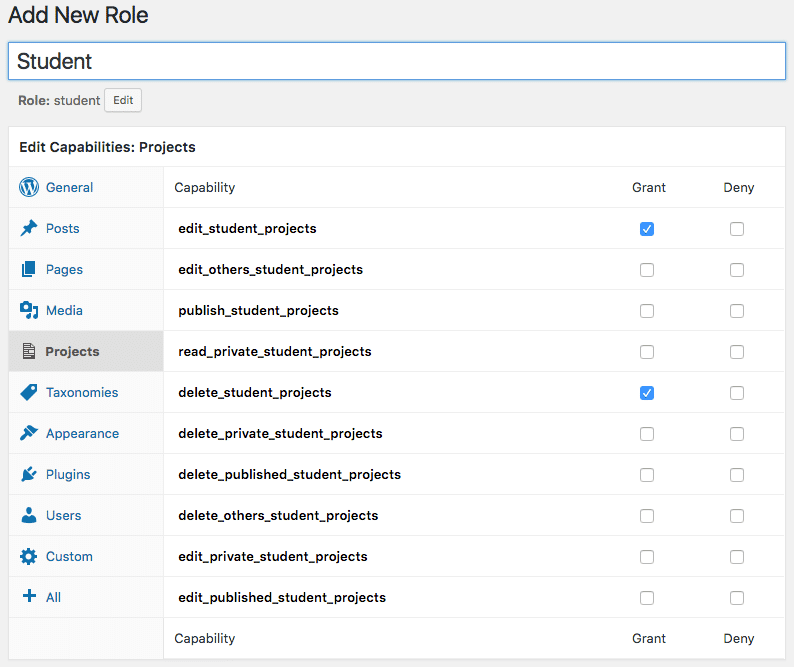
User Role Editor by Vladimir Garagulya is another plugin that provides full control over roles and capabilities. Moreover, it allows site admins to assign roles to single users and grants Multisite compatibility. This plugin is also available in a commercial version with additional functionalities.
WPFront User Role Editor is another option to manage roles and capabilities in WordPress. It’s available in a free version in the Plugin Directory, and in a commercial version with more advanced features.
Although it’s not a role editor, User Switching is a must-have plugin for role and capability management. It’s only purpose is to allow the site admin to swap between user accounts with a single click, so that she’s not required to log-out and log-in repeatedly to check what users can see on the website.
Conclusions
At a first glance, the concepts of WordPress user roles and capability can be a bit confusing, especially for what concerns meta capabilities and primitive capabilities. Anyway, once you’ve focused the key concept behind WordPress user management system you can easily get a granular control over user activities.
Have you ever had occasion to build user-centered websites? Share your experiences with us in the comments.
Categories
Subscribe Now
10,000 successful online businessmen like to have our content directly delivered to their inbox. Subscribe to our newsletter!Archive Calendar

| Sat | Sun | Mon | Tue | Wed | Thu | Fri |
|---|---|---|---|---|---|---|
| 1 | 2 | |||||
| 3 | 4 | 5 | 6 | 7 | 8 | 9 |
| 10 | 11 | 12 | 13 | 14 | 15 | 16 |
| 17 | 18 | 19 | 20 | 21 | 22 | 23 |
| 24 | 25 | 26 | 27 | 28 | 29 | 30 |
| 31 | ||||||
Recent Articles
-

Posted on : Jul 25
-

Posted on : Jul 07
-

Posted on : Apr 07
-

Posted on : Mar 19
Optimized my.cnf configuration for MySQL 8 (on cPanel/WHM servers)
Tags
- layer 7
- tweak
- kill
- process
- sql
- Knowledge
- vpn
- seo vpn
- wireguard
- webmail
- ddos mitigation
- attack
- ddos
- DMARC
- server load
- Development
- nginx
- php-fpm
- cheap vpn
- Hosting Security
- xampp
- Plesk
- cpulimit
- VPS Hosting
- smtp
- smtp relay
- exim
- Comparison
- cpu
- WHM
- mariadb
- encryption
- sysstat
- optimize
- Link Building
- apache
- centos
- Small Business
- VPS
- Error
- SSD Hosting
- Networking
- optimization
- DNS
- mysql
- ubuntu
- Linux