
WordPress Activity Log – 7 Things You Should Be Tracking
- Category : WordPress
- Posted on : Oct 20, 2018
- Views : 3,510
- By : Naftali P.

When your WordPress website is small, it’s easy to keep tabs on everything that happens within it. However, as it grows in size and complexity it can become a lot harder to keep up. This is particularly true if you enable users to register on your site, run a membership site, or have multiple contributors on it.
Regardless, it’s vital to know what’s happening on your site at all times. You can do this by tracking user activity such as changes to content, profile updates, failed logins, and more. When you have information like this at your fingertips, you can quickly track down the source of any problems and maintain tight security.
In this post, we’re going to briefly talk about why you’d want to track your WordPress site’s activity. Then we’ll help you figure out what types of activity it’s most important to keep an eye on. Let’s jump right in!
Why It’s Crucial to Use a WordPress Activity Log
An activity log can help you keep tabs on important changes to your site.
If your website has only a single user – you – there should be no surprises. Unless your site has been hacked (which we’ll talk more about later), every change and update will have been made by you.
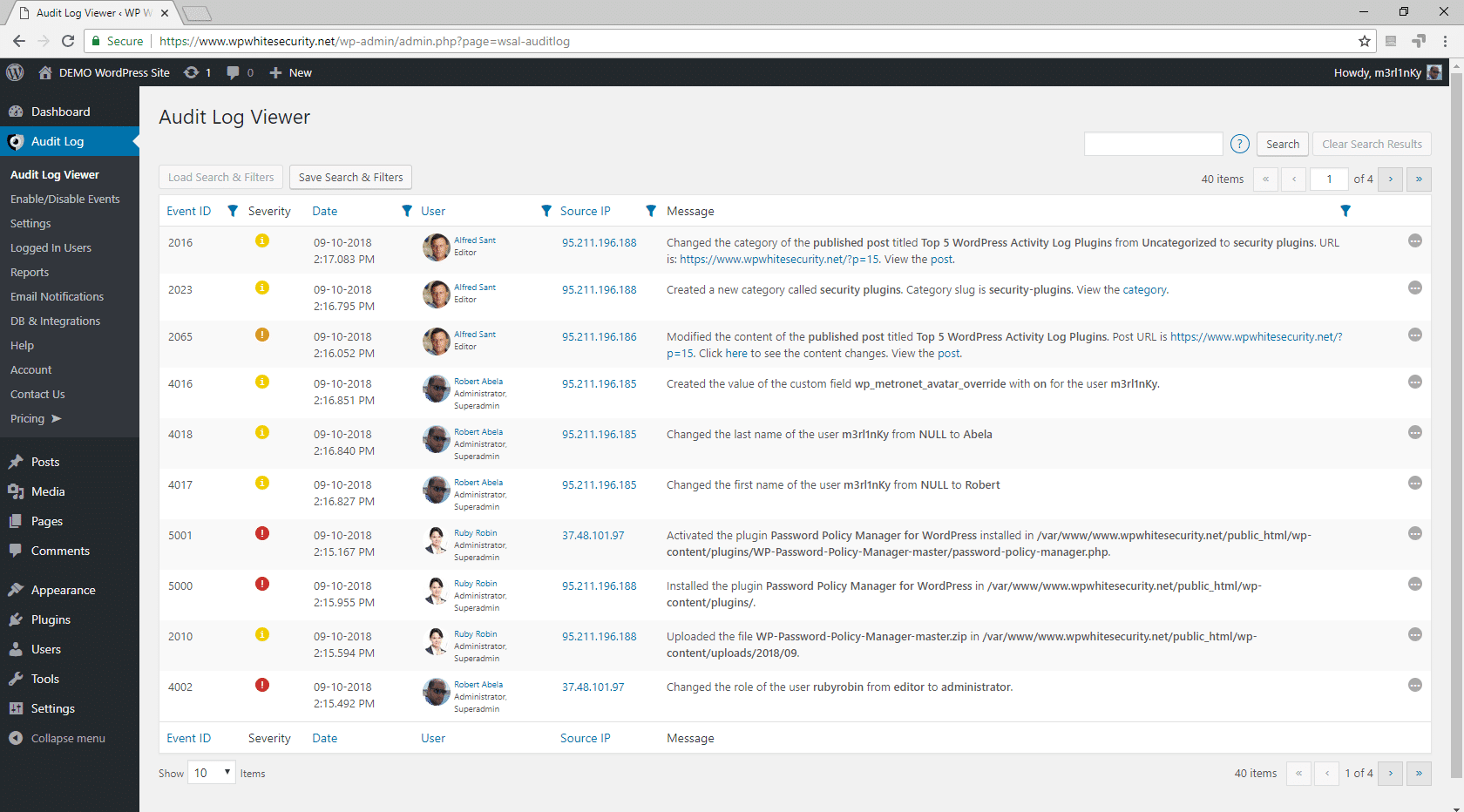
However, many sites permit a lot more than a single user to register. You might encourage your visitors to sign up for subscriber accounts, for example. Alternately, you may have an entire team of writers, developers, editors, and third-party contractors who help you create and manage content.
Either way, having so many people accessing your site can lead to a lot of uncertainty. It’s not always easy to figure out who deleted a post, or to make sense of why a user profile was altered. If you’re worried that a particular change was malicious, or you simply want to know why it occurred, you may not have a good way to proceed.
This is why tracking activity on your WordPress site is so important. Having an activity log of every significant change, along with details about when it happened and which users were involved, makes it simpler to deal with unexpected events. Even if you’re the only user on your site, this type of log can help you track down the source of changes that are the result of successful hacking attempts.
Of course, you cannot maintain an activity log manually. Fortunately, you can use a WordPress activity log plugin to handle this job automatically. All you’ll need to do is check out your log whenever you need the information it contains.
WP Security Audit Log
One of the best plugins on the market for this is WP Security Audit Log. You can download the free version on the WordPress repository. As of writing this, it has over 70,000 active installs with an impressive 4.5 out of 5-star rating. It’s also actively updated on a regular basis by the developers.
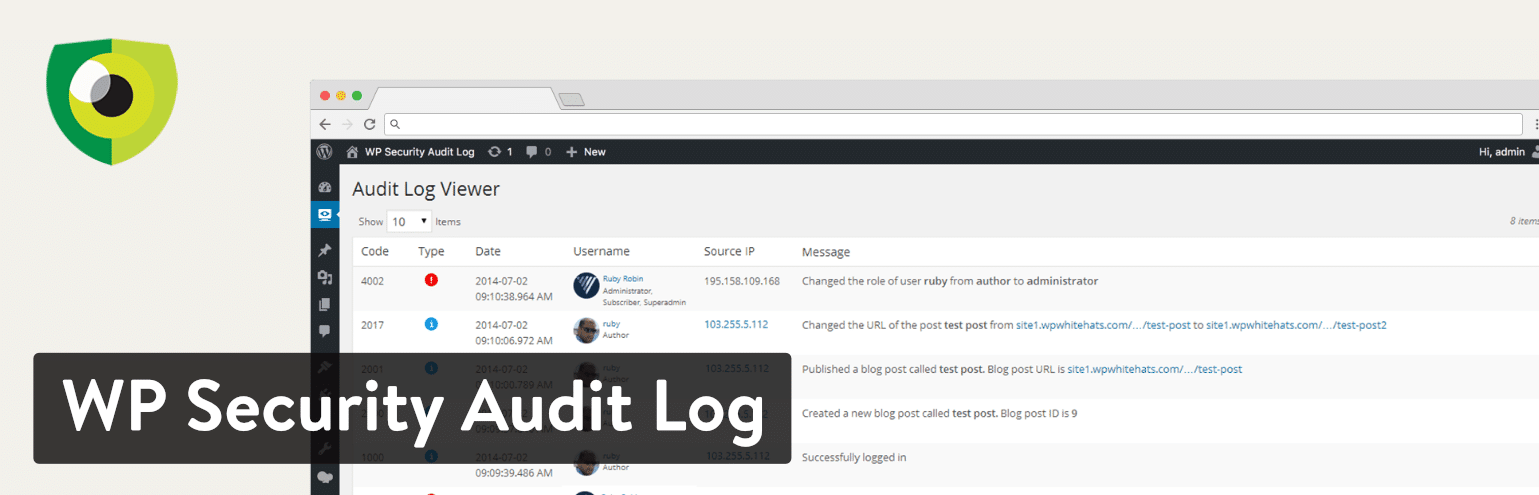
There is also a premium version (starting at $89 a year) which gives you additional features such as reports, instant email alerts, and search. But all logging functionality is completely free.
Configuring WP Security Audit Log
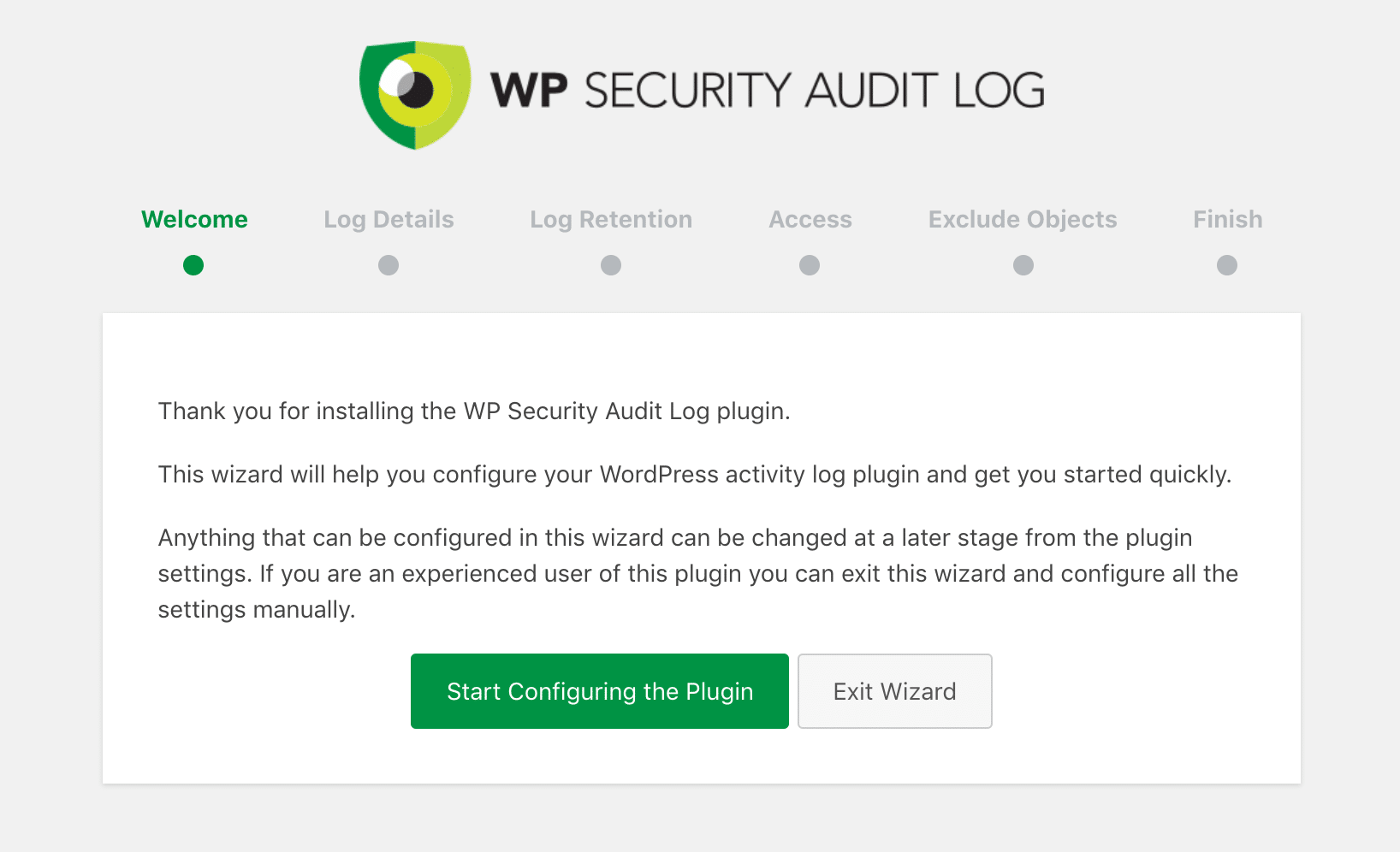
We are using the free version of WP Security Audit log in this post. After installing it the first thing you’ll see after activation is the configuration wizard.
Step 1
Click on “Start Configuring the Plugin” to get started.
Step 2
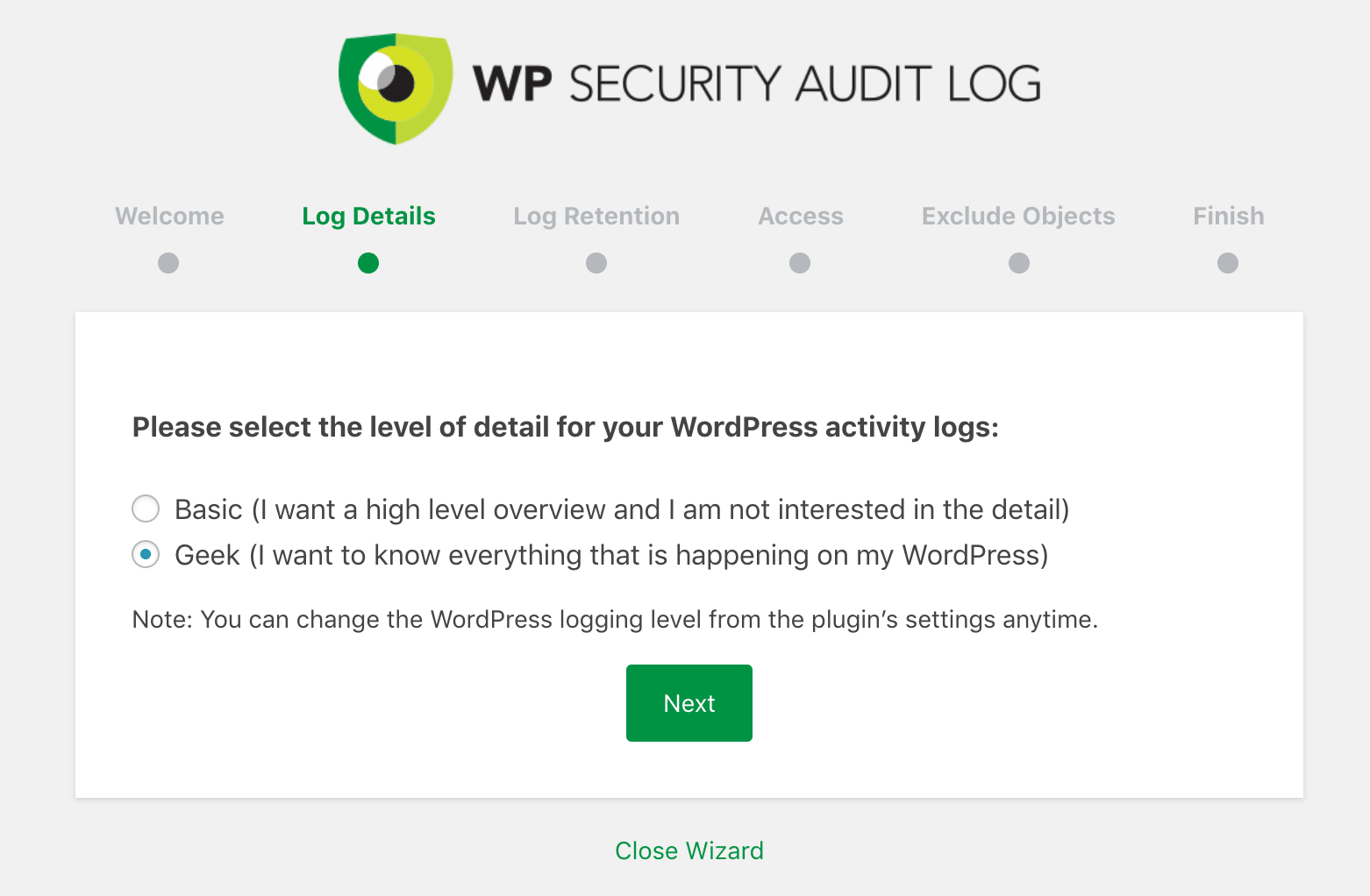
Select “Basic” or “Geek.”
- Basic: Choose this option if you only want basic logging data.
- Geek: Choose this option if you want all the data the plugin has to offer.
You can change these settings anytime later, but for this example, we’ll do the “Geek” option to show you more of the WP Security Audit Log plugin.
Step 3
Next, you’ll want to choose how long you want to keep the WP Security Audit Log data. For this example, we’ll choose 6 months.
- 6 months (data older than 6 months will be deleted)
- 12 months (data older than 12 months will be deleted)
- Keep all data.
You can change this later on. But it’s important to note that the data is stored in your WordPress database. And while it’s done in an efficient manner, you should never store more data than you think you’ll use. For most, 6 months should be fine, especially if you’re pretty proactive about fixing problems as they arise.
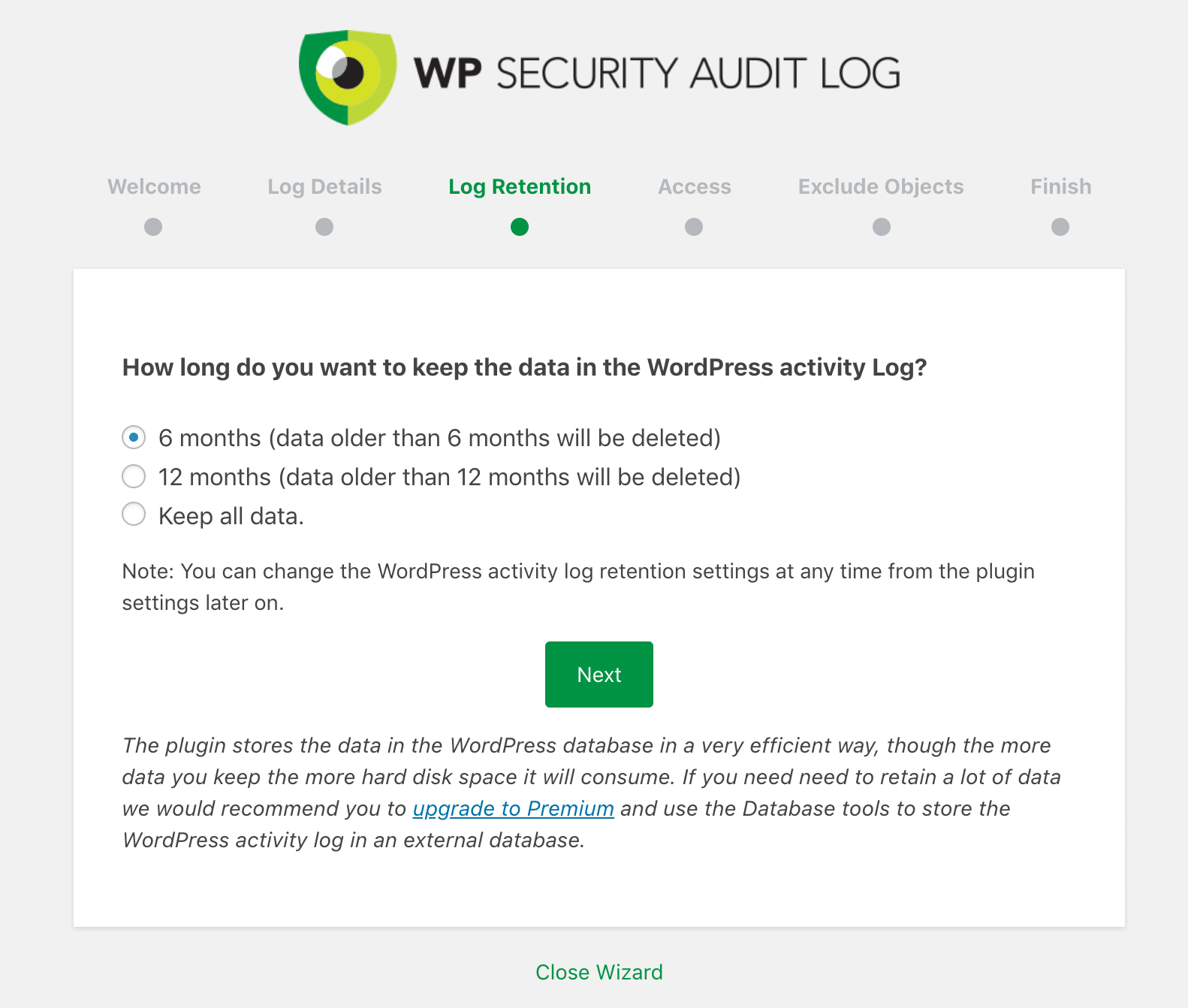
If you purchase the premium version of WP Security Audit log you can retain data even longer and even store it an external database.
Step 4
The next step is to configure additional access if needed. By default, only administrators will be able to access the WordPress activity logs.
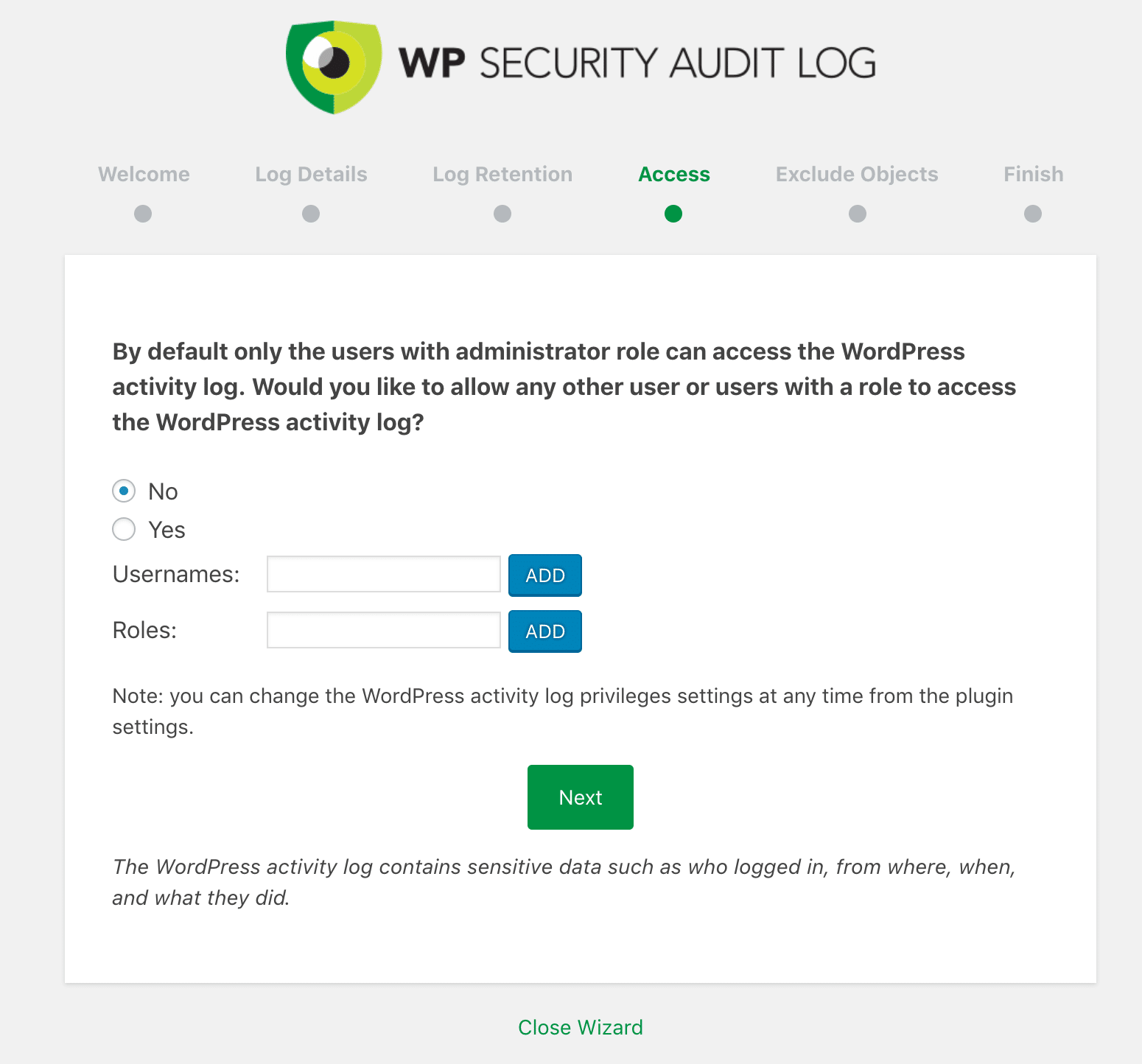
Step 5
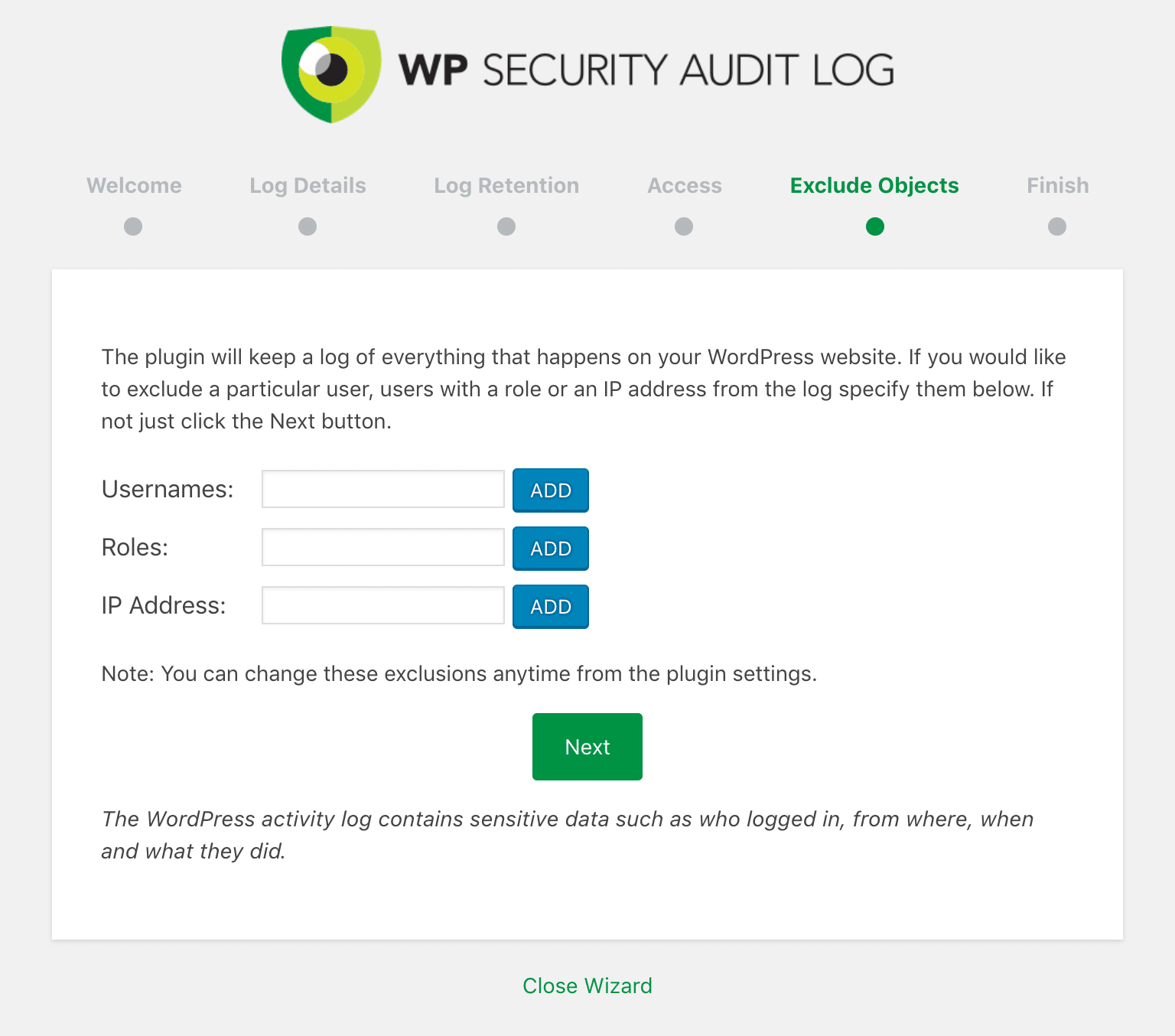
On the next screen, you can exclude objects (usernames, roles, IP addresses) from being logged. Perhaps you’re the single admin on a WordPress site and only want to see changes that authors and editors make. Or perhaps you simply want to monitor logins and account registrations. Regardless of the reason, you can easily exclude yourself from the data.
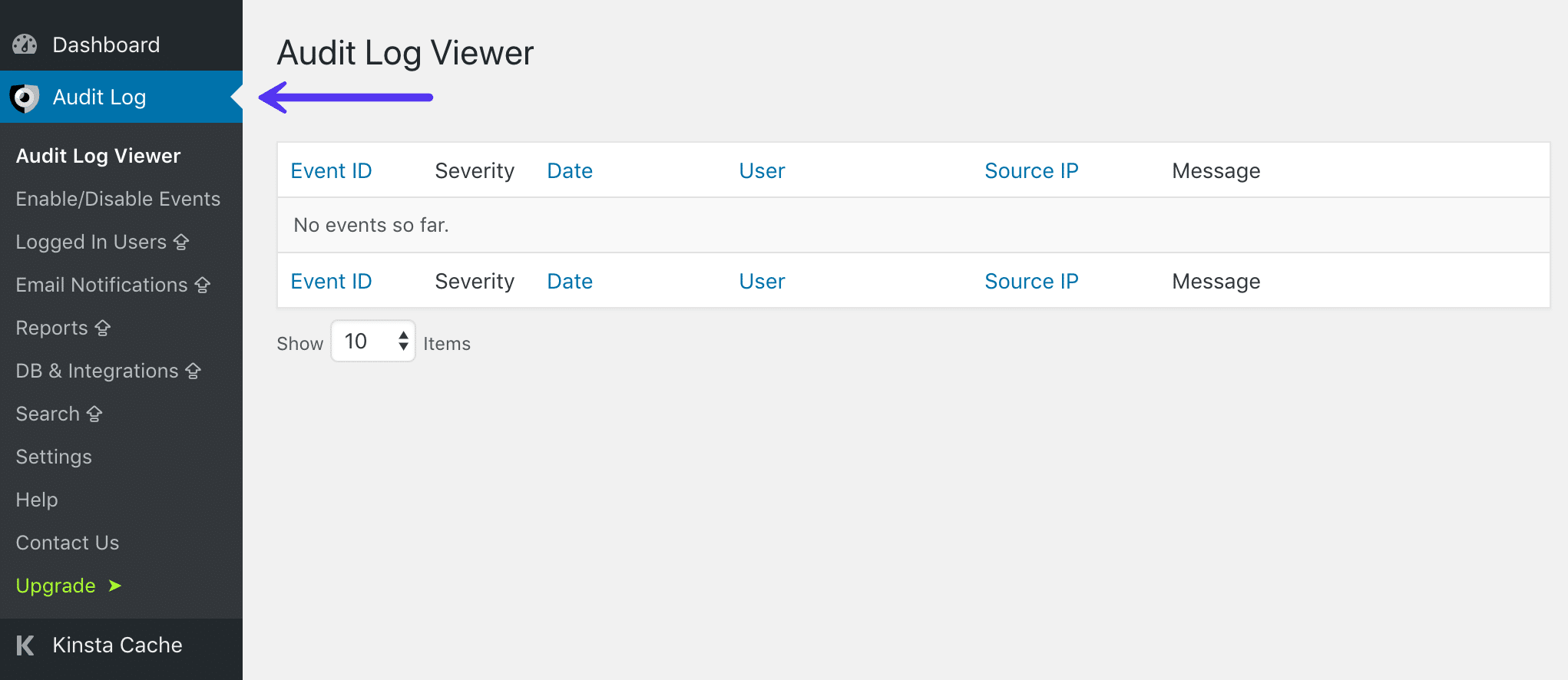
And that’s it! All changes on your WordPress site are now being logged for safe keeping. The data and settings for WP Security Audit Log can be seen in the “Audit Log” menu in your WordPress dashboard. To really dive deep into all the settings, we recommend checking out their getting started documentation.
The rest of this post will highlight some of the various types of activities you’ll want to be included in your log.
7 Types of Changes Your WordPress Activity Log Plugin Should Keep a Log Of
There’s a lot going on within even the simplest WordPress website. Some of these changes and events are more important than others (and are more likely to indicate potential problems or security breaches).
Throughout the rest of this post, we’re going to discuss the seven most crucial activities to track on your site. While not an exhaustive list, these are the items you’ll absolutely want to be included in WordPress activity log.
- Changes to Content
- New and Removed Users
- Failed Login Attempts
- Changes to Themes or Plugins
- WordPress Core and Settings Changes
- User Prof